
Generate Email Communication
Log into HCL BigFix Service Management as a support user and navigate to the Work Item Board from the application menu on the left-hand side.
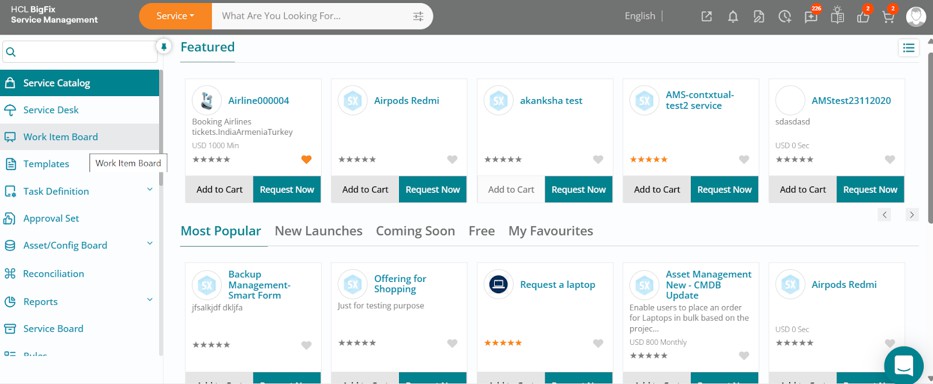
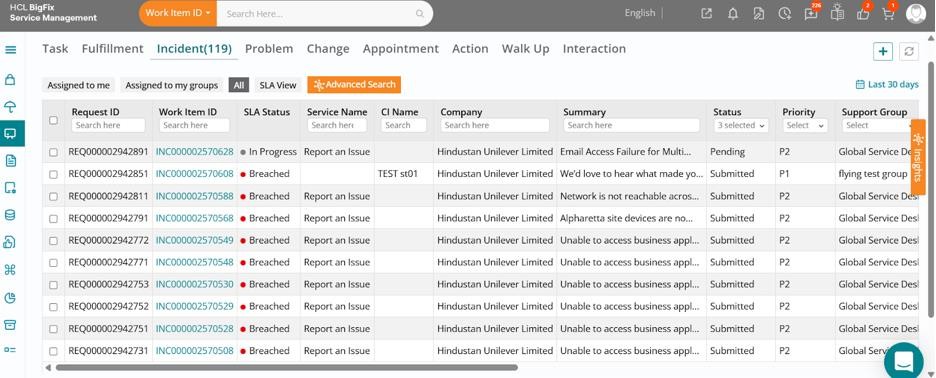
Click on the Work Item Board, then navigate to the Incident tab to view all open incidents.
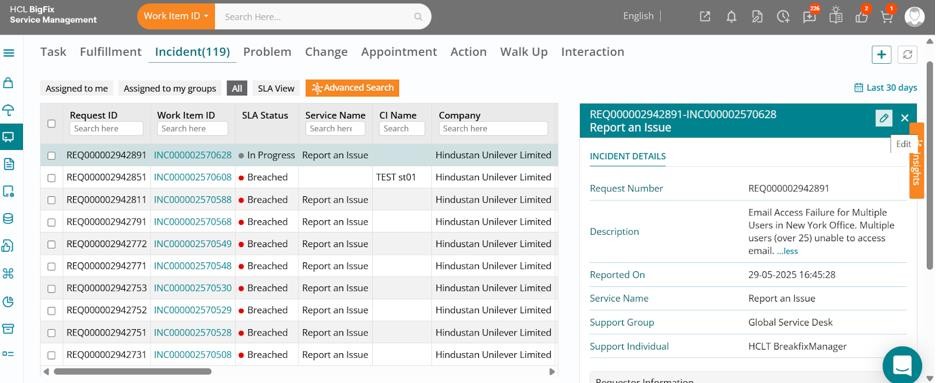
Click on one of the incidents from the list view, then click the Edit button in the drawer that opens on the right-hand side of your screen.
The full incident form will open, displaying the ticket details. Scroll down and review the ticket information. You can see that some activity has occurred on this ticket, as indicated by its comments and audit log.
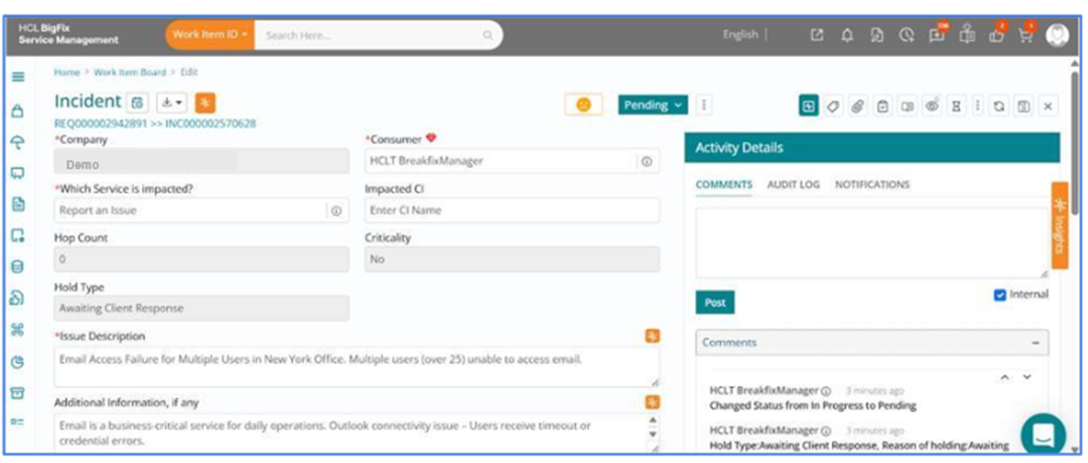
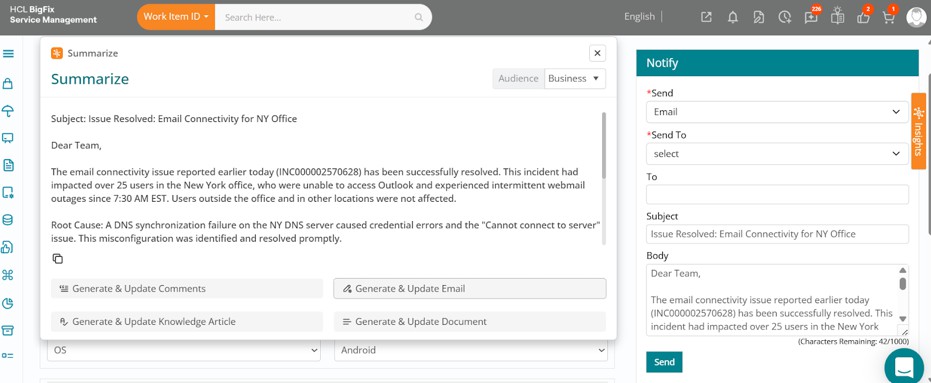
You can now navigate to the top of the incident form and click on the orange-coloured Summarize button.
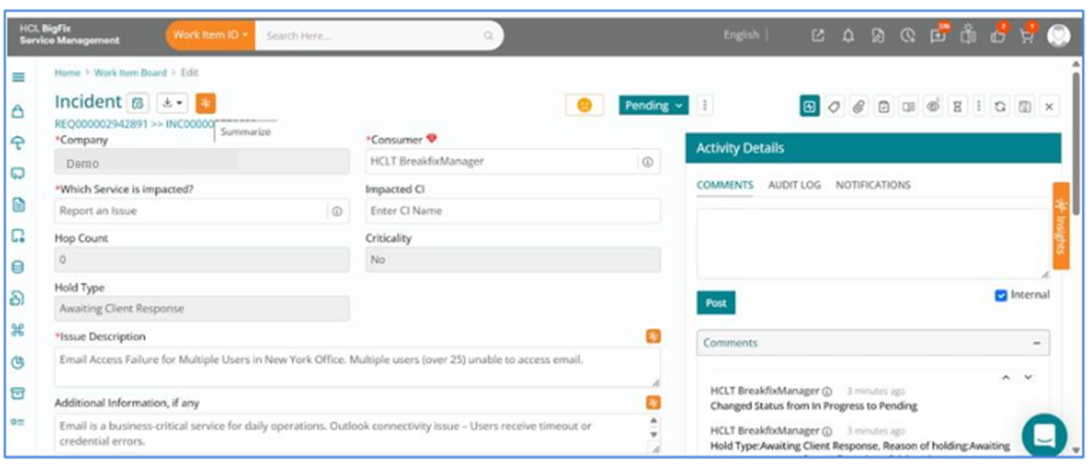
Upon clicking Summarize, a summary of the entire incident is instantly generated and is available for you to edit or copy. You also have an option to tailor the summary content based on the audience using options such as Technical, Business, and Leadership.
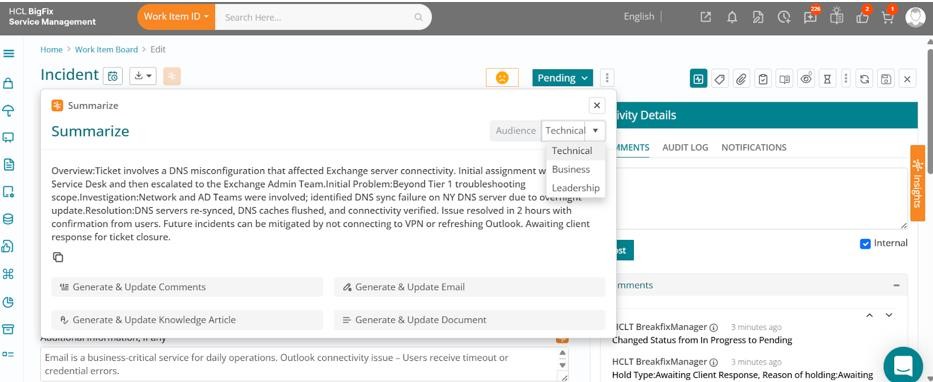
Next, click on Generate & Update Email from amongst the list of options available.
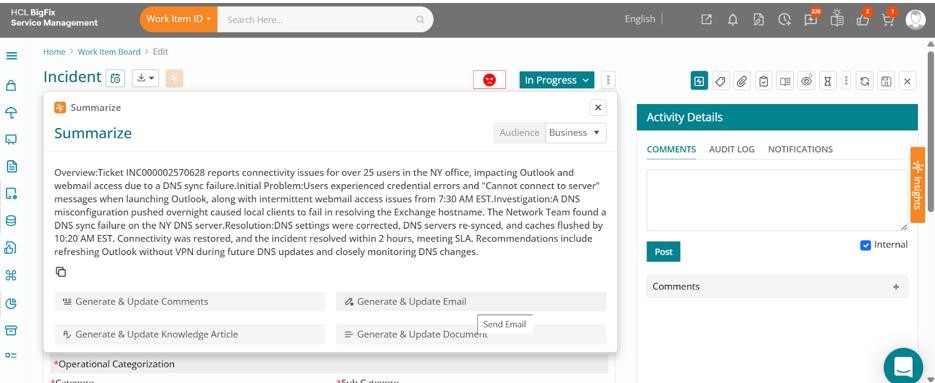
AI will automatically draft the entire content, which can be edited/redrafted if required, after which, once satisfied with the changes, you can click on Send Email.
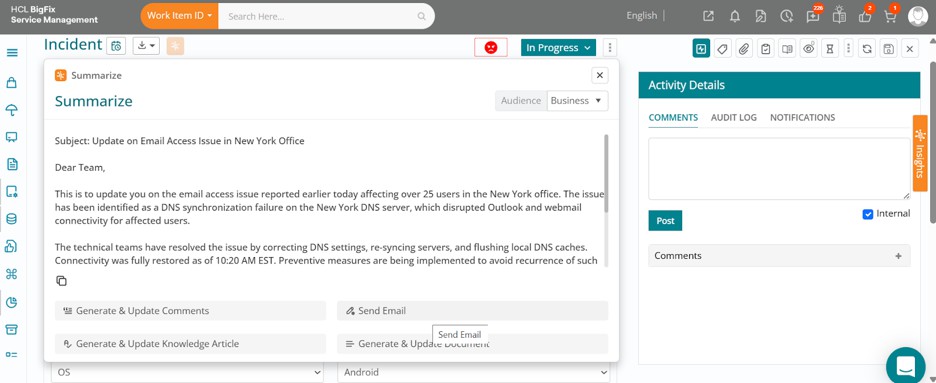
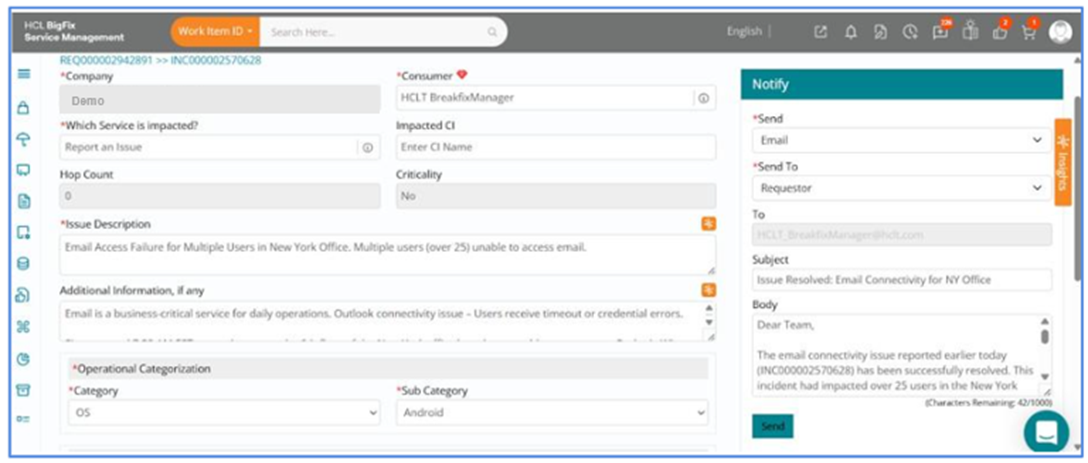
The Notify right pane will open with the email subject and body prefilled from the generated email.
You can select from the options in Send To; for example, in this case, the email is selected to be sent to the Requestor.
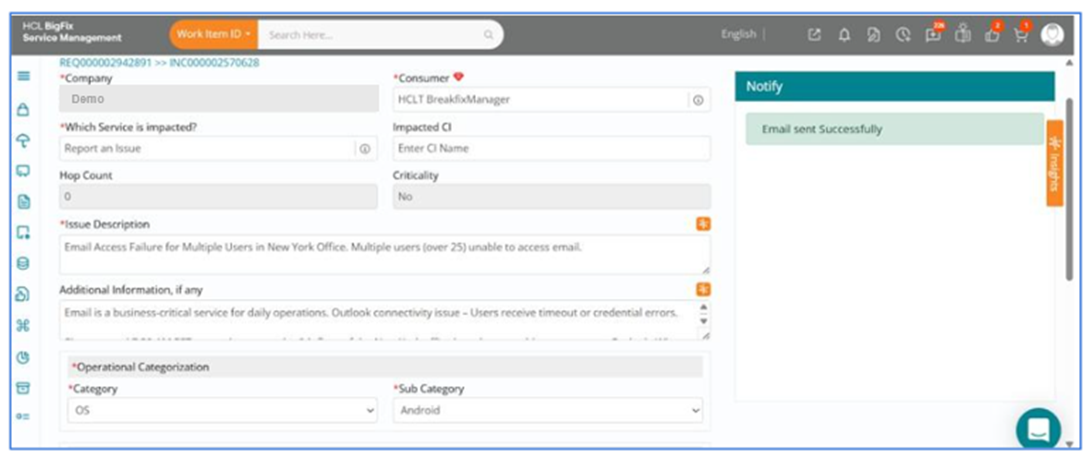
Click on Send and your email will be sent to the selected recipient with a confirmation message.
This feature allows you to instantly generate and send emails with the option to make modifications at any point based on your requirements.