
Intelligent Search Query Builder
Log into HCL BigFix Service Management as a support user and navigate to the Work Item Board from the application menu on the left-hand side.
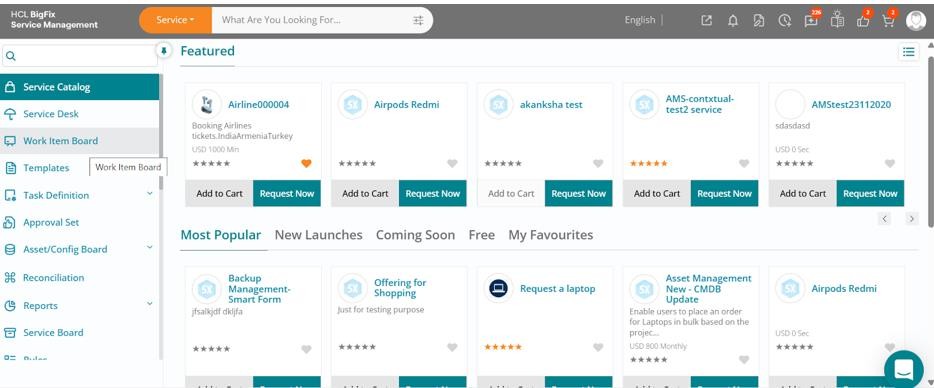
Click on the Work Item Board, then navigate to the Incident section to view all open incidents.
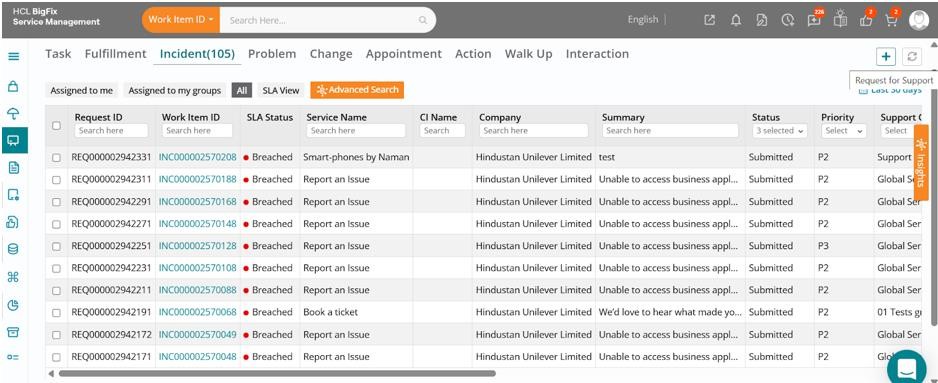
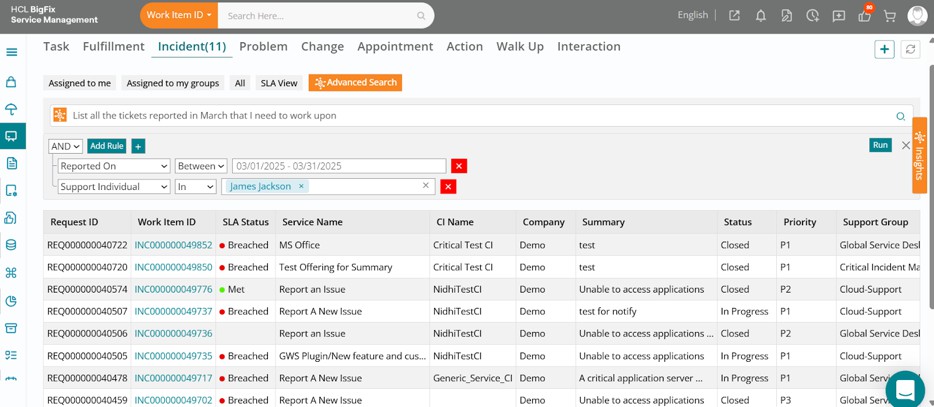
Click the orange-colored Advanced Search button and enter your criteria in everyday language to describe the incidents you want to find.
Then, click the AI Search icon (magnifying glass). You will see a structured search query generated based on your input. Click Run to execute the search.
Let’s now refine the search by asking the assistant to further filter the results based on additional input. You’ll notice that a new search criterion is added and automatically executed.
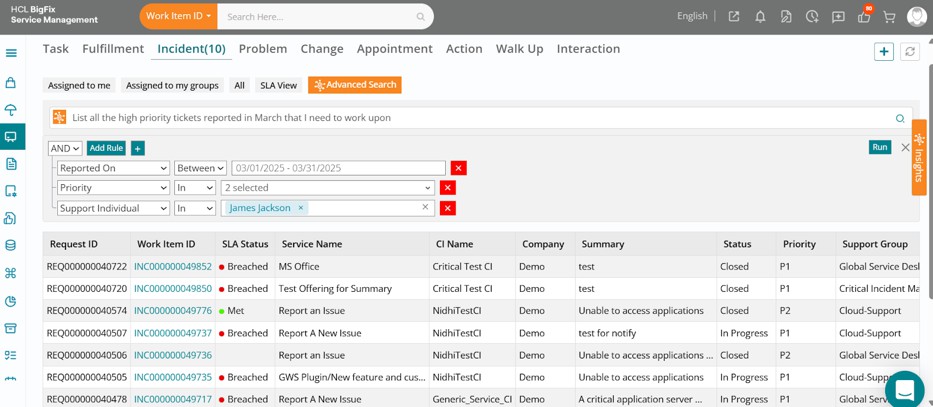
This AI-powered feature helps you quickly narrow down results using natural language, making complex searches simple and intuitive.