Sentiment Analysis
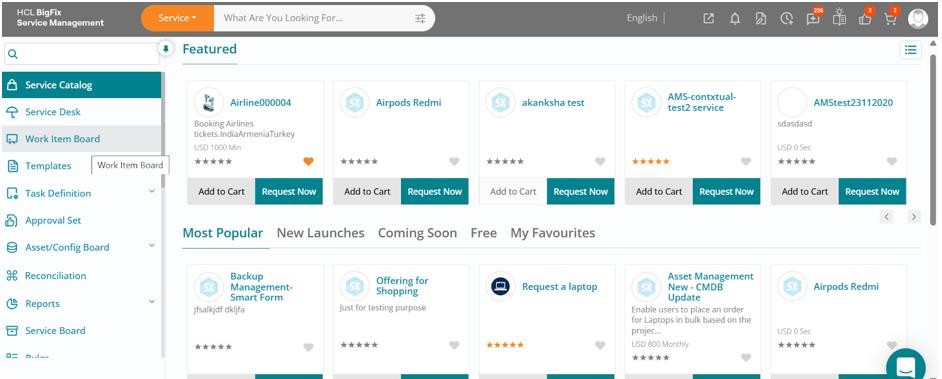
Log into HCL BigFix Service Management as a support user and navigate to the Work Item Board from the application menu on the left-hand side.
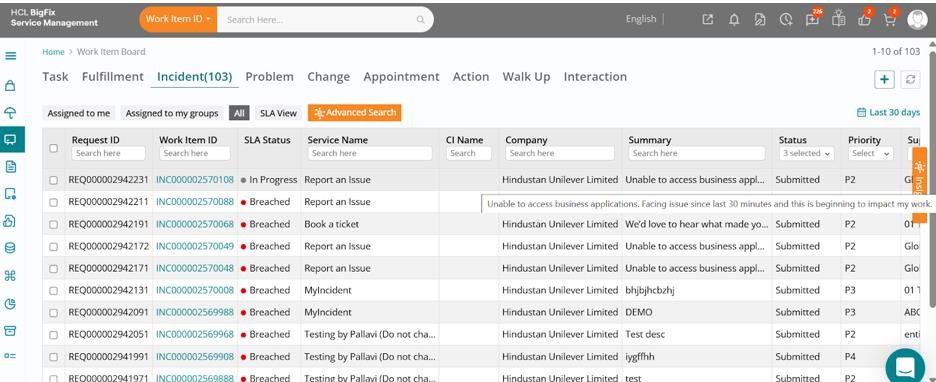
Click on the Work Item Board, then go to the Incident tab to view all open incidents.
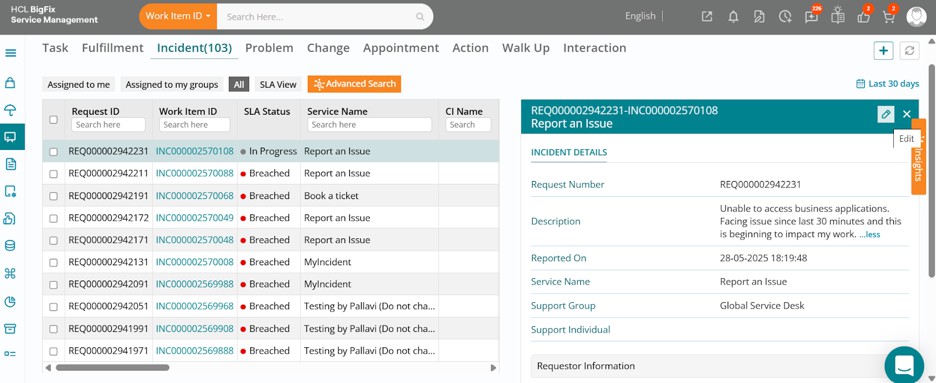
Click on the relevant incident, then click the Edit button in the drawer that opens on the right-hand side of your screen.
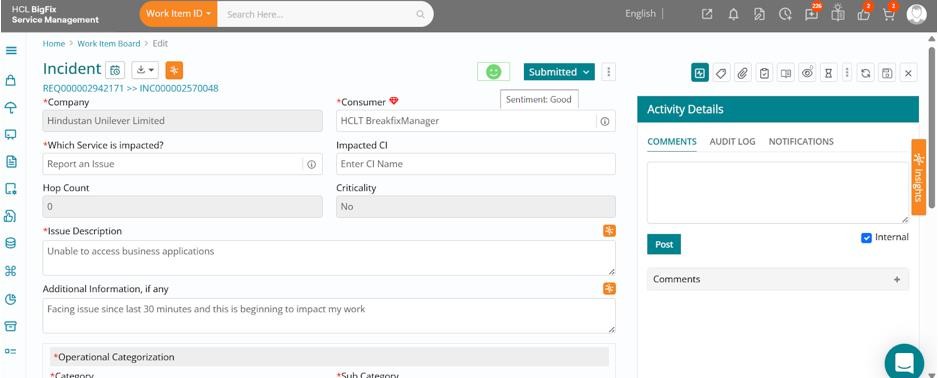
The full incident form will open, displaying the ticket details. Here, you will notice a sentiment indicator towards the top of the form, currently set to Average.
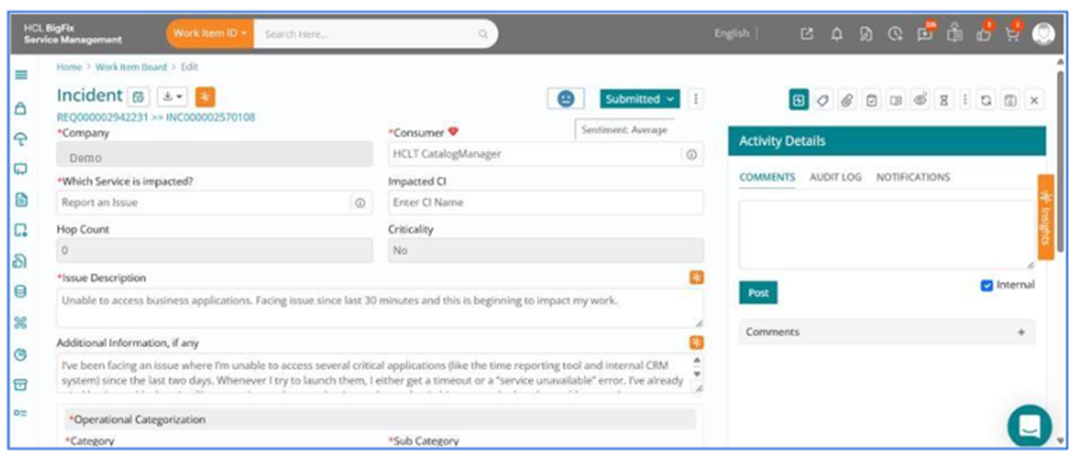
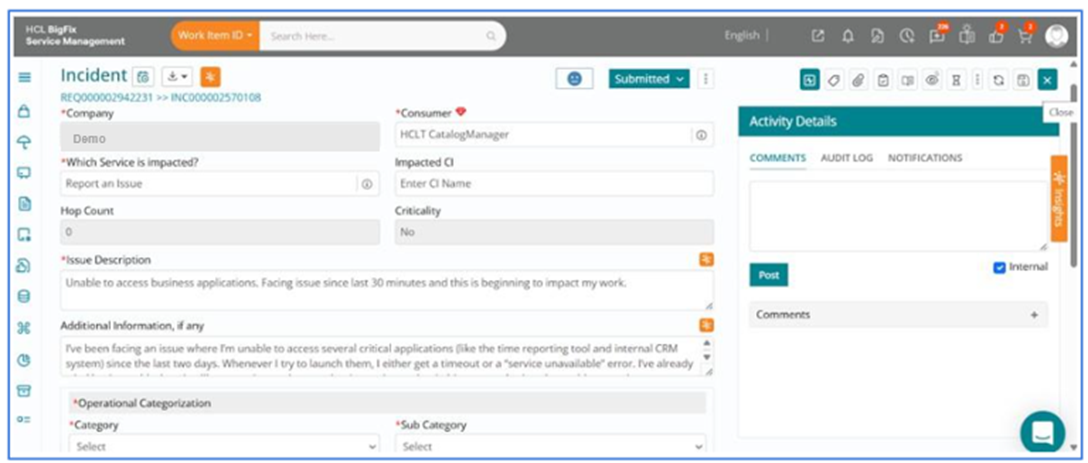
Click the Close button in the top-right corner to exit the ticket form.
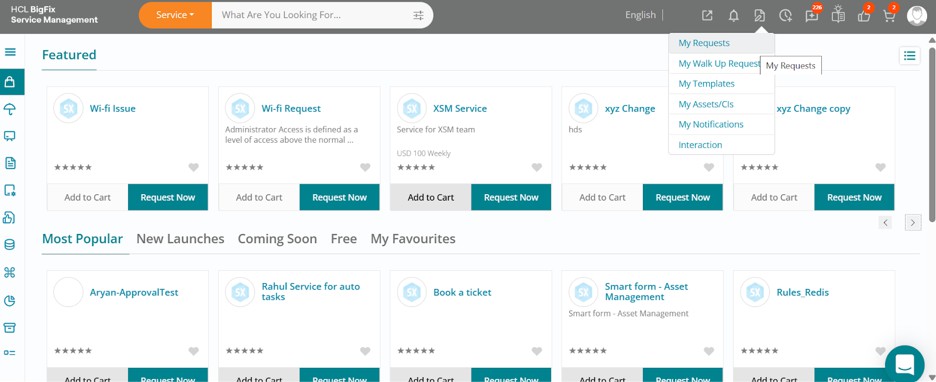
Next, log in as the requestor of this incident. Upon landing on the consumer homepage, navigate to My Requests under My View to access your past orders.
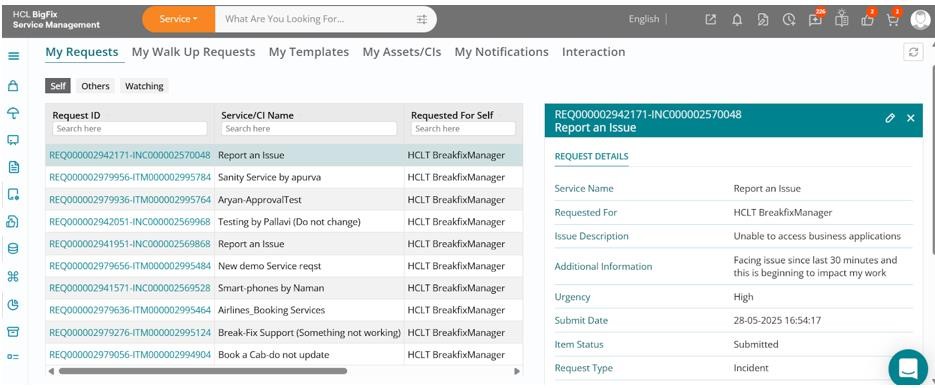
Click on the relevant ticket. A drawer view will open on the right-hand side of your screen.
Scroll to the bottom and click on Post a Comment.
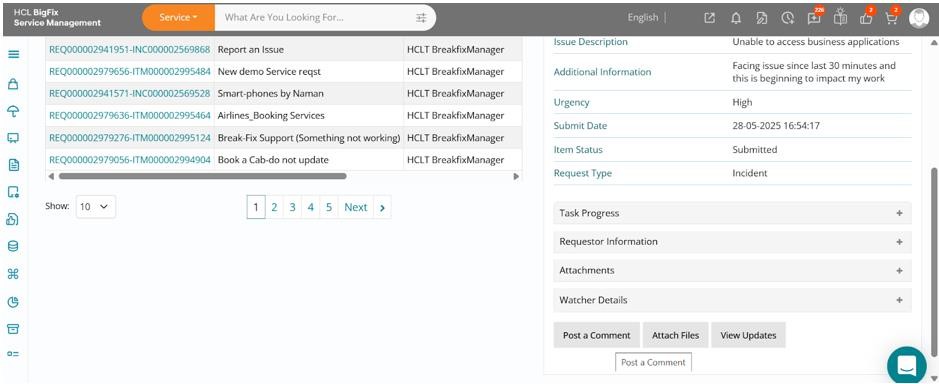
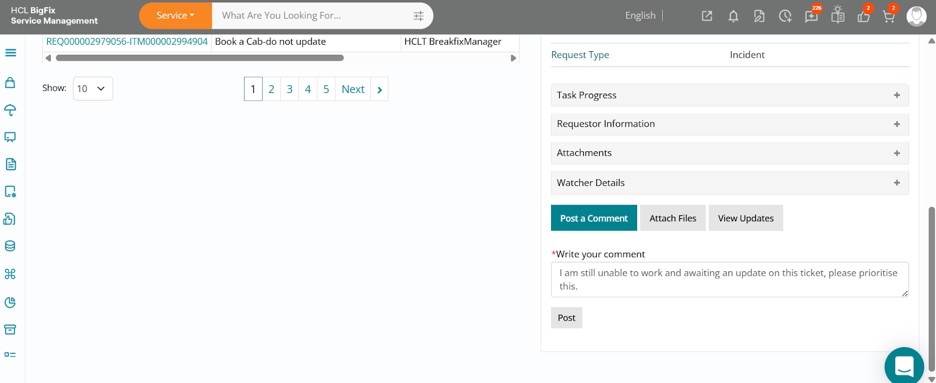
Type in a comment requesting an update. In this case, we’re highlighting how work is being impacted, that the ticket needs prioritization, and requesting a resolution. Click Post to submit the comment and make it visible to support users.
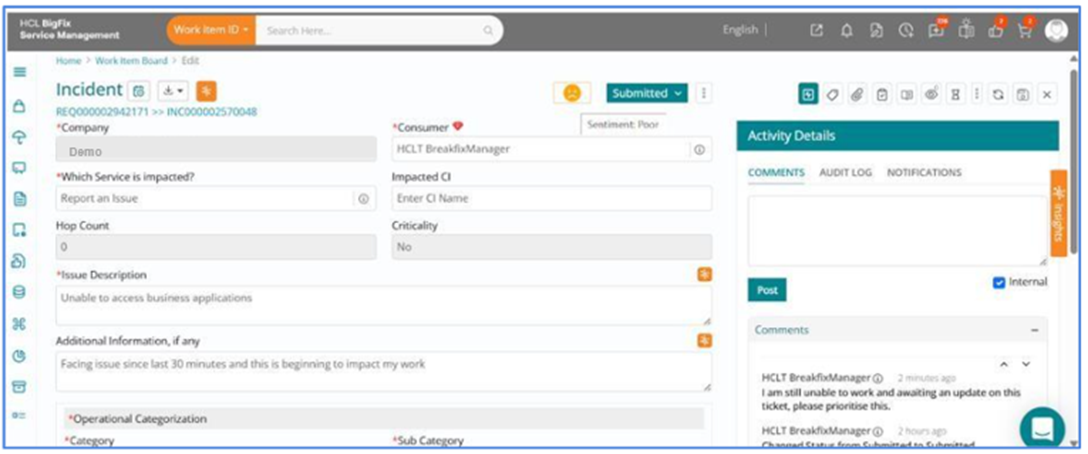
Now, log back in as the support user, open the same ticket from the Work Item Board, and observe the Sentiment Analysis Indicator update to Poor. This indicates that the support team or service desk must proactively manage the service experience for this ticket.
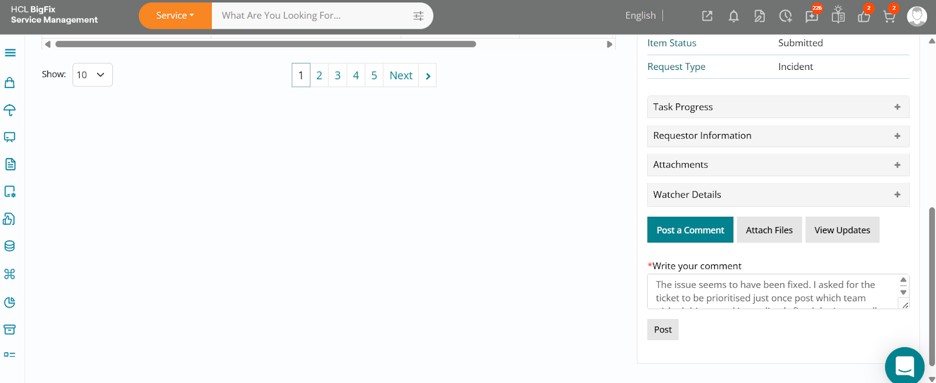
As the conversation progresses and the issue gets addressed, let’s assume the problem is fixed and the requestor is satisfied. As the requestor, post a comment stating that the issue was resolved after being escalated, you're now able to resume work, and you appreciate the support received.
Switch back to the support user view and revisit the ticket via the Work Item Board. The Sentiment Analysis Indicator will now reflect Good.
The sentiment is marked as Good and not Happy because the issue was ultimately resolved with priority, but only after a prompt was given by the user, indicating room for a smoother experience.
You can continue to create more tickets, post various types of comments, and observe how the sentiment indicator dynamically changes. This feature enables proactive intervention by support teams to improve service quality and enhance user satisfaction in real-time.