

Installing DEX Server
This is the central component responsible for orchestrating data ingestion and communication between MSSQL, ClickHouse, and NATS. It must be deployed only once per DEX environment.
Install the DEX Server using the #31- Install Dex Server (WIN) on Windows Fixlet.
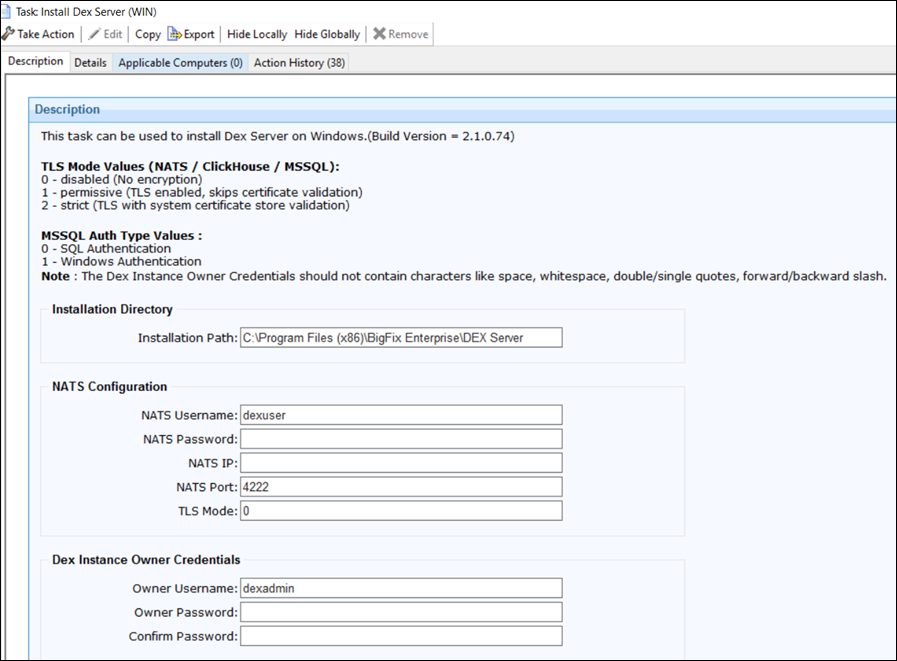
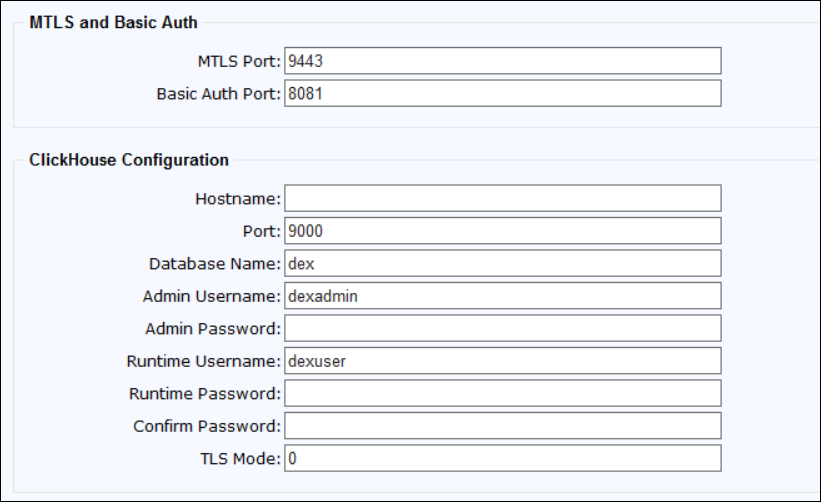
Input parameters required during the installation
In the BigFix Console, go to Fixlet and Tasks and provide the following details:
- Installation path: Default: C:\\Program Files (x86)\\BigFix Enterprise\\DEXServer
- DEX instance owner credentials: Default:
dex_user
This user is used by the BigFix UI to connect to the DEX Server, so it will be used later during the configuration of the BigFix UI.
- MSSQL details: hostname, port (Default: 1433), TLS Mode (Default: 0), DB name (Default: dex), admin/read-write user credentials (Default: dex_user)
- ClickHouse details: hostname, port (Default: 9000), DB name (Default: dex), TLS Mode (Default: 0), admin/read-write user credentials (Default: dex_user)
- NATS details: host IP, port (Default: 4222), TLS Mode (Default: 0),
user credentials (Default: dex_user)Note: Ensure MSSQL and ClickHouse users have the correct permissions before deploying.
- Basic Auth Port: Default: 8081
- MTLS Port: Default:9443
- 0 – disabled (No encryption)
- 1 – permissive (TLS enabled, skips certificate validation)
- 2 – strict (TLS with system certificate store validation)
The same goes for all other components.
-
Mode 0 (SQL Authentication): Connects to the SQL Server instance using a dedicated SQL login with username and password stored in the DEX configuration; credentials are managed and rotated independently of the Windows environment.
-
Mode 1 (Windows Authentication): Connects to the SQL Server instance using the Windows service account identity via SSPI/Kerberos; no SQL credentials are stored — authentication is delegated to Active Directory.