Users can define multiple release rules for an organization by performing the following
steps.
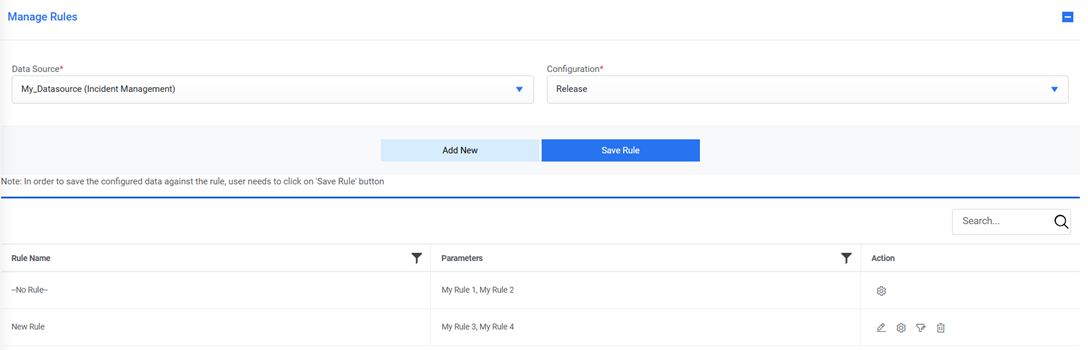
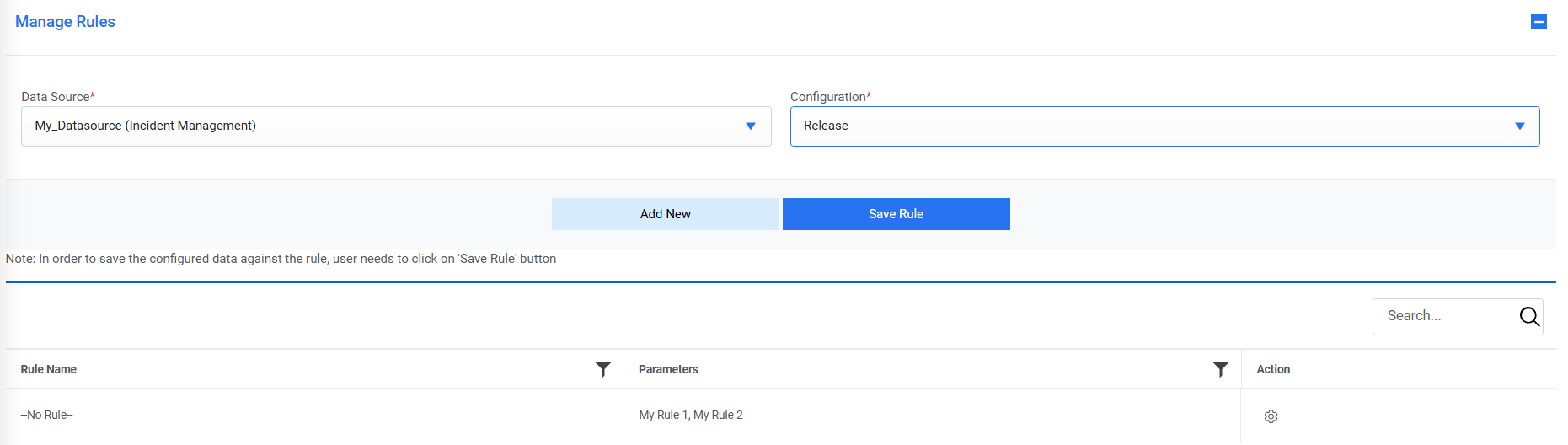
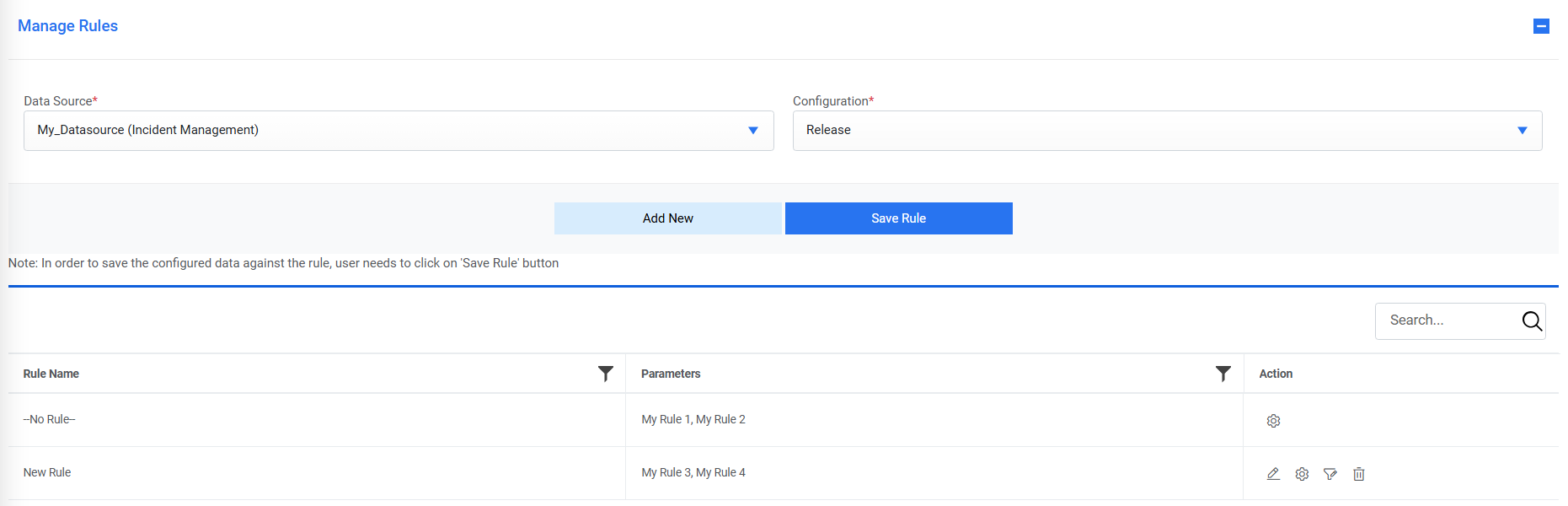
Go to the Mange Rules page. Figure 1. Add Release Rule
Select the data source, from where the organization fetches the data in iAutomate, from
the drop-down in the Data Source field.
Select Configuration from drop-down. It lists all the configured rules in a tabular
view.
Click Add New.
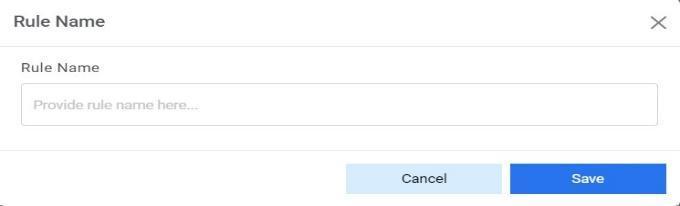
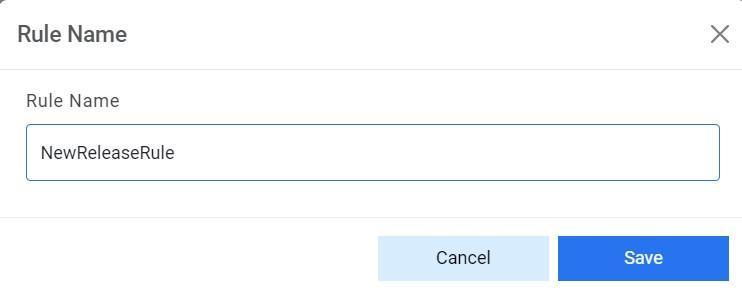
It will prompt the user to type the Rule Name, which acts as an identifier for the added
rule in the dialog box.
Click Save.Figure 2. Add Release Rule (Cont.)
This adds the new rule, and it appears in the list of rules. After the rule is added, the
user must set up the configuration parameters for the newly added rule.Figure 3. Add Release Rule (Cont.)
To manage parameters:
On the Release Rule grid, click next to the rule for which user wants to set the parameters.Figure 4. Add Release Rule (Cont.)
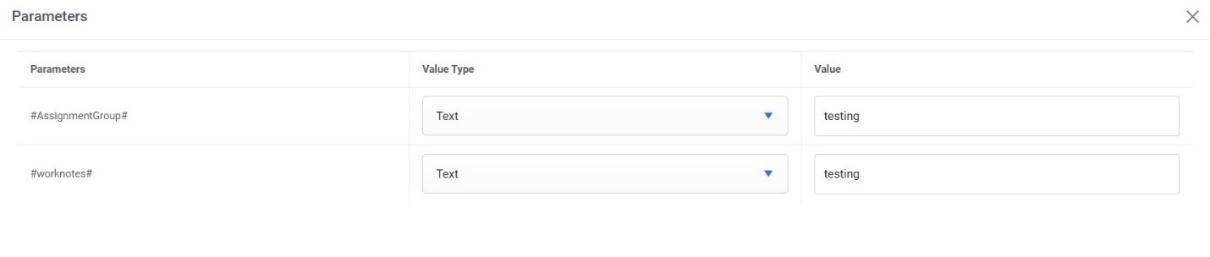
This prompts users to add the release rule parameter values.Figure 5. Add Release Rule (Cont.)
Select Value Type and enter the appropriate details in Value Field.
Click OK and the added parameter appears against the rule in the Rule grid.
You can edit the parameter name by clicking corresponding to the Rule Name in the rule list grid. It prompts
you to edit the Rule Name.Figure 6. Add Release Rule (Cont.)
Click Save to update the changes.Figure 7. Add Release Rule (Cont.)
You can also filter the rule by clickingcorresponding to the Rule Name in the rule list grid. It
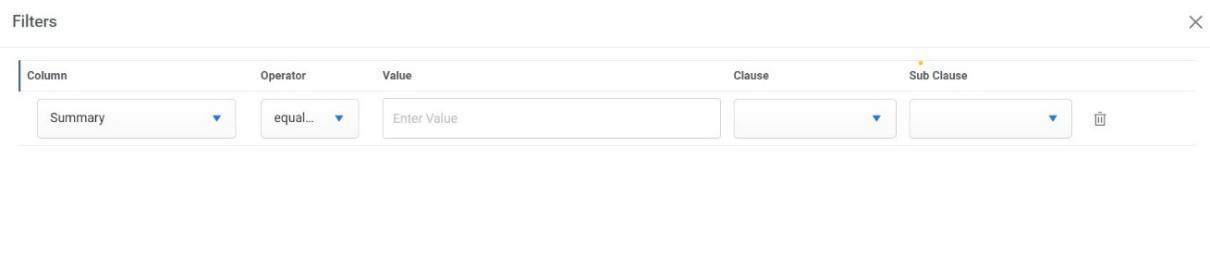
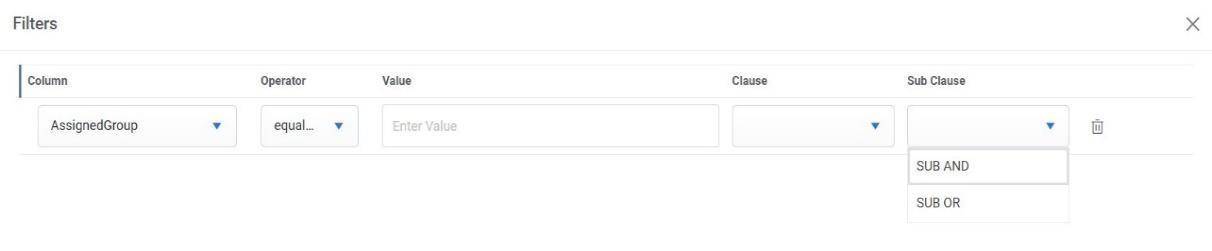
auto-fills the following attributes:Figure 8. Add Release Rule (Cont.)Figure 9. Add Release Rule (Cont.)Figure 10. Add Release Rule (Cont.)Figure 11. Add Release Rule (Cont.)
Optionally, you can fill in the Column, Operator, Value, Clause, and Sub-clause attributes
and then click, if you
want to delete the added attributes.
Click Save to update the filter attributes.
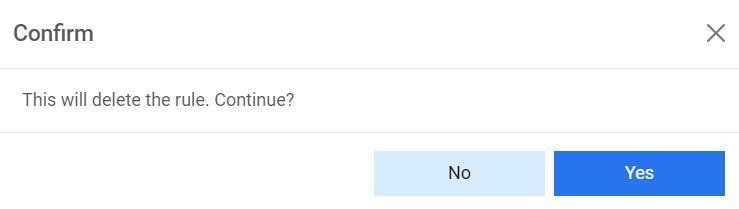
To delete a rule from an organization, click corresponding to the rule that you want to delete from the
grid.Figure 12. Add Release Rule (Cont.)
Click OK to confirm deletion of the selected release rule.Figure 13. Add Release Rule (Cont.)

 next to the rule for which user wants to set the parameters.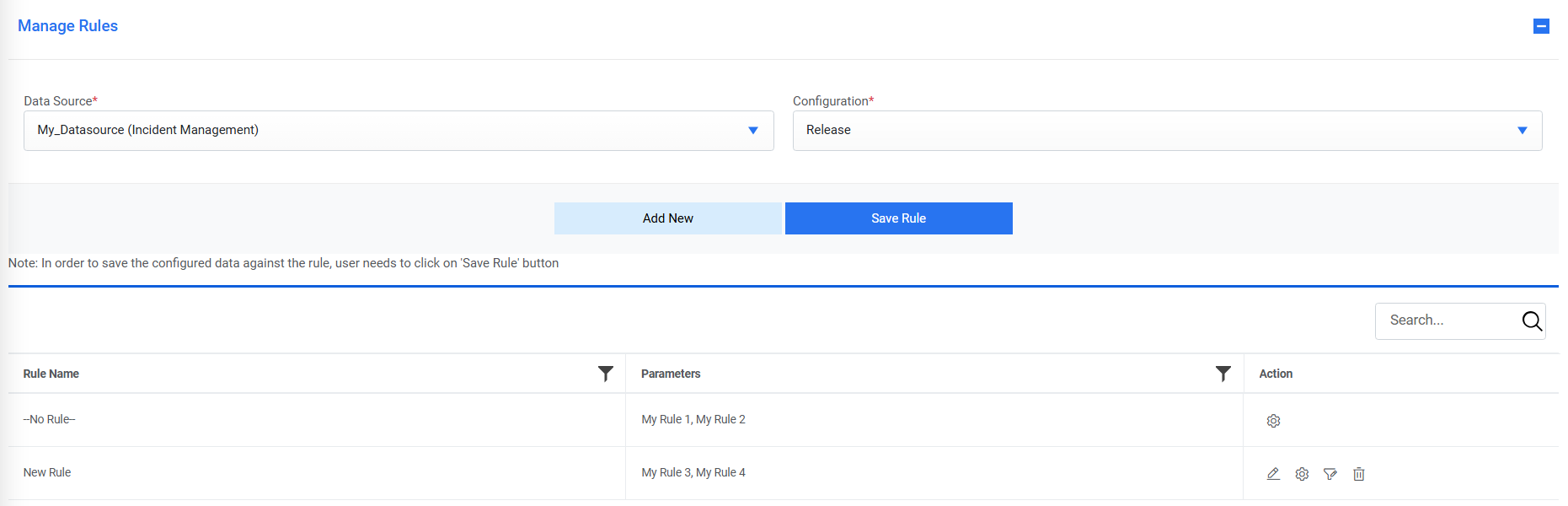
 corresponding to the Rule Name in the rule list grid. It prompts
you to edit the Rule Name.
corresponding to the Rule Name in the rule list grid. It prompts
you to edit the Rule Name.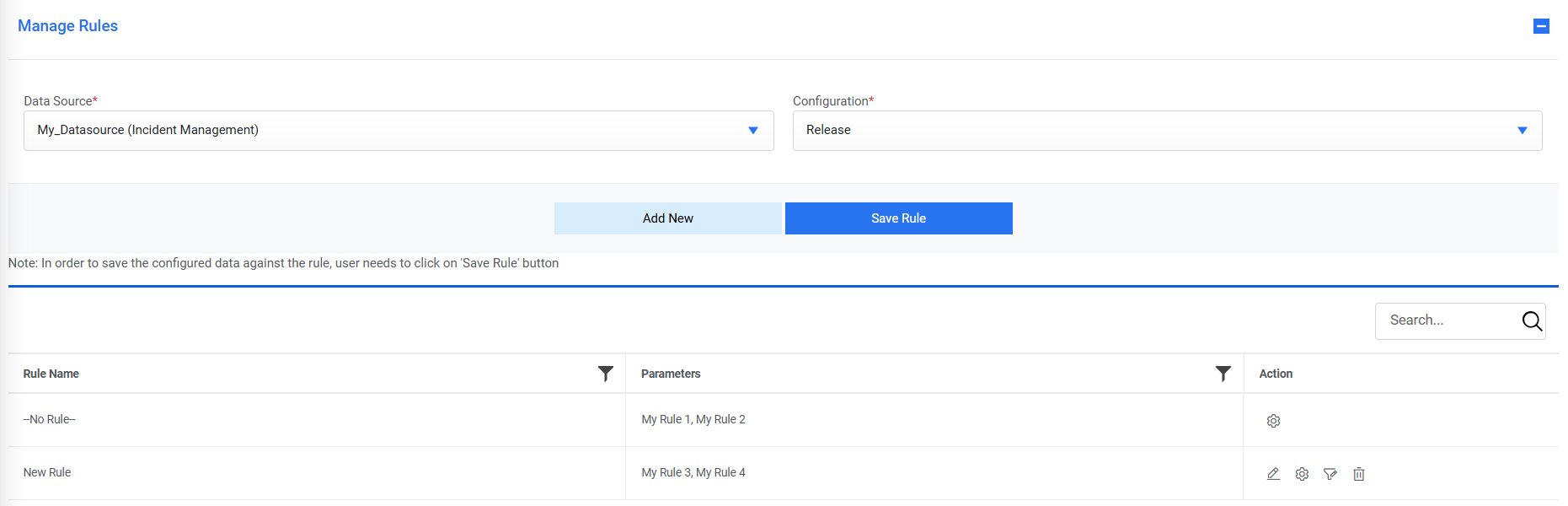
 corresponding to the Rule Name in the rule list grid. It
auto-fills the following attributes:
corresponding to the Rule Name in the rule list grid. It
auto-fills the following attributes: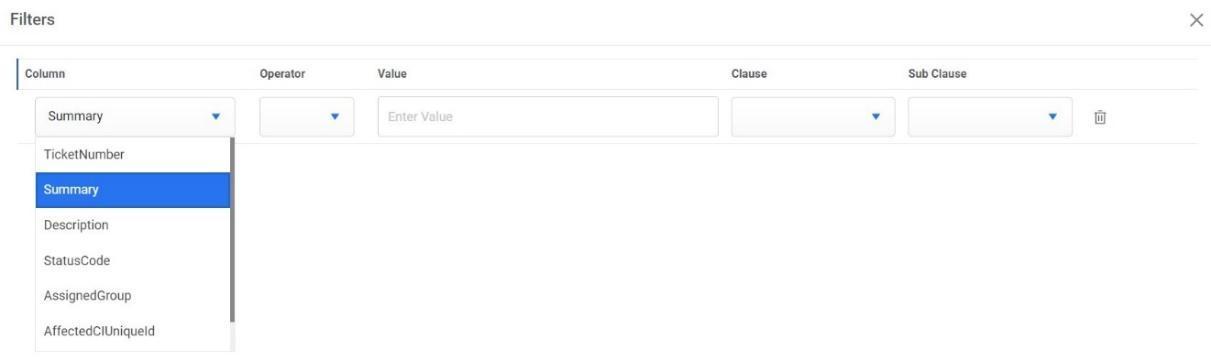

 , if you
want to delete the added attributes.
, if you
want to delete the added attributes. corresponding to the rule that you want to delete from the
grid.
corresponding to the rule that you want to delete from the
grid.