
Create Runbook
This section describes the steps required to create a Runbook, including the metadata and scripts.
To create a Runbook, perform the following steps:
- On the main menu bar, click Runbooks and then Create Runbook. The
Create Runbook page appears.
Figure 1. Create Runbook 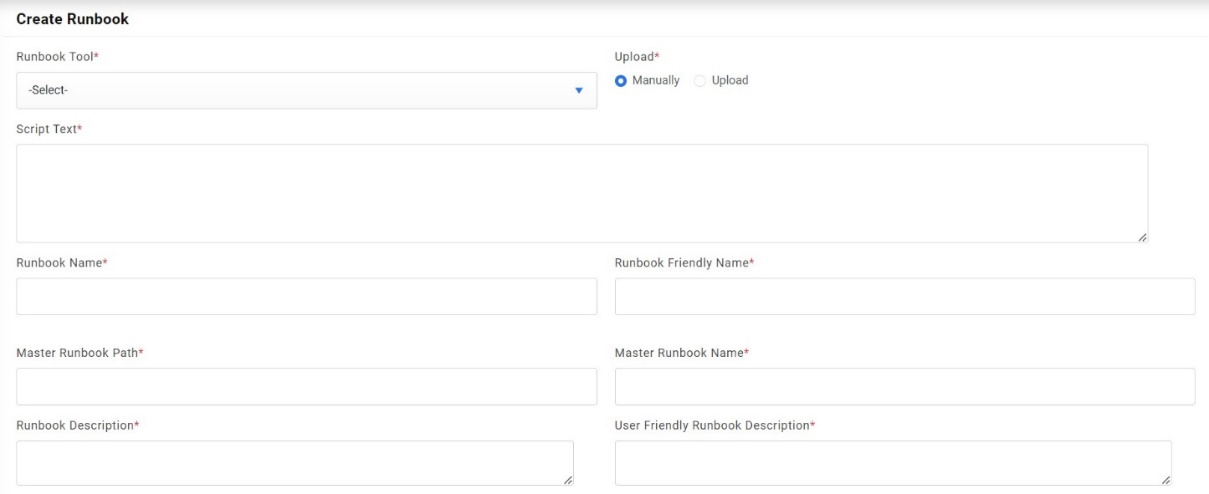
- Select a runbook tool to specify the runbook by clicking the drop-down arrow next to the Runbook Tool field.
- Users can upload multiple scripts simultaneously using the Upload option or type the script for each runbook in the Script Text field.
- Type a runbook name for the new runbook in the Runbook Name field.
- Type a runbook friendly name in the Runbook Friendly Name field to easily recognize the runbook in your repository.
- Selecting Runbook Tool as ‘BigFix’ enables three more fields:
- Response File Path: Type the file location where the response is to be read.
- Wait Frequency Interval: Frequency Interval, which is fixed by the user to wait before going to fetch the response post runbook execution. This frequency varies with the type of runbook in terms of SS (seconds), MM (minutes), or HH (hours).
- Wait Frequency: The time interval to wait before going to fetch the response.
- Specify the path where the master runbook is located within the runbook tool in the Master Runbook Path field.
- Specify the name of the master runbook in the Master Runbook Name field.
- Type the runbook description in the Runbook Description field.
- Type the user-friendly runbook description in the User Runbook Friendly Description field.
- Type the Frequency Interval, which is fixed by a user to fetch the status post runbook execution. This frequency varies with the type of runbook in terms of SS (seconds), MM (minutes), or HH (hours).
- Specify the frequency of runbook updates in the Update Frequency field.
Figure 2. Create Runbook (Cont.) 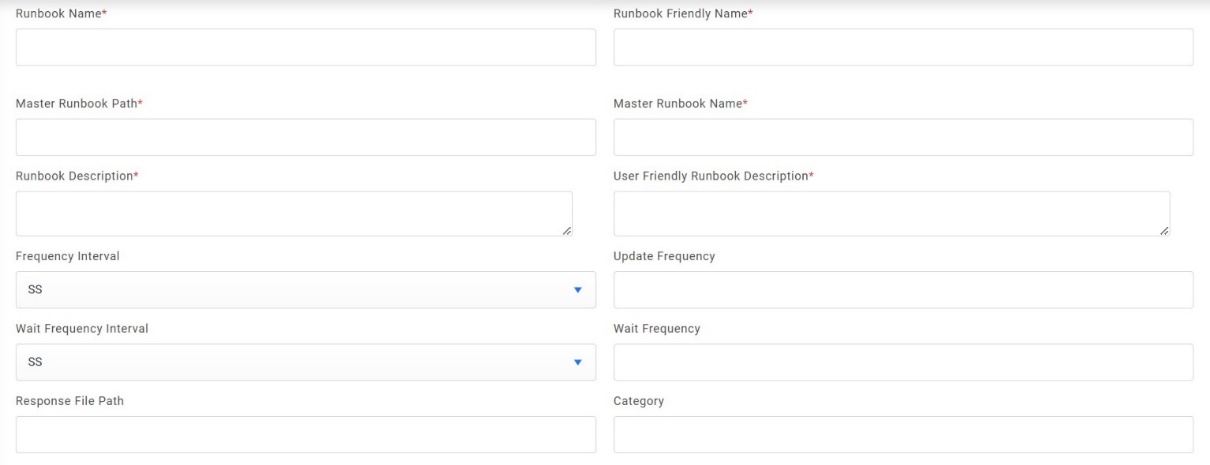 Note:Frequency Interval and Update Frequency are inter-related.
 - Type the runbook tool category in the Category field.
- Type the sub-category of the runbook tool in the Sub-Category field.
- Specify the details of a runbook tool category in the Category Granular Details field.
- Type the runbook category in Runbook Category field.
- Specify the action to be taken by the runbook in the Runbook Actions field.
- Specify the Maximum Attempt Count for the runbook to retry in case of failure.
- Enter the Toil Value (For Manual Execution) which is the maximum manual execution time of runbook (in minutes). By default, it takes the value of the configured Toil Value (For Manual Execution) for the selected Runbook tool.
- Enter the Toil Value (For Auto Execution) which is the maximum auto execution time of runbook (in minutes). By default, it takes the value of the configured Toil Value (For Auto Execution) for the selected Runbook tool.
- Enter the Wait Frequency for Status Update (in minutes) for the case when RBA is unable to update execution status back to iAutomate after successful interaction (in case Push Notification is enabled).
- Type a tag for a runbook next to the Runbook Tags field and click Add. Added
tags appear in a box below the Add button.
Figure 3. Create Runbook (Cont.) 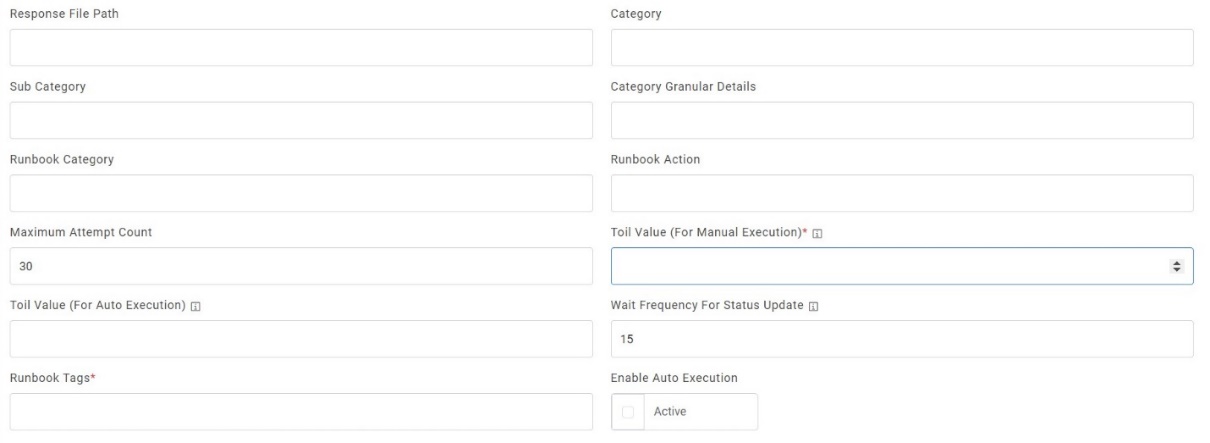
- If required, select Enable Auto Execution to enable auto execution of the runbook.
- Enter the Auto Execution Threshold so that the runbook above this threshold will be auto executed if auto execution is enabled.
- Once the above values are added successfully, provide the following parameters for
runbook execution while ticket parsing.
- Parameter Name- Specifies a name of the parameter to be used in runbook for ticket parsing.
- Parameter Label- Specifies a unique user-friendly name for the parameter.
- Is Mandatory- Select True or False depending on if the parameter details added are mandatory or not.
- Parameter Description- Describes the parameter.
- Default Parameter Value - Specifies the default value for the parameter.
- Field Type- Specifies the data type used in the parameter field. It may be of
the following types:
- Text: The parameter will be saved in plaintext in the database.
- SecureParameter: The parameter will be saved in encrypted form in Database.
Note:The SecureParameter has specific significance in the case of BigFix tool where this kind of parameter is passed in a different manner to bigfix.The parameters which are marked as SecureParameter will be hidden and disabled on Tickets page when runbook is being selected for execution.
- Parameter Type- It lists all the parameter types configured in Configure Parameter Type . On selecting the parameter type, iAutomate fetches the related data for ticket parsing.
- IsScript Parameter- Check the checkbox if the parameter is the part of Script uploaded.
- IsCiBased Parameter- Check the checkbox if the parameter is a CI based parameter. It is mandatory to have at least one parameter as CI based parameter.
- IsReadOnly Parameter- Check the checkbox if parameter is read only and user cannot update the same whenever it is parsed.
- Action- Enables user to add, edit or delete the existing parameter by clicking respective buttons.
- Click Save to configure the newly added runbook to
the selected runbook tool.
Figure 4. Create Runbook (Cont.) 
- It adds a new Runbook and lists it in a tabular view.