
Remote Control
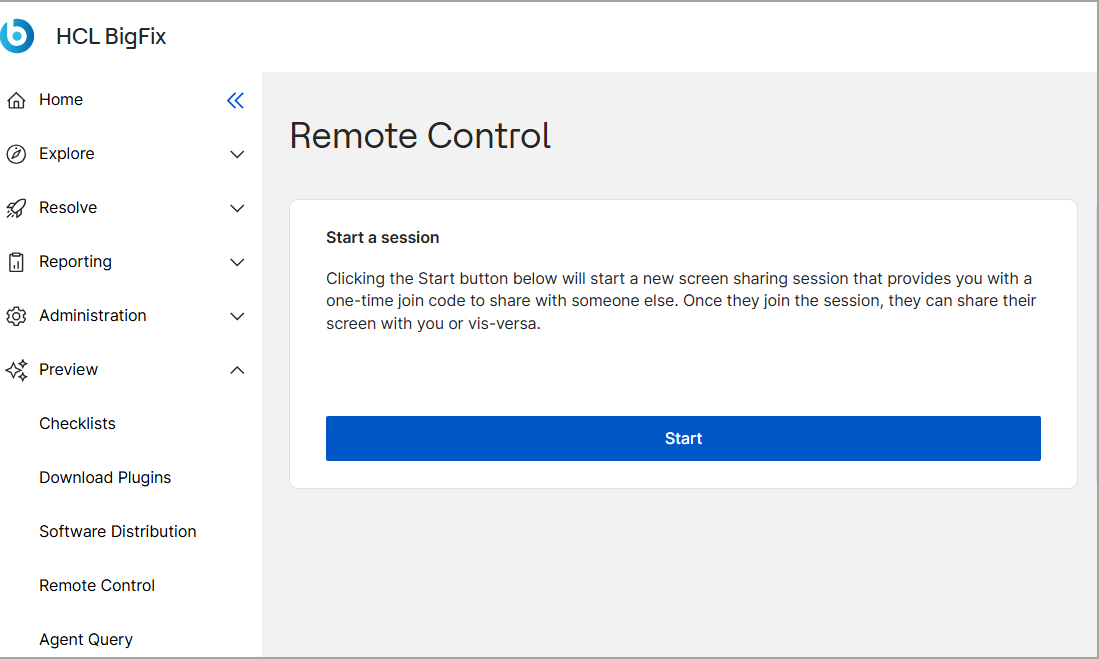
Use the Remote Control preview app to start or join a peer-to-peer screen-sharing session between a BigFix SaaS administrator and a client or end user. Administrators can initiate a remote assistance session by sharing an access code with the user, though current capabilities are limited to read-only screen sharing.
Before you begin
You must have access to BigFix SaaS as an administrator to start a session.
End users (clients) must have a supported modern web browser (such as Google Chrome, Mozilla Firefox, Microsoft Edge, or Apple Safari).
About this task
Procedure
-
Click Start a Session.
 A 6-digit Access Code is generated and displayed on the screen.