
Download Plugins
BigFix SaaS clients download public patches directly from the internet by default. For repositories protected by vendor credentials or entitlement certificates, Download Plugins route requests through the BigFix Root Server. The Root Server authenticates with the vendor repository using stored credentials and distributes the content to managed endpoints.
About this task
- CentOS R2
- Rocky Linux
- Oracle Enterprise Linux (OEL)
- Red Hat Enterprise Linux (RHEL)
For plugins that require entitlement certificates, administrators can upload the files via drag-and-drop, direct copy-paste, or by browsing to the file location.
To configure a download plugin, follow these steps:
Procedure
-
On the Download Plugin Manager page verify that the
Plugins tab is selected. By default, all available
platform plugins appear, including:
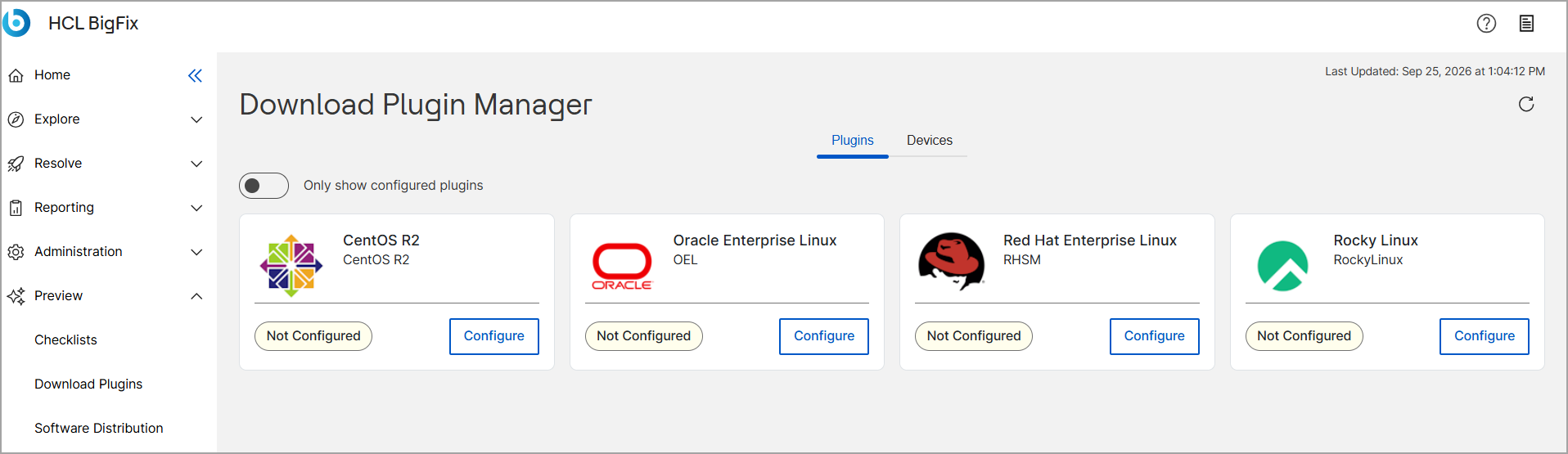
- CentOS R2
- Oracle Enterprise Linux (OEL)
- Red Hat Enterprise Linux (RHSM)
- Rocky Linux
Note:To filter the view, turn on the Only show configured plugins toggle. For example, if only CentOS R2 is actively configured in your environment, only that tile displays when you turn on the toggle.
View Associated Devices
About this task
Procedure
- On the Download Plugin Manager page, click the Devices tab.
- Review the list of devices in your environment. The table provides detailed information, including Device Name, Last Seen, ID, OS Family, Operating System, Device Type, IP Address, MAC Address, DNS Name, Relay, Relay Selection, Relay Installed, Distance to Relay, Maintenance Window, In Maintenance Window and Next Maintenance Window .