The CVE Search app allows users to input a list of CVEs to quickly identify whether
or not Fixlets are available to remediate them. When Fixlets are available, CVE Search will
also provide immediate visibility into the number of exposures.
About this task
To search for CVEs and view their impact and remediation details, follow these
steps:
Procedure
-
From the BigFix SaaS app, navigate to Preview, and then
click CVE Search.
-
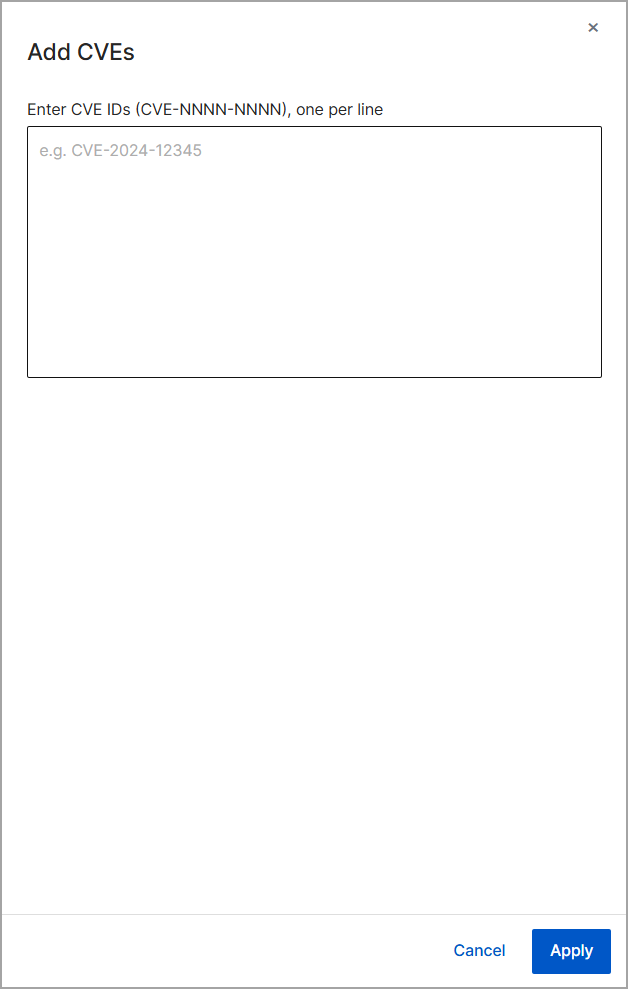
Click the Add CVEs button and and enter your desired CVE
IDs into the text box.
For example, you can enter CVE-2024-12345.
-
Review the data table to view high-level results for the entered CVEs. The
table displays properties including the CVSS v3 Base Score, CVSS Base Severity,
Applicable Fixlet Count, Relevant Fixlet Count, Exposure Count, and Unique
Device Count.
-
To sort the data table, click any column header, such as sorting Exposure
Count in descending order.
-
Click on a specific CVE entry to view its detailed properties.
-
Select the Summary, Devices, or Fixlets tabs to review
specific details. The Fixlets tab displays the Fixlets associated with
the CVE, and the Devices tab shows the devices on which the Fixlets are
relevant.
-
You can reset your search by clicking the icon to clear out all existing CVEs,
or by manually removing them using the small "X" next to each individual CVE.