You can use the Column option to customize the device properties displayed in the
list view.
About this task
To add a new column to the List view, follow these steps:
Procedure
-
From the BigFix SaaS app, select Explore, and then
select Devices.
-
Select the List view tab to open the List view
table.
-
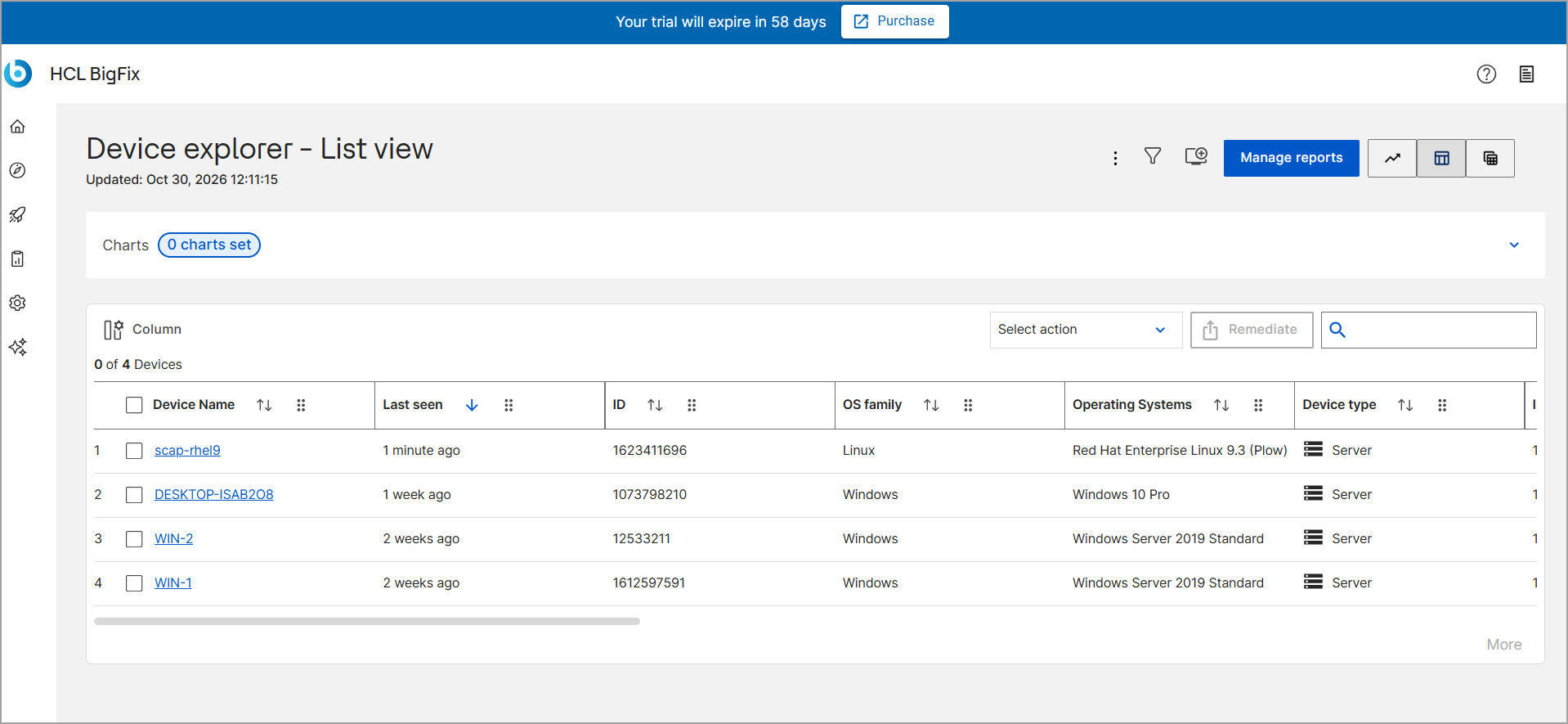
On the Device explorer - List view page, select
Column.
-
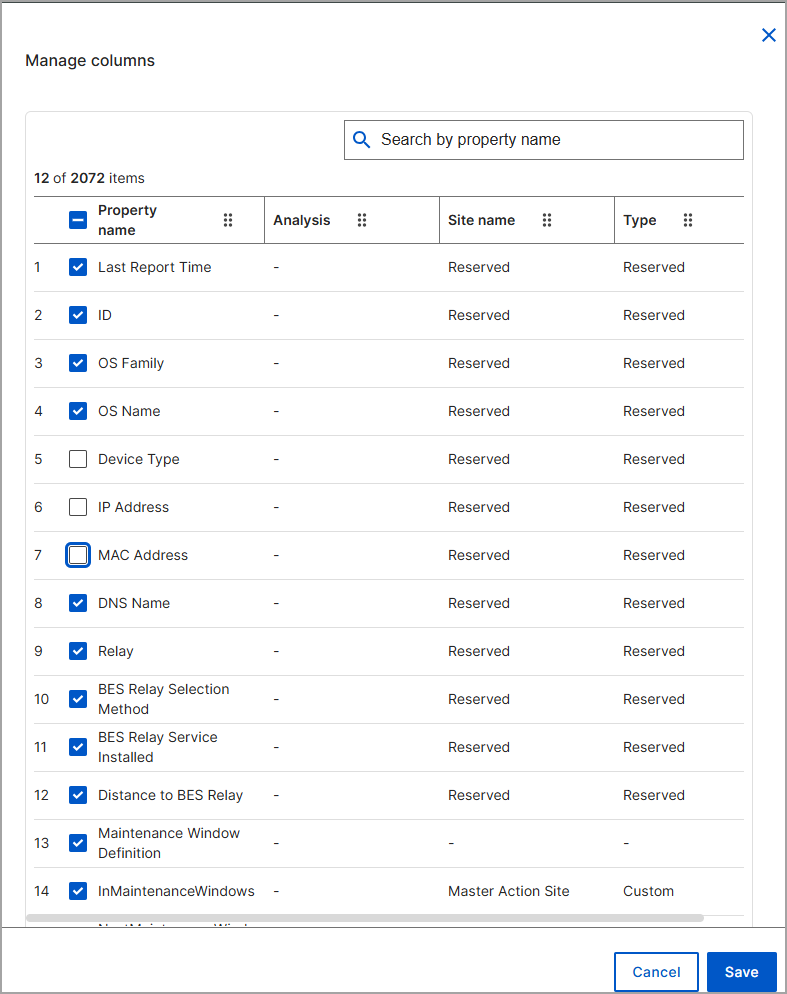
In the Manage columns dialog box, select the checkbox for
the required properties.
Note: You can use the Search by property
name field to quickly find specific properties.
-
Click Save.
Note: The More option, located at the bottom right of the
Manage columns pane, displays up to 1,000 properties. You can search for
specific properties by name. Device Name is a required column.
The selected column is reflected in the list view table.