
Client settings management
Configure, modify, or remove BigFix client (Platform) settings for individual or multiple devices using Device Explorer in BigFix SaaS.
BigFix SaaS enables you to manage client (Platform) settings directly from the web-based interface without using the BES Console. These settings control client behavior such as CPU usage limits, relay selection, and action execution policies.
This feature allows you to:
- View current settings for a device.
- Add, edit, or delete client settings.
- Configure relay selection (automatic/manual).
- Apply settings across multiple devices using targeting options.
- Search, filter, and validate settings.
- Track pending changes before deployment.
- Prevent invalid or duplicate entries.
Accessing Client Settings
- From the BigFix SaaS application, expand Explore and select Devices.
- Change to list view and select the device you want to configure.
- Click the️ gear icon to open the Client Settings
drawer.

The Update client settings opens.
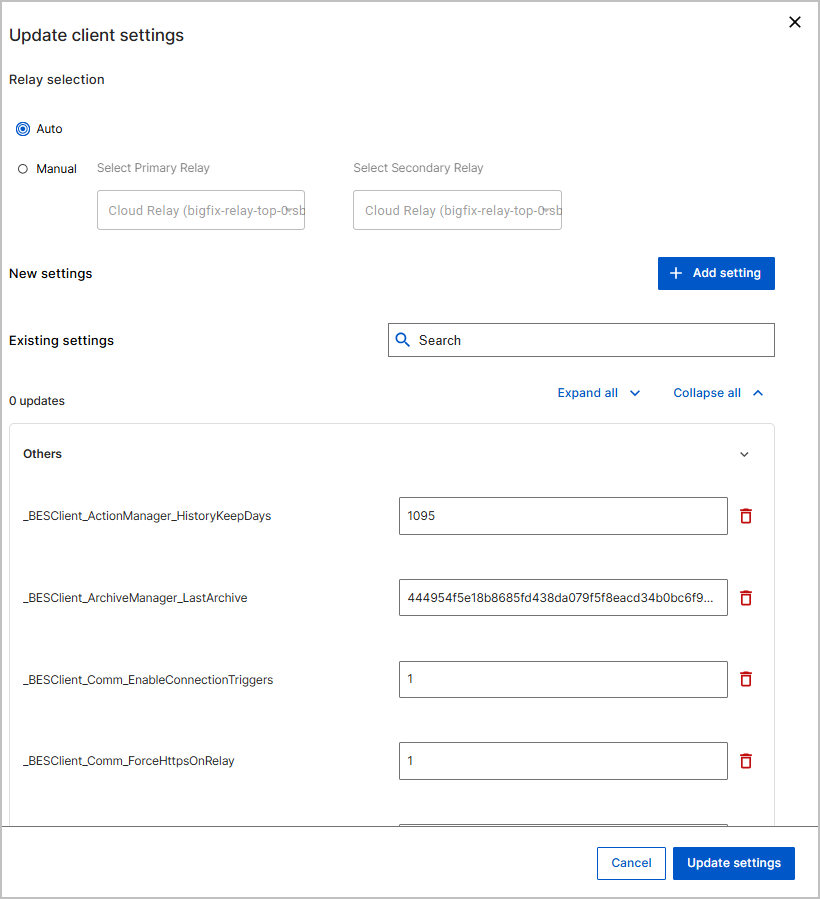
Viewing and editing existing settings
- All existing BigFix Platform client settings of the selected device are listed in collapsible categories (For example, Action execution, Action management, Archiving client files and so on).
- Each category includes:
- Name and editable Value fields of every client setting under the category
- Documentation link that contains specific information of the client setting
- Button to expand or collapse
- Delete icon to remove the client setting (changes to Undo icon when deleted). The input field is disabled when the setting is deleted.
- Undo icon to revert a delete or edit and restore the original value (changes to Delete icon when restored)
- All edits, additions, and deletions are tracked and displayed as a total count of updates, as well as grouped under each affected category.
Search and navigation
- Use the search bar to find settings by name.
- Matching settings are listed as per the search.
- Use Expand All or Collapse All for quick navigation.
Configuring Relay Selection
Under the Relay Selection section:
- Choose Automatic or Manual.
- For Manual:
- Select a Primary Relay (Cloud or On-Prem).
- Optionally add a Secondary Relay as fallback.
Note:
Apply relay settings carefully to avoid connectivity
issues.
Adding a new setting
- A. Defining a new setting
-
- Click Add Setting.
- Enter a key name and value.Note:
- Avoid overwriting platform-defined settings unless necessary.
- Use clear, consistent naming for custom settings.
- For structured data (like JSON), validate syntax before saving.
- Repeat to add more key-value pairs.
- Duplicate or empty fields are not allowed; errors are shown
inline.Note:Long values are fully visible via tooltips and support horizontal scrolling for editing. You can enter JSON strings, which are accepted as plain text.
- B. Submitting Changes
-
- Click Update Settings to deploy changes.
- A BigFix Action is generated and visible in the Deployment Manager.