
Create Dynamic Device Group
Device groups help you organize devices and target actions, policies, or maintenance settings. A dynamic device group updates automatically as devices start or stop matching the defined conditions.
Use this task to create a dynamic device group by defining filter conditions that automatically include devices matching specific criteria.
Procedure
- From the BigFix SaaS side navigation, expand Explore and select Devices.
- Click the Device groups icon next to the
Device Groups (Top 5 by Member Count) chart.
The Device Groups page opens.
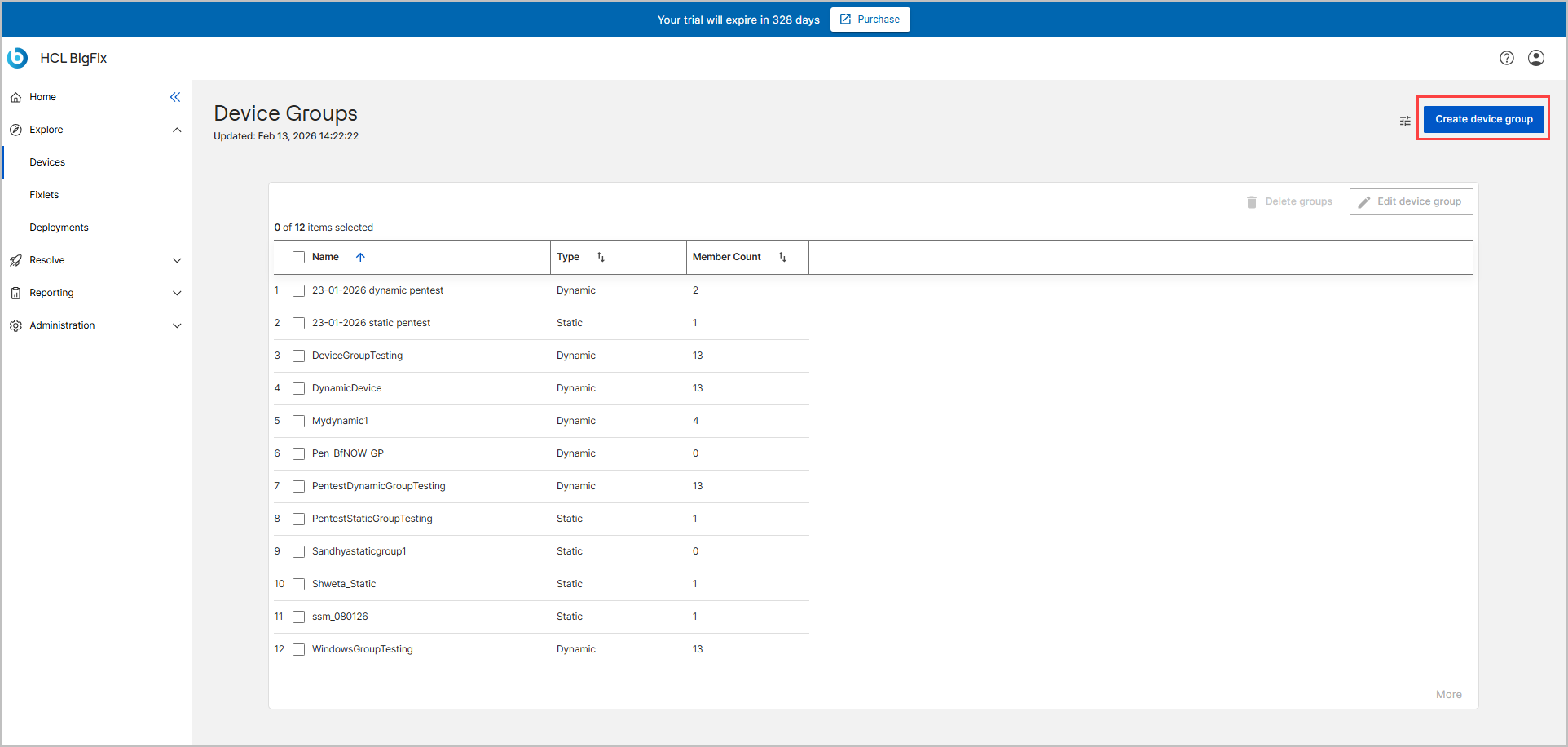
- Select Create device group on the Device Groups
page.
The Create device group widget opens.
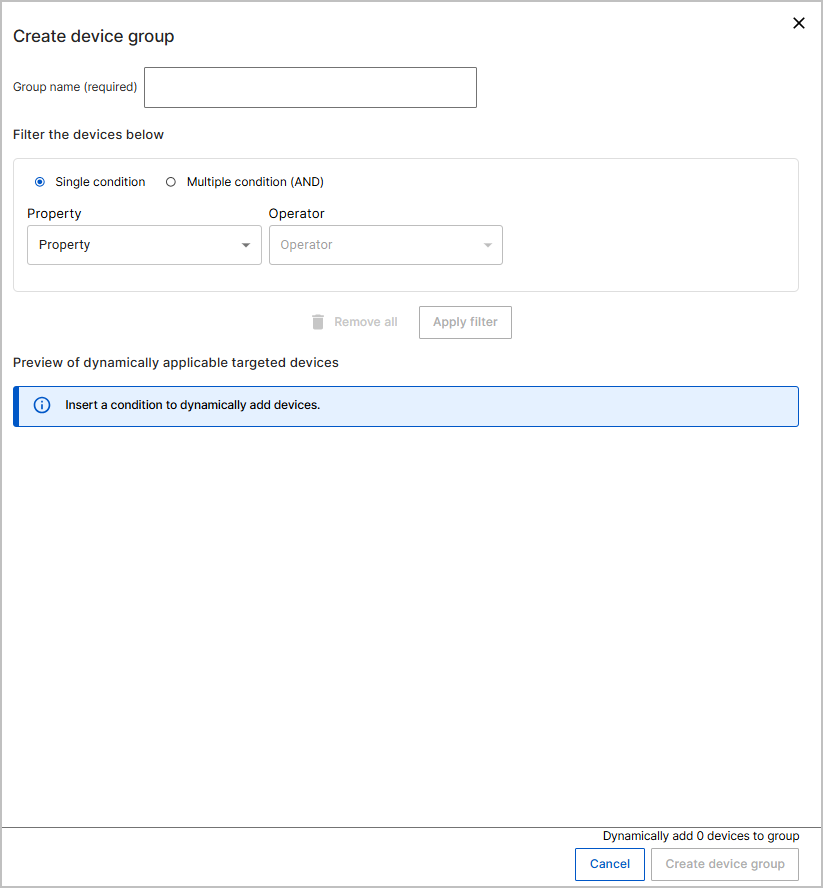
- In Group name (required), enter a unique name for the device group.
- Under Filter the devices below, choose one of the following:
- Single condition to define one filter rule.
- Multiple condition (AND) to combine multiple filter rules.
- Define the filter condition:
- From Property, select the device property to filter by (for example, Active Directory Path).
- From Operator, select the comparison operator (for example, contains).
- In Value, enter the value to match.
- (Optional) Add additional conditions if you selected Multiple condition (AND).
- Select Apply filter to preview the targeted devices.
- Review the Preview of dynamically applicable targeted
devices section.
- If devices match the conditions, they are listed in the preview.
- If no devices match, the preview displays No Data Available.
-
Review the message at the bottom of the widget indicating how many devices will be dynamically added to the group.
- Select Create device group.
The device group is created. Devices that match the defined filter conditions are automatically added to the group and updated dynamically over time.
- To remove all filter conditions and start over, select Remove all.
- Changes in device properties may cause devices to be added to or removed from the group automatically.