Add Comments
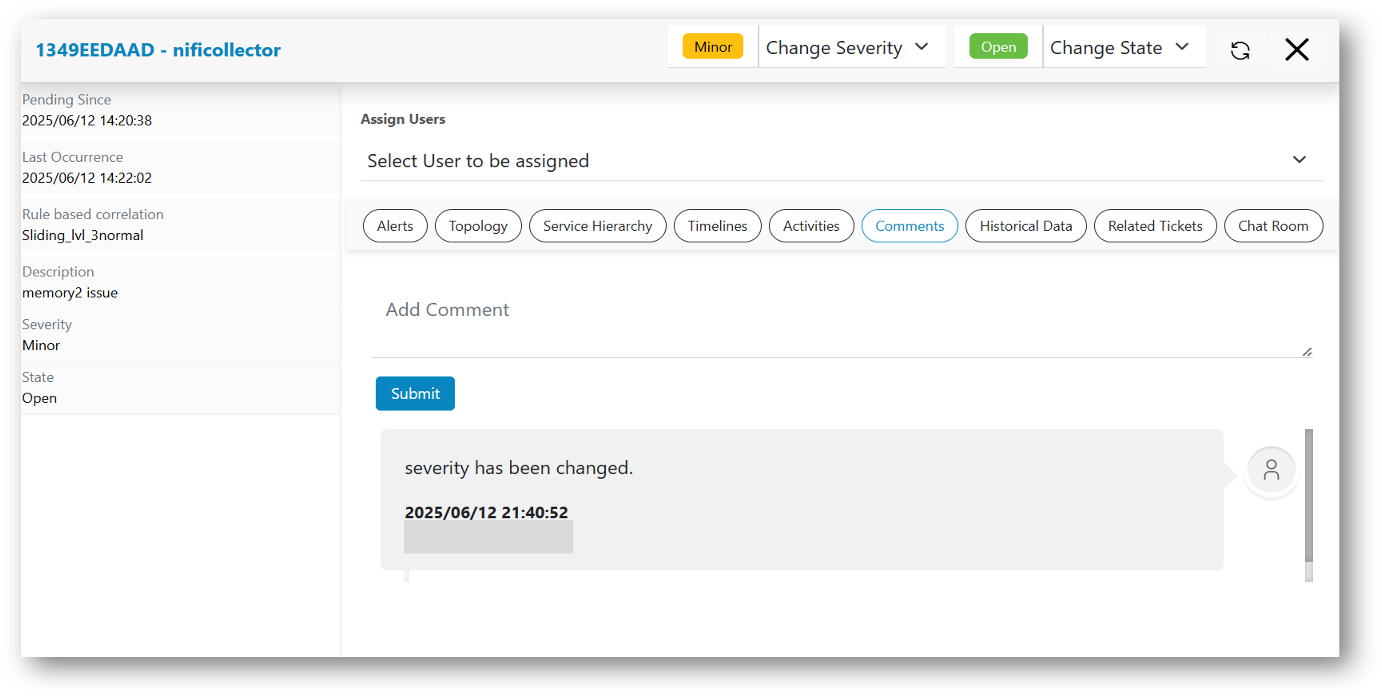
HCL IEM enables users to provide comments that the user has been performing while solving issues. Please follow the steps below to add comments in actionable screen:
- Click on a particular actionable on Data View-Actionable screen, a pop-up window will open that will show all information like related alerts, related changes, related problems, timeline view, topology view, service topology view etc.
- Click on the Comments header present in the actionable popup.
- Details of comments along with posted user will be displayed over screen.
- It also provides an option to search for a specific comment by entering text in search
box.
Figure 1. Add Comments to Actionable