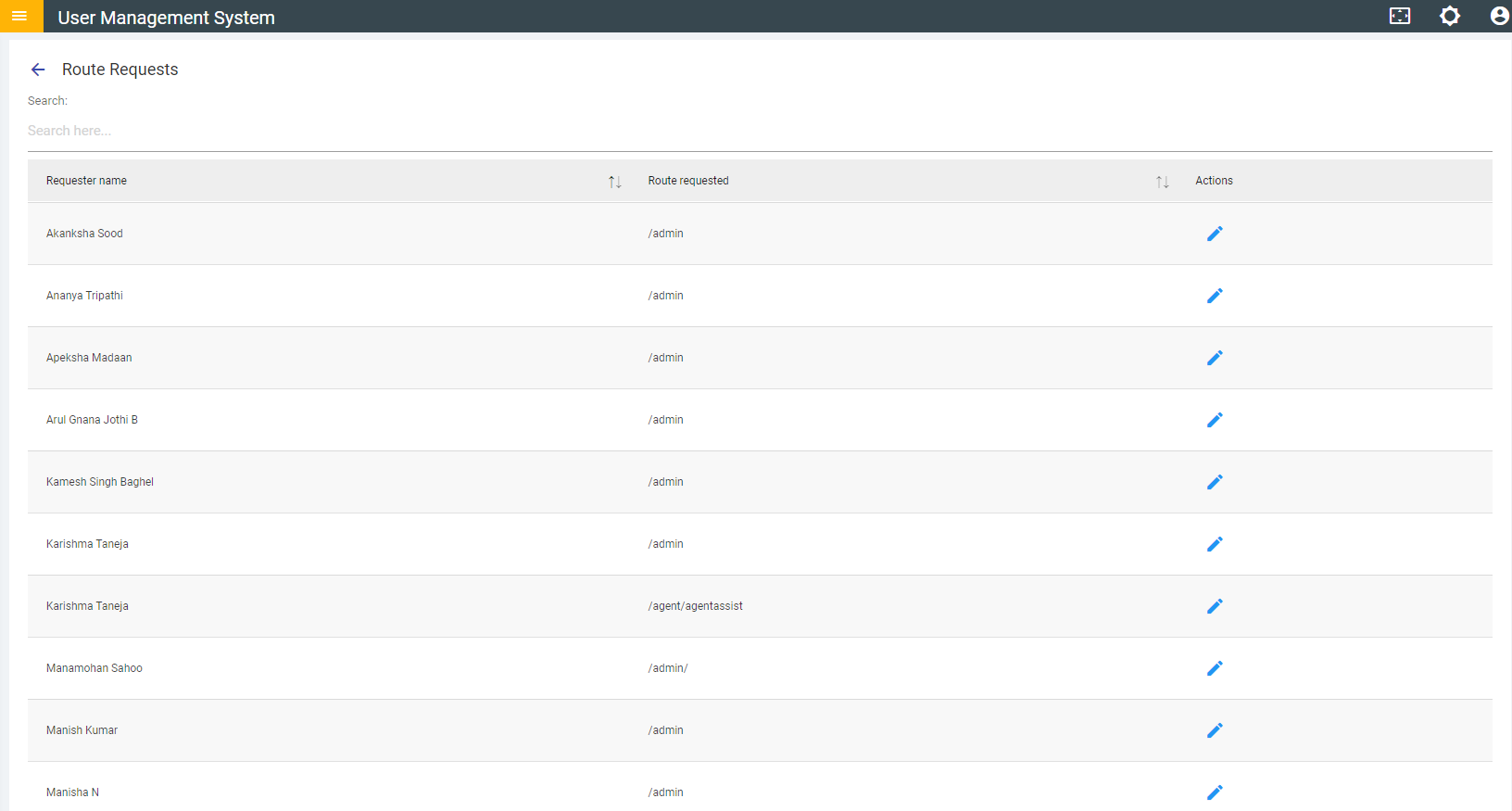
Route Request
Users can request access for a route. The requests are listed here, and an admin can approve and add a user to a group or reject a request from this section.
- Click Route Requests under the Routes pull-down menu.
Figure 1. Route Request Console 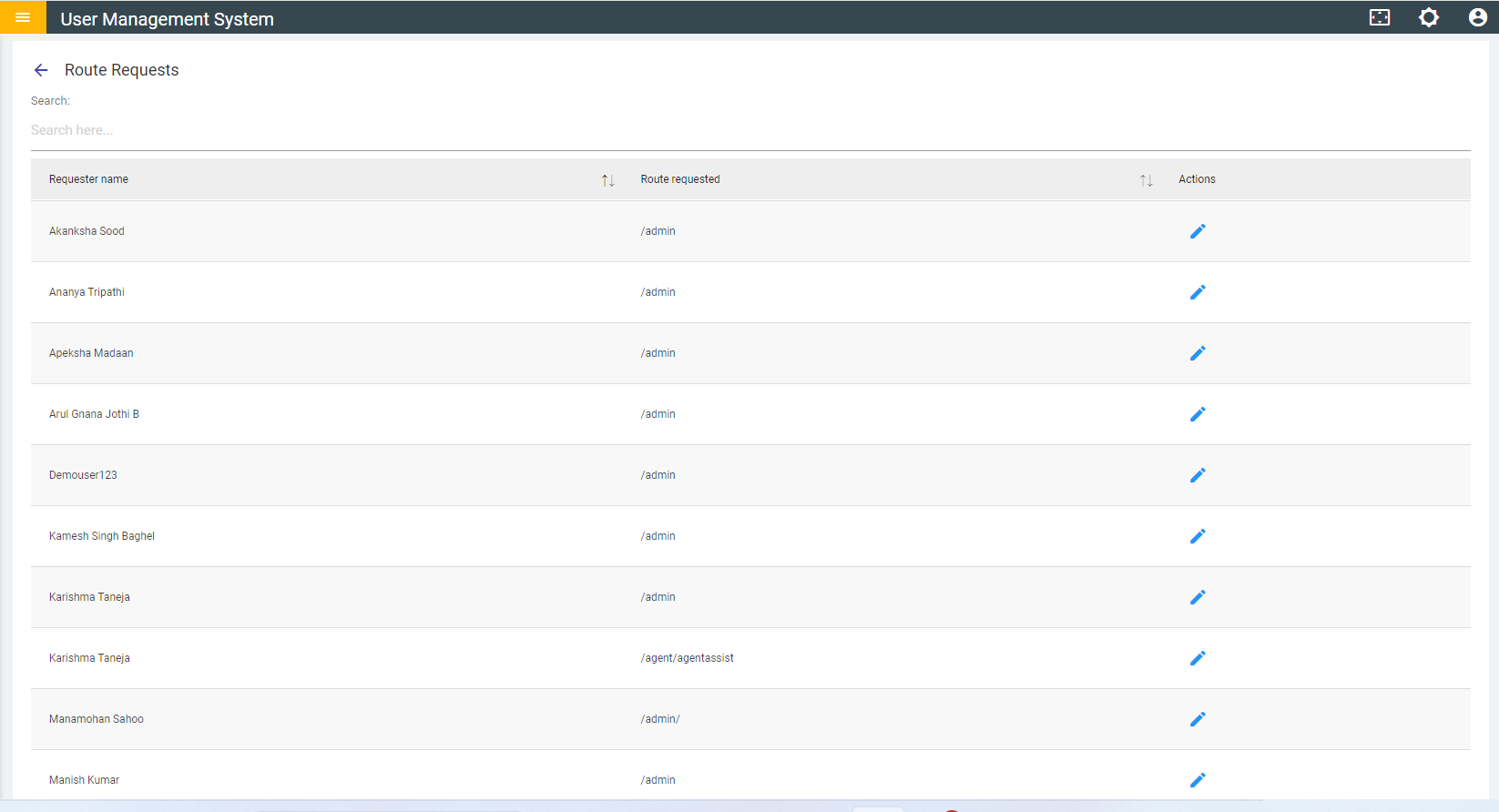
- On this page, you can:
- View existing route requests.
- Take an action on a route request raised by a user by clicking on (
 )
) - It will redirect you to the Route Approval Page.
Figure 2. Route Approval 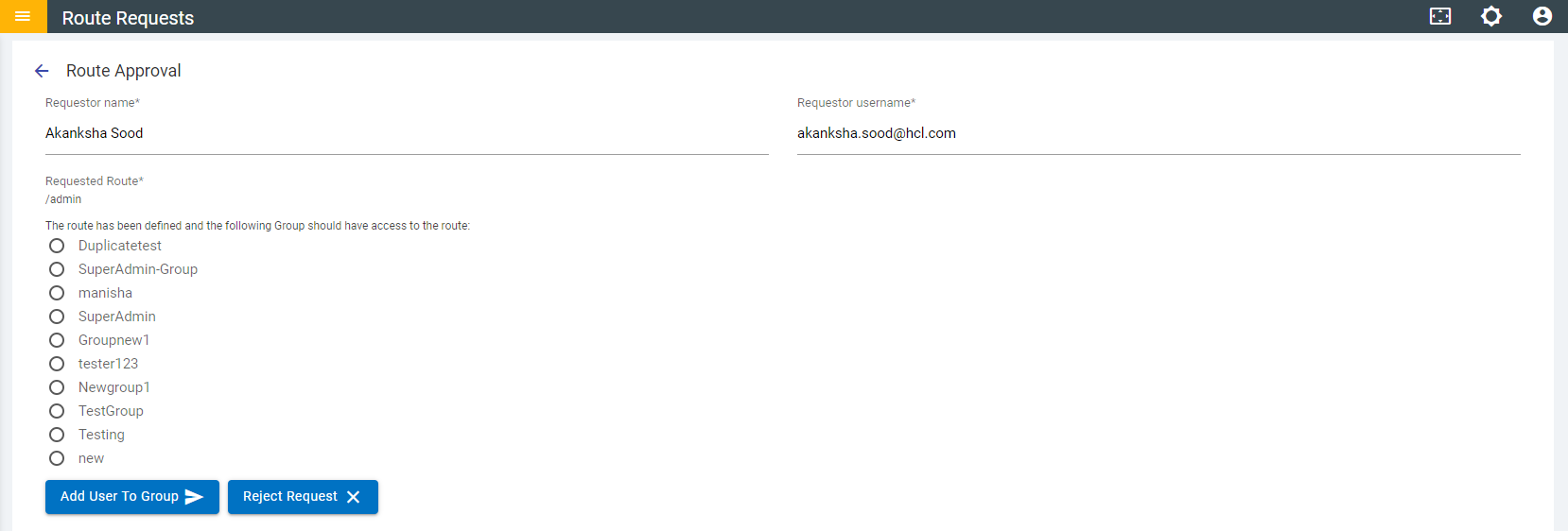
- On this page you can,
- Add user to a group.
- Select the group ( Super Admin in the figure above).
- Click ADD USER TO A GROUP button.
- This will add that user to the selected group and the request is fulfilled.
- Reject request.
- Click REJECT REQUEST button to reject the route access request raised by a user.
- In a scenario where a route access request is raised, however, the user has already been added to a group which has access to the requested route, the screen shown in Success Message will appear.
- Click OK and you will be redirected back to the Route Request screen as shown in Manage Routes
- Add user to a group.