Spell Checker Management
This module explains how to train a pre-NLP processing component called Spellchecker. The module has already been trained with a vast corpus of literature and follows the UK English standard.
The purpose of this console is to enable the user to add or check phrases, technical words, or the organization specific acronyms to BigFix AEX’s internal library.
This module is used by BigFix AEX to perform spell checks and auto-correct while the end-users are having a chat based conversation.
Follow the steps mentioned below to perform the actions mentioned above:
- From Cognitive Console home page, click the Spell Checker module.
Figure 1. Spell Checker Management Console 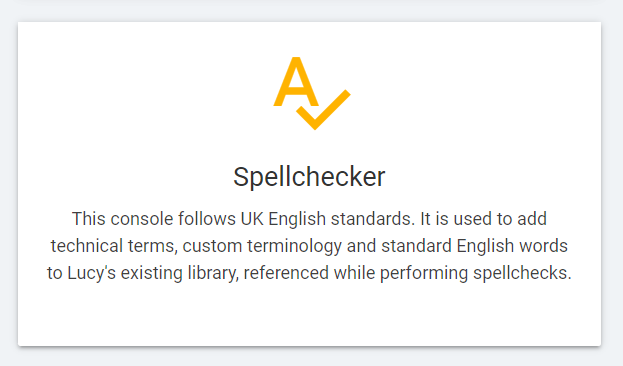
- This opens the Spell Checker Management Console.
Figure 2. Spell Checker Management Console 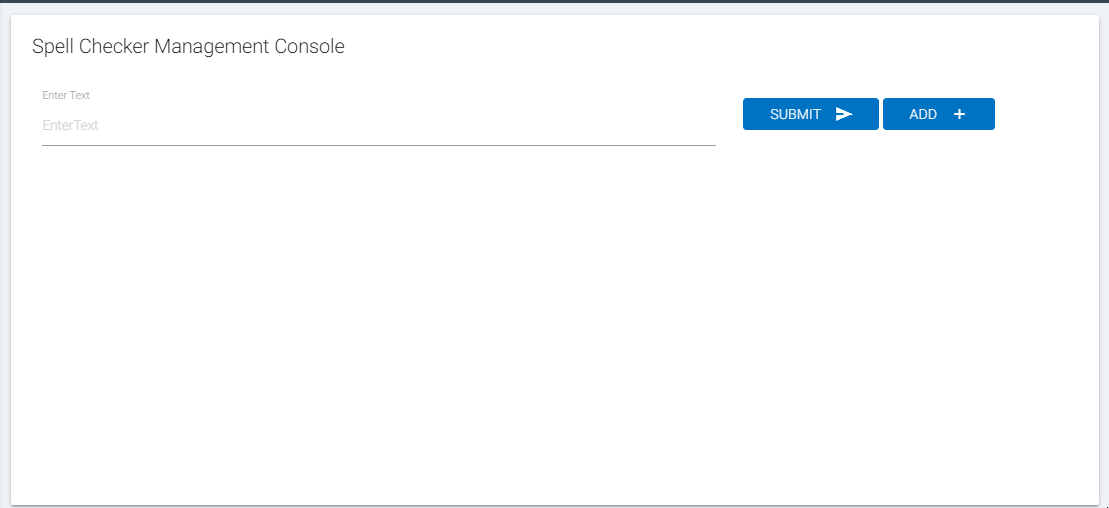
- To add or check words or phrases, use the Enter Text input box.
- Click the SUBMIT button and the word or the phrase is checked against BigFix AEX’s repository.
- If the word already exists in the repository, the following message appears:
Figure 3. Spellchecker Management Console: Spell Check Test 1 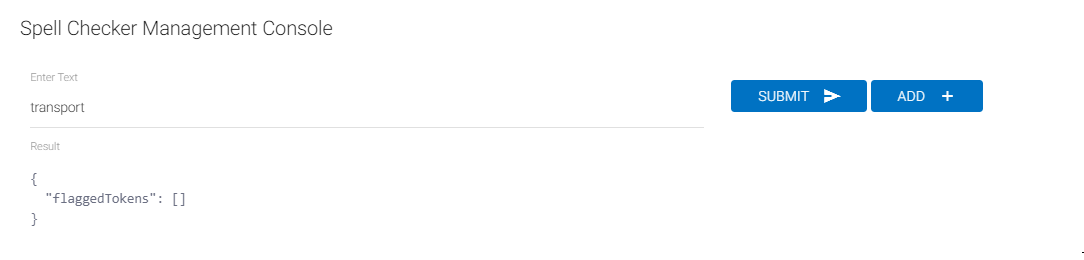
- If a word doesn’t exist in the repository, it would suggest the most probable word.
Figure 4. Spellchecker Management Console: Spell Check Test 2 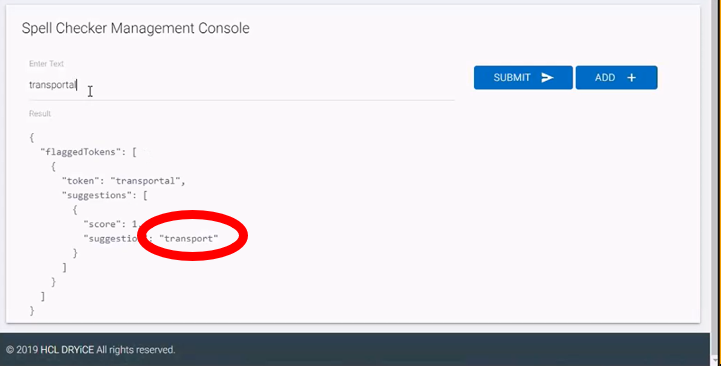
- To add it as an exception word (organization specific acronyms
or technical words) to the library, click
 button.
 - The Add New Variation pop-up appears.
Figure 5. Spellchecker Management Console: Add New Variation 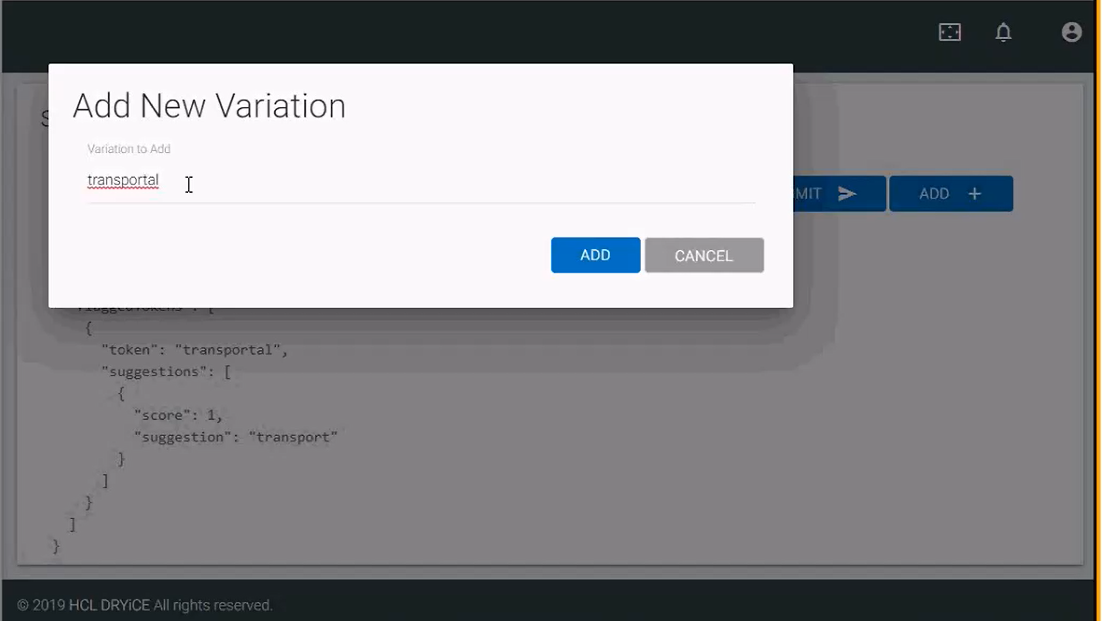
- Enter the word that you want to add to the library (e.g. transportal) and click the
ADD button. Note:
Be careful while adding a new variation. You should not add the wrong word. If added, it may corrupt the library. Avoid adding proper names (John, Akash, Michael etc.) to the library.
- When prompted for the confirmation before adding a variation, click OK to
commit or click CANCEL to discard changes.
Figure 6. Spellchecker Management Console: Add New Variation Confirmation 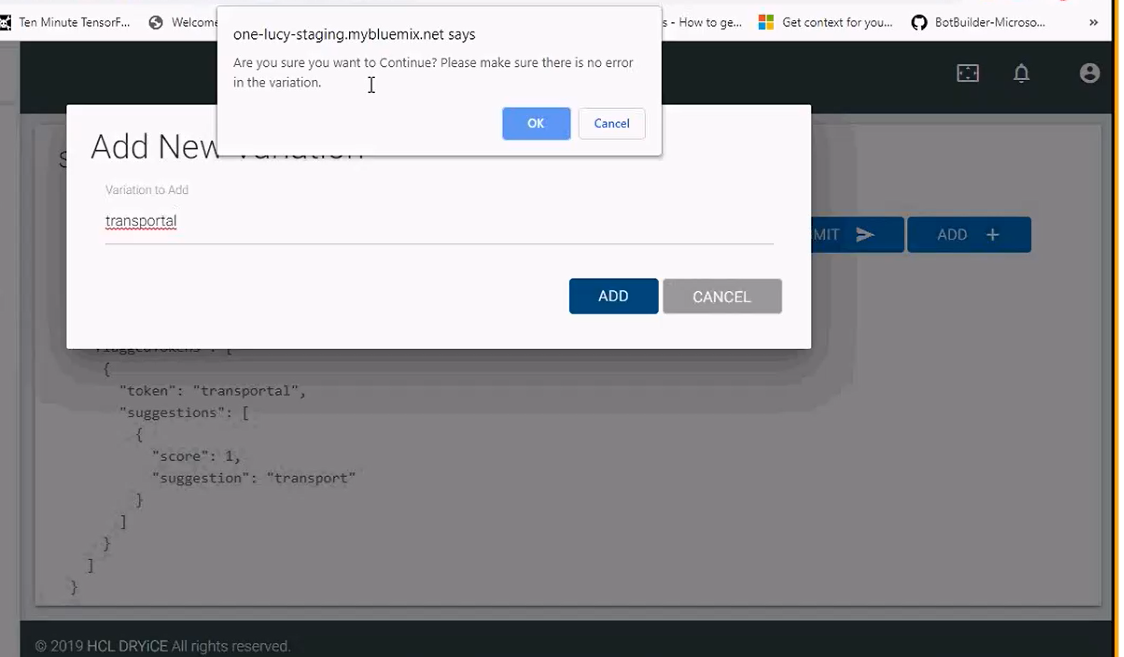
- After the successful addition of the word, the user gets a confirmation message.
Figure 7. Spellchecker Management Console: Word Added Successfully 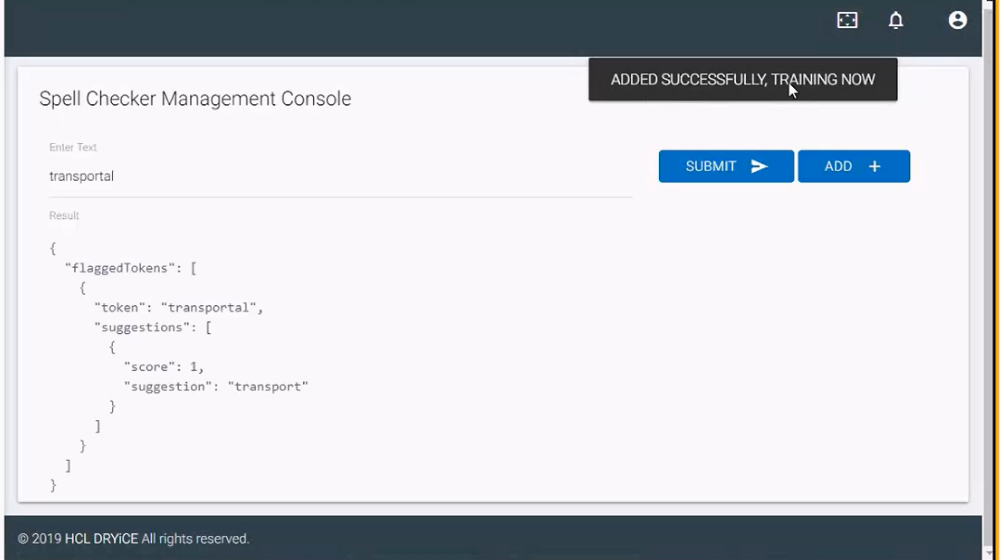 Note:
Note:The system needs time (anywhere between 10 seconds to 1 minute) to train and disseminate new words or phrases.
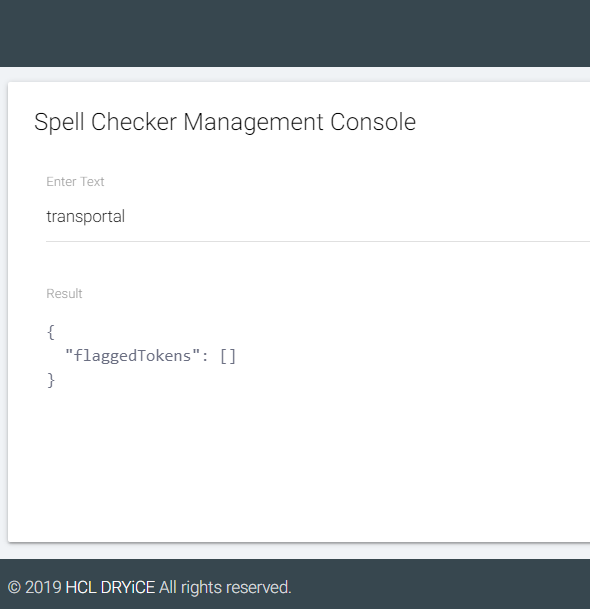
- Now you can try to see if the word has been added or not. If successfully added, the system will not come up with any recommended words. This is depicted in the screenshot below.