Maintenance
Maintenance option is a part of BigFix AEX’s Cognitive Console. Through this option admin can put tenants in maintenance mode with their message which needs to be displayed to the end user who is using BigFix AEX. Below are the steps for enabling Maintenance mode from BigFix AEX’s Cognitive console.
- Login to Cognitive Console with credentials.
- Click on the Master Configuration link on the left navigation panel which will
open Master Configuration page.
Figure 1. Side Navigation of Cognitive Console 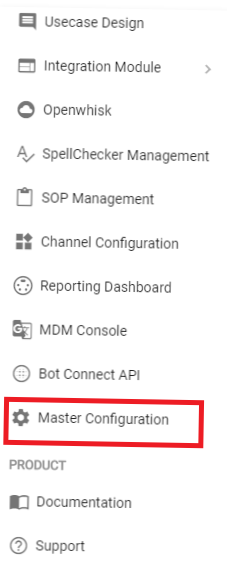
- From this section, go to “Maintenance” to put the tenant in maintenance mode by
enabling Maintenance mode. User has the option to “enable” and “disable”
maintenance window by using the dropdown present in ‘Maintenance Mode’ field.
Figure 2. Enable/Disable Maintenance Mode 
- User can also select one of the two options available in the dropdown for maintenance
type:
Figure 3. Select Maintenance Type 
- Text: Through “Text” maintenance type, user can provide the message which will be displayed to the end user when BigFix AEX Maintenance is enabled. Below images display the option where text can be added and how it is displayed to the end user after opening BigFix AEX window.
Figure 4. Maintenance Type – Text – Add Text 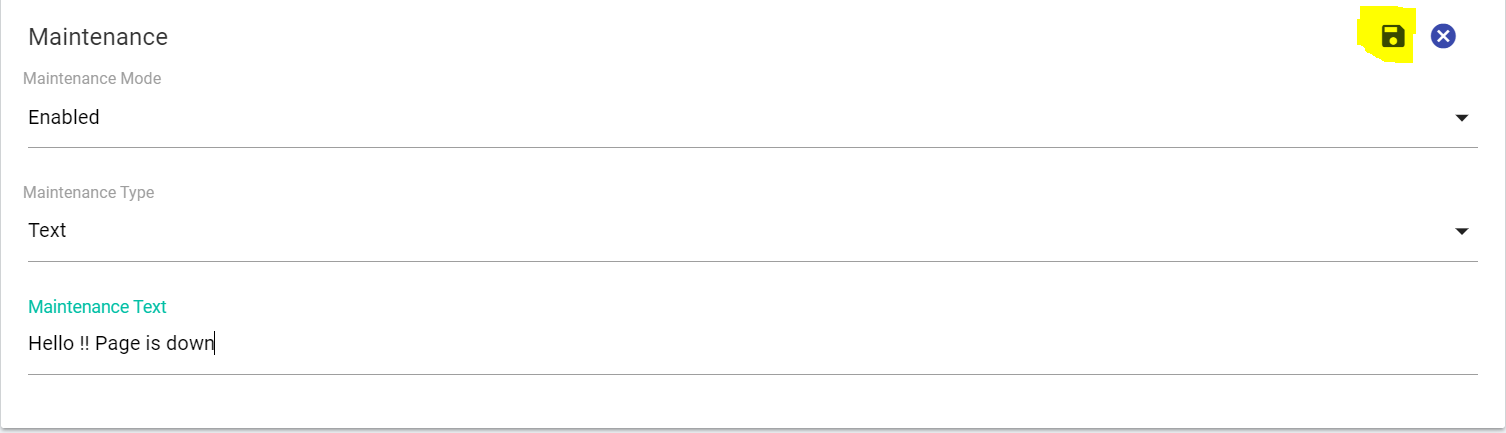
Figure 5. Maintenance Message 
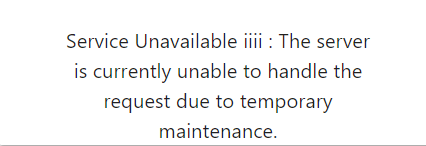
- Maintenance text field is optional, if user does not enter any text in the field, then default message will be displayed to the end user. Below image displays the default message.
Figure 6. Default Maintenance Message 
- Custom Template: Custom Template provides an option to use the custom design/template instead of default design which is provided by BigFix AEX. Custom template option depends on ‘maintenance.html’ file using UI management console.
Figure 7. Maintenance Type – Custom Template 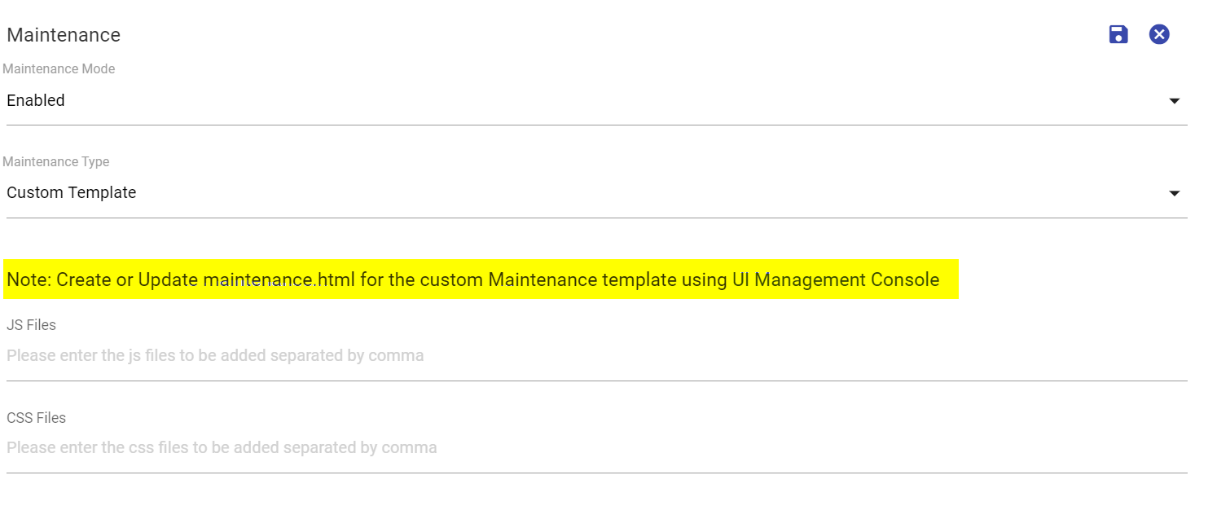 Note:
Note:Users can link multiple JS and CSS files with coma separated.
Figure 8. Maintenance.Html File 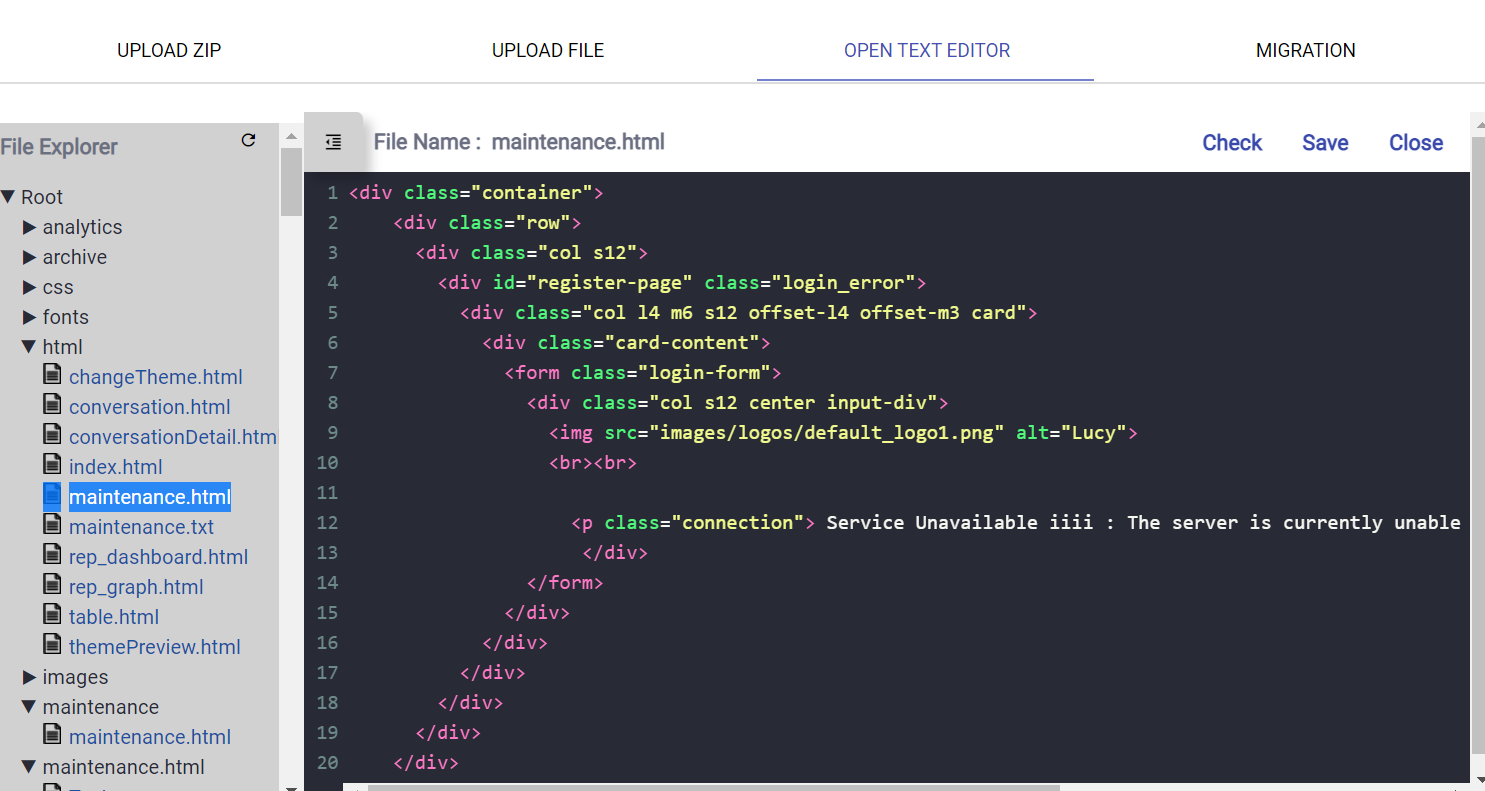
- Below image display’s example of custom template which uses card view for displaying maintenance option.