Bot Management Console
Objective: Instead of navigating through multiple consoles to configure various aspects of the chatbot, the plan is to streamline the process by enabling all configuration tasks to be managed from a single, unified interface. This approach will simplify setup, reduce effort, and improve overall efficiency.
- Open the tenant admin console URL: https://tenanturl/admin/#/bot-management
- This section describes how the Bot management console allows the administrator
to customize the chatbot of BigFix AEX.
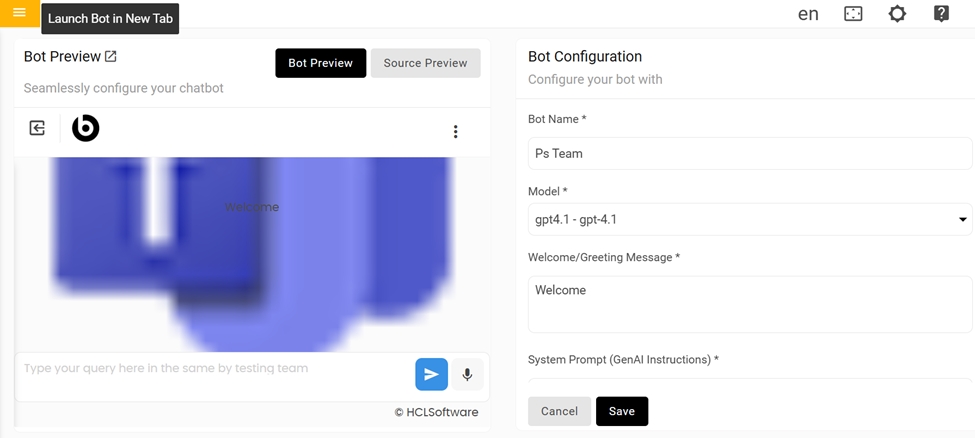
Figure 1. Bot Management Console 
Bot Preview
The Bot Preview features a dummy chat window that closely resembles the main chat interface. Any configurations made in the bot configuration section are immediately reflected in the Preview section.
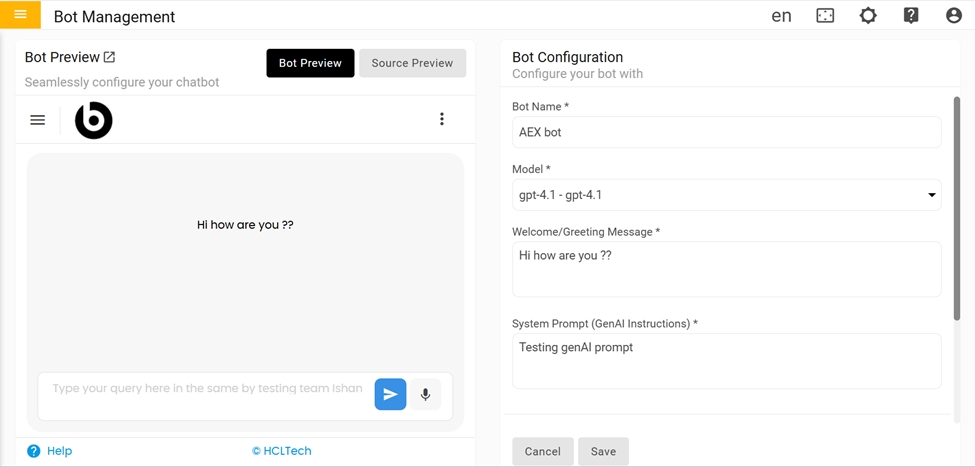
Source Preview
This feature allows you to view a snippet or summary of the content from a configured document or URL used in the bot's knowledge base. It helps ensure that the correct source is linked and allows for quick validation of the reference material during bot setup.
In the Bot Management Console, any configurations made by the user will be reflected in Gen AI and UCD. The bot's responses will be based on the documents and URLs provided in this section
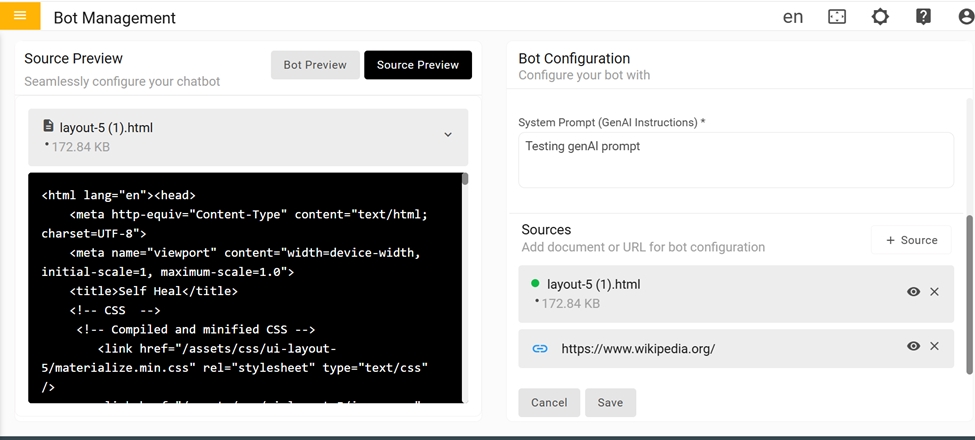
Bot Configuration
To configure the bot, enter required informations:
- Bot Name
- Select Azure Open AI Models from Drop down
- Welcome/Greeting Message
- System Prompt
- Sources
System Prompt:System prompt is a core set of instructions that governs the model’s behavior and guides its responses throughout interactions.
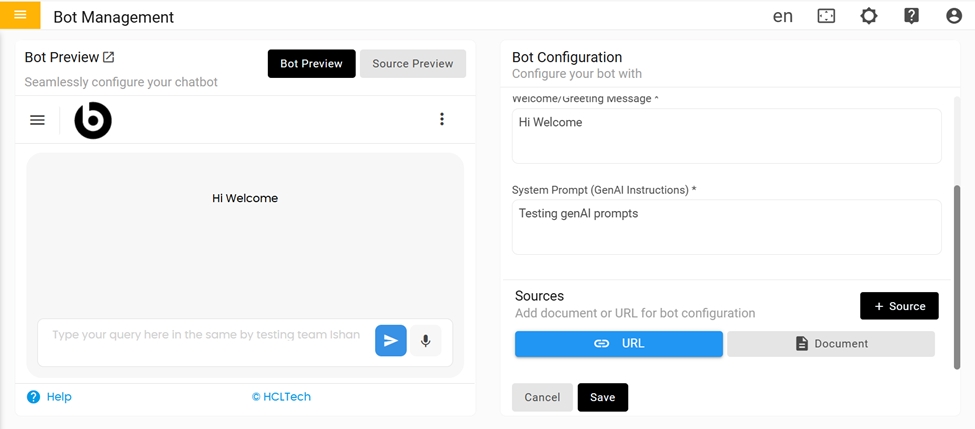
Sources:We can either attach Document or URL for source.
- To Upload the source(URL or Document) click on the source button
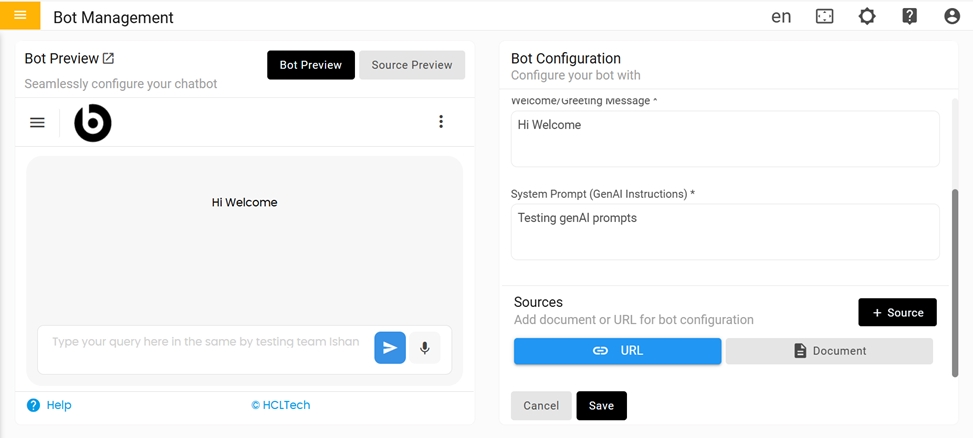
- To Upload URL Click on the URL button.
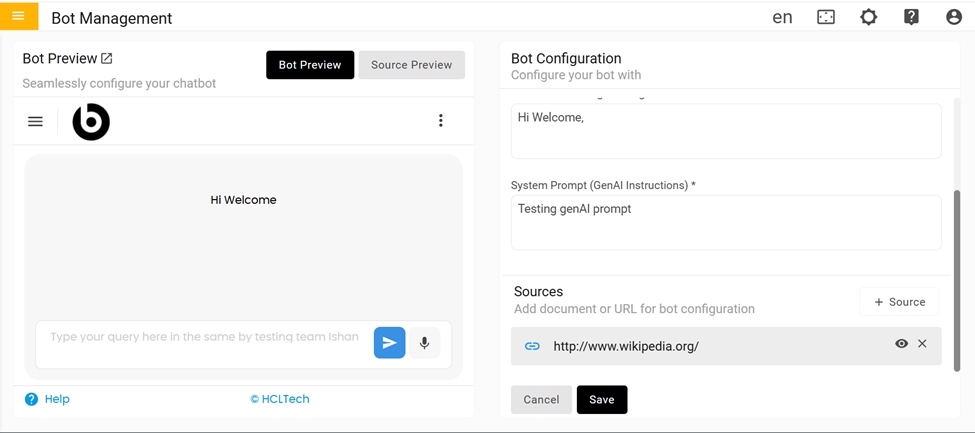
-
To Upload Document click on the Document button
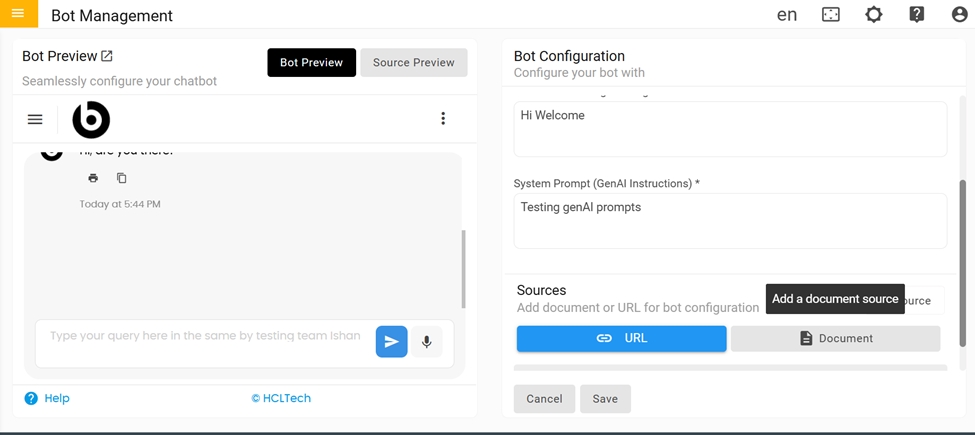
-
After Clicking on the document button, select File to upload the document
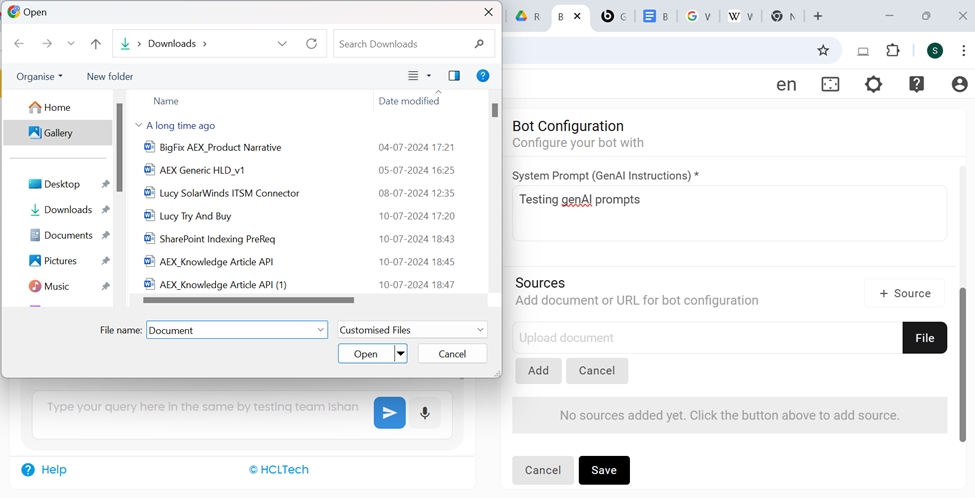
-
Click on Add to upload document
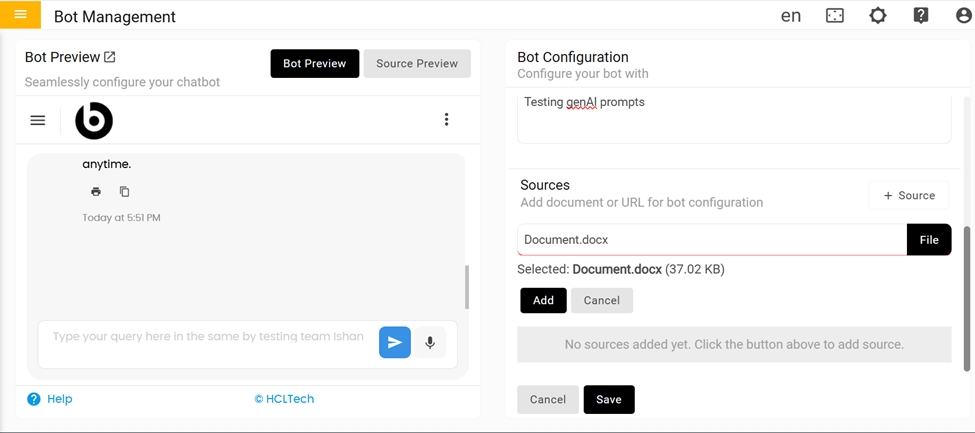
-
After clicking 'Add', the document will be uploaded.
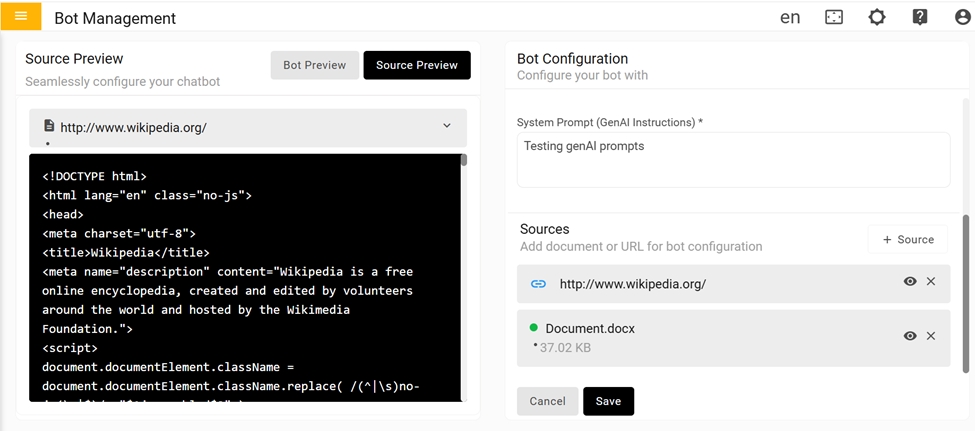
Validation for uploading document files that are supported are PDF, docx ,xlsx ,xls, csv, txt,json,js,mjs,xml,html,aspx,css

- Uploading wrong format document error will be displayed
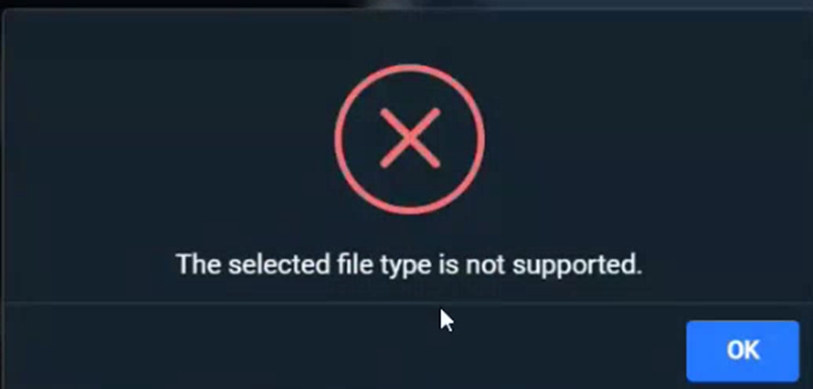
- After entering all the information, click the 'Save' button.
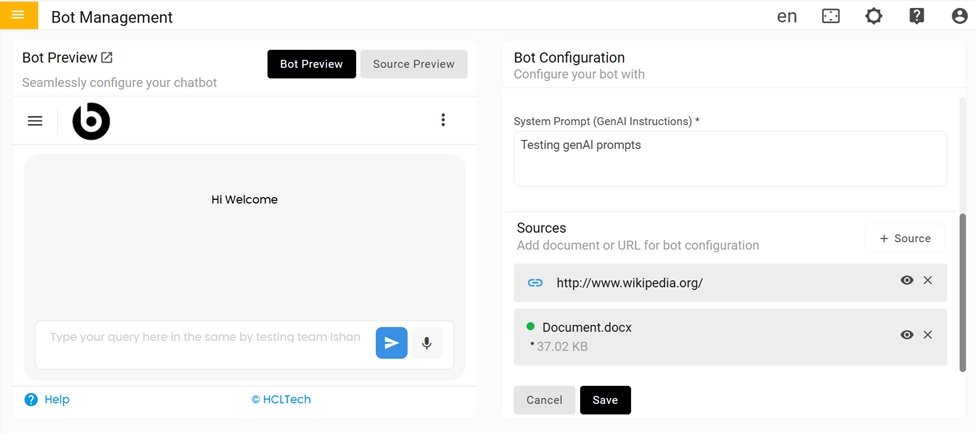
- After clicking Save, a 'Configuration saved successfully' message will be displayed.
In the Bot Management Console, any configurations made by the user will be reflected in Gen AI and UCD. The bot's responses will be based on the documents and URLs provided in this section.
Configuration Reflected in GenAI Console
-
To access the Gen AI Console, Open the tenant admin console URL - https://tenantURL.bigfixaex.com/admin#/genai
-
Go to Chain tab, click on the edit icon.
Figure 14. Edit Chain 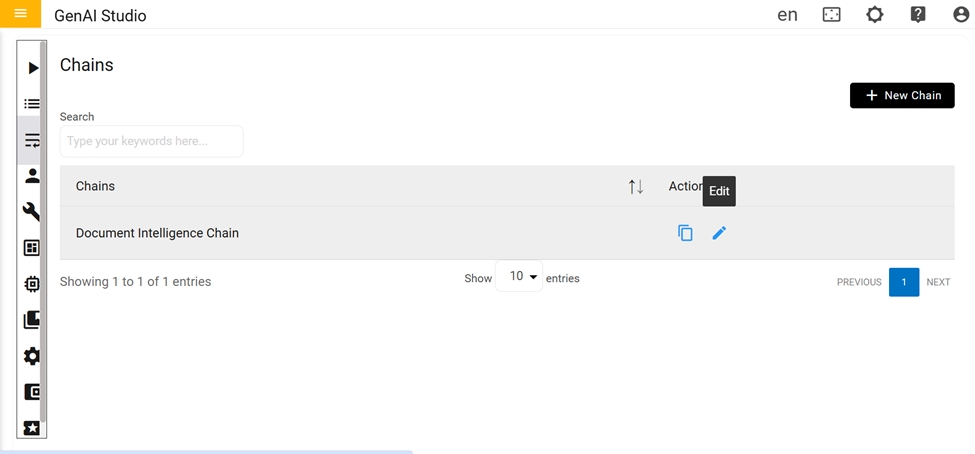
-
By clicking 'Open', the user can view the configurations made in the Bot Configuration Console.
Figure 15. Select Open 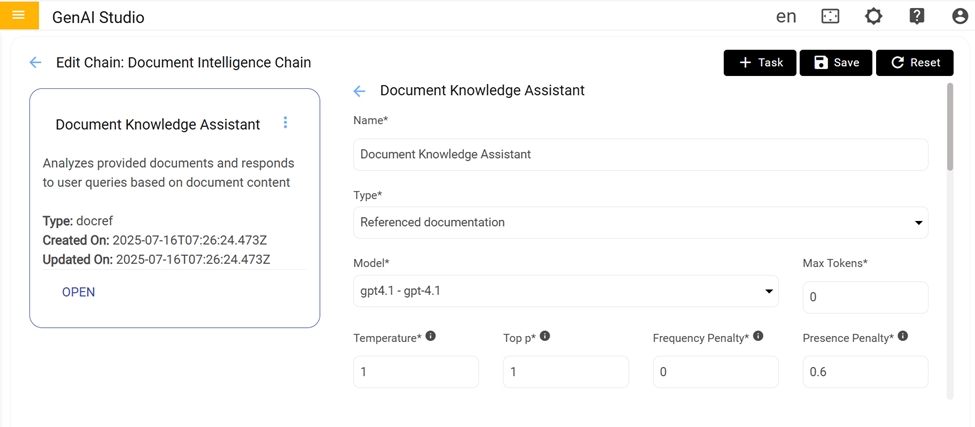
-
When creating a chain for a specific skill selected for a particular tenant, it update the personality use case in the 'Anything Else' node.
Figure 16. Anything Else Node 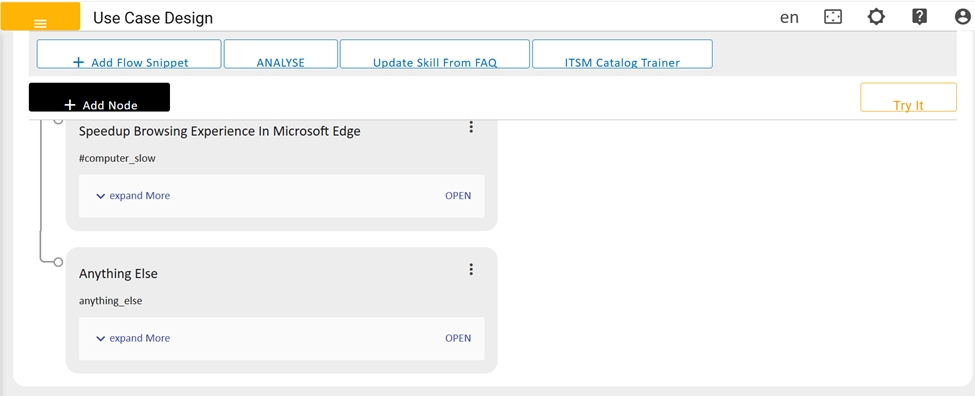
Figure 17. Personality Use Case in 'Anything Else' 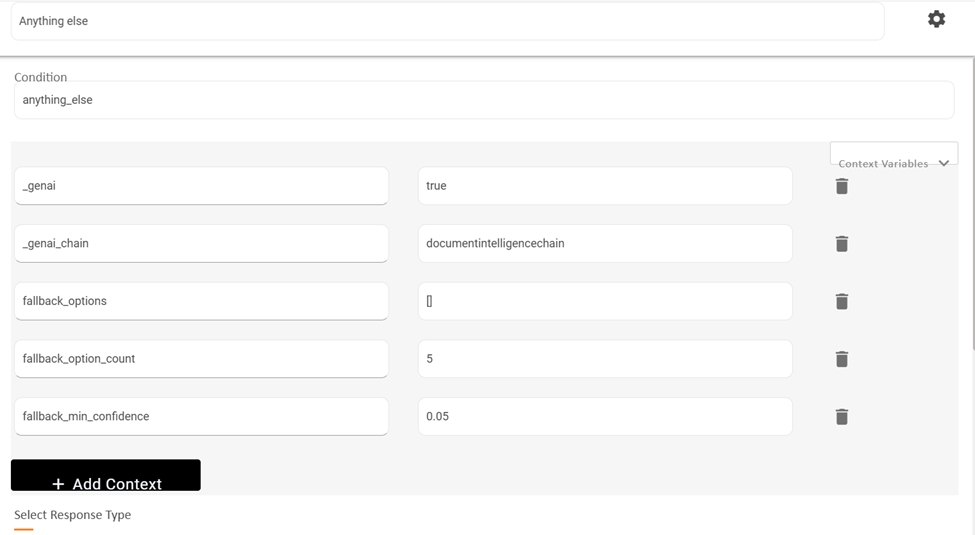
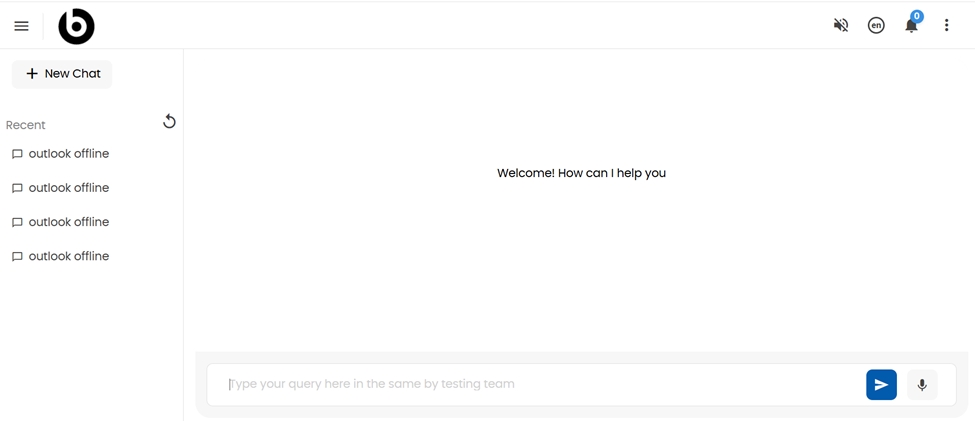
Launch Bot in New Tab
Click to launch the bot in a new tab.