Manage Existing User
Listed below are the details that are displayed in Manage User.
- Username - User’s email id
- Display Name - The name of the user visible to other users.
- Created at - Date when the user was created.
- Action - Option to edit or delete the user.
- Active Status - Option to change the active state of the user.
Note:
Use the Search bar to bypass list view and display the user details directly.
Follow the set of instructions mentioned below to edit the details of existing users as shown in Edit User:
- Click on the Edit icon (
 ) to edit the
details of the corresponding user.
) to edit the
details of the corresponding user. Figure 1. Edit User 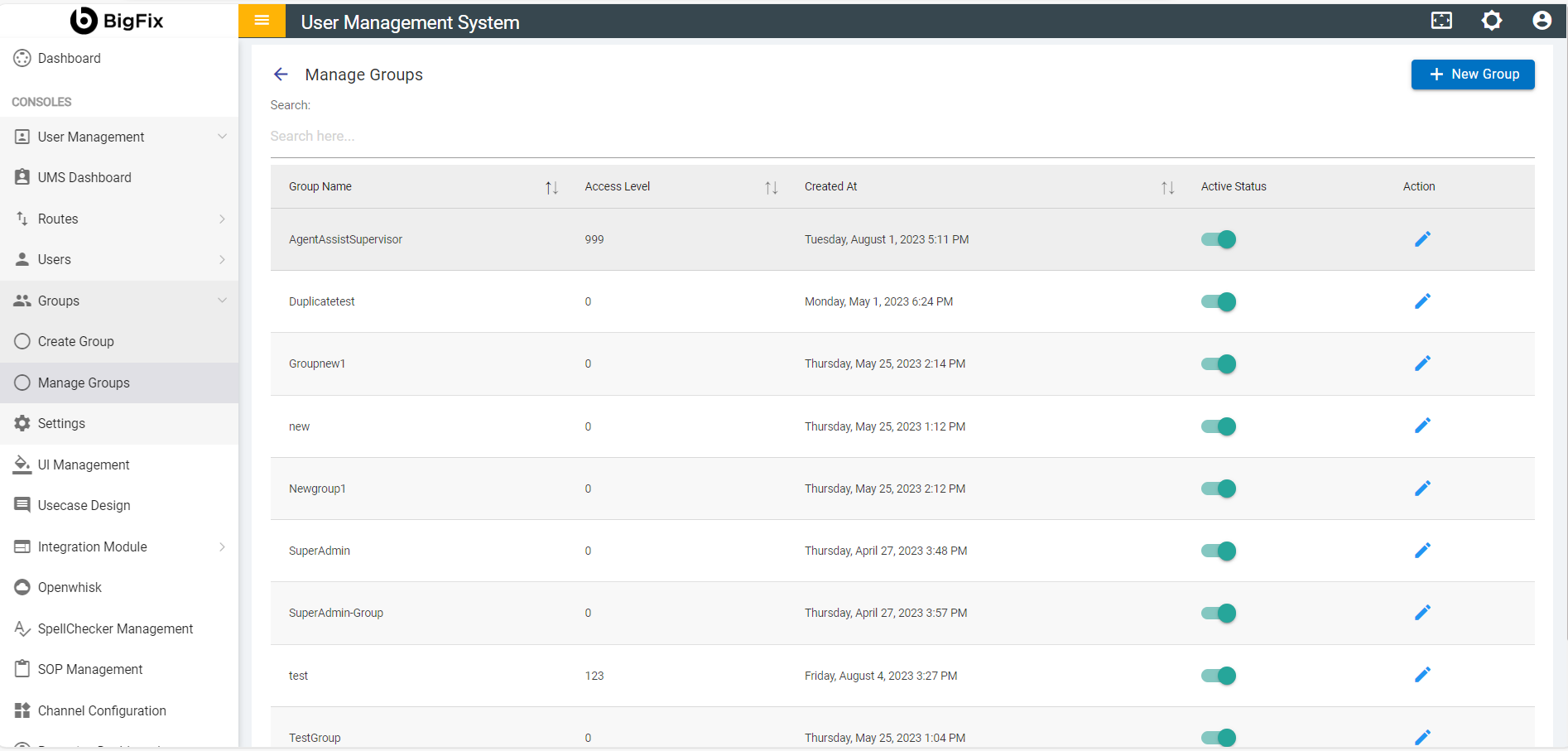
- Change the Display Name.
- Disable Multi Factor Authentication (MFA).
- If the MFA has been activated for all the users and one of the users is facing problem, the admin can use this section to temporarily disable the MFA for that respective user. This enables the user to access BigFix AEX without MFA.
- Multi-factor authentication (MFA) adds a layer of security to a user’s account. This version of BigFix AEX supports MFA via applications like Google Authenticator.
Figure 2. Edit User (Cont.) 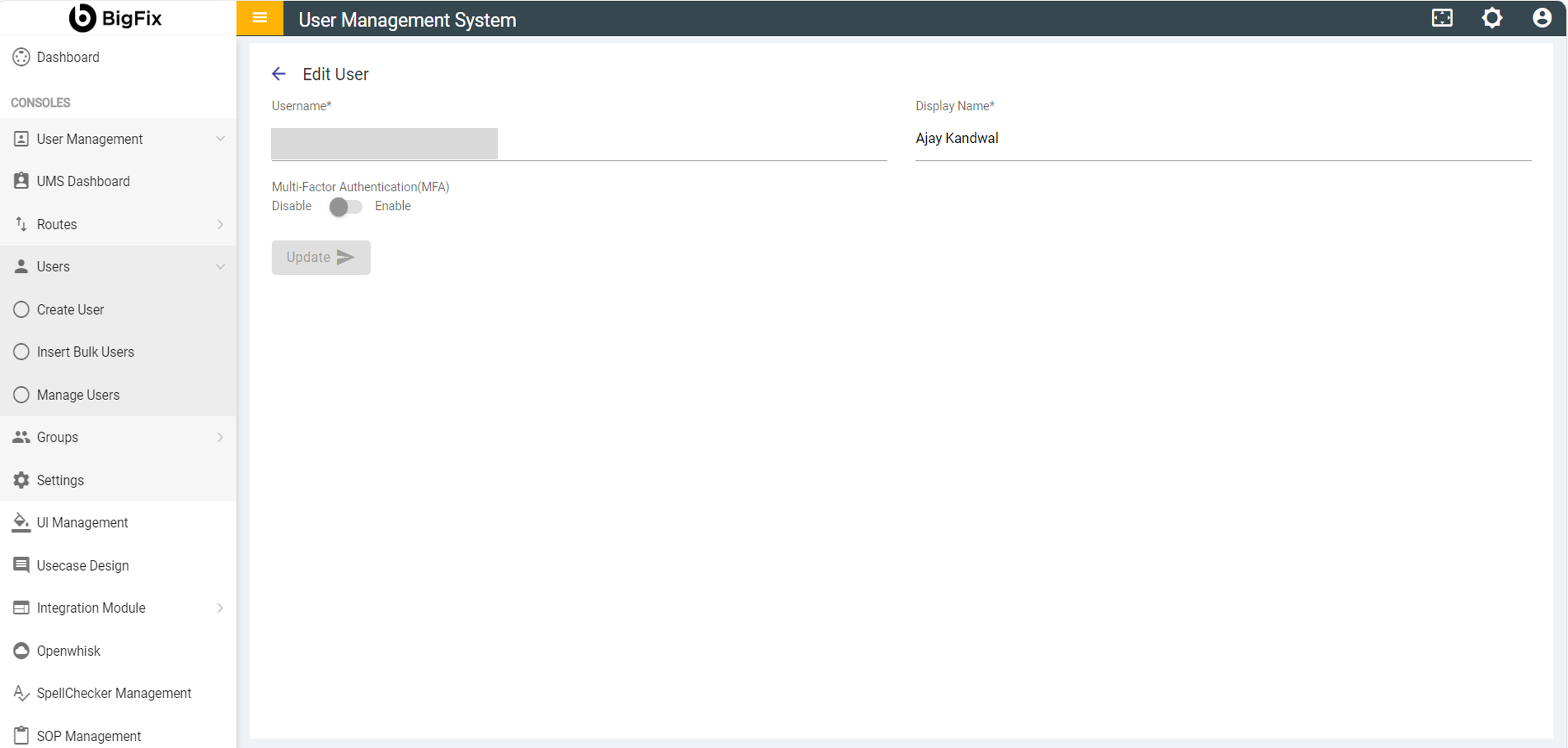
- To download and install the google Authenticator App,
- On iPhone- Click here
- On Android- Click here .
- If MFA is enabled by the administrator, enter the log in credentials.
- You will be redirected to a page where BigFix AEX displays a bar code when you
log into BigFix AEX for the first time. A sample screen is shown below:
Figure 3. Multi Factor Authentication: Bar Code Scan 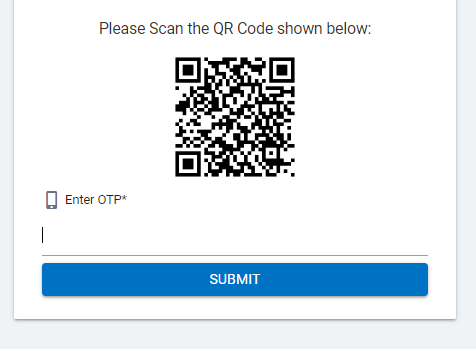
- The user can scan the bar code shown on the BigFix AEX Console on Google
Authenticator app to receive an OTP. The OTP is used for validation of MFA for a user
account.
Figure 4. MFA: OTP Generation 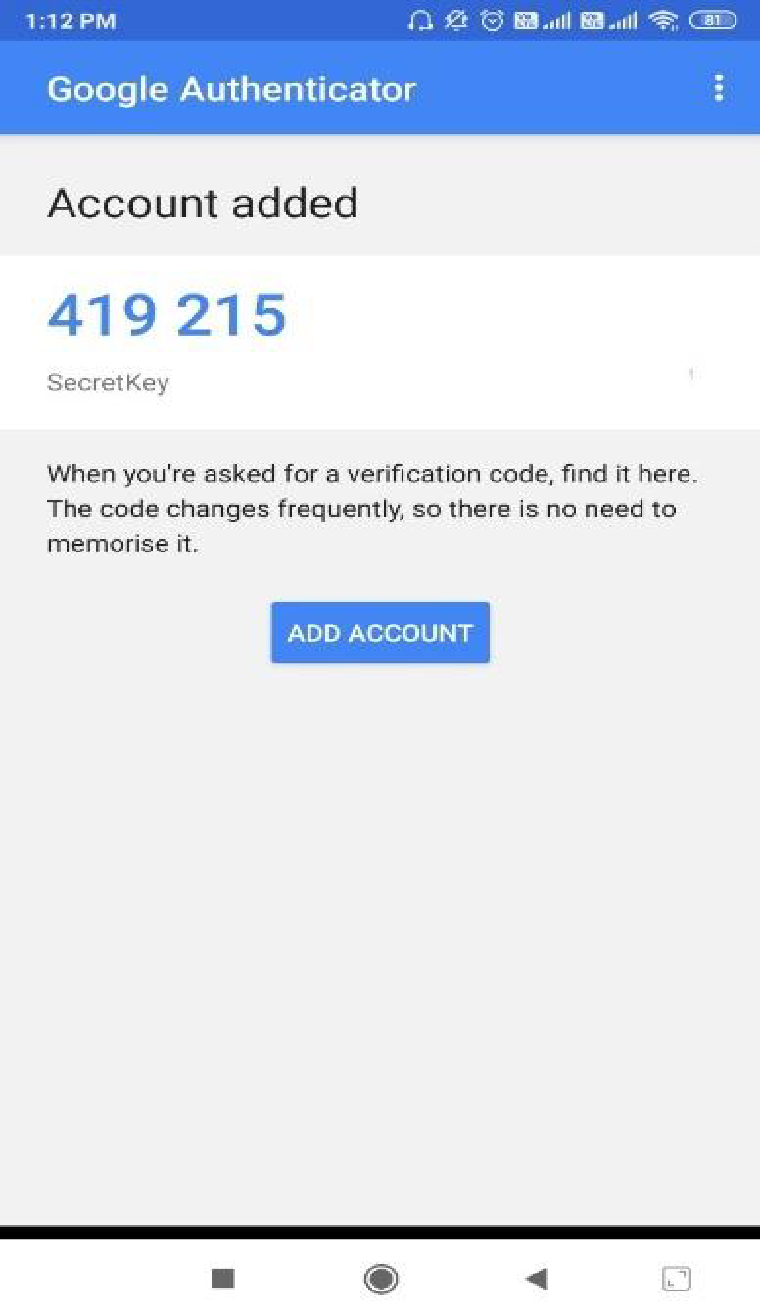
- The OTP received needs to be entered in the “Enter OTP” field and to be
submitted using the Submit Button. After a successful authentication a confirmation
message is displayed, as shown in the screen below:
Figure 5. Multi Factor Authentication: Success Confirmation 
- This step of setting up the MFA must be performed only once by every user. Post that there is no requirement of scanning the bar code.
- From the next login onwards, the user can enter the fresh OTP generated by the
Google Authenticator app. The sample screen where this action is performed is shown
below:
Figure 6. Multi Factor Authentication 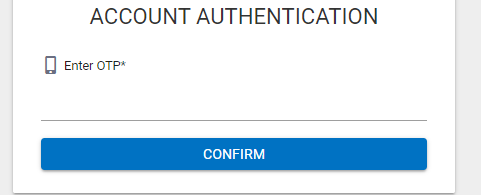
Figure 7. Edit User 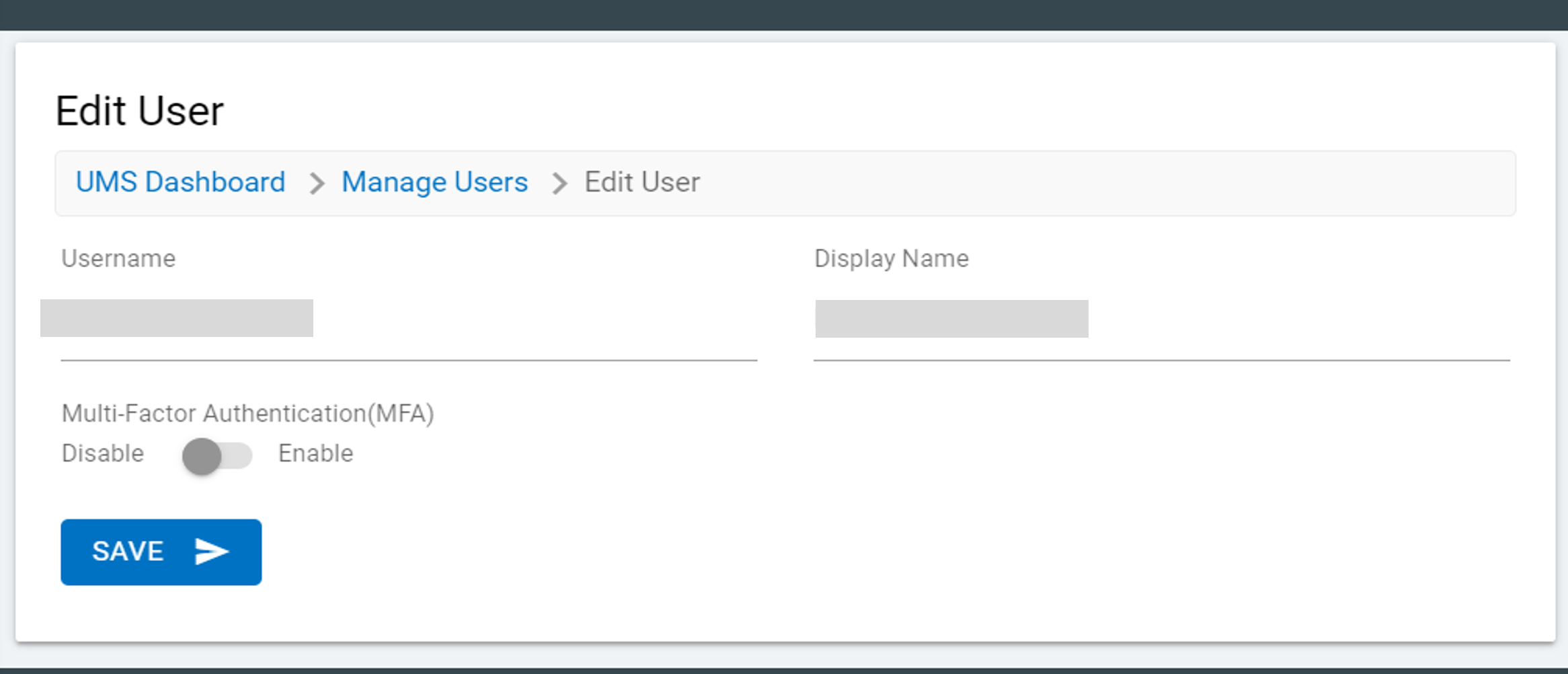
- Now that we have explained the Multi Factor Authentication, let us come back to the next action in the edit menu which is deleting a user.
- To delete an existing user, click Delete (
 ).
). - When prompted for confirmation, click YES to delete or click NO to
cancel the delete action.
Figure 8. Edit User: Delete Confirmation 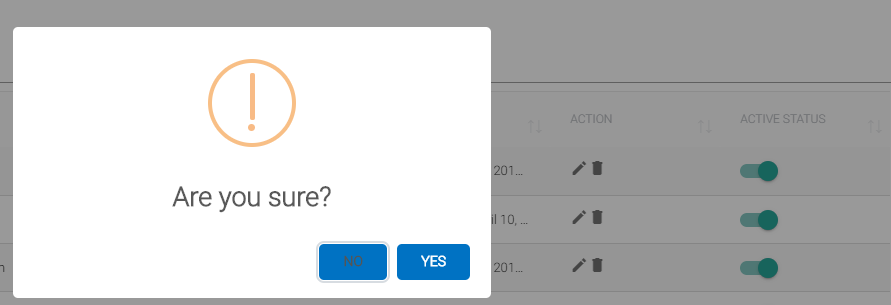
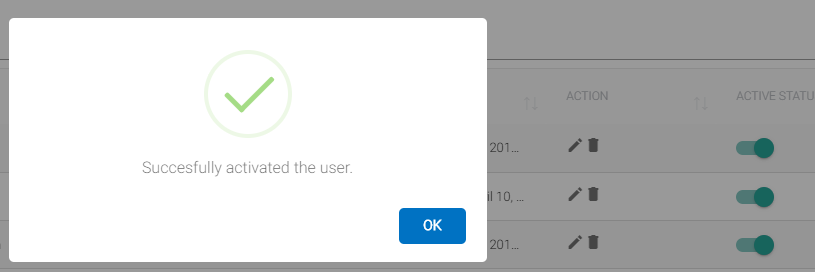
- Next action is to change the status of a user.
- Use the toggle button (
 ) next to
a user to change the status to active/inactive.
) next to
a user to change the status to active/inactive. - This completes the set of actions a user can perform on the Users Dashboard.