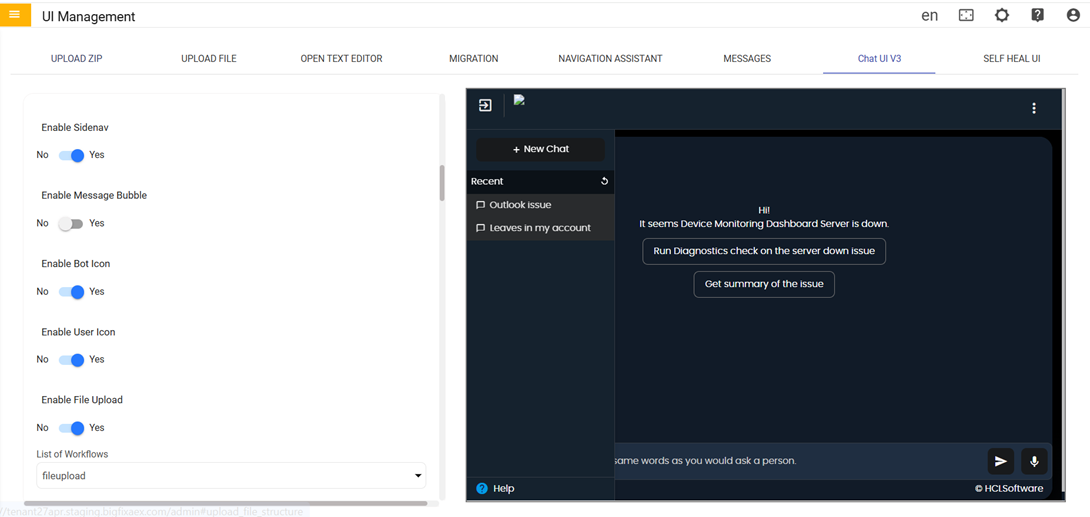
Custom Animation
- Click on the Browser button and select the required animation file.
Figure 1. Browse Custom Animation 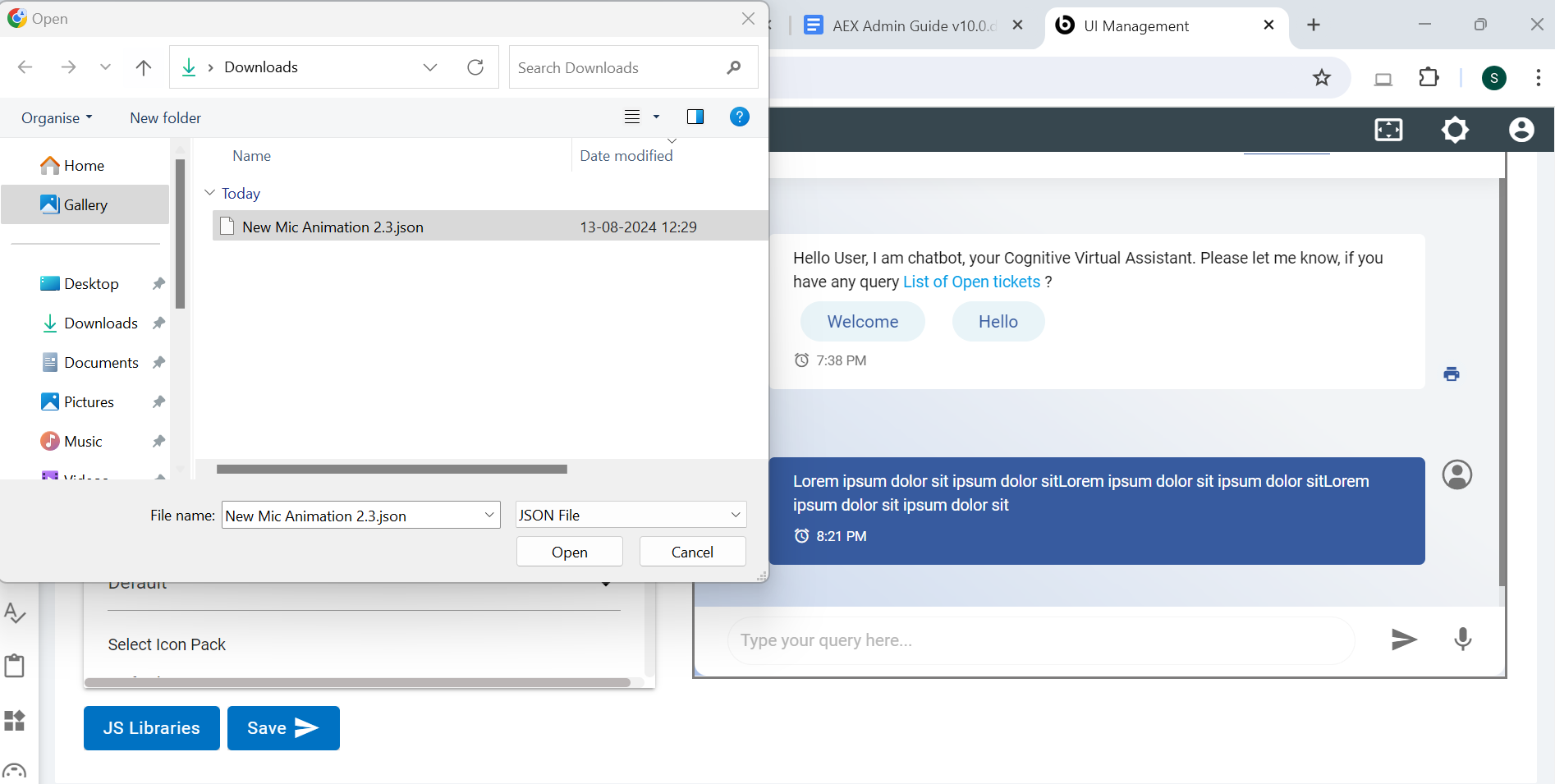
- After selecting the required animation file, click on the Reload button.
Figure 2. Custom Animation on Preview window 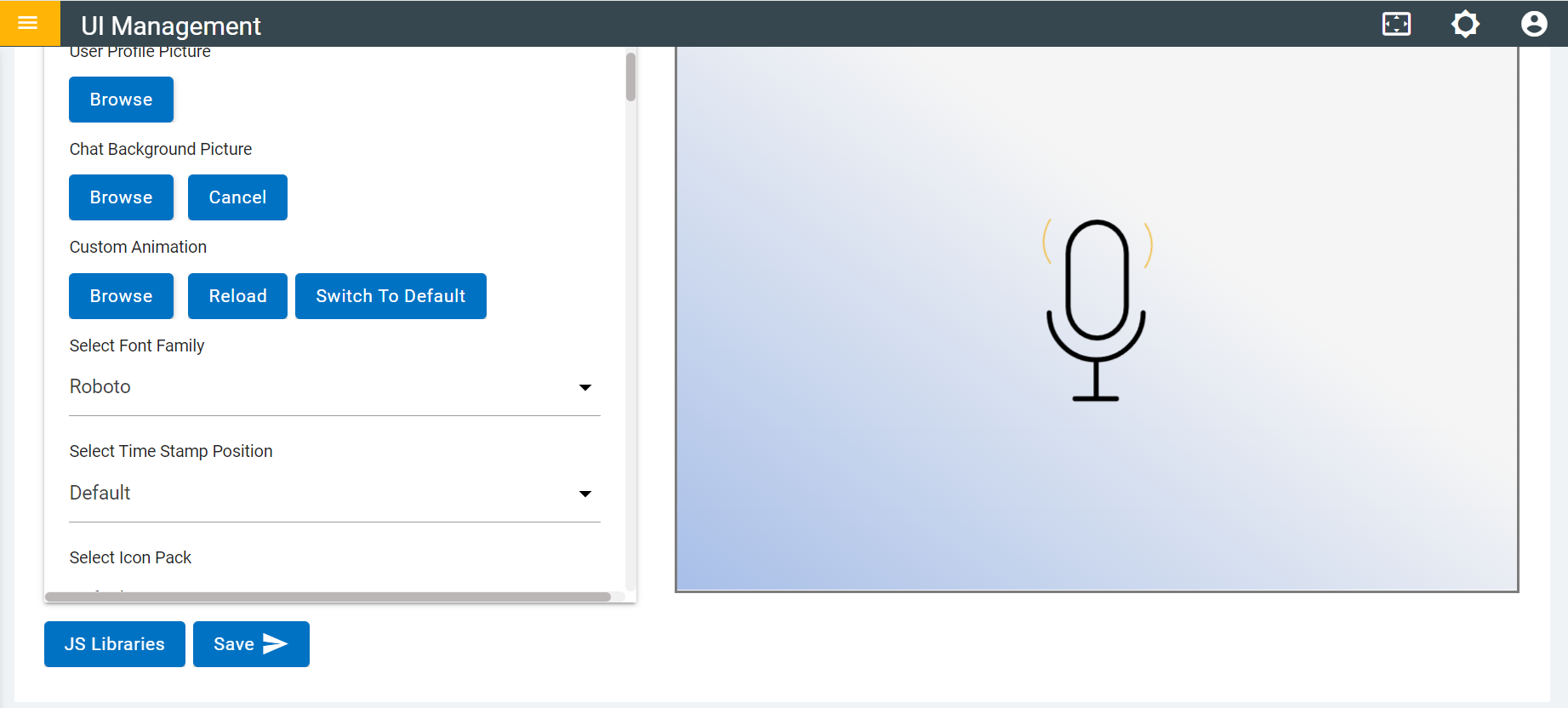
Figure 3. Custom Animation on Preview window 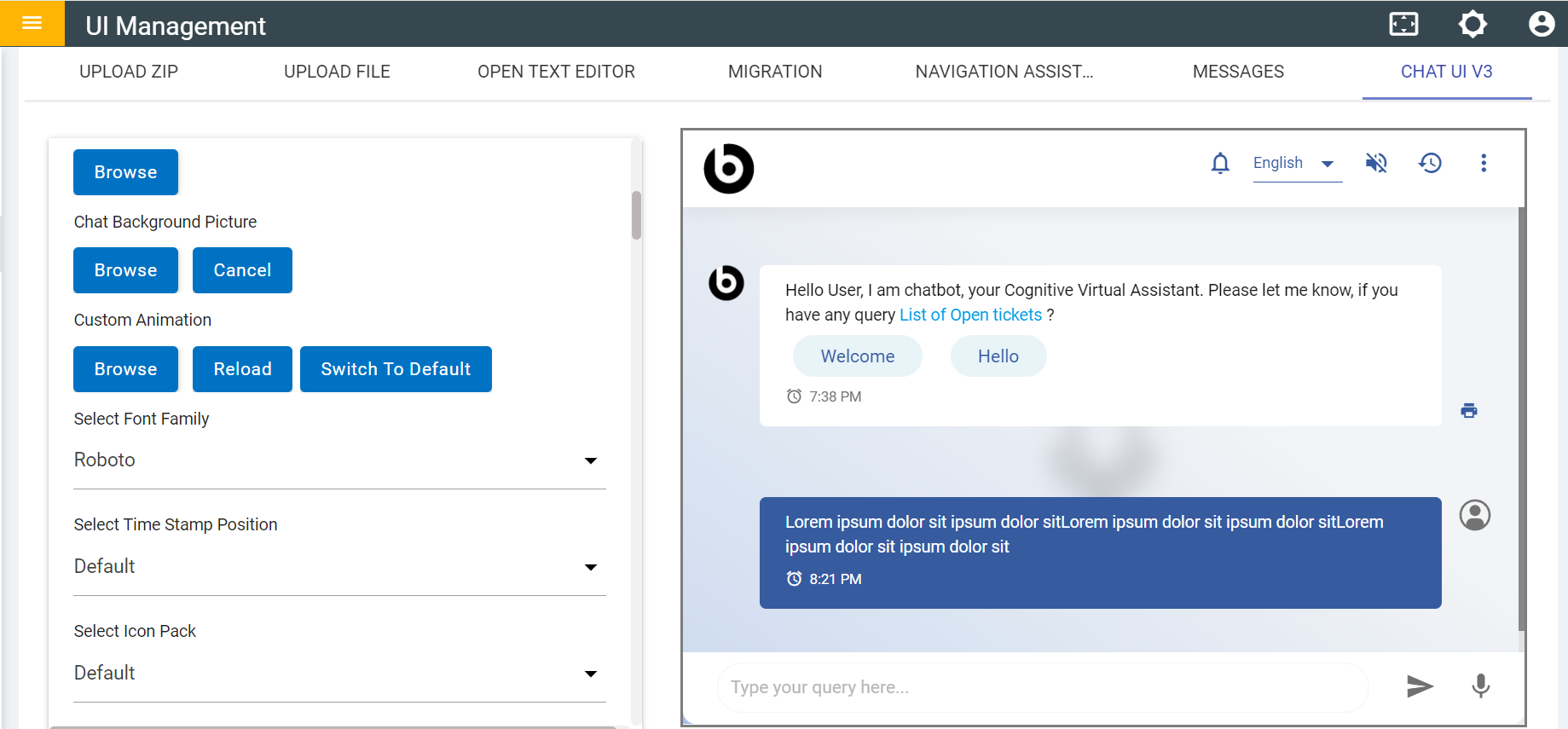
- Click on the Switch to Default to get previous preview window.
Figure 4. Switch to Default 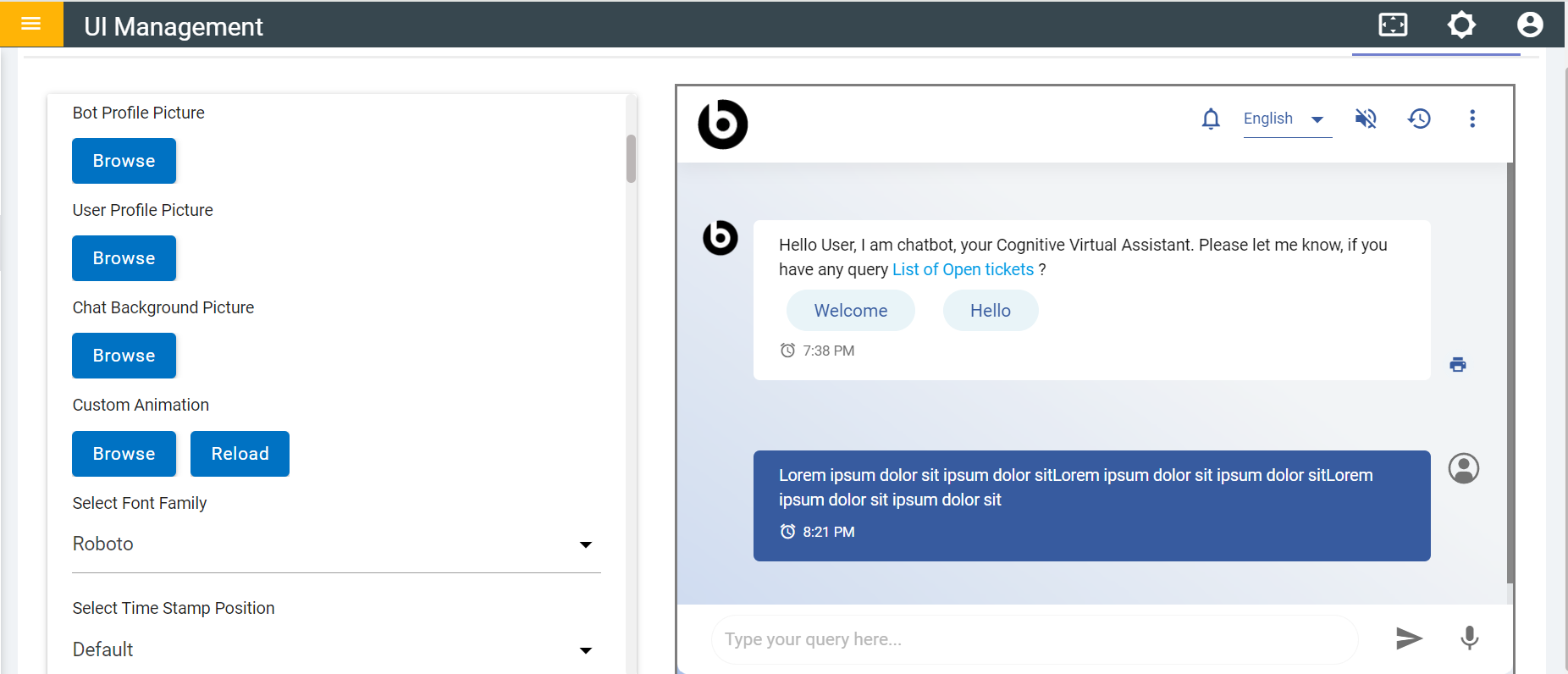
- Select Font from drop down list.
Figure 5. List of Fonts 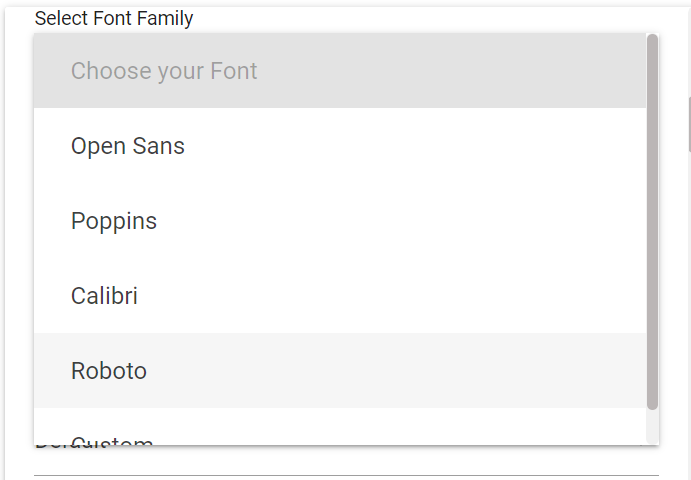
Figure 6. Poppins Font 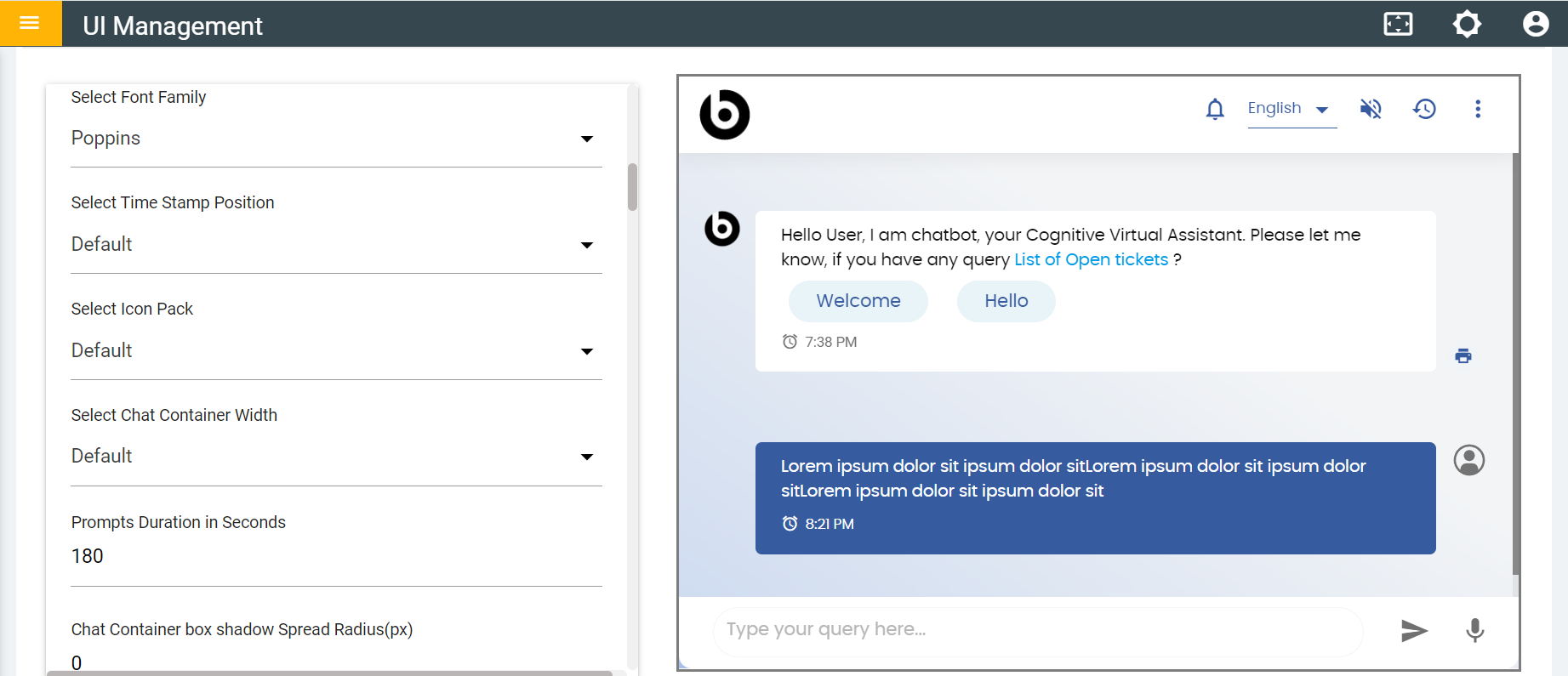
- Select time stamp from the drop list.
Figure 7. List of time stamp 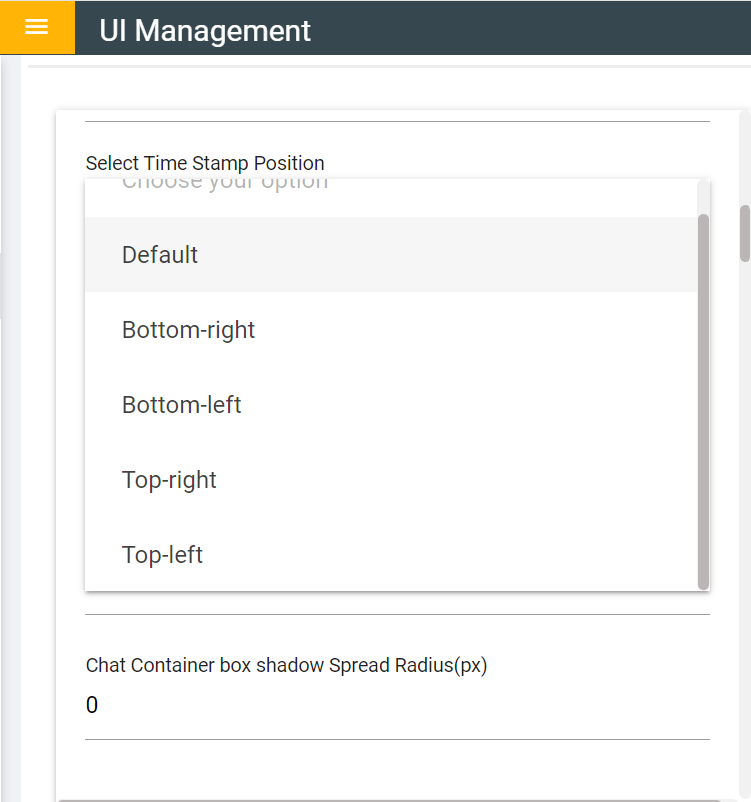
Figure 8. Bottom Right Position Time Stamp 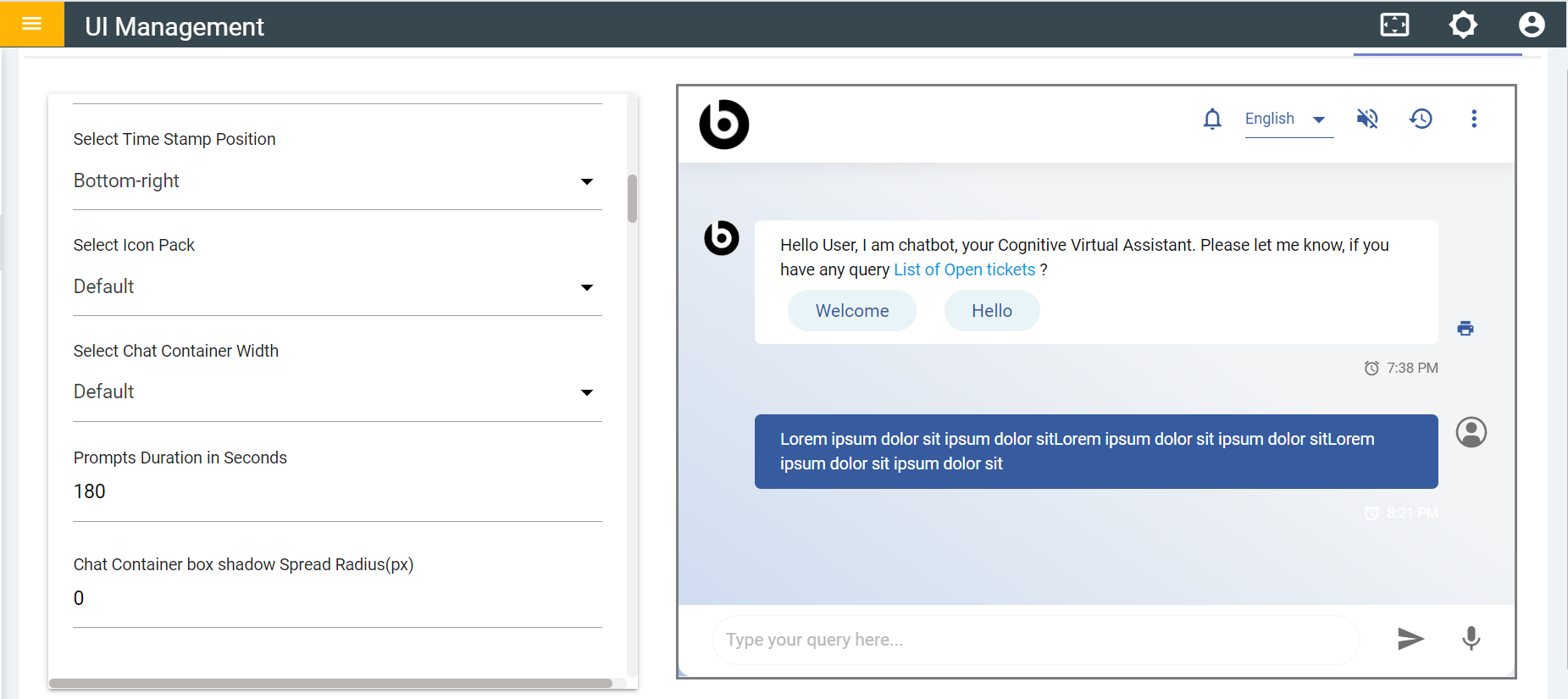
- Select Icon Pack
Figure 9. Icon Pack 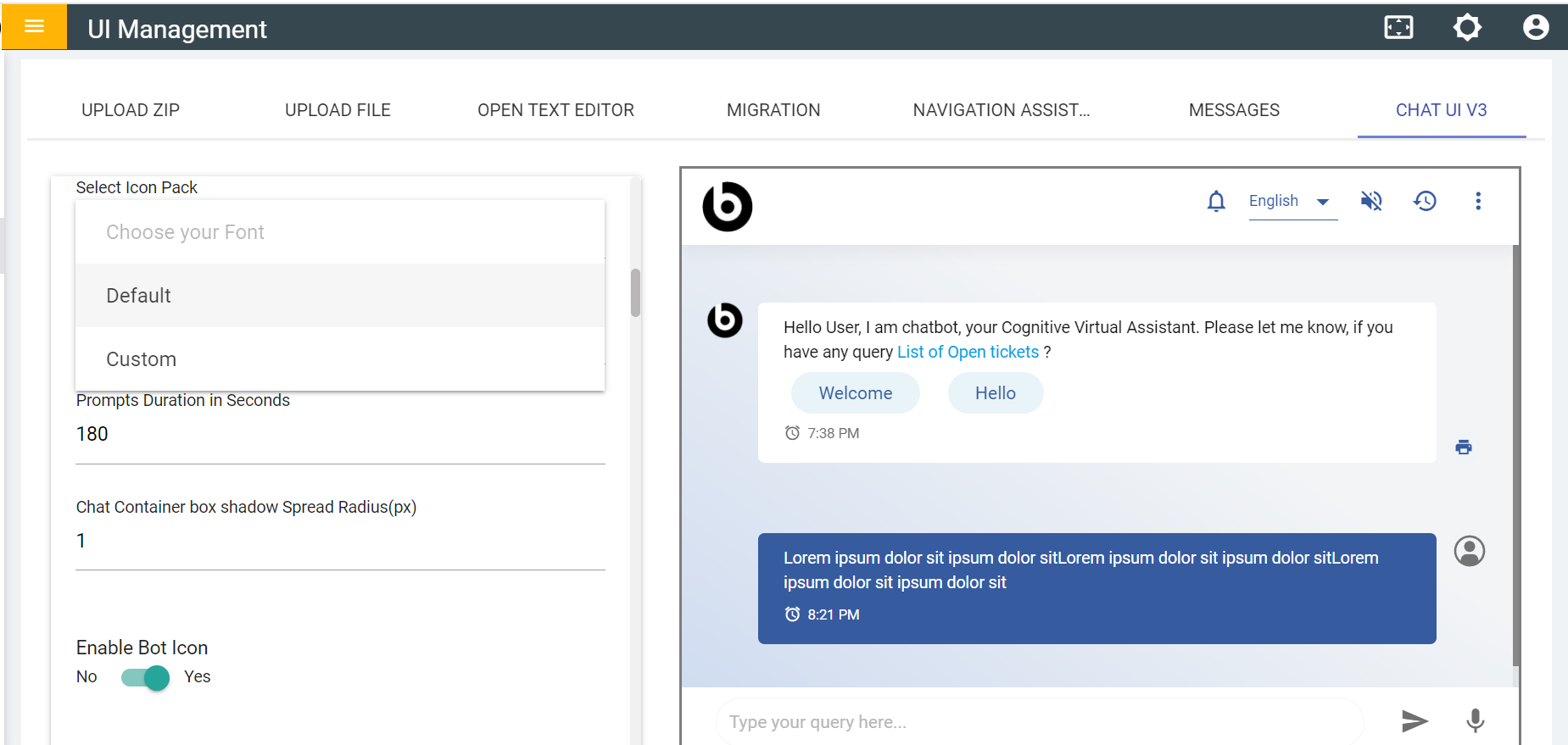
- Click on the Browser and select the required icon pack.
Figure 10. Browse Required Icon Pack 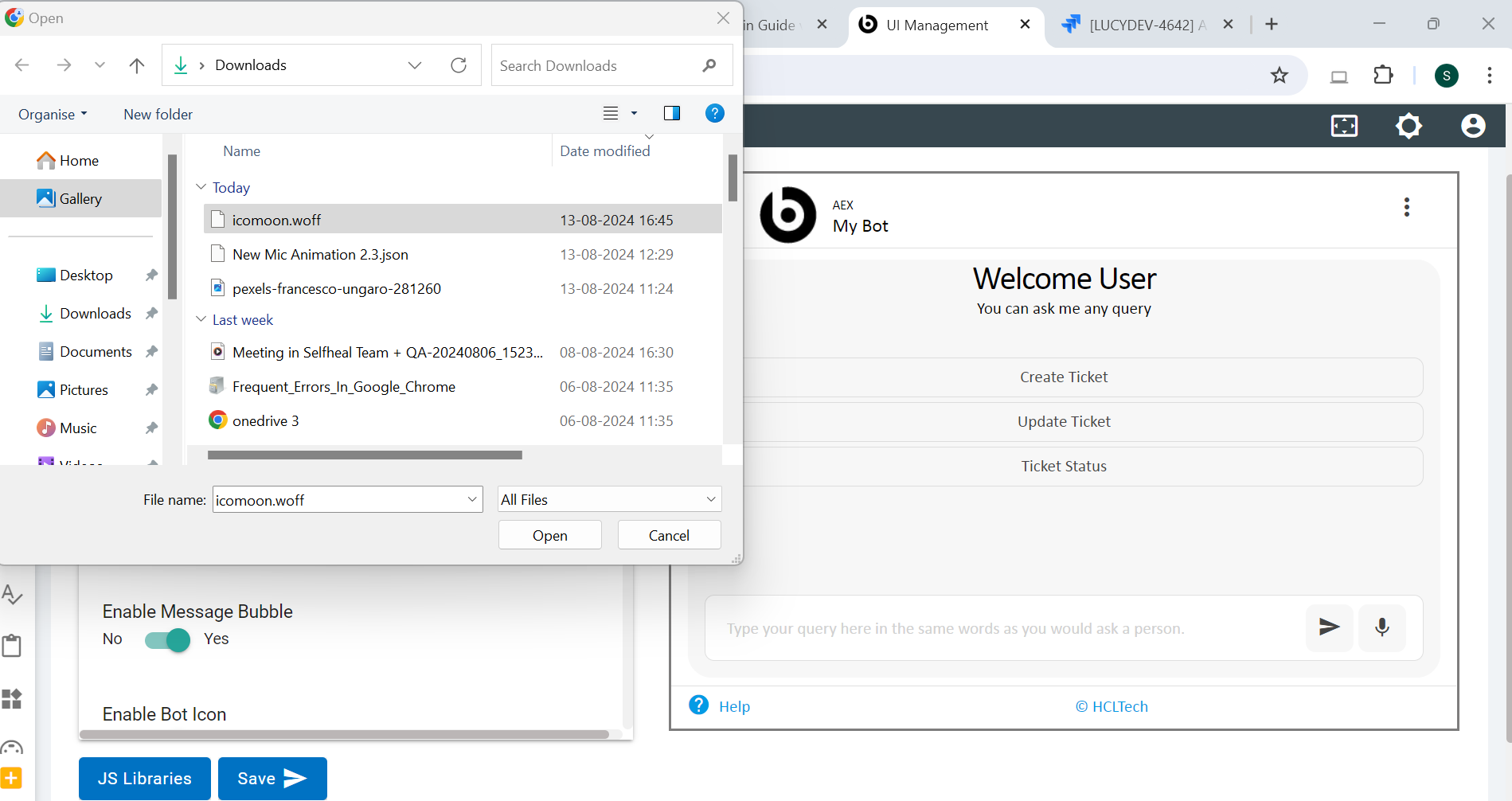
- After Uploading a file, it asks to reload the changes.
Figure 11. Success Message 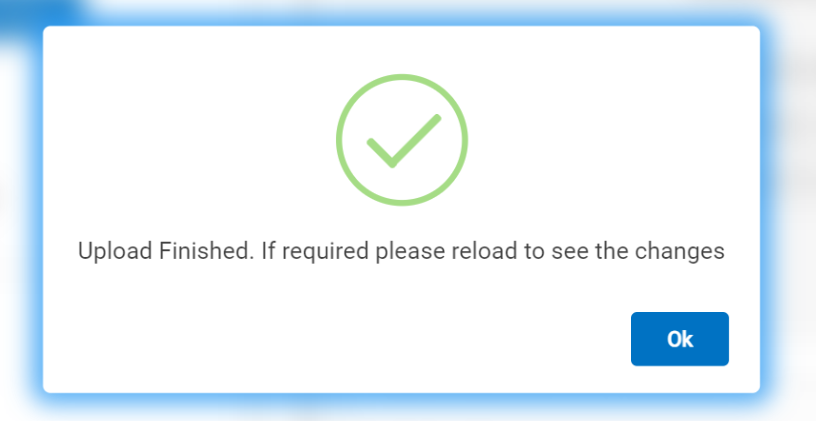
- Click on Reload, the changes will be reflected in the preview window.
Figure 12. Changes Reflect in Preview Window 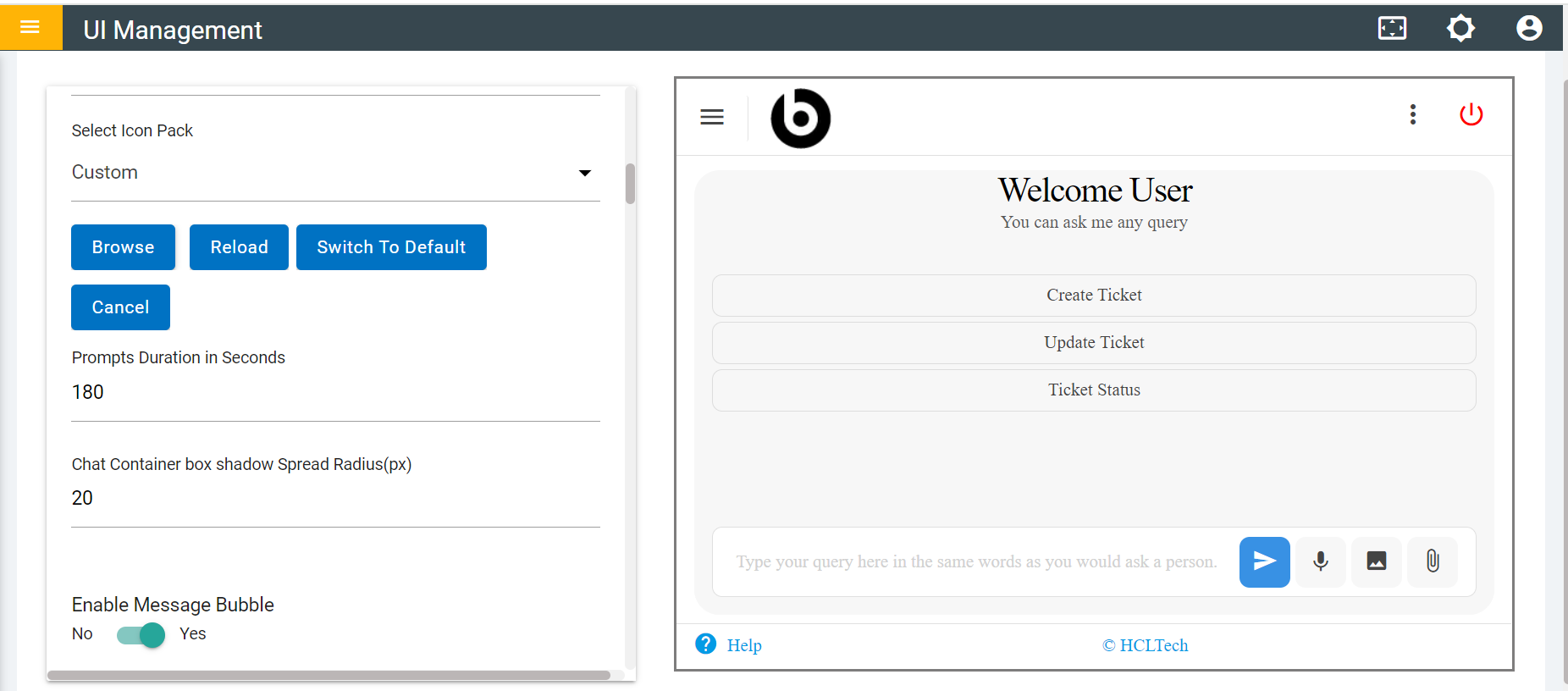
- Select Chat container Width by selecting custom from drop down.
Figure 13. Container Width 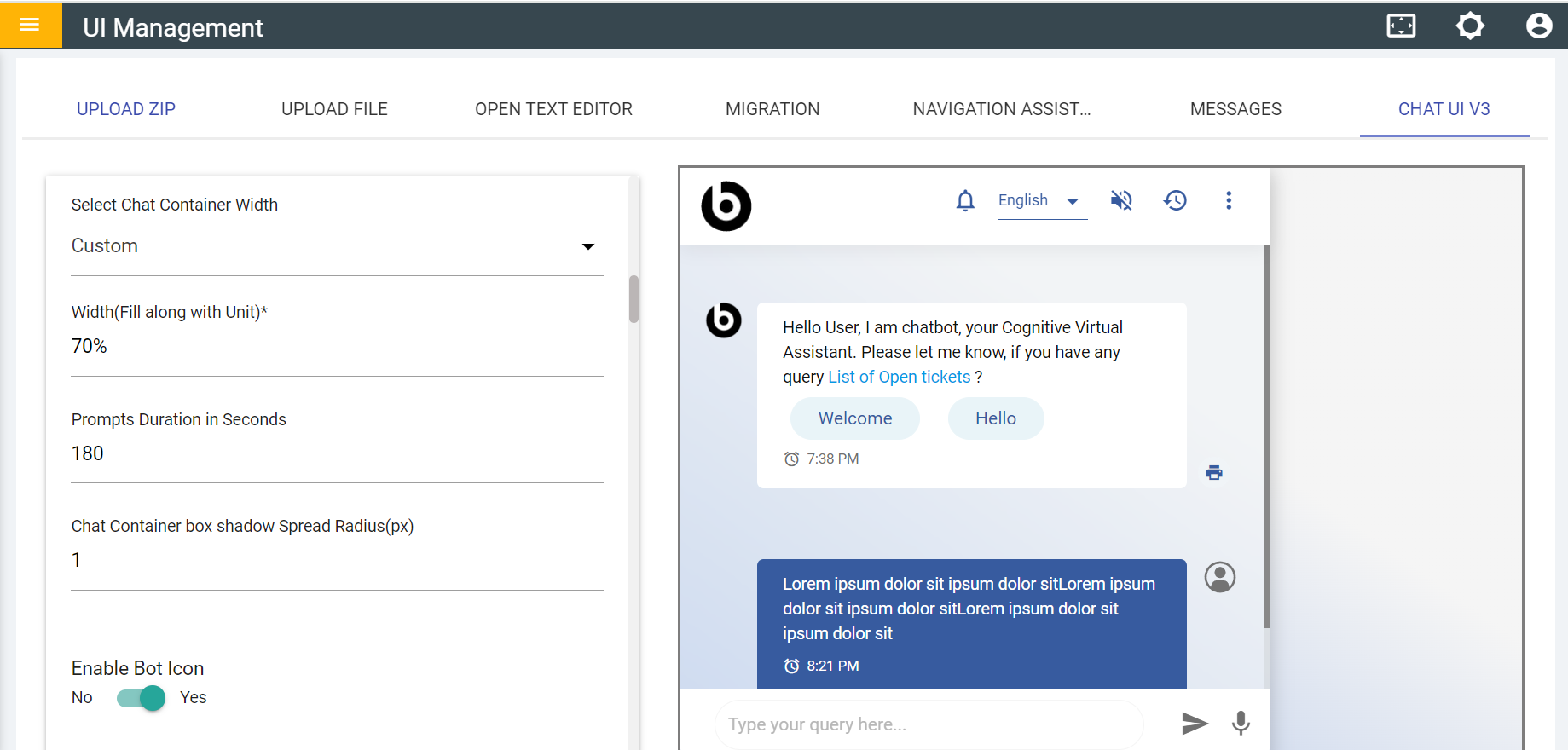
- Prompt duration in seconds.
Figure 14. Prompt duration 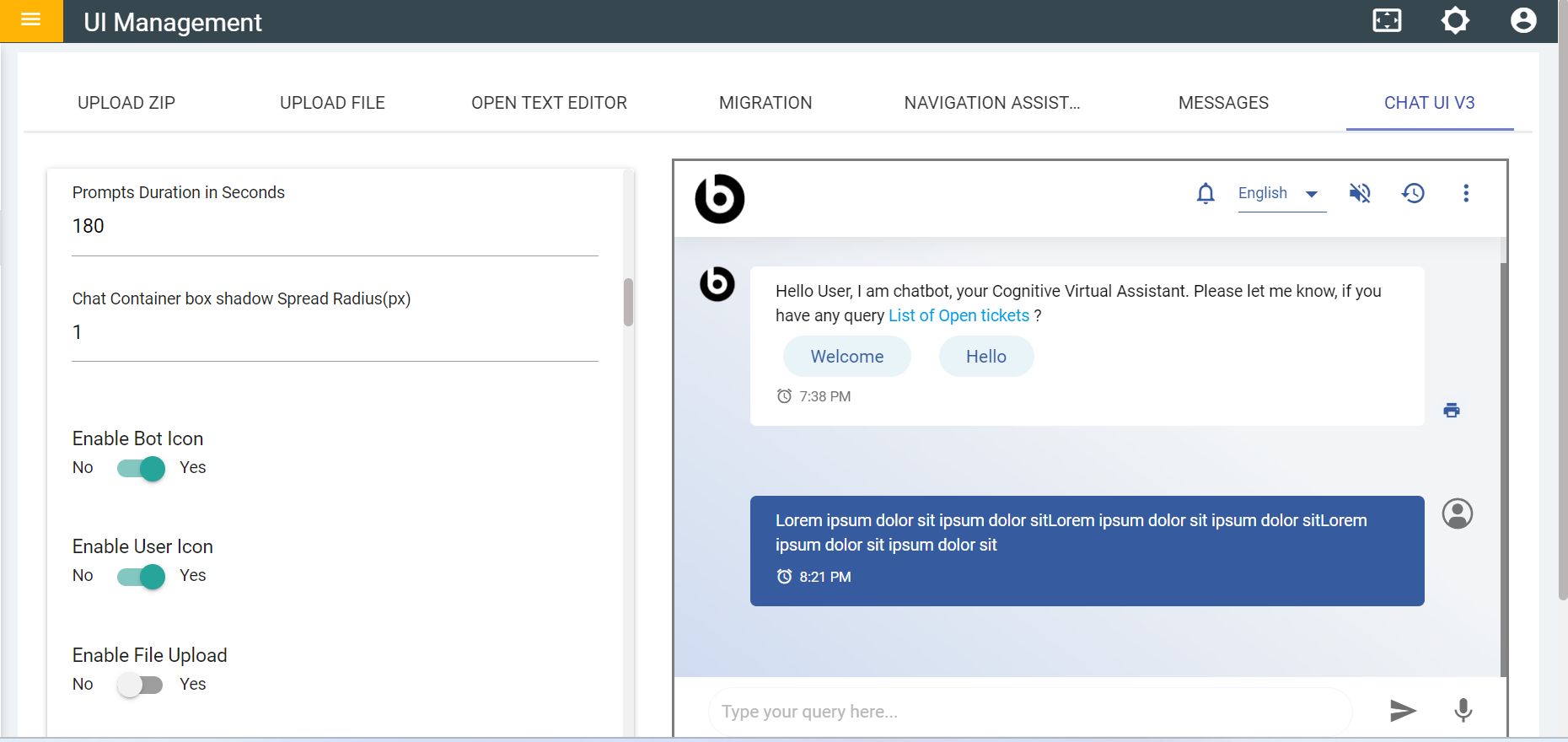
- On Disabling message bubble.
Figure 15. Disable Message Bubble 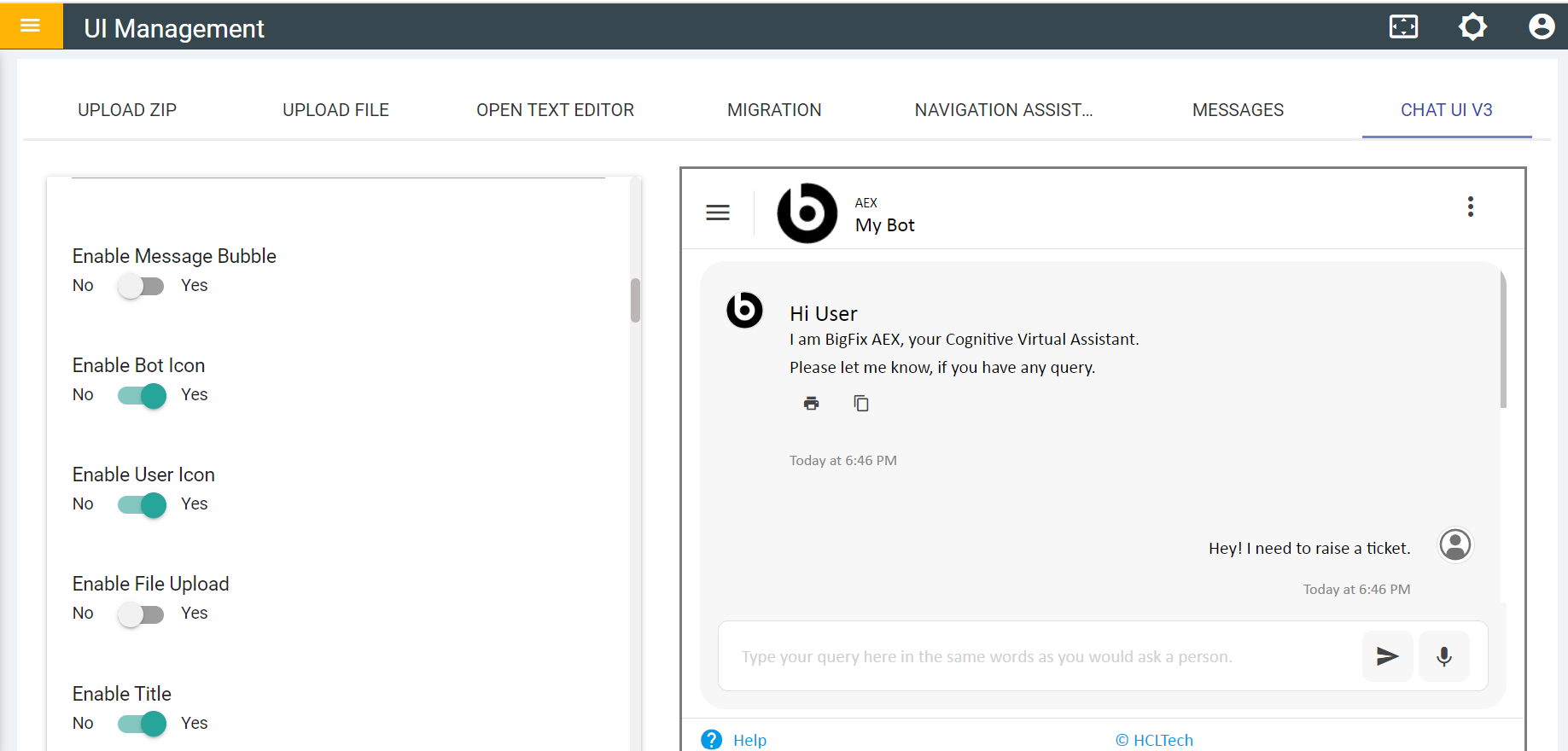
- On Enabling Message Bubble.
Figure 16. Enable Message Bubble 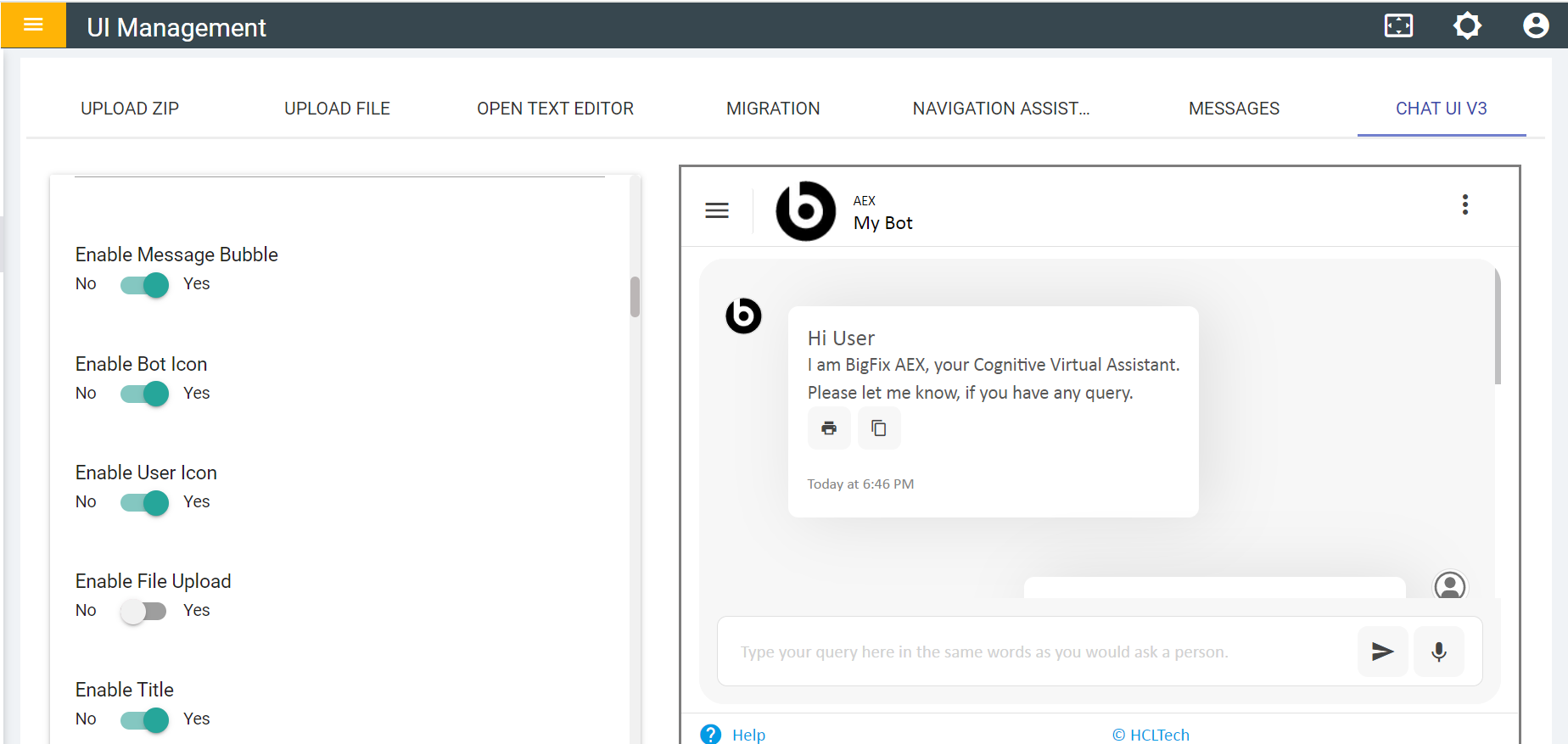
- Chat Container box shadow spread radius.
Figure 17. Chat Container box shadow Spread Radius 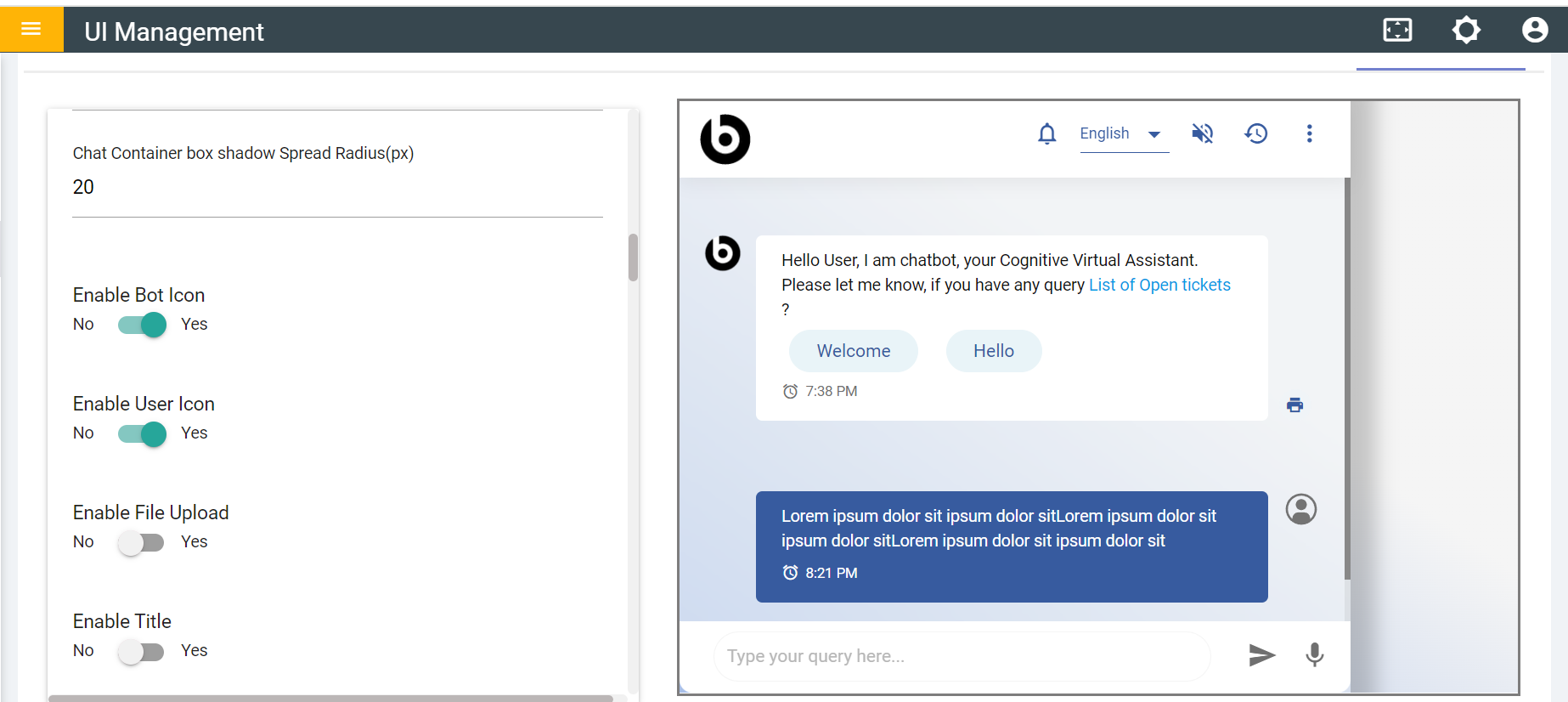
- On Enabling Sidenav,
Figure 18. Enabling Sidenav