
Using Upload File
Using this section, you can upload individual files (CSS, fonts, images, html).
- Click the Upload File tab.
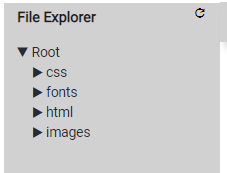
- Put the correct folder name in the Path Structure field depending on what type of file is getting uploaded - css, fonts, images, html. You can create a nested hierarchy. For example, to upload images of SOPs you can set the Path Structure to images\sop. The path must start from only one of the values – css, fonts, images, and html. No other folder name is supported.
- Click the Browse button to locate the desired modified or new file on your
computer.
Figure 1. Upload File Screen of UI Management Component 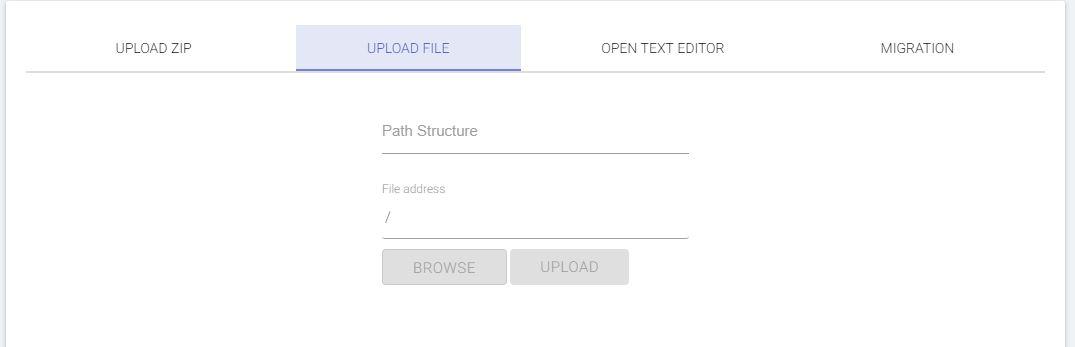
- Click Upload.
- This adds the uploaded file under the relevant folder.
Note:
If you upload a file that already exists in the BigFix AEX Server, this console will overwrite (replace) the existing file with the new file without creating a backup of the existing file and without giving any warning.