
User Activity Logs
In this section, users can view the history of user activity using the following steps:
- To view the user activity history in iAutomate, click Logs and then click
User Activity Logs to access the User Activity Logs page.
Figure 1. User Activity Logs 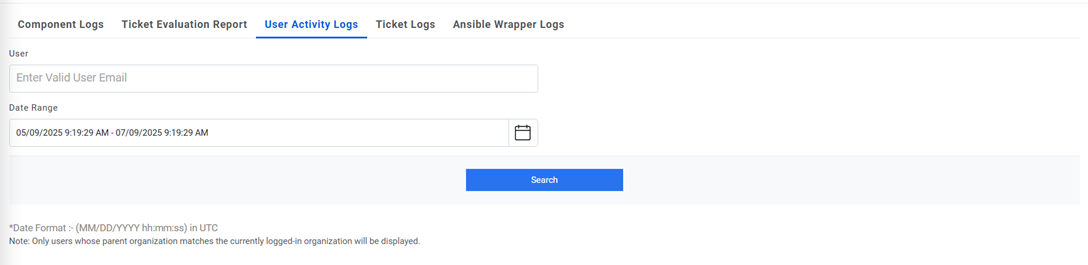
- Click Search to refine the User Activity Logs results. Depending on the application used to access the User Activity Logs, the Organization, User, or Date filter options will be available.
- Select the search options and click Search.
- This displays the filtered user activity log, in a tabular view.
Figure 2. User Activity Logs 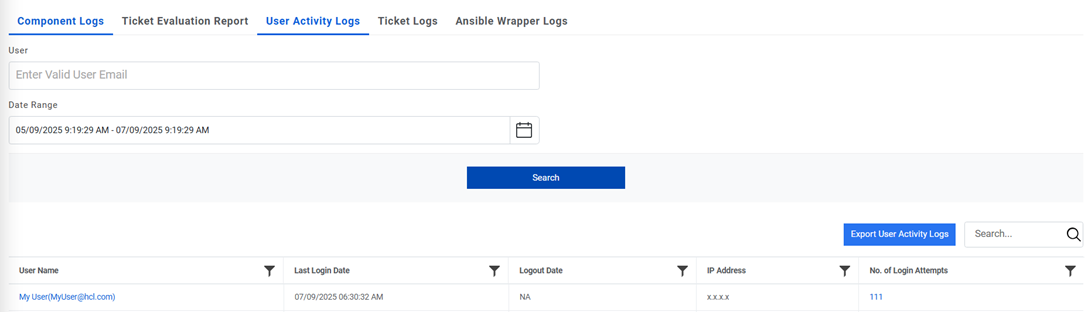
- The Export UserActivity Logs feature allows users to download a comprehensive log of user activities in a CSV file format. This functionality is accessible via a dedicated button labeled "Export UserActivity Logs" within the application interface.
- Selecting a UserName opens the User Activity Details page displaying the log
of all user activities.
Figure 3. User Activity Logs (Cont.) 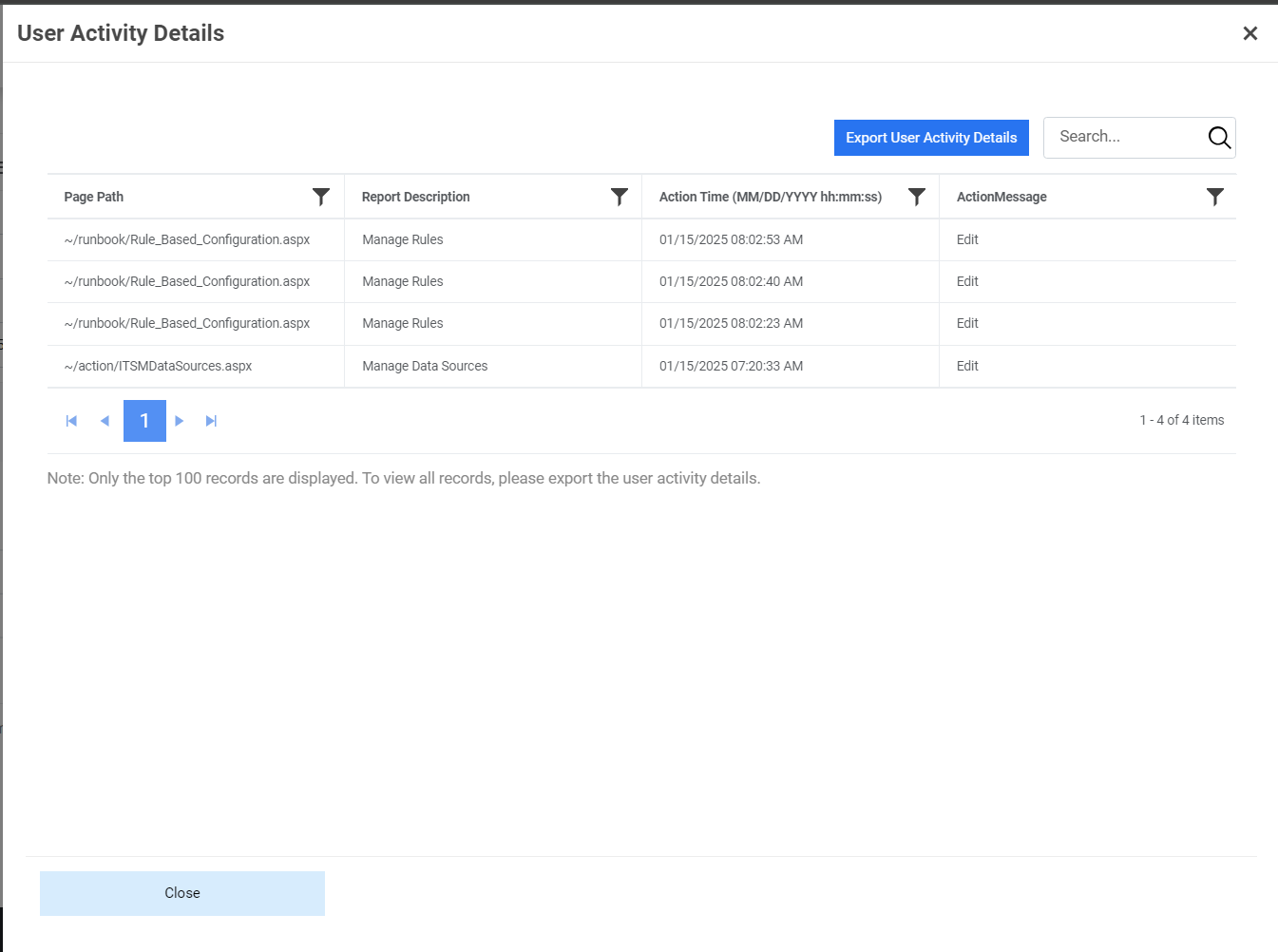
- The Export UserActivity Details feature allows users to download a comprehensive log of user Details in a CSV file format. This functionality is accessible via a dedicated button labeled "Export UserActivity Details" within the application interface.
- Selecting the No. of Login Attempts next to a UserName displays the entire
log details for all attempts by a particular user.
Figure 4. User Activity Logs (Cont.) 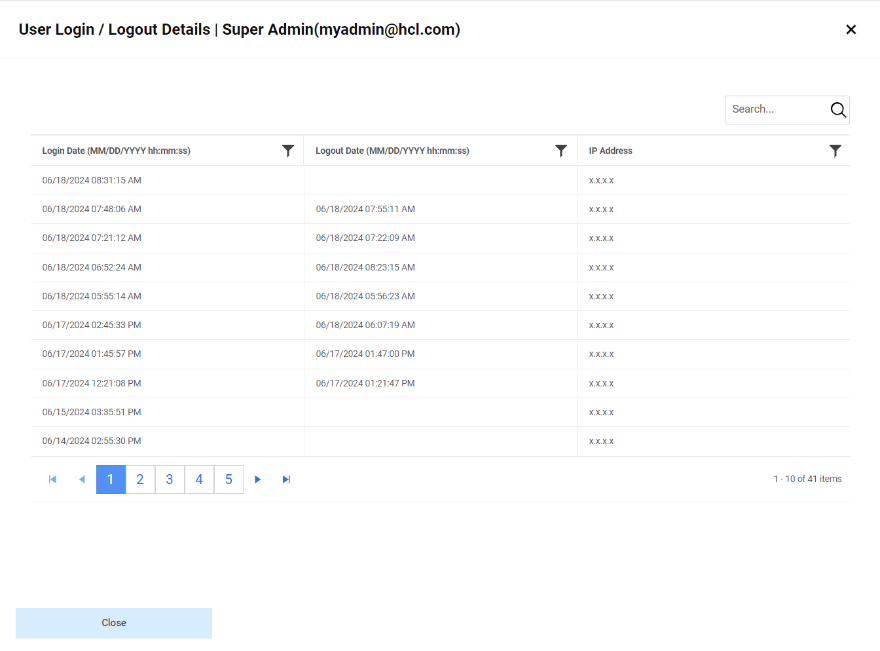
- The Export login/logout Details feature allows users to download a comprehensive log of user Details in a CSV file format. This functionality is accessible via a dedicated button labeled "Export login/logout Details" within the application interface.