Knowledge Search
This section provides the user with the documents fetched for any description.
To use knowledge search, use the following steps:
- On the Knowledge menu, click on Knowledge Search. Below screen appears:
Figure 1. Knowledge Search 
- Enter the desired description and click on
 Search icon.
 - The relevant data would appear as below:
Figure 2. Knowledge Search (Cont.) 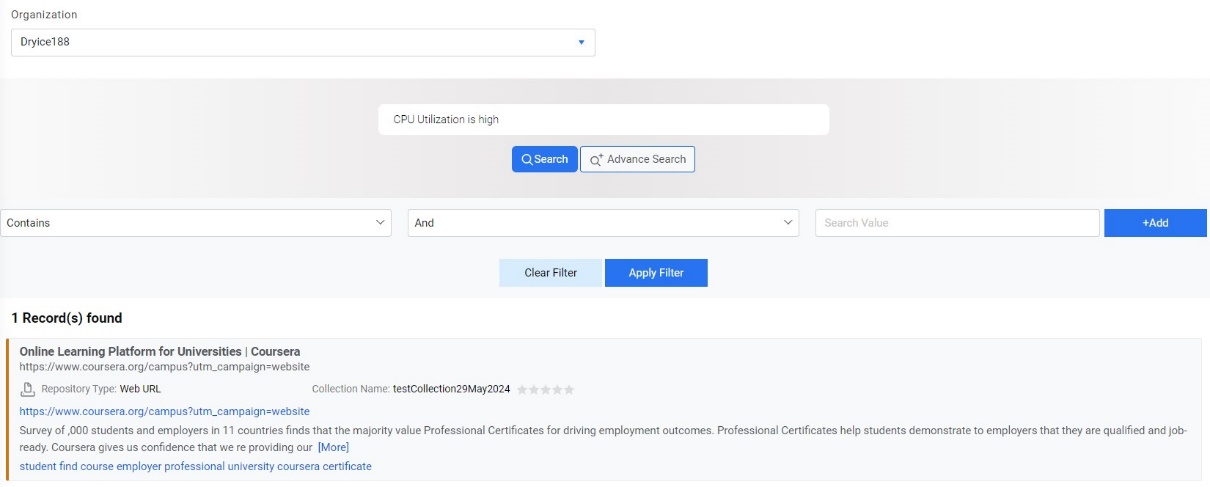
- Users can apply additional filters for the search. For that, click on Advance
Search. A popup will be opened.
Figure 3. Knowledge Search (Cont.) 
- From the condition dropdown, select any of the conditions:
Figure 4. Knowledge Search (Cont.) 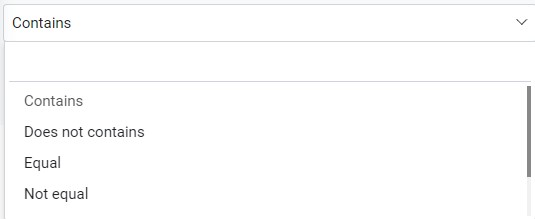
- Enter Search Term and select condition as AND or OR.
Figure 5. Knowledge Search (Cont.) 
- Add all the conditions and click Search. Now the data will be filtered as per the
advance search conditions.
Figure 6. Knowledge Search (Cont.) 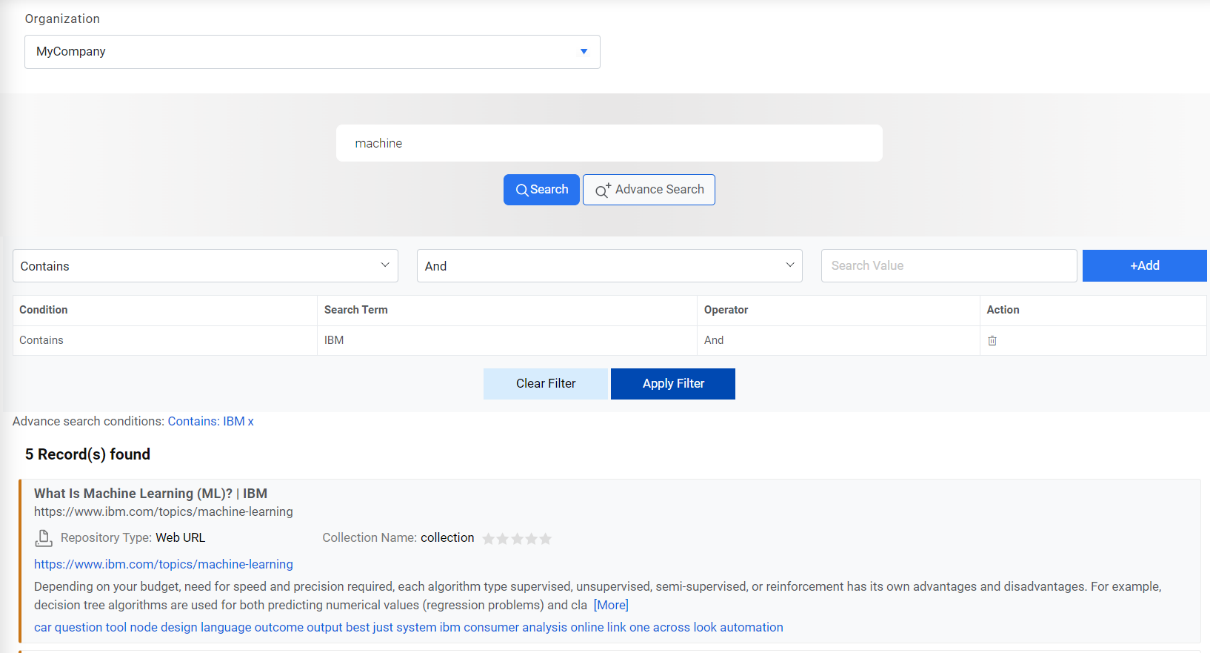
- Users can click on any of the links to get detailed information.
- Users can also give rating to any of the fetched links whatever suits him the right.
Figure 7. Knowledge Search (Cont.) 
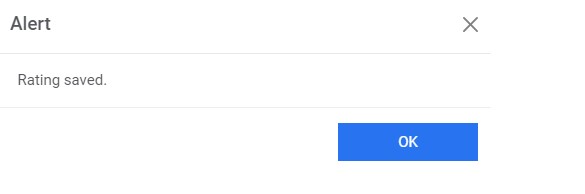
- A confirmation dialog box opens.
Figure 8. Knowledge Search (Cont.)