UI Builder
Predefined HTML pages can only be created by skilled developers who have the knowledge and expertise in the relevant technologies /languages which are used in creating this product.
This increases the dependency on the dev team for every new requirement and also increases the time to market for even simple requirements due to other priorities.
Objective of UI Builder:
UI Builder allows the user with specific roles to create new UIs / make changes to existing UIs which are developed by using UI Builder.
Reduces the time to market, also allows reduced dependency on the core development team.
Users can be trained in the use of UI Builder and thereafter creating new pages and integrating them with data using connectors, data queries comes in handy.
This is an effort to empower more end-users with certain high roles and little bit of technical knowledge of HTML/APIs to be able to create web UIs/pages independently.
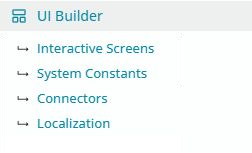
UI Builder Tools
Connector: Enables creation of a data source with the help of an existing API. These data sources can be then used within forms via data queries.
Interactive Screens: This option allows you to create/edit/delete forms/pages. Depending on the type of admin role that you possess.
System Constants: Allows to application-level variables to be shown on each form.
Localization: Allows to input label translations in other languages. This is used to render multilingual page through the UI builder.
Connectors
For data bound forms in HCL BigFix Service Management forms connectors have to be created.
These connectors are bound to the forms in HCL BigFix Service Management UI Builder to get or post data to and from the forms. Each connector encapsulates the information of the API endpoints and the method of calling them for data.
This API connector module in HCL BigFix Service Management forms is like the postman URL which the developers use to call APIs with specific params and methods.
Role/Prerequisites:
Super Admin or App Admin role is required to perform this action.
Description:
- UI Builder lets you see a list of all the application connectors that have been created for HCL BigFix Service Management forms.
- Application Menu->UI Builder->Connectors redirects the user to a page from where all the below actions can be done:
- List of all the connectors is viewed
- New connectors can be created
- Existing connectors can be edited or deleted
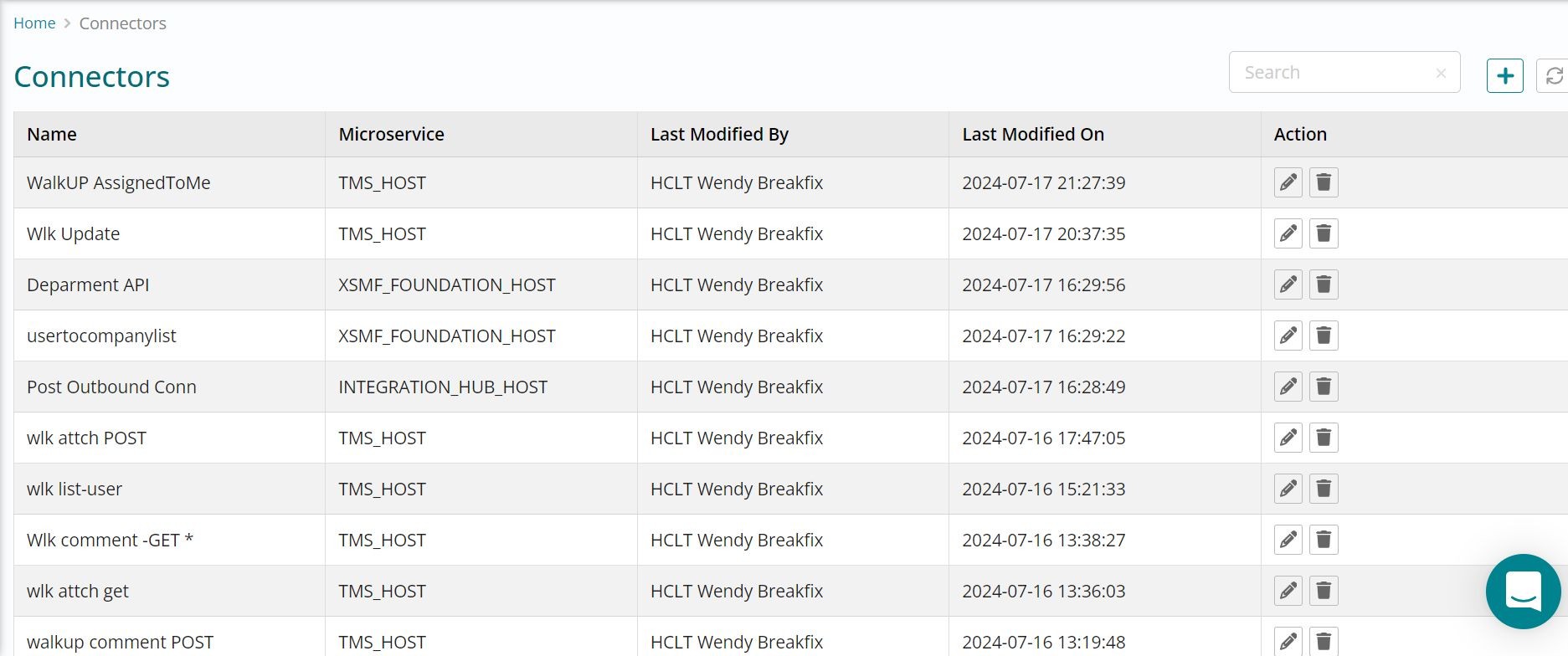
Here, Name of the connector is the name with which it can be identified and used in the HCL BigFix Service Management UI Builder and the microservice which owns the API endpoint. This can be a list of HCL BigFix Service Management.
Actions:
- Add new connector using the (+) icon.
- Edit a connector.
- Delete a connector.
- Refresh connector list view.
- Search connector text box.
| Action | Description | Role / Prerequisites |
| Add | To create a new connector one can, click on the + icon on the connector list page and add the details to configure a connector. | Super Admin or App Admin role is required to perform this action. |
| Edit | All connectors can be edited from the connector list page by clicking on the pencil icon in the last column of the connector row. | App Admin role is required to perform this action. |
| Delete | Connectors can also be deleted by clicking on the delete icon shown in the connector row of the list view. | App Admin role is required to perform this action. |
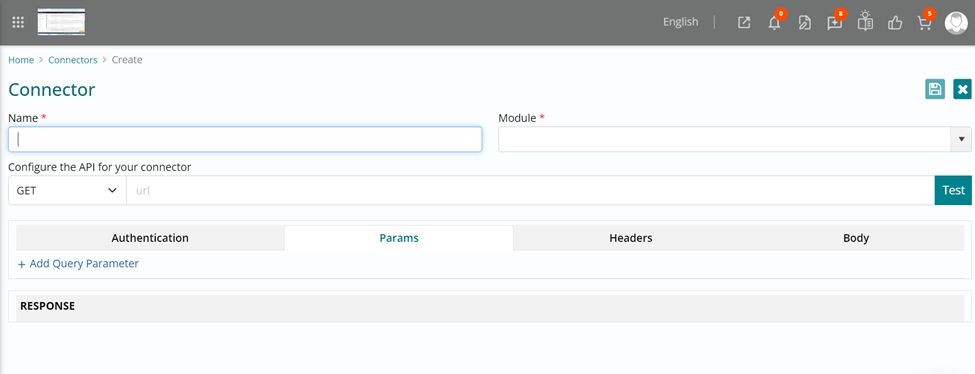
Name: Name of the connector with which it can be identified and used in the HCL BigFix Service Management forms. Max length of this field on the UI is 20 characters.
Microservice: Select a list from a definite list of microservices if the API end point is from any of HCL BigFix Service Management’s own microservices or to configure a third-party API end point, “Other” should be selected from the list.
/api/serviceportfolio/usertocompanylistOn the other hand, for an external ape end the complete URL along with the base URL is expected as a value for the endpoint
Configure the API:
Method: Select the relevant value from the dropdown list i.e. Get/Post/Patch/Delete
Endpoint: is divided into two parts 1) base URL (https://xsmftest.dryice-aws.com) and rest is the API end point
Method and API endpoint should synchronize else “Test” will give an error in the response window. Which means that if it is a get API then get method should be chosen and likewise for other methods also. If these are not in sync, then an error will be shown in the response window.
Connector cannot be saved if any error is shown in the response.
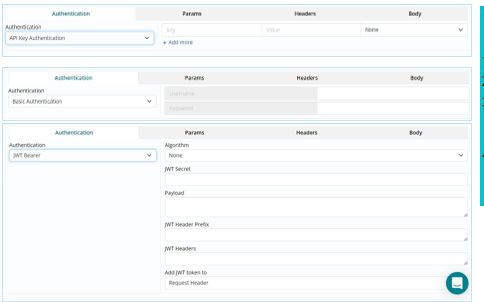
Authentication Tab: to configure API authentication method. Permissible values for Authentication are:
- None – when no authentication is required
- Basic Auth – Requires Username and password
- JWT Bearer - Requires algorithm, JWT Secret Key, Payload, JWT Header Prefix, JWT Headers, Add JWT token to (Request Header/Query Param
- API Key Auth- Requires Key, Value and Placement (Body, Header, Params)
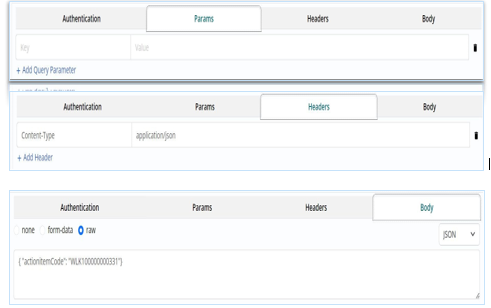
Params Tab: To configure API Params.
Key-Value pairs of the parameters to call the API
Headers Tab: To configure/specify any values to be sent as part of header when api is called.
Key – Value pair to be sent in header part of the API calling
Body Tab: To configure/specify any values to be sent as part of body when API is called.
Values can be:
- None
- Form-data
raw (Data types for raw can be choose from the following values, Text, Json, Javascript, XML).

Once all the connector tabs have been configured for the API end point, the connector can be tested using the “Test” Button.
If no error is shown in the response window, the connectorcan be saved and then be used while creating the UIs through the HCL BigFix Service Management UI Builder.
The response window gives an idea of response that is got from the connector for the specified parameters.
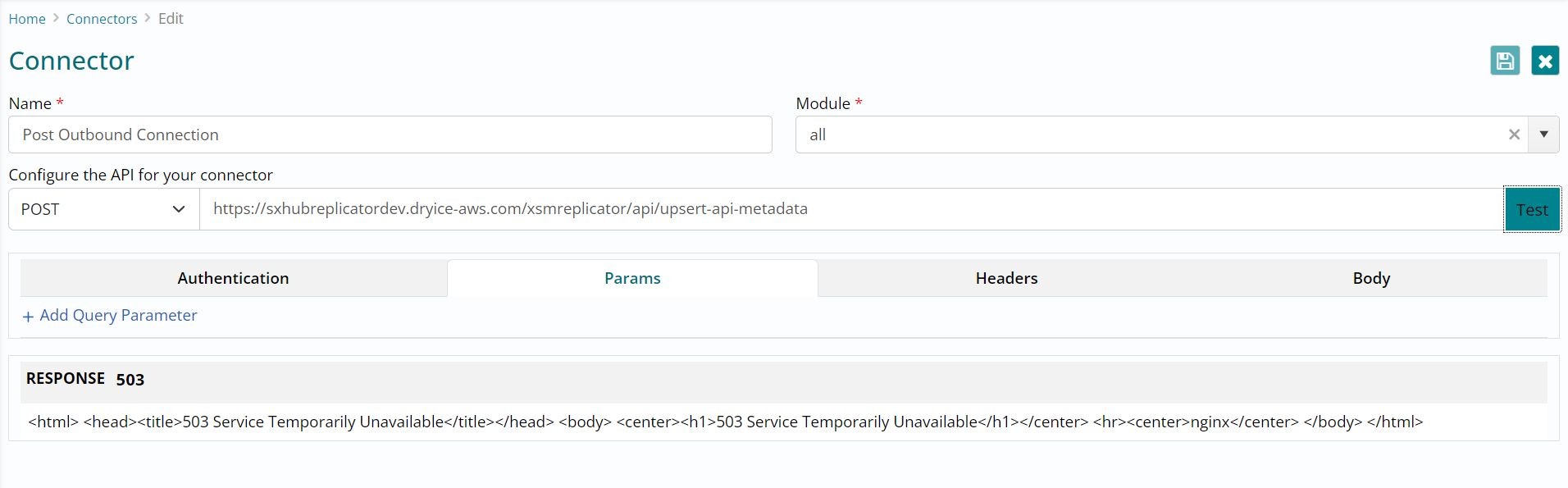
The response window shows error returned when the connector is tested.
Interactive Screens - Forms
HCL BigFix Service Management provides the capability of creating your own interactive screens in Portal. For creating these forms, one should have the knowledge of HTML/CSS and understanding of APIs which are encapsulated into connectors to get and post data to and from the forms/pages.
There is absolutely no need-to-know coding as the form can be created by dragging and dropping controls on the canvas.
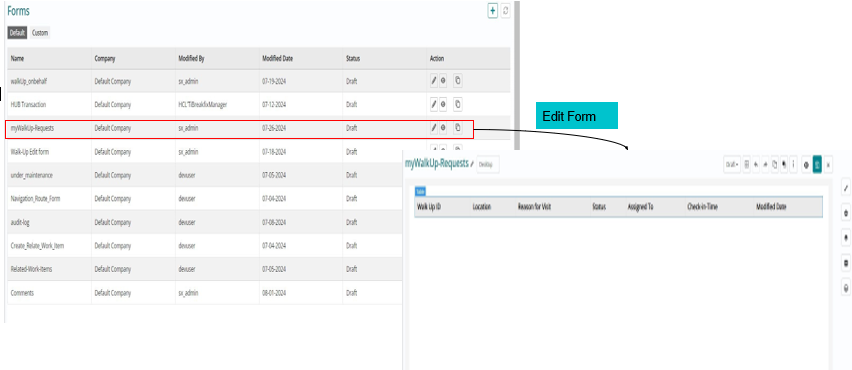
From the Main Application Menu one can navigate to the UI Builder ->Interactive screens to work on HCL BigFix Service Management forms module.
Role/Prerequisites:
- Super Admin role is required to perform actions on default forms.
- App Admin role is required to perform actions on custom forms. Description:
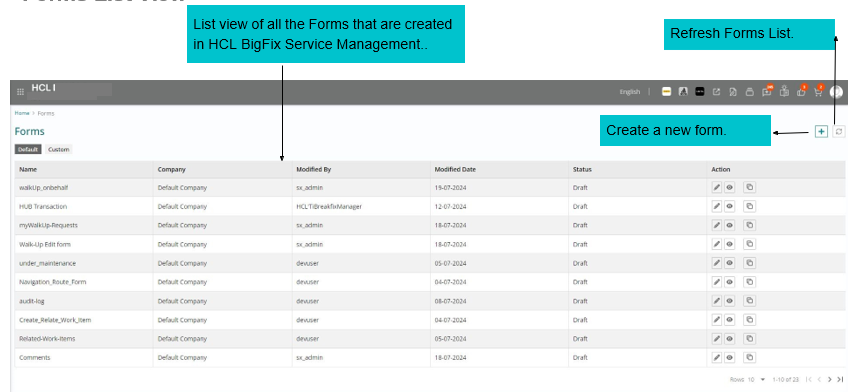
UI Builder lets you see a list of all the forms that have been created for HCL BigFix Service Management UI Builder.
Application Menu->UI Builder->Interactive Screens redirects the user to a page from where all the below actions can be done:
- List of all the Forms is viewed
- New Form can be created
- Existing Forms can be edited or deleted or Previewed
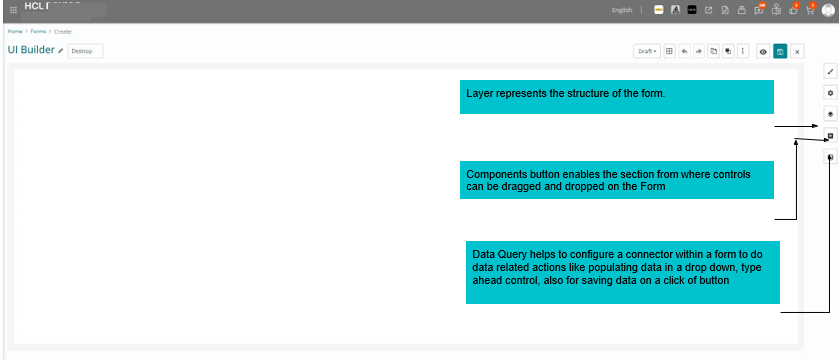
Blank Canvas appears when a new form is created.
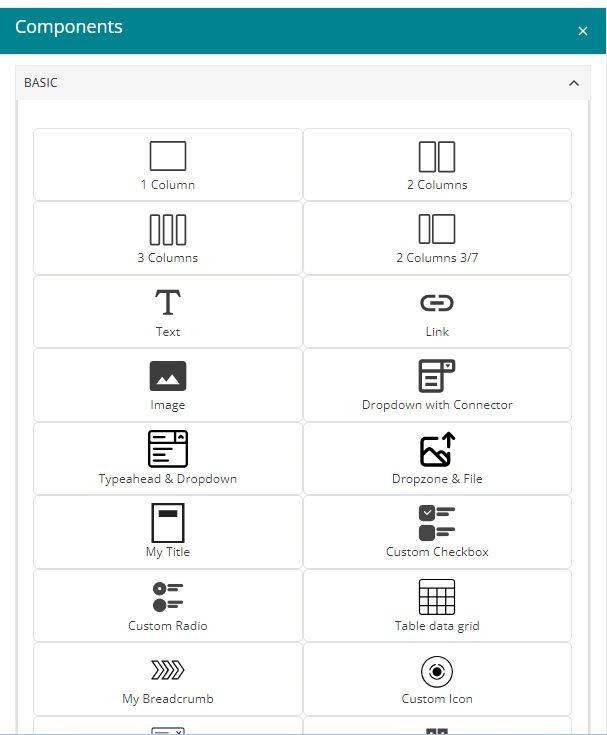
The Component is a base element of the template. It might be something simple and atomic like an image or a text box, but also complex structures, more probably composed by other components, like sections or pages. These are used to bind different behaviours to different elements.
Component section has various kinds of controls categorized as Baic, Form, Custom, Extras.
Using these components a new form can be created. Each component has different functionality and can be configured using its properties.
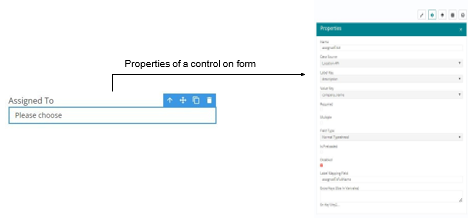
By placing a control on the form and then checking its properties, the functionality of that control can be customized.
ID and name type of properties for these components help to identify the control uniquely on the form.
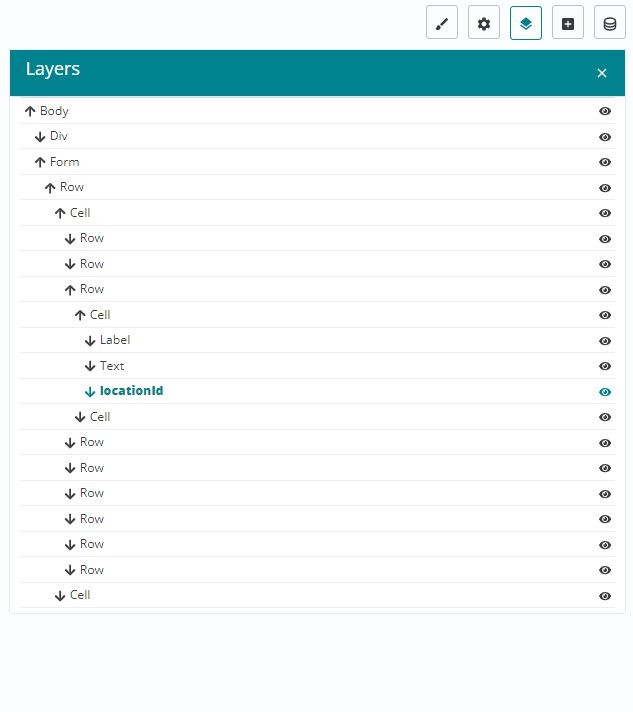
Layers button allows to view the structure of a page (as per the HTML DOM). With the help of Layers, the controls can be accessed/selected for making any changes to its properties.
A control named location id has been selected with the help of layers. The same control gets highlighted on the canvas.
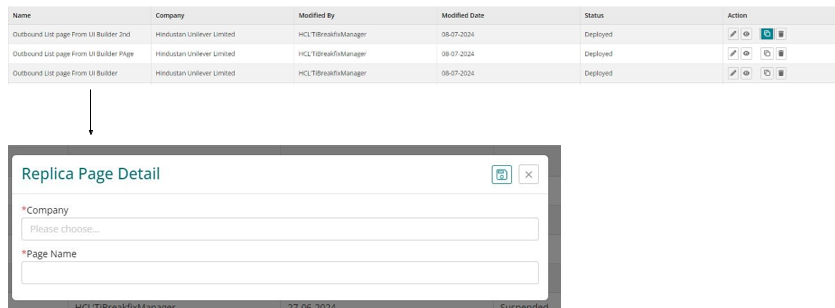
Copy allows to create a copy of any existing form. A copy is saved by selecting the company name for which this copy is being created plus specifying a unique name to this copy.
Once copy is created then it can be edited or customized like any other form. This would save time when similar forms with few changes have to be created.
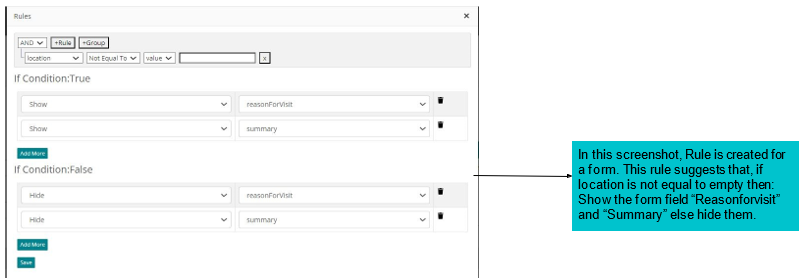
Using Rules, based on certain condition evaluated to True/False, any form field can be shown or made hidden.
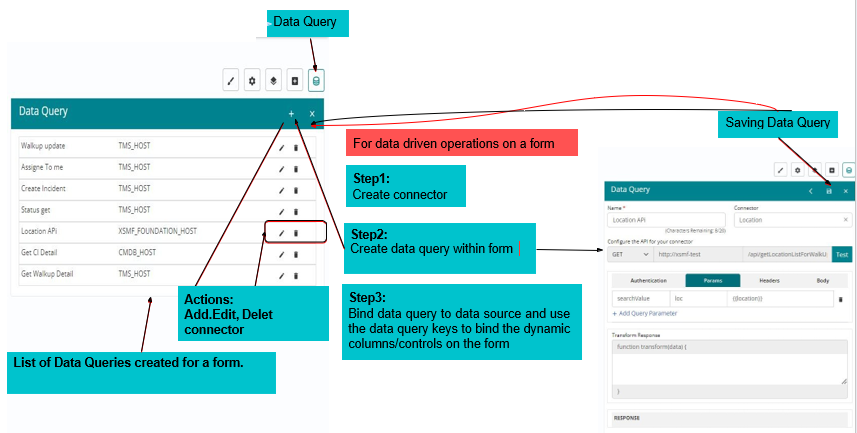
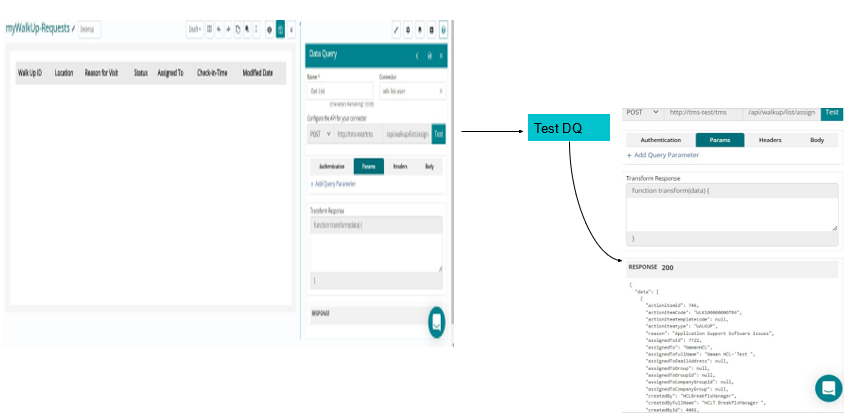
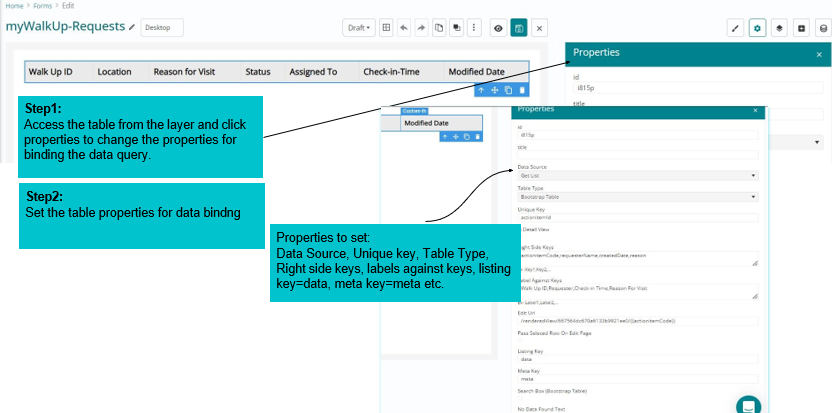
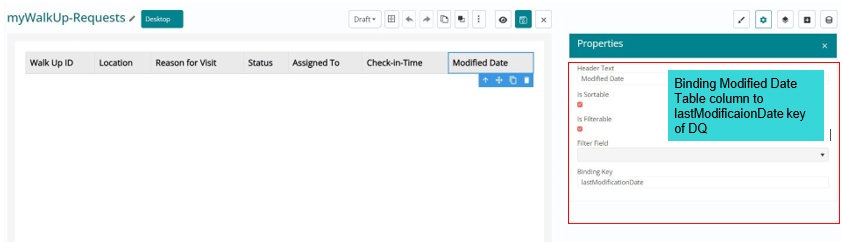
Data Query encapsulate the connector information within them. They are created at form level to conduct API related/data related actions.
View Code
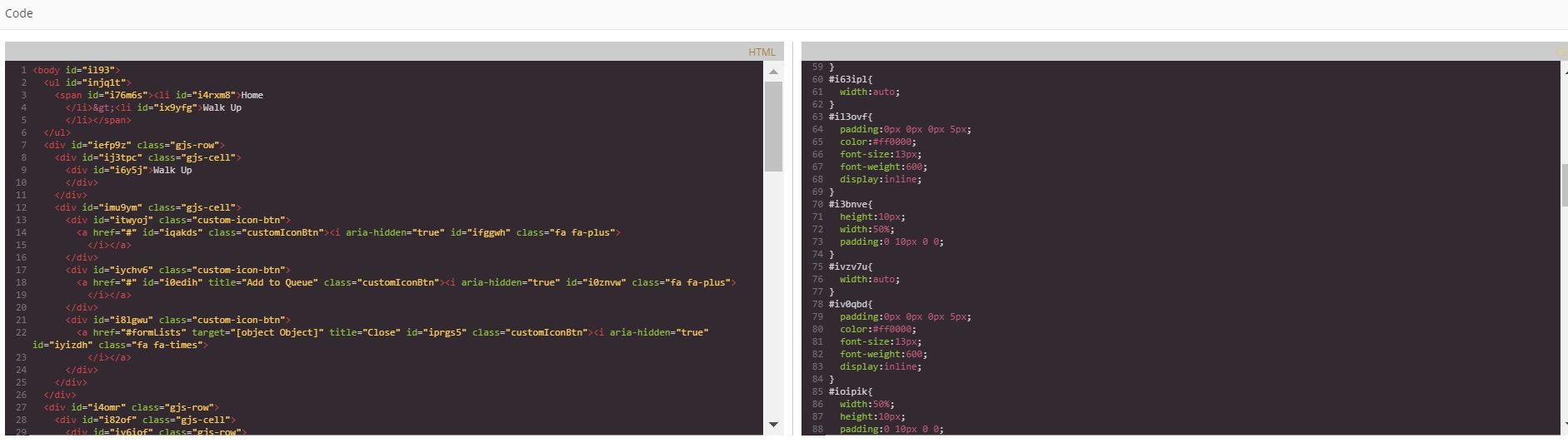
HTML and CSS code can be viewed using the View Code option. Currently this is non-editable.