Custom Attributes Administration
- Customers usually have the need of creating custom attributes that are specific to their business model. With the custom attribute feature, customers can define new attributes and use them in addition to the standard attributes available as part of HCL BigFix Service Management data model
- 2 types of custom attributes can be defined:
- Simple - Attributes of type text, typeahead, date, datetime.
- Composite - A set of dependent attributes. Example, CI Category and Subcategory are dependent attributes where subcategory values are dependent on category.
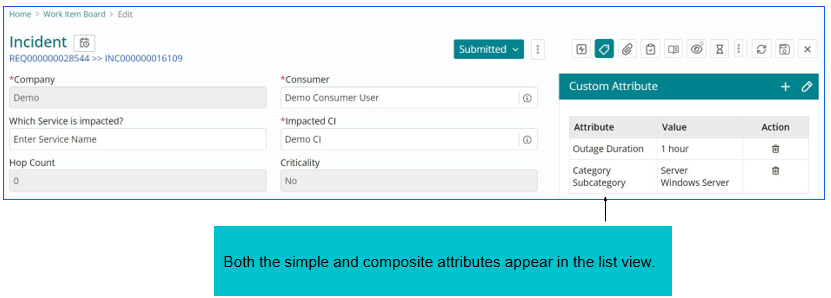
- Checklist – This will help to use both the simple and composite attributes in one
ticket.
Example, CI category and subcategory, type text, typeahead, date, datetime can be used in this attribute.
Defining a Simple Attribute
Use Case : A customer wants to capture “Outage Duration” in a text field on the Incident record.
Prerequisite: Only users having Administrator role can define a custom attribute.
For this use case, since the customer needs to create a text field, let us create a simple attribute with “Text” datatype.
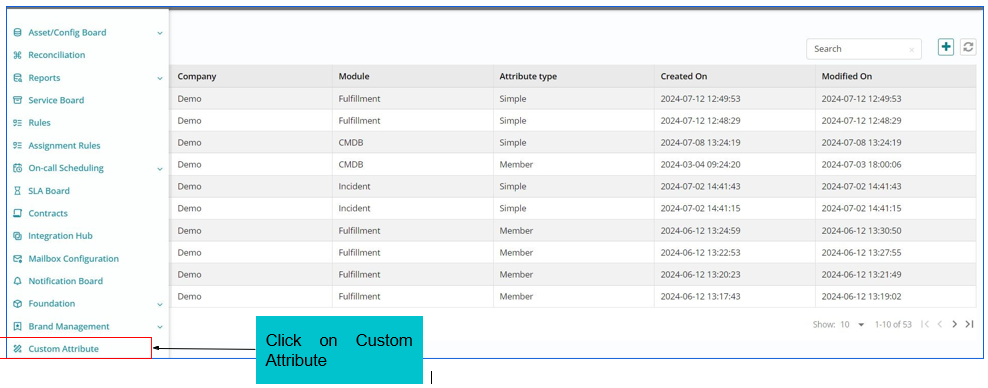
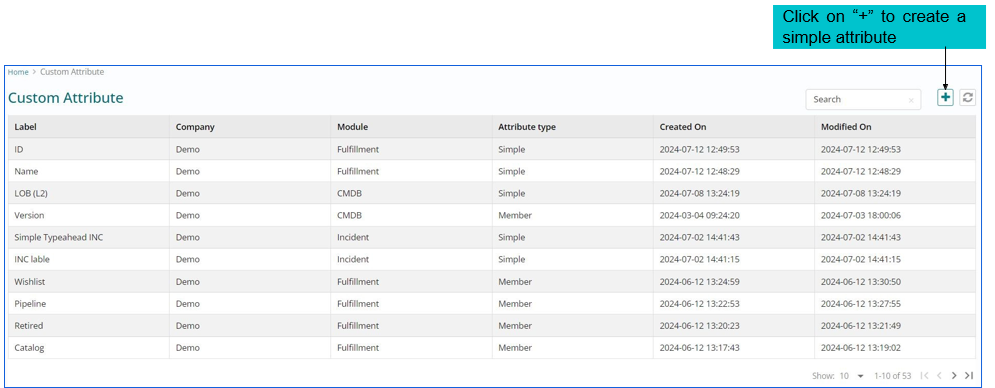
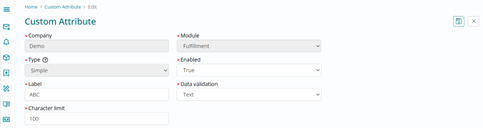
Mandatory details for defining custom attribute
- Company - On a multi-tenant environment, customers can create custom attributes for their own company.
- Module: Custom attributes can be created for below modules: Change, CMDB, Fulfillment, Incident, Problem, Task
- Type : Select “Simple”
- Status: Active / Inactive. Only active attributes are visible in the respective module
- Label: Name of the custom attribute
- Data Validation: Date, Datetime, Text, Typeahead
Character Limit: For type = text field, specify the maximum character limit (0 to 500)
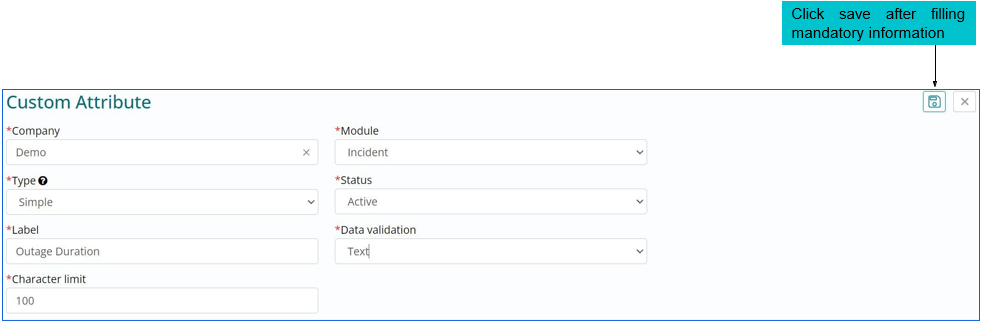
In the previous example, we created a custom attribute called “Outage Duration” of type text for “Demo” company and module = Incident.
Navigate to Work Item Board > Incident > Edit to open an existing incident.
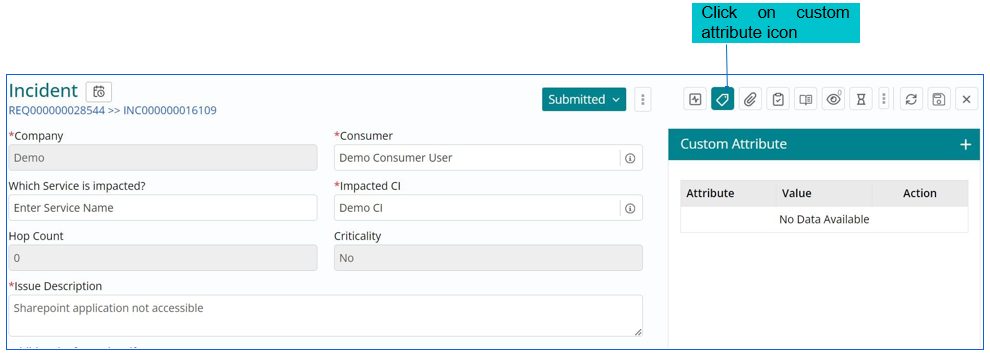
HCL BigFix Service Management has an option to capture Outage Start and End time on incidents. Use case presented above is for demo purpose.
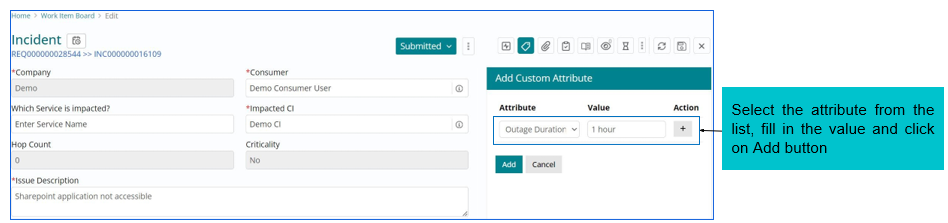
Since the “Outage duration” attribute was created for Demo company and Incident module, it will be visible only on Incident module where company = Demo.
Defining a Composite Attribute
Use Case: A customer wants to capture category and subcategory on Incident record. Category and Subcategory are dependent attributes, where subcategory values are dependent on category.
Prerequisite: Only users having Administrator role can define a Composite attribute.
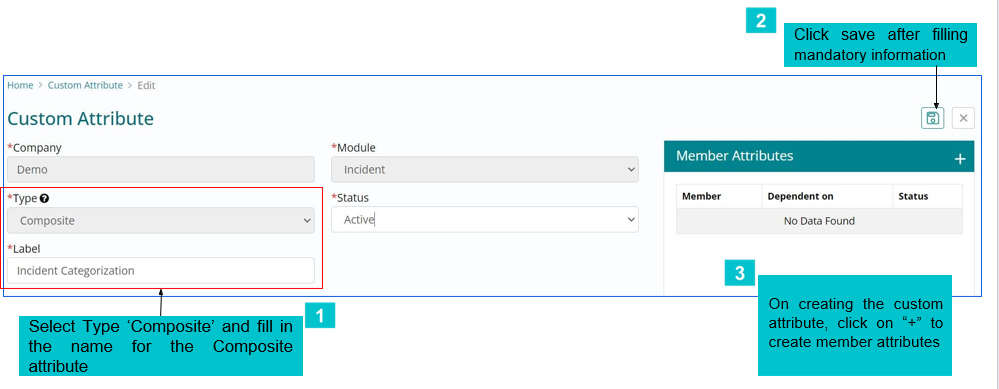
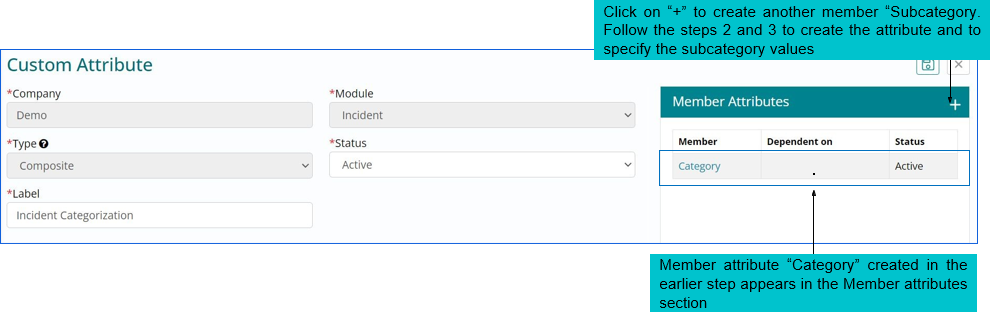
For this use case, since the customer needs to create a set of dependent attributes, let us create a Composite attribute called “Incident Categorization” containing two member attributes - “Category” and “Subcategory”.
Step 1: Create a composite attribute “Incident Categorization
Step 2: Create member attribute “Category”
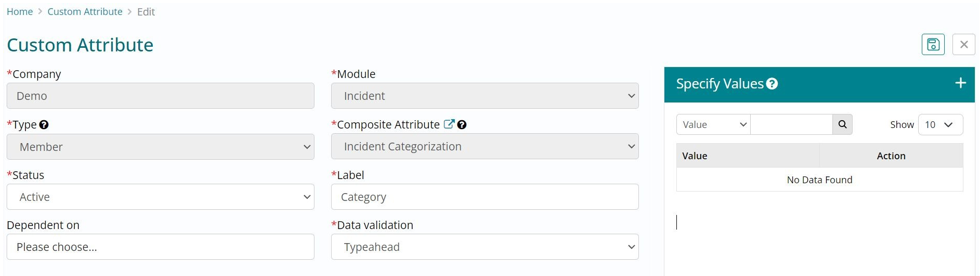
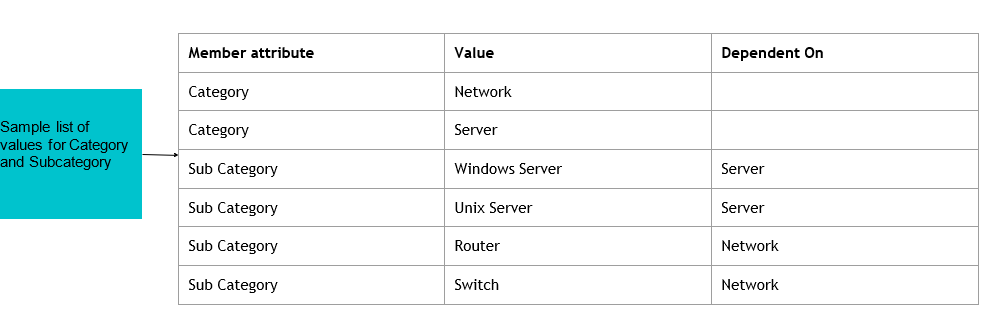
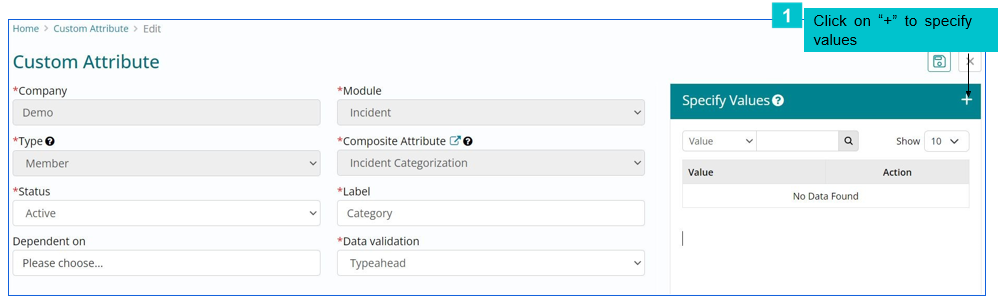
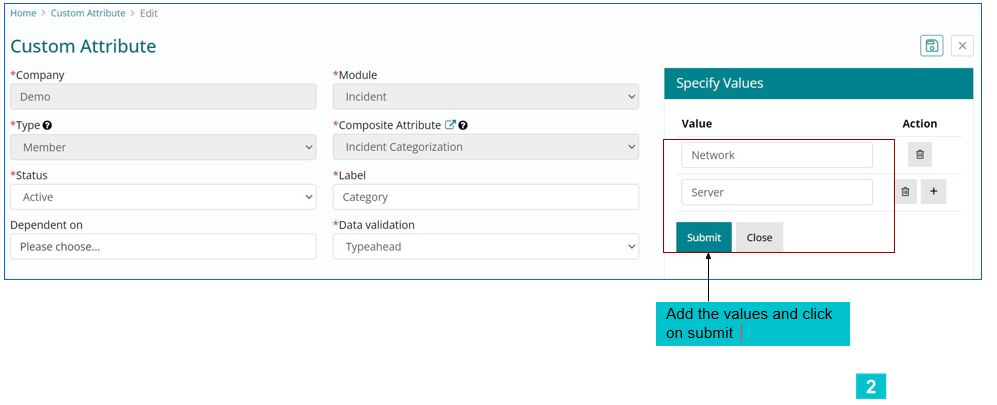
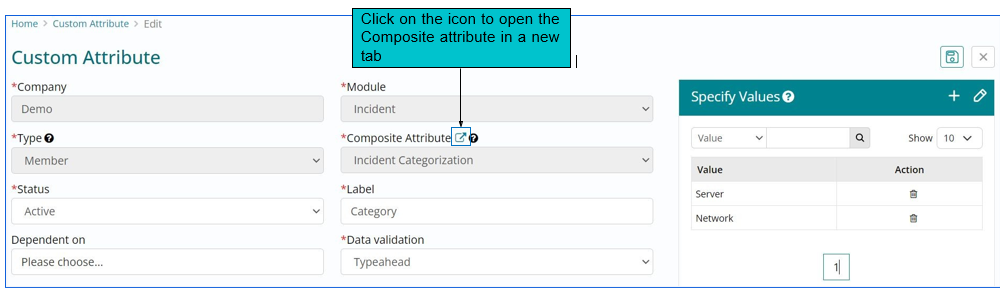
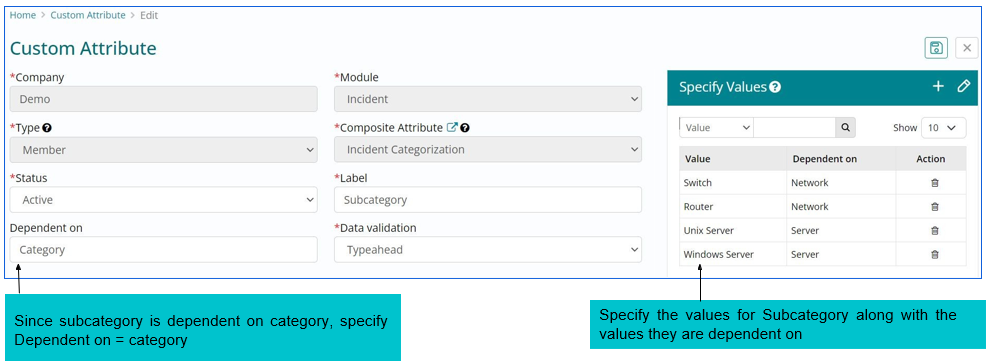
Step 3: Specify the list of values for member attribute Category
Step 4: Create member attribute “Subcategory”
Using a composite attribute
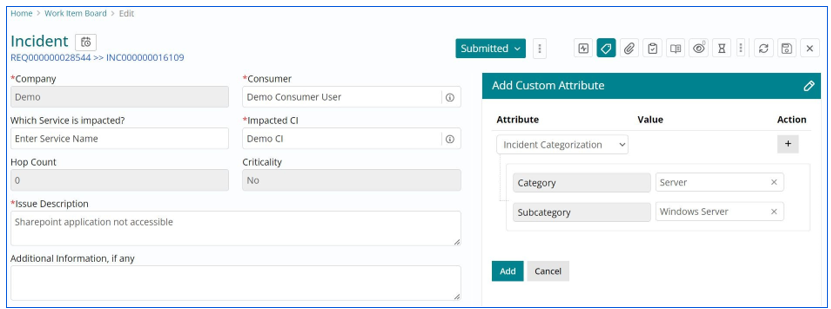
On the Incident record, select the composite attribute “Incident categorization”, member attributes appear after selecting the composite attribute. Click on Add after selecting category and subcategory values.
Checklist Attribute
Checklist attribute helps you to capture a set of information required for fulfillment of a work item. Checklist allows to create a collection of attributes that are presented in a group. Since the set of attributes to be filled are grouped together, it is easy for the fulfiller to specify all the required attributes without missing one.
In the checklist attribute, one can group multiple simple and composite attributes.
Use case: A customer wants to capture “Provision a Data Center asset” checklist on the Incident record. For this use case, customer wants to add a text field (Simple attribute - Asset Specification) and typeahead (Composite attribute – Asset Category and Sub Category).
Prerequisites: Only users having Administrator role can define a Checklist attribute.
A customer can select both Simple and Composite attributes in Checklist attribute.
Step 1: Create a Checklist attribute with label as “Provision a Data Center Asset”
Users need to select Company, Module (Incident, Change, Problem etc.,) and type as checklist and status as active and Label name to create a checklist attribute.
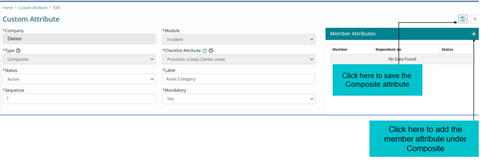
Step 2: Add the member attributes in the Checklist Attribute.
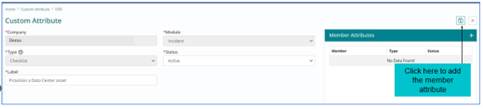
User can add the member attribute to the checklist attribute which will help the user to add both Simple and Composite attributes in the attribute.
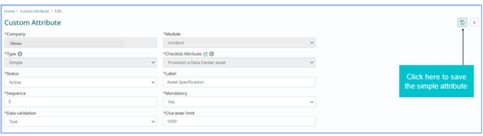
Simple attribute is added under the checklist attribute
Composite attribute is added under the checklist attribute.
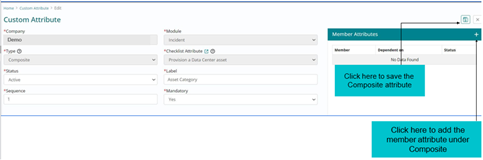
Member attribute is added under the composite attribute with data validation type as
typeahead. 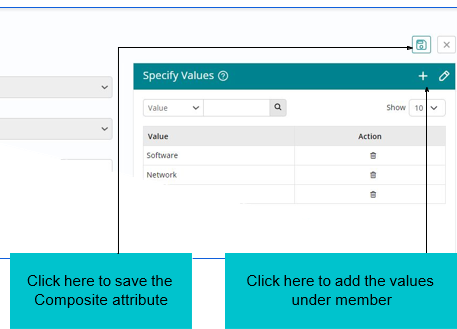
Another Member attribute is added under the composite attribute with data validation type as typeahead. User can specify multiple values under one member attribute.
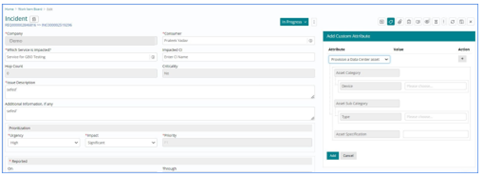
In an incident, the checklist attribute will be shown as in the below screenshot. User can select the Asset Category and sub category and specification of the asset.