Using the HCL BigFix Service Management Portal
The Consumer Guide is a guide for employees and end users on how to effectively use the HCL BigFix Service Management Portal to request services, report issues and access IT support.
- Efficiency and Productivity: By providing a single platform for various needs such as requesting services,reporting issues, and checking statuses, the portal enhances efficiency and productivity.
- User Experience: Features like multi-lingual support, responsive design, and PWA (Progressive Web App) mobile app enhance the user experience, leading to higher satisfaction and engagement.
- Communication and Feedback: The portal facilitates two-way communication between the enterprise and the users. Features like surveys and notifications enable the enterprise to gather feedback and keep users informed.
- Knowledge Sharing: The knowledge management feature allows the enterprise to share important information and resources, fostering a culture of learning and collaboration.
- Control and Management: Features like profile management and managing user entitlement give the enterprise a control over user access and permissions, enhancing security and compliance.
HCL BigFix Service Management Login Form
Open the internet browser (IE 11, Edge, Chrome) and enter the URL.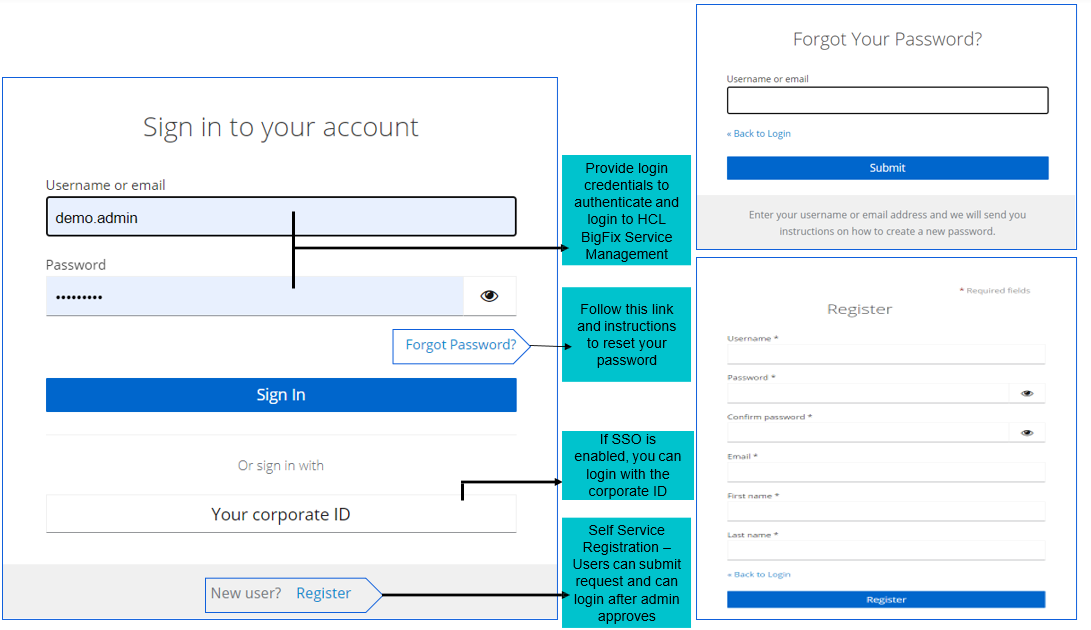
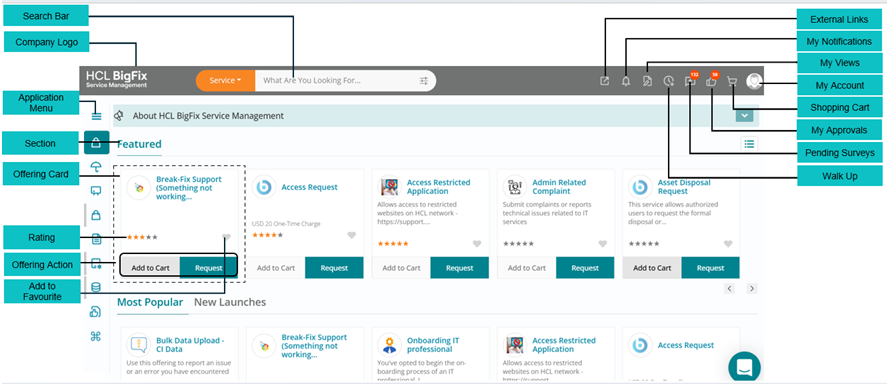
Consumer Home Page
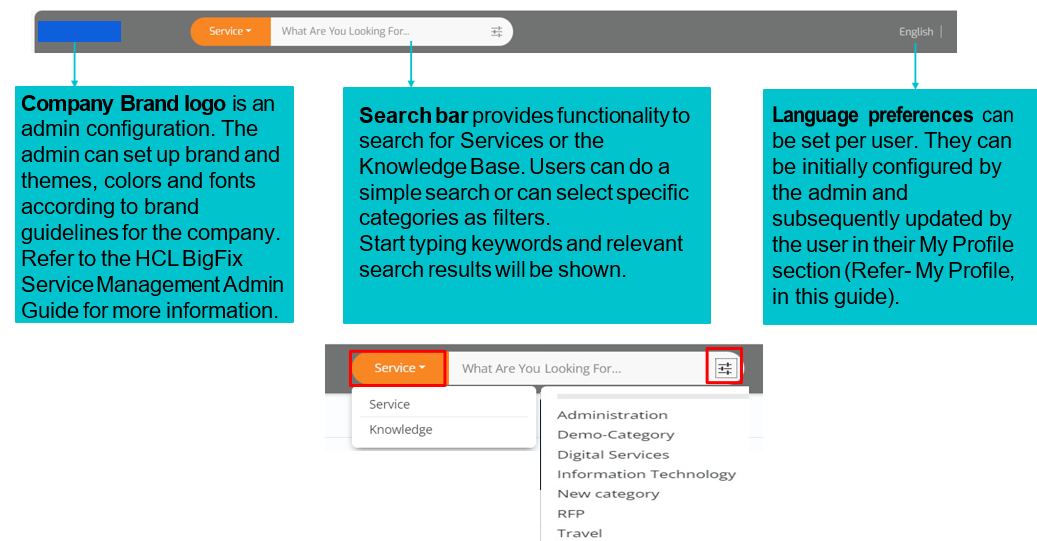
Branding Search and Language
Search & Browse Offering
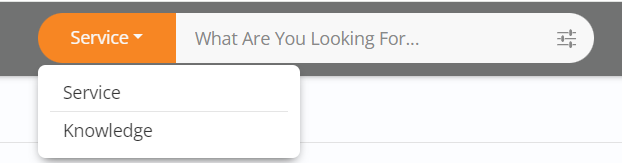
Search a Service using Search bar or by Browsing the catalog
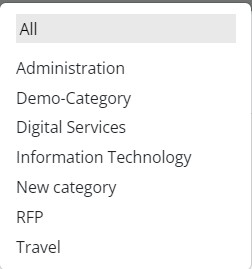
Search bar provides functionality to search for Services or Knowledge Articles Users can do a simple search or can select specific categories as filters
Start typing keywords and relevant search results will be shown:
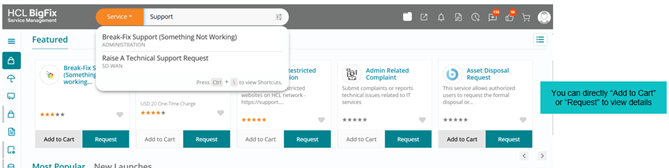
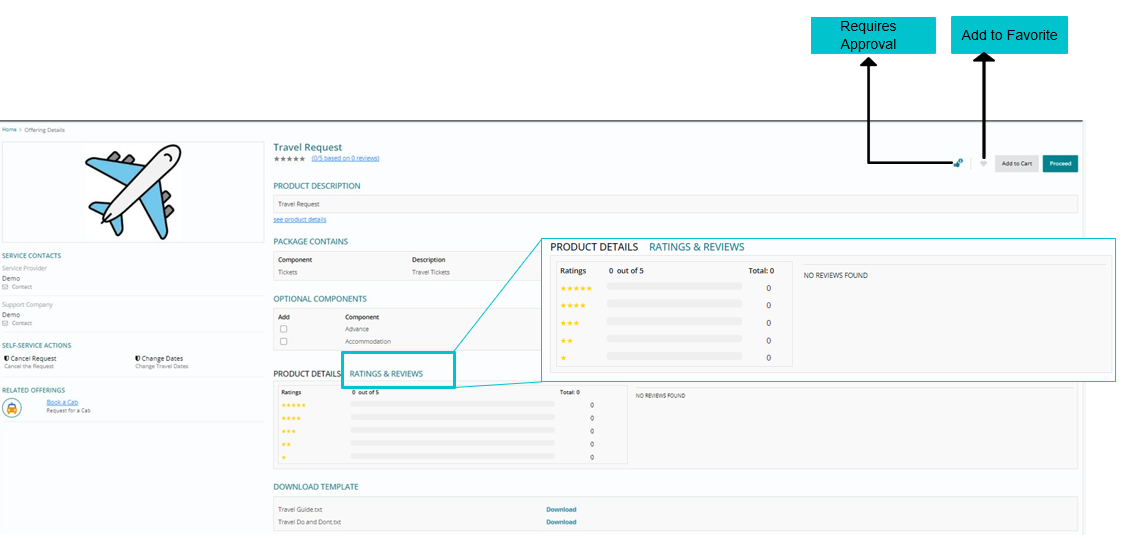
You can view Product/ Service description when you click on ‘Request Now’ on offering card. Other notable sections are:
- Optional Components
- Attachments
- Ratings and Reviews
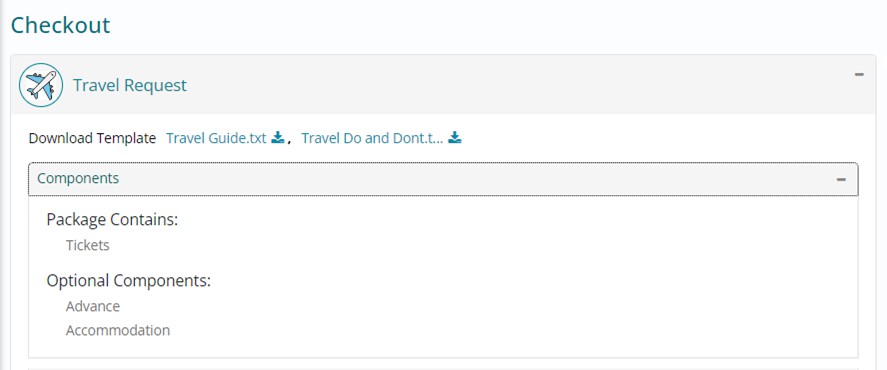
The Checkout page shows the following details:
- Offering attachments are general information provided by Catalog manager related to the offering
- Component Section shows Package Contains; for core component along with any optional components selected at previous page.
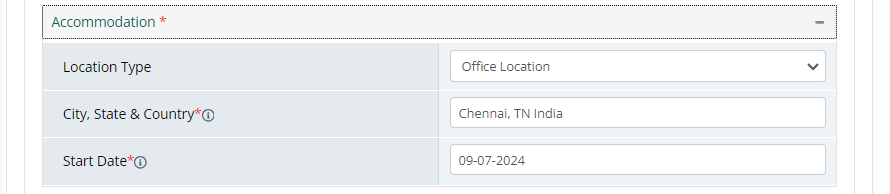
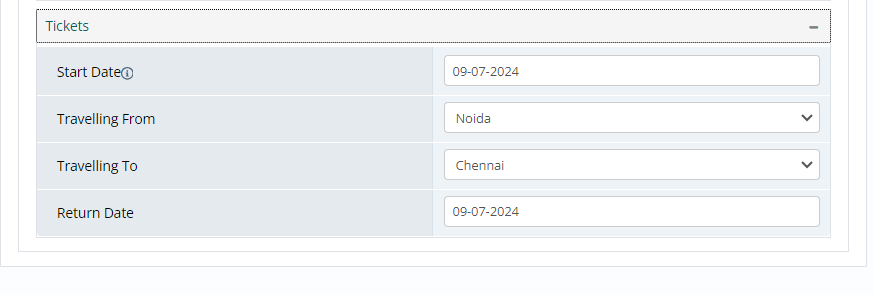
Provide responses to the questions asked in different sections
There can be different (Mandatory or Optional) questions for different offerings
Questions may also differ based on component selections

Order Process - Submit
On right hand panel, you can submit the request for Self or another user.
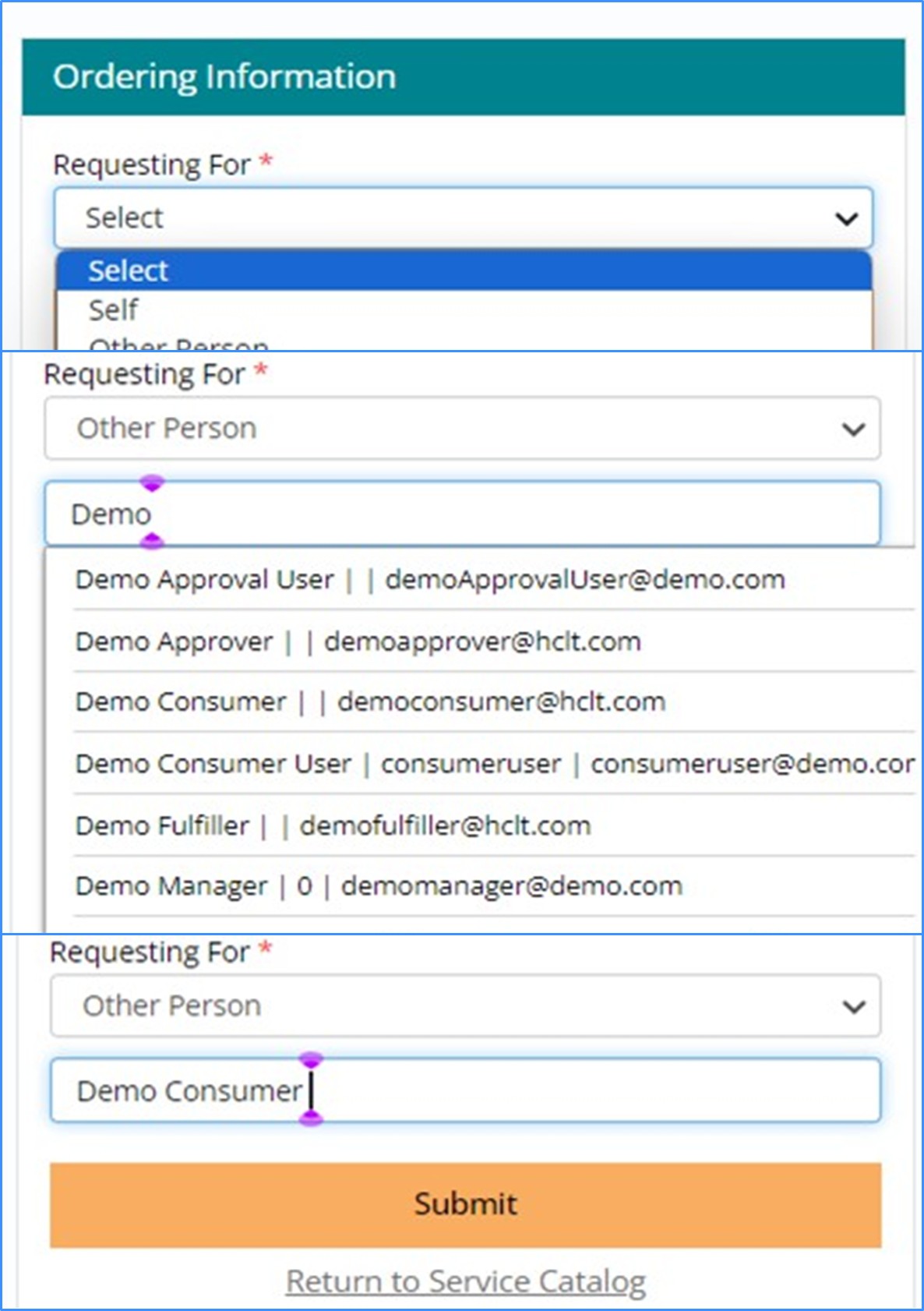
For Shipment based offerings– which need to be delivered physically– you can select Office or Other Location and provide required details.
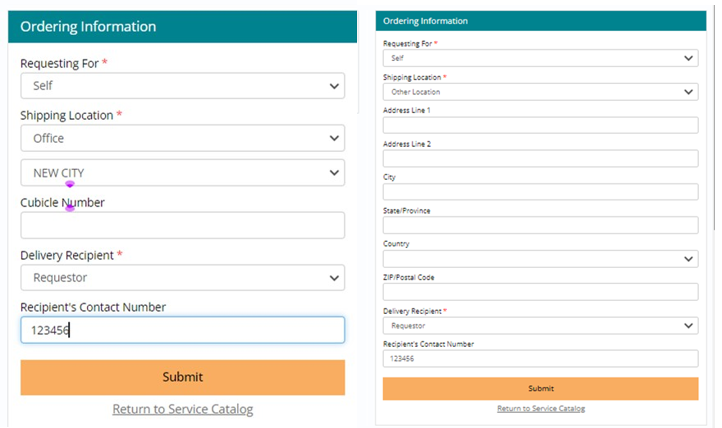
Clicking on Submit will initiate respective workflow including Approvals and Fulfillment plan.
Order Process - Checking Out from Cart
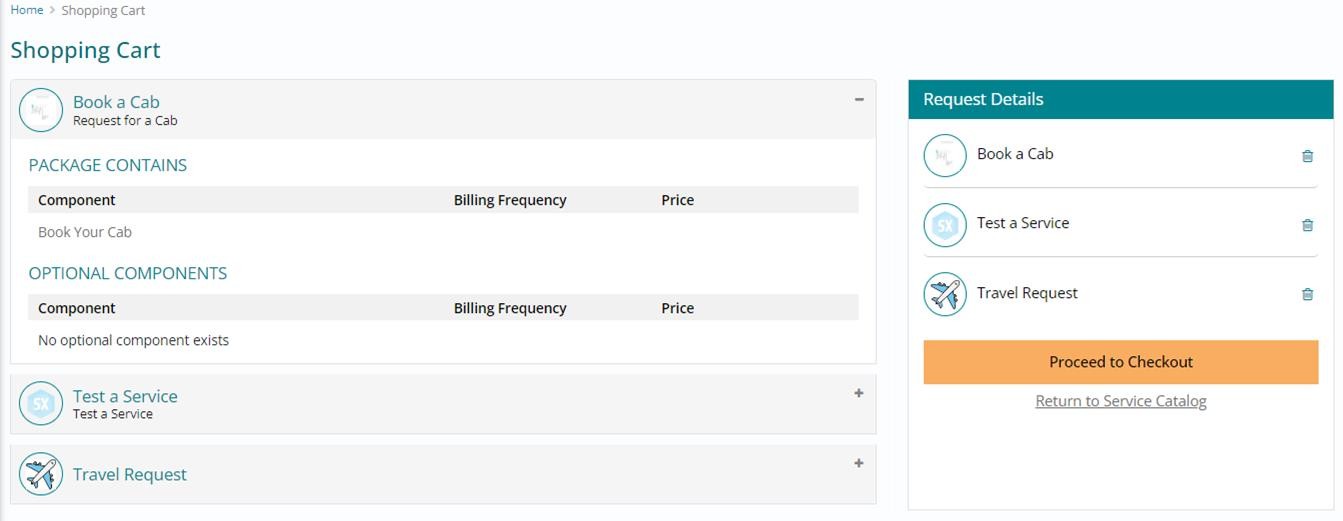
Multiple Offerings can be added to Cart by clicking on ‘Add to Cart’ on Offering Card Mandatory questions for each offering must be responded before ‘Proceed to Checkout’ After checking out you can view the records on ‘My Request’ page.
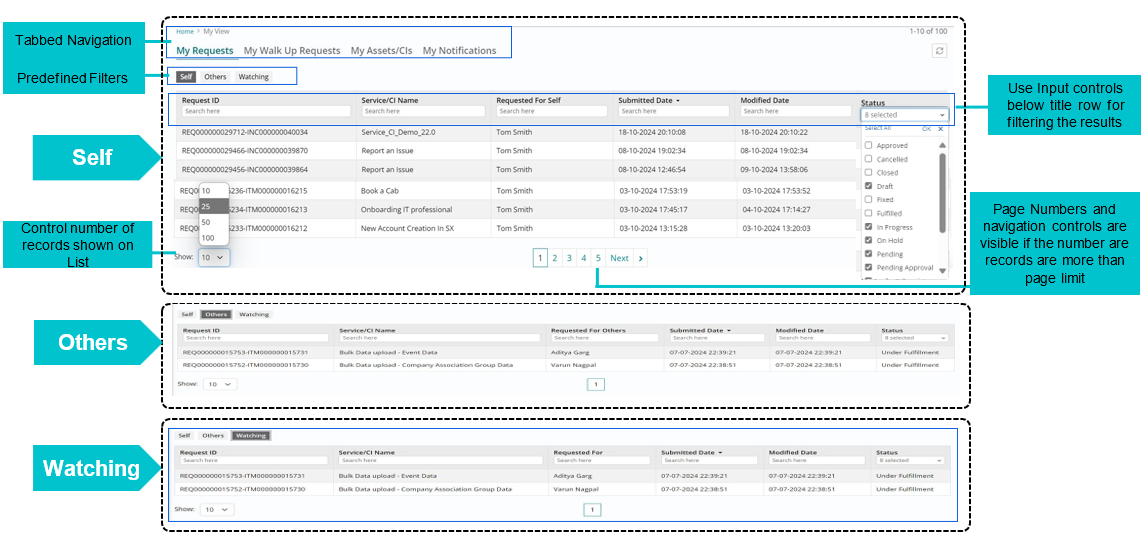
My View - My Requests
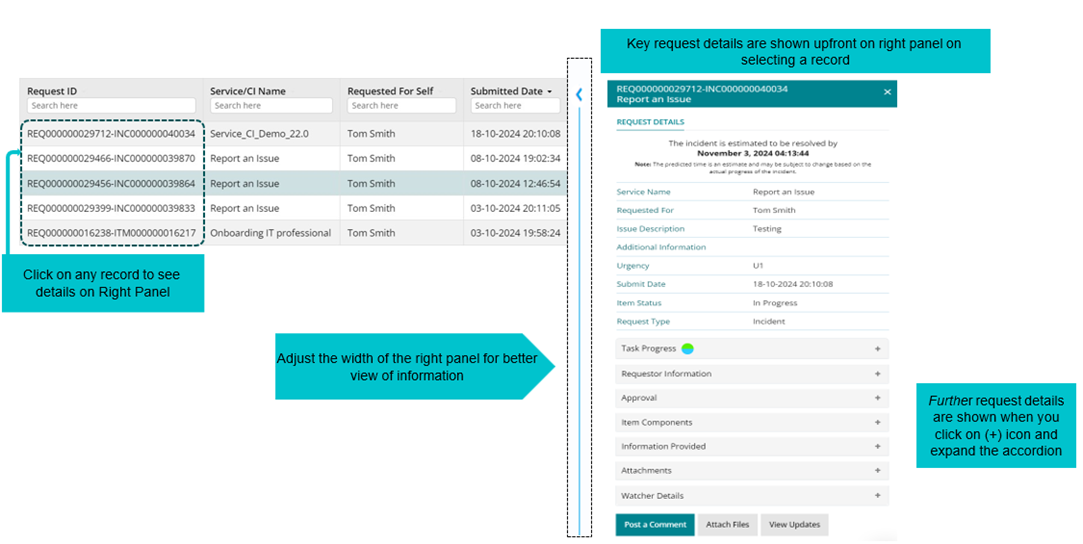
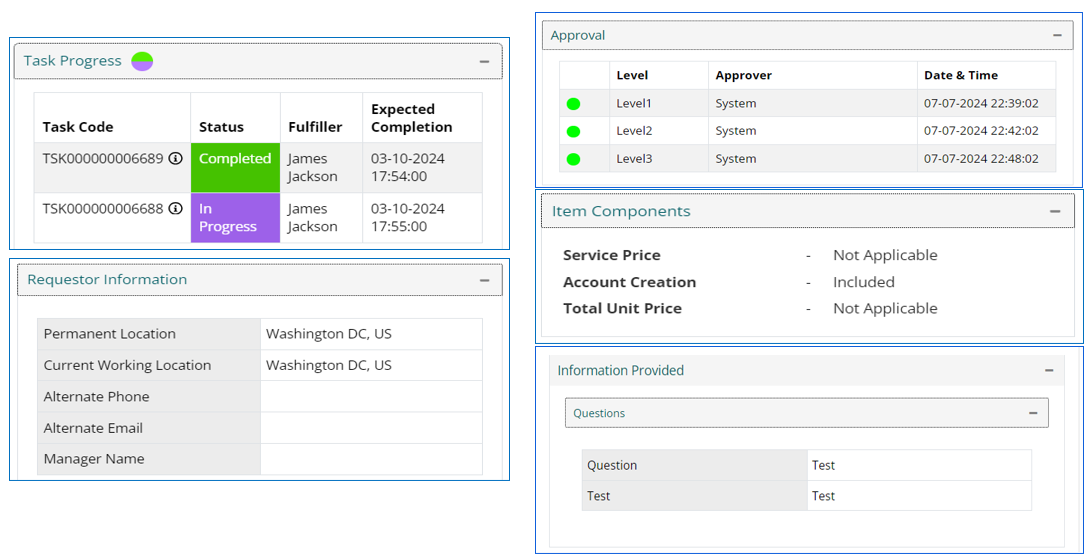
My Request - Actions
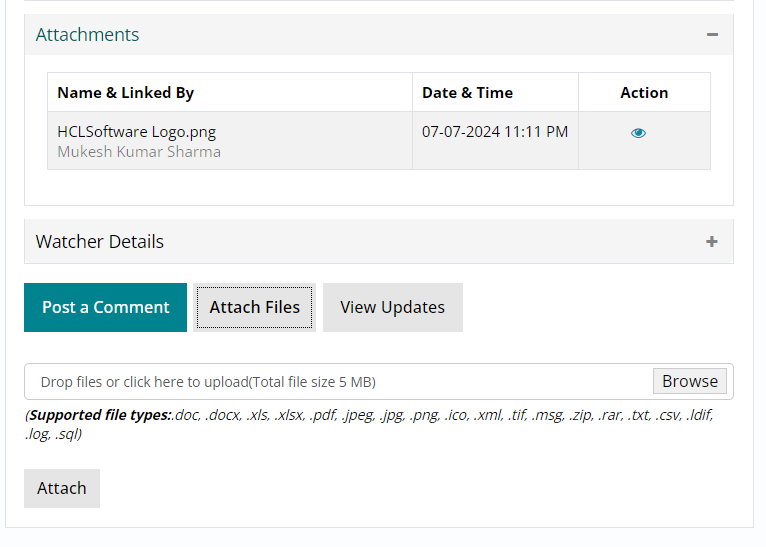
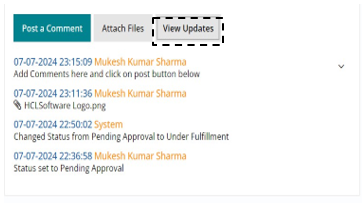
Click on ‘Attach Files’ button to provide attachments added are visible under ‘Attachment’ accordion.
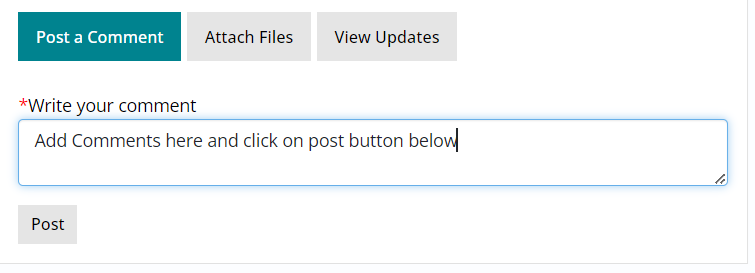
Users can post comments using “Post a comment” button.
Comments/ updates can be viewed by clicking on ‘View Updates’ button.
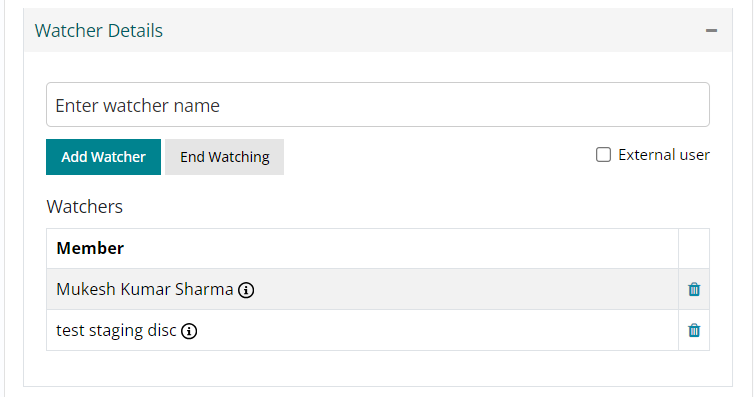
Watchers can be added to the ticket using the ‘Add Watcher’ accordion.
Watchers can be selected from list of system users or external watchers can also be added using email addresses.
A toggle button is provided for logged in user to start/ end watching.
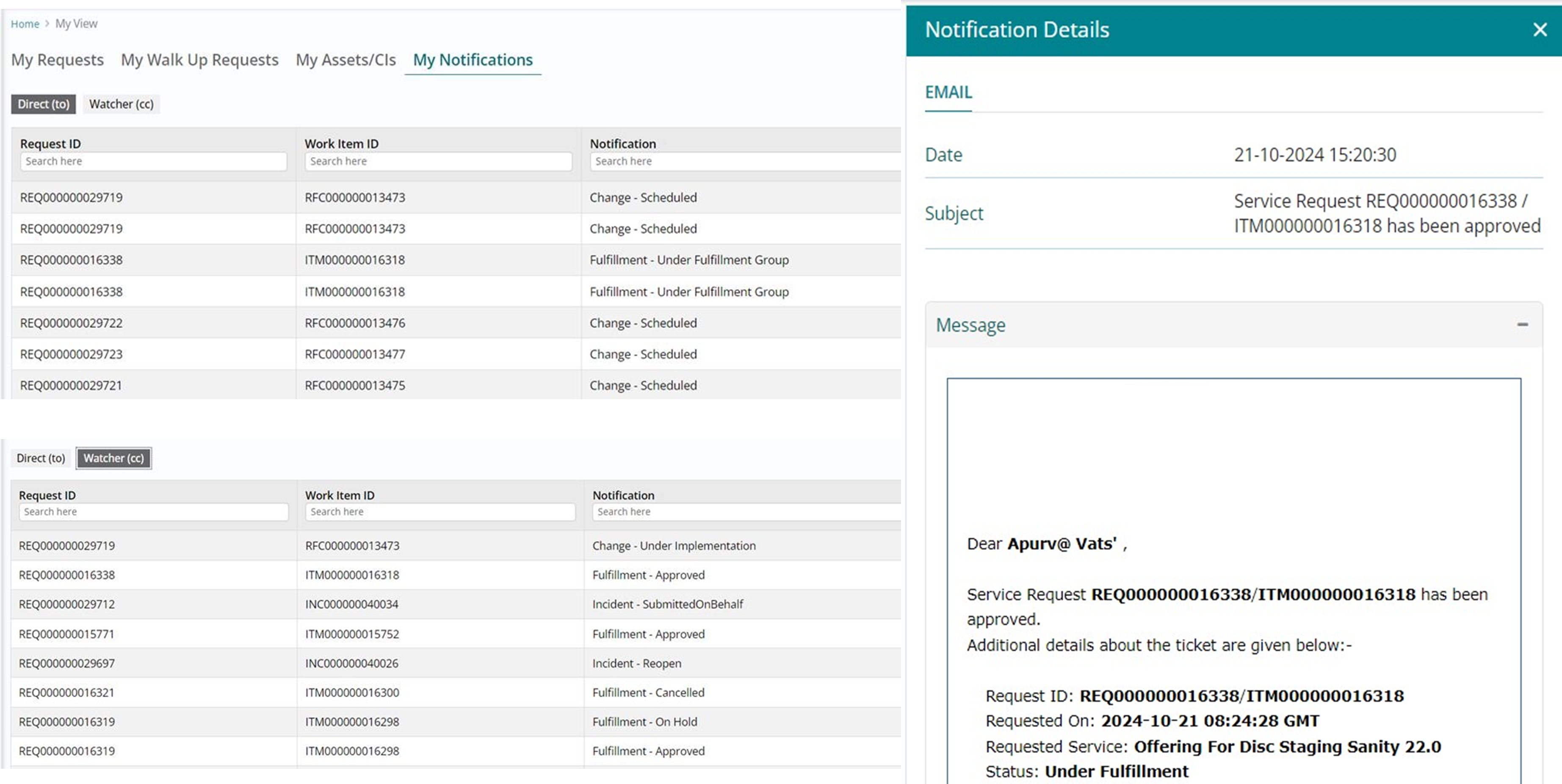
Adding watchers will enable notifications at predefined events, as well as tickets will be shown on watchers ‘My Request’ page.
View all the updates on the ticket by clicking the “View Updates” tile. A list of actions, status on the ticket will be displayed.
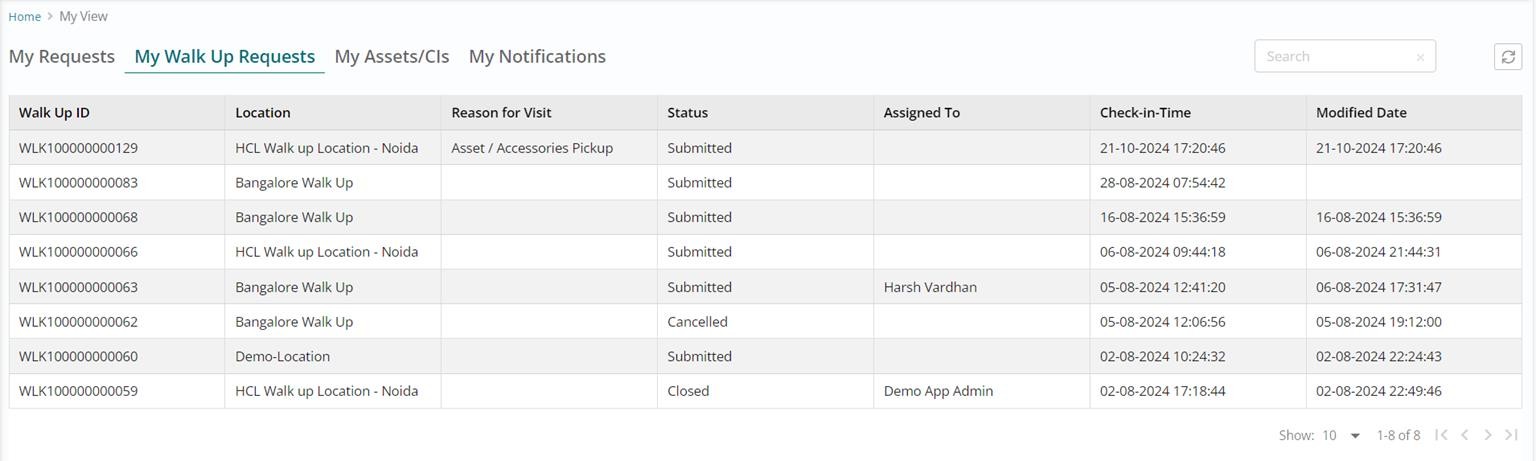
My View - My Walk-Up Requests
This view lists the Walk-Up requests created by the user.
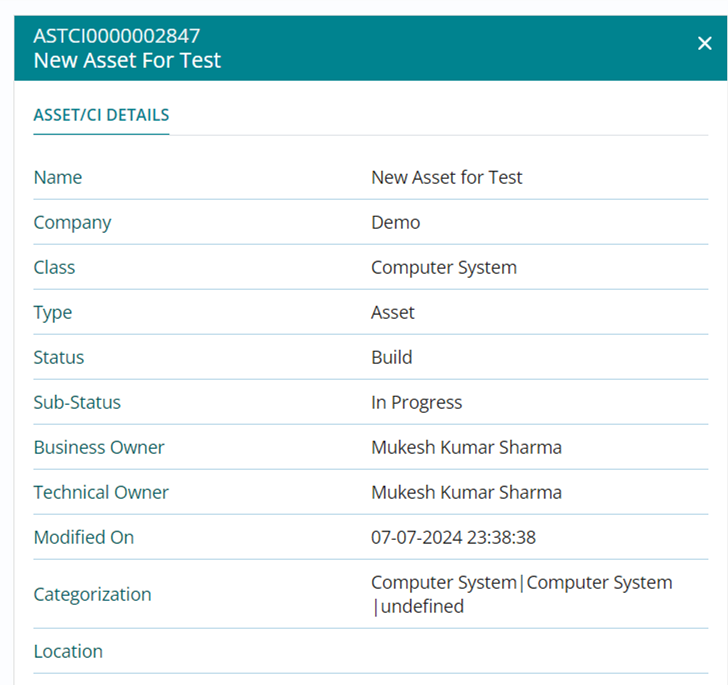
- My Asset view provides a listing where the Asset/ CIs are assigned or where the user is the technical or business owner of any Asset /CIs – Right panel shows quick details on the selected asset.
- This view has same list of controls as explained in My Request view earlier.



Walk Up
Without selecting the location, the user cannot enter/ view any details.
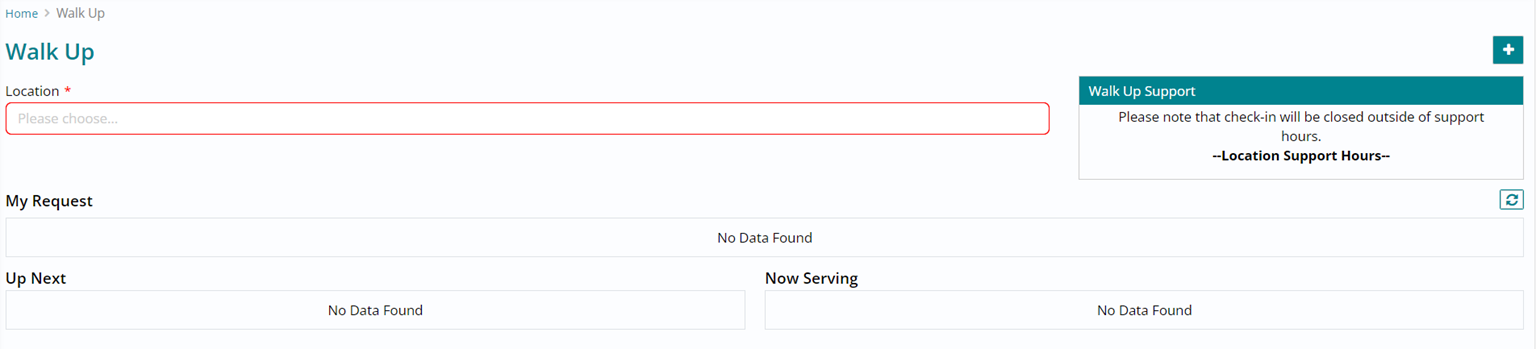
On selecting a Location and Reason for Visit, enter the summary for the walk up visit, followed by the “+” button on the right top corner to add yourself to the queue.
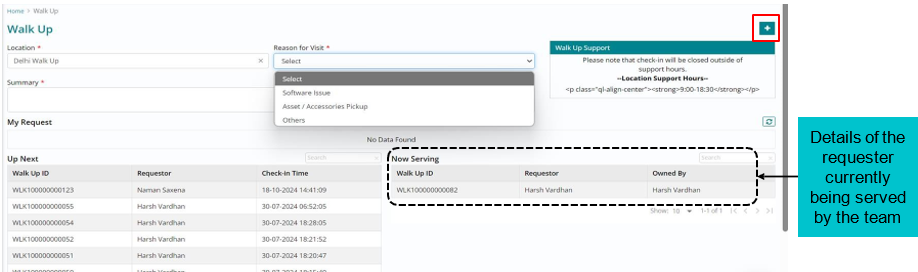
Pending Surveys
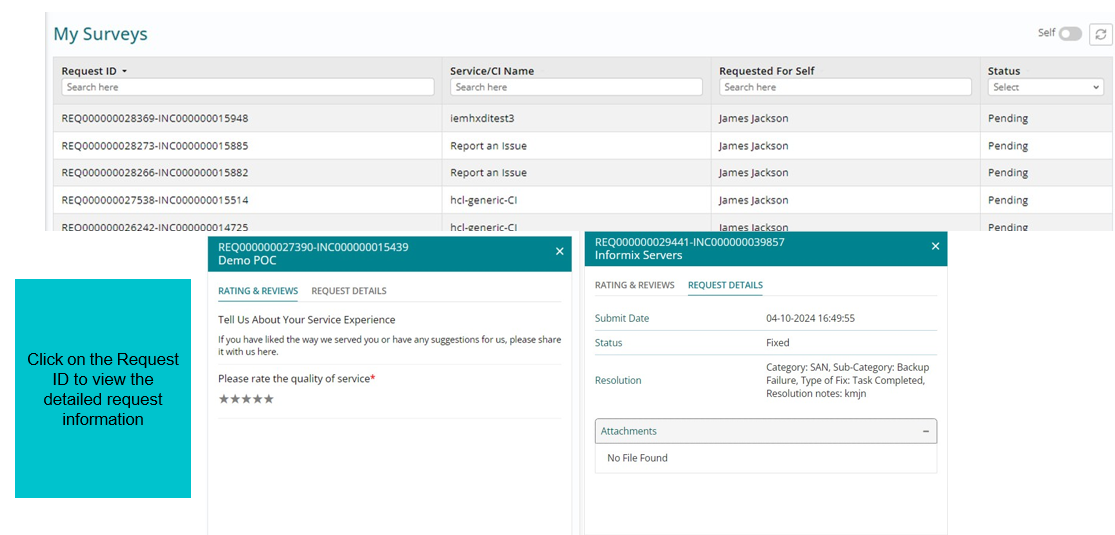
Knowledge Portal
Knowledge articles are updated here. Users can search for answers and resolve common issues without needing contact support, provide step-by-step guides and troubleshooting workflows to help users resolve problems independently.
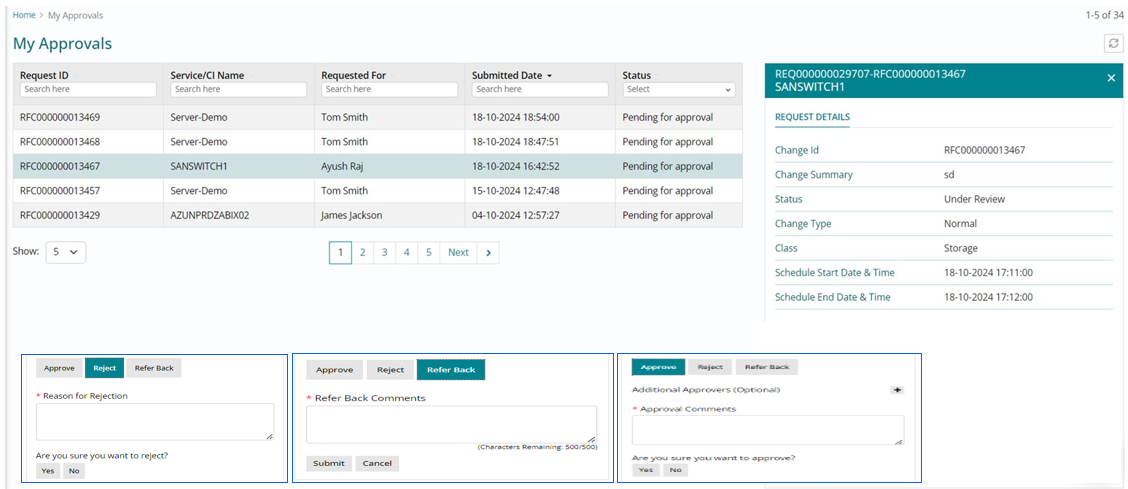
My Approvals
The Approver can Reject, refer back or Approve the Request with reasons and comments.
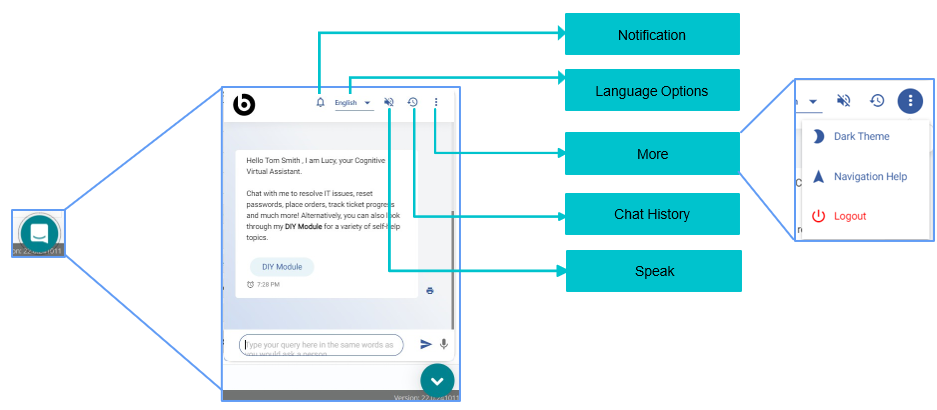
Cognitive Virtual Assistant (CVA)
A CVA is available. The user can chat to resolve IT issues, track tickets, place orders, and more.
My Delegations
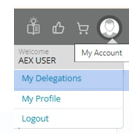
Click on My Account > ‘My Delegation’ to reach list of delegations.
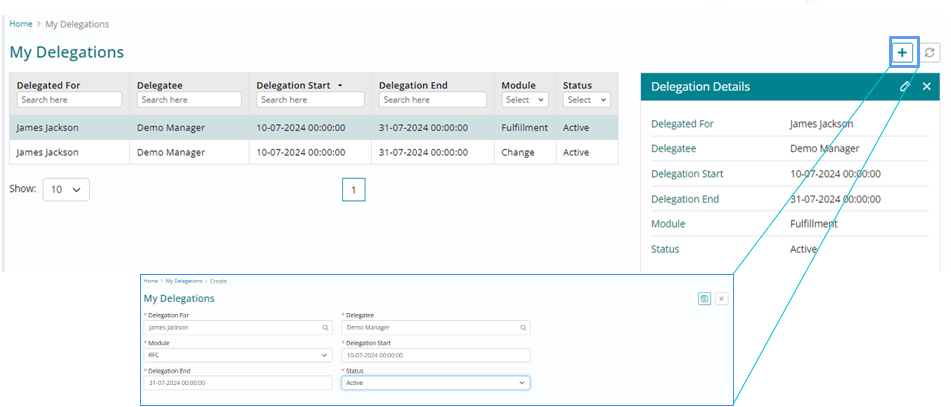
List and Right Panel is identical to other pages in HCL BigFix Service Management, Delegation in list view can be edited in right panel after clicking on Edit Icon. To add a new delegation: Click on (+) on the top right corner.
Provide details in the form to add a new delegation.
** Delegation can be created separately for Requests and Changes
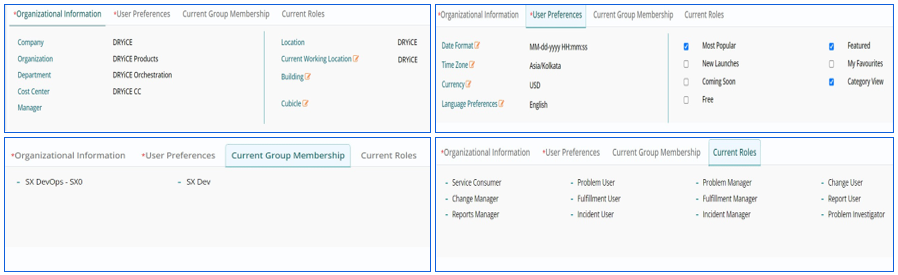
My Profile
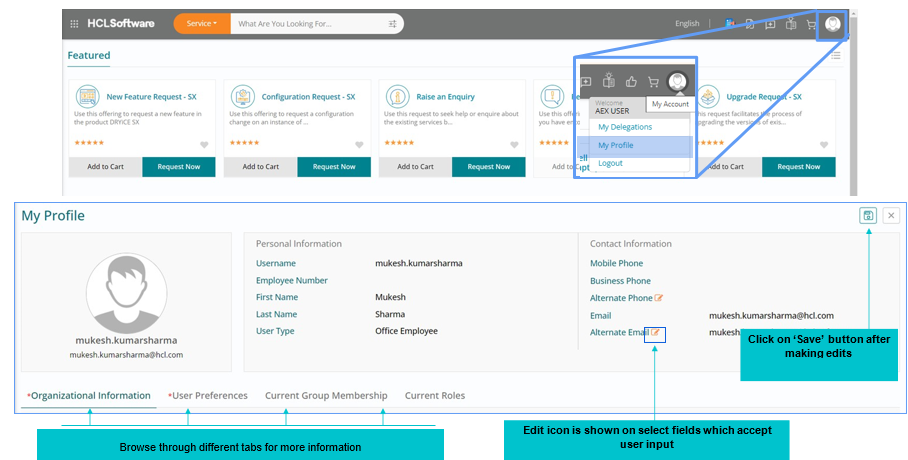
Entries with an 'Edit' option can be updated or changed. The rest of the information remains unaltered from the time of user creation.