Rules Administration
Rules microservice is a part of HCL BigFix Service Management ecosystem. This microservice is a service provider to other microservices in multiple ways. It hoards the data dictionary of entire HCL BigFix Service Management so that all kind of rules can be created from one place. Rules of different type can be created in this microservice and with each rule multiple conditions can be associated. Each attributes in condition is evaluated against the fact record to render the output of each rule to the calling microservice. .
Rules can be called from other microservices for the following:
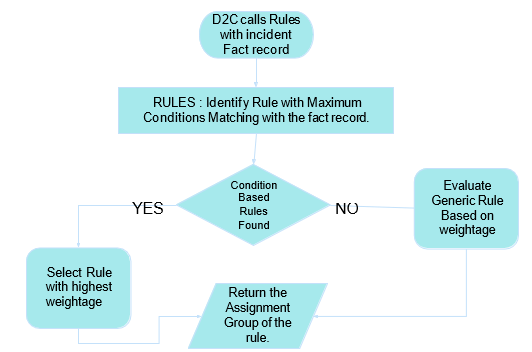
- D2C calls rules for auto assigning fulfiller groups to each new ticket created
- AIOSEM calls rules in expectation of the escalation plan that needs to be triggered for high priority incidents
- Approval calls rules to know the approval set that that should be associated to any ticket at its approval stage
- For any logged in user, Rules can evaluate all the entitlement rules for offerings and accordingly the offering access is provided to the logged in user
- SLAs on all kind of tickets will also be handled through Rules
We can, therefore, say that Rules is a centrally positioned microservice that according to the rule type will evaluate the rules against the fact record and in turn will either return the best match or all the matching rules to the calling microservice as the need may be.

Auto - Assignment Rule Evaluation Flow
| Functional Role | Description |
| AMS Admin/App Admin |
|
| App Admin |
|
Use Cases where Interaction with Rules happen
| Microservice | Rules are called for | Returns |
| D2C | Auto-Assignment of Service Request (Fulfillment Module), Incident ticket (Incident Module, Standard Change (Change Management Module), Problem ticket (Problem Module) | Returns best matching group |
| D2C | Auto-Assignment of ticket created from any integration system | Returns best matching group |
| D2C | Auto-Assignment of Change/Problem tickets created from propose Change, Propose Problem via Incident ticket | Returns best matching group |
| TMS | Task Auto Creation calls Rules for contextual assignments | Returns the group based on the context specified in the rule |
| Foundation | On group deletion/inactivation in foundation leads to inactivating the corresponding Rules | - |
| Foundation | When a group name is changed in foundation, the group names are also updated in the rules corresponding to those group (This is being synced using Kafka) | - |
| SPCM | For associating contextual assignment rules to any offering | Rules return all the matching contextual rules to be shown in the typeahead field |
| TMS | For associating contextual assignment rules to any Task Template (Fulfillment Plan) | Rules return all the matching contextual rules to be shown in the typeahead field |
| SPCM | A new rule is created when chain entities are configured within an offering. | - |
| UI | Show AMS Groups -> On Fulfillment/Incident/Change/Problem/Task | Returns all matching groups |
| UI | CIM Group assignment | Returns all matching groups |
| UI | Calls Rules to show CIM groups in search criteria of column headers on Incident Board | Returns all the groups related to CIM |
| AIOSEM | Calls Rules to trigger the escalation plan based on conditions | Returns the best matching Escalation Plan Code |
Rules Listing and Actions
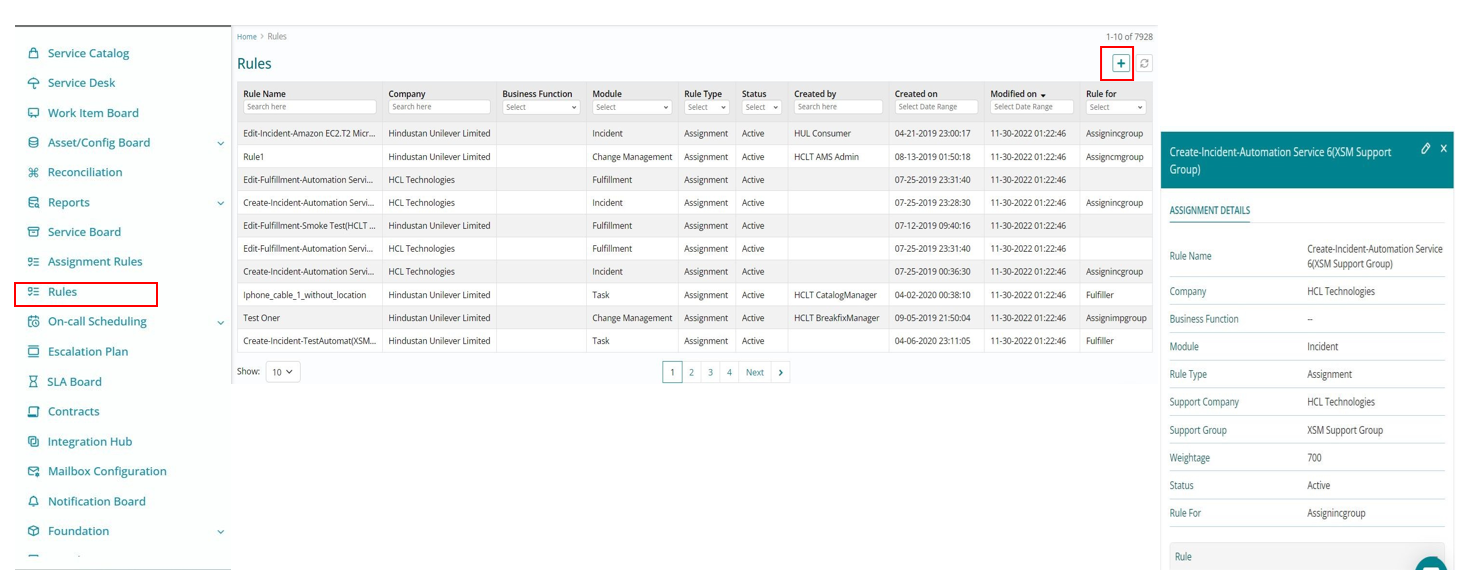
Navigate to Rules by clicking on Application Menu on top left corner -> Rules – this option is available only for App Admin roles. Admin can view a List of all the rules and can Create new or edit existing rules from here.
Click on a row, it shows the Rule details and Edit Action to edit the rule.
New Assignment Rule Definition
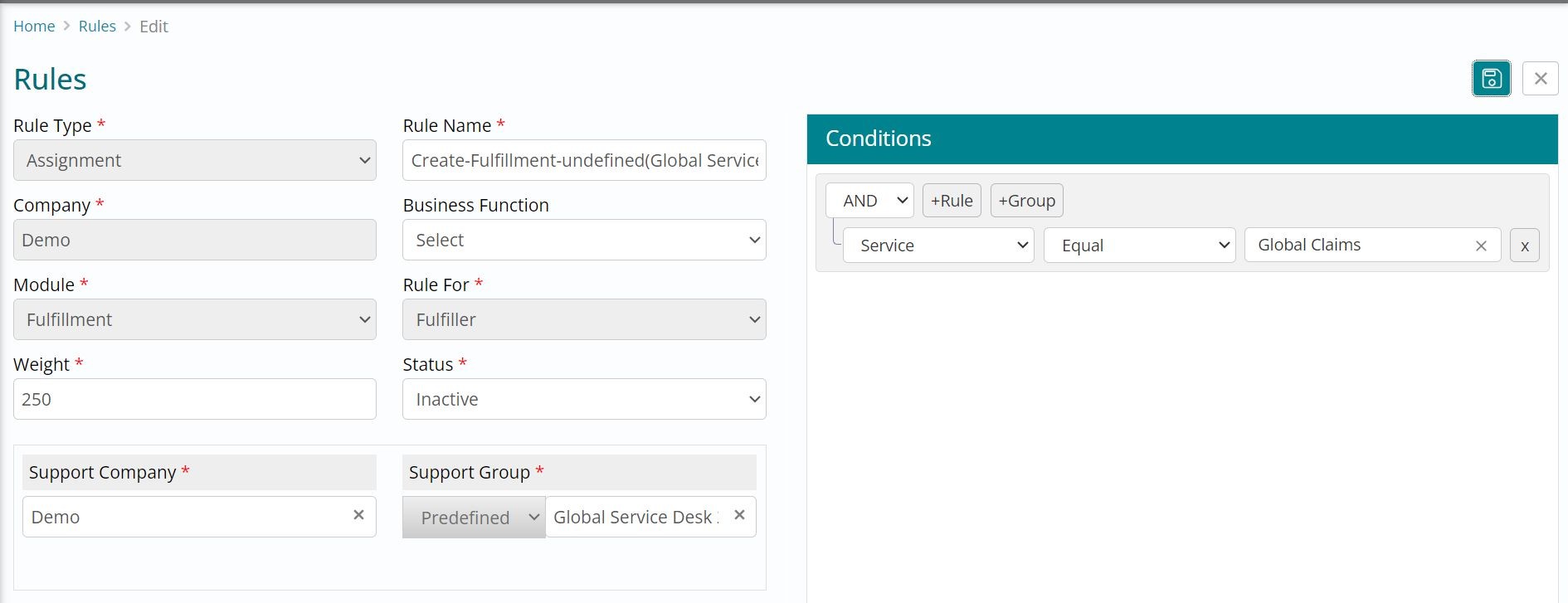
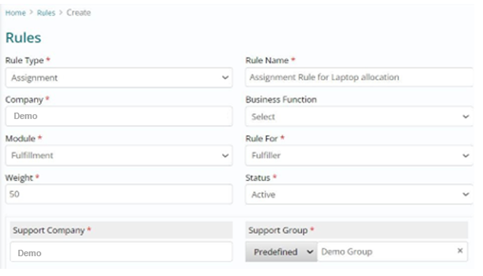
Rule Type - Select Assignment for this rule type.
Rule Name - Enter a unique name for the rule to facilitate easy identification.
Company- Specify the company for which the rule is created.
Business Function (Optional) -Choose from the list of business functions relevant to the company for which the rule applies.
Module - Select the appropriate module from the following options: Fulfillment, Incident, Change Management, Problem, Task, or Walkup. This selection will activate the relevant conditions in the condition builder that can be applied to the rule.
Rule For - .This field suggests the event for which the rule is being created. The available options are determined by the module you selected.
Weightage - Assign a weightage to each rule to indicate its relative importance. When evaluating multiple rules based on their conditions, the rule with the highest weightage will be prioritized.
Status - Set the rule status to either Active or Inactive.
Support Company - Specify the company that will receive the ticket assignment when this rule is applied.
Rule Types - Predefined (This rule type is linked to a specific support group. If the rule is triggered, the ticket will be assigned to this predefined support group). Contextual - This rule determines the assignment group based on the Requestor’s Location if Requestor.Location is selected. Alternatively, it can assign the ticket based on the CI’s support group, provided that CI is an attribute in the fact record module.
Group Function for Contextual Rule - If using a contextual rule, choose a Group Function. This Group Function, combined with the Requestor Location, helps assign the correct group to the ticket.
Alternate Group for Contextual Rule - If the Group Function mapping is not found, the rule will default to the Alternate Group for ticket assignment.
Rules Condition Builder
Adding Conditions and Condition Groups to a Rule using the Condition Builder
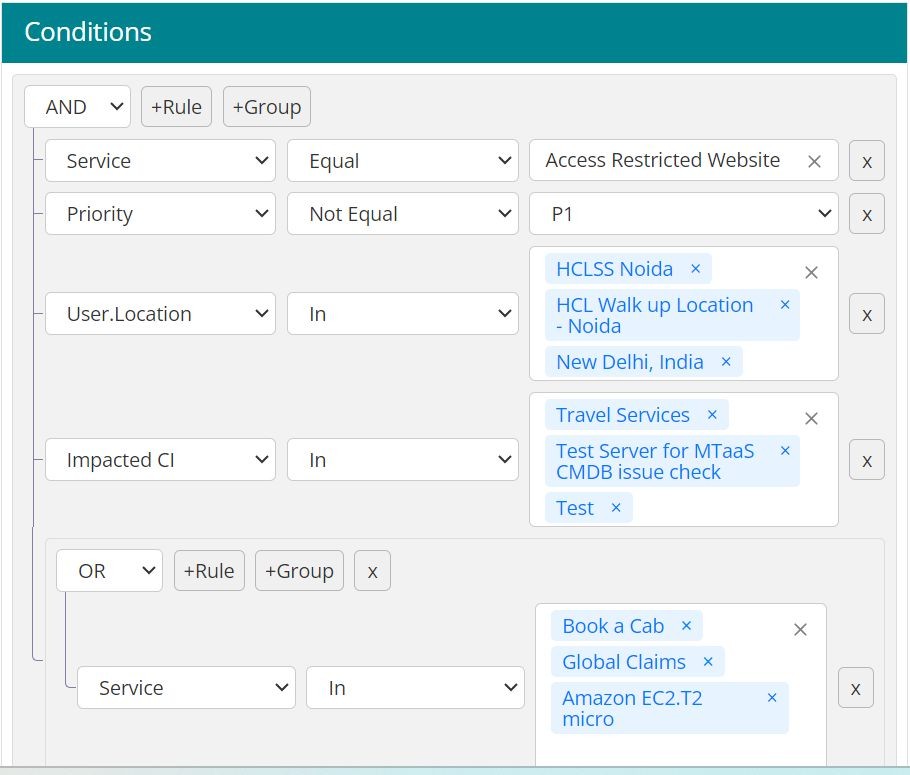
You can set up rules for different conditions, each tailored to specific criteria. The conditions available in the condition builder depend on the selected module. This means that when you create a rule, the condition builder will only show attributes relevant to the chosen module.
Adding a Condition
-
+Rule: Adds a new row to the condition group. In each row, you can select a
specific attribute to build the condition. You can create multiple conditions within a
condition group.
- Example: Service = “Access Restricted Website” AND (Priority =”P1” OR Priority=”P2”)
Each condition within a group can be joined using “AND/OR”, the default is set to “AND”.
Adding a Group
-
+Group: Adds a separate condition group. Within a condition group, you can again
create multiple conditions. Condition groups are evaluated based on “AND/OR”.
-
Example:
- Condition Group 1->(Service = “Access Restricted Website” AND (Priority =”P1” OR Priority=”P2”))
- Condition Group 2->(Service IN(“Laptop Allocation”, “Laptop Surrender”) AND
Priority =”P1)
(Service = “Access Restricted Website” AND (Priority =”P1” OR Priority=”P2”)) OR (Service IN(“Laptop Allocation”, “Laptop Surrender”) AND Priority =”P1)
-
Example:
Selecting Attributes and Operators
When you select an attribute from the dropdown and then choose an operator, a list of values will appear. You can select one or multiple values based on the chosen operator.
These attributes and their values are configured in the Data Dictionary.
Data Types and Operators
Each attribute maps to a data type, which determines the available operators. The list of values for each attribute is fetched from the corresponding microservices that own that data.
- Example: Service Names come from SPCM, User data and Location come from Foundation, etc.
Evaluating Conditions:
Same attributes within a condition group are automatically evaluated using “OR”
Edit Assignment Rule Definition
To edit an existing rule, first change its status from Active to Inactive. After saving the rule as inactive, the fields available for modification will be enabled in the user interface.
The following fields in an assignment rule are non-editable:
- Rule Type
- Company
- Module
- Rule For
- Predefined/ Contextual