Foundation Data Administration

HCL BigFix Service Management application administrator is responsible for configuring and managing the foundation for an enterprise

  • Foundation contains the common forms and data that are needed to support HCL BigFix Service Management application and must be configured prior to any other module in HCL BigFix Service Management.
  • Foundation Modules - End to End Foundation modules should be configured in the following order:
    • Company – An entity formed to operate a business enterprise, for example consumer, service provider etc.
    • Organization – A business unit within the company, that is structured and managed to pursue collective goals
    • Department – A specialized functional area within an organization
    • Cost Center – A cost center is a unit within a business to which costs can be allocated
    • Location – Physical operating locations of a company (a company can have multiple operating locations)
    • User – An individual who uses or operates upon something as a part of the company
    • Group – Support users classed together with similar permissions based on their roles

Foundation Data Entities
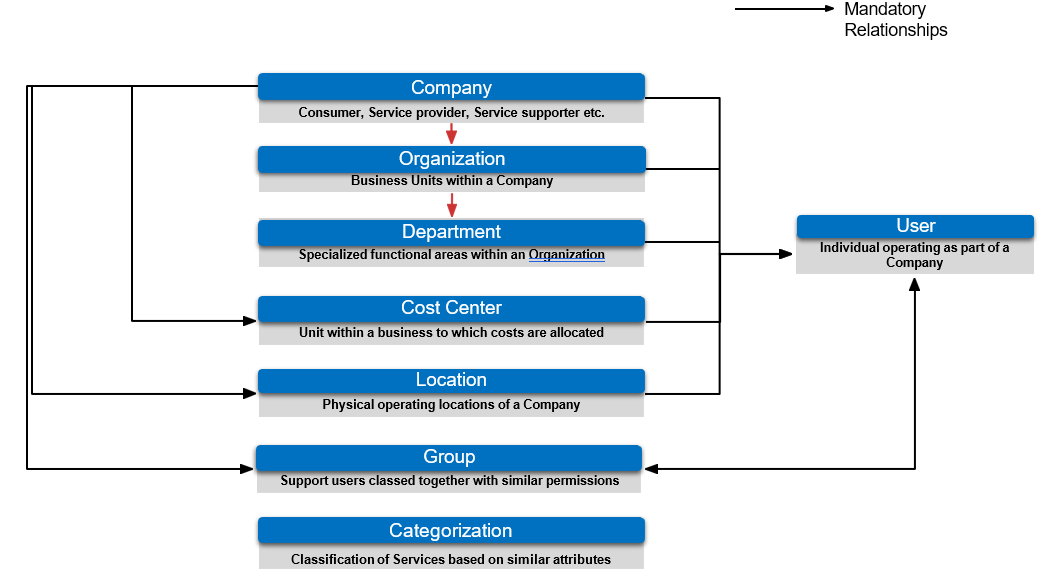
The key entities and their mandatory relationships within an IT Service Management (ITSM) environment helps define how business structures, user roles, and service classifications are connected.

  1. Company
    • Represents the highest-level entity such as a consumer, service provider, or service supporter.
    • It is the foundational element to which all other entities relate.
  2. Organization
    • Refers to business units within a company.
    • These units provide structure and help group related functions under the company.
  3. Department
    • Specialized functional areas within an organization.
    • Examples include HR, Finance, or IT.
    • Departments link users more directly to their operational roles.
  4. Cost Center
    • A unit within the business where costs are tracked and allocated.
    • Helps in financial accountability and service cost management.
  5. Location
    • Denotes the physical operating sites of a company, such as offices, plants, or branches.
    • Useful for associating services, resources, or users to a geographical point.
  6. Group
    • Represents a set of users grouped together with similar roles or permissions.
    • Facilitates assignment of responsibilities like service requests or incident handling.
  7. Categorization
    • Provides a classification of services based on similar attributes.
    • Helps streamline service management by grouping related services together.
  8. User
    • An individual operating as part of a company.
    • Users are connected to one or more of the entities (Company, Department, Cost Center, Location, Group) to define their context and access.

Navigating to Foundation Module
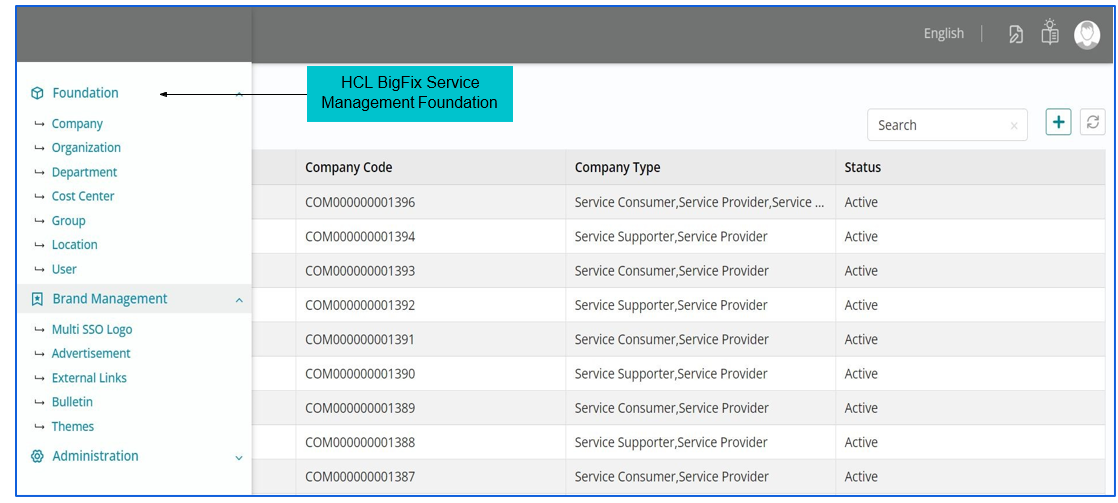
List View - Company

Creating a Company Record

Mandatory fields need to be populated to create a company record
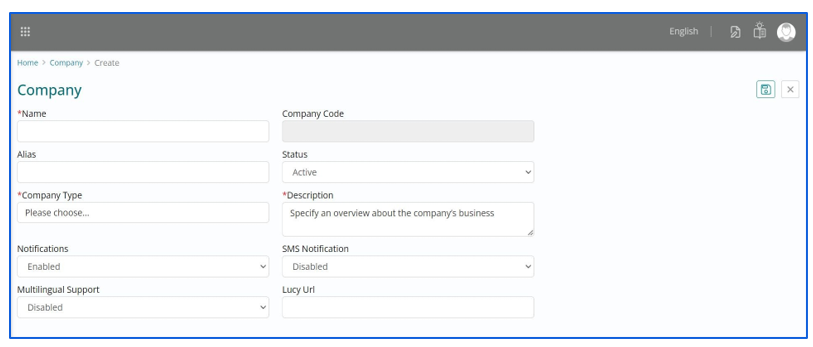
Company Form Break Down - The form to ‘Create a Company’ includes fields as listed below:

  • Name - A free text field to fill the actual name of the company being created.
  • Alias - A free text field to update a common or familiar name of the company being created.
  • Notifications - A drop down with the values (Enabled / Disabled) which can be selected to trigger notifications to the users of this company.
  • SMS Notifications - A drop down with the values (Enabled / Disabled) which can be selected to trigger SMS notifications to the users of this company.
  • Welcome Message - It’s a greeting communication about the consumer company.
  • Description - A free text field to detail the description of the company being created.
  • Status - A dropdown with the values (Active / Inactive) respectively indicating whether a company is operational or not.
  • Company Type – A list of company types for selection, organized in terms of their actual function.

Types of Companies

Company Types - The type of companies available in HCL BigFix Service Management are listed below:

  • Service Provider – An outsourced supplier which offers services in exchange of payment
  • Service Supporter – A company that aids a service but does not have the overall responsibility of the service
  • Service Integrator – A company managing multiple suppliers of services and integrating them to provide a single business facing IT organization
  • Service Orchestrator – A company responsible to provide coordinated management and control of services
  • Service Aggregator – A company that enables potential customers to connect with service providers under the aggregators’ brands or trade names.
  • Service Consumer – A company that requires the functionality of the service being offered
  • Service Payer – A company which is not the consumer but finances the service being offered

A company once created, would get populated in the list view with visibility of the fields like Company, Company Code, Company Type and status along with search tab.

Editing a Company Record

Few fields would be greyed out in the Edit page, the remaining can be edited appropriately
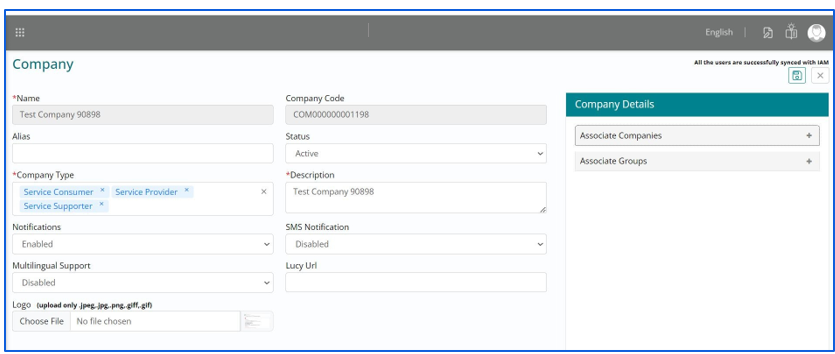
Editing a Company Record - Associate Company

To Associate Companies, Admin needs to select the Type, Company and Association type.

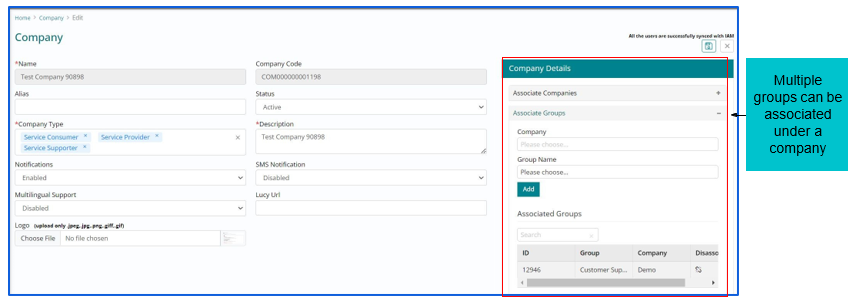
Editing a Company Record - Associate Group

To associate groups, Admin needs to select Company, Group name
List View - Organization

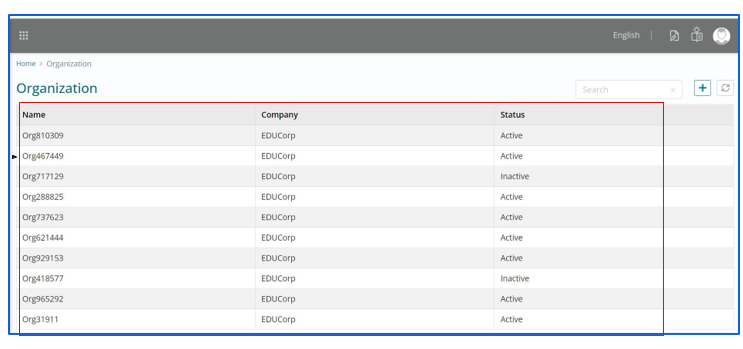
All the created organization records are visible in the list view section.
Creating an Organization Record

All fields need to be populated to create an organization record.
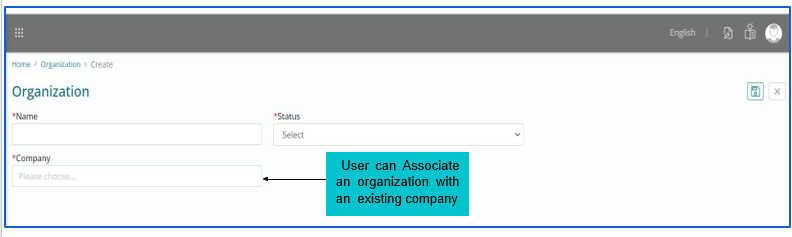
  • The form to ‘Create Organization’ includes fields as listed below:
    • Name – A free text field to fill the name of the organization being created. An organization name should be unique in nature, else tool would not allow a new company record.
    • Status – A dropdown with the values (Active / Inactive) respectively indicating whether an organization is operational or not.
    • Company – A dropdown with the list of companies configured, amongst which selection can be made
  • An organization once created, would get populated in the list view with visibility of the fields Organization Name, Company (associated company), Status with a search tab.
  • An organization record can be created against a specific company only when the company record already exists.
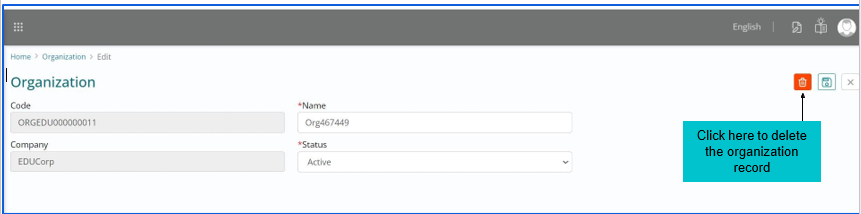
Editing an Organizational Record

Deleting an Organization

Few fields would be greyed out in the Edit page, the remaining can be edited appropriately
List View - Department

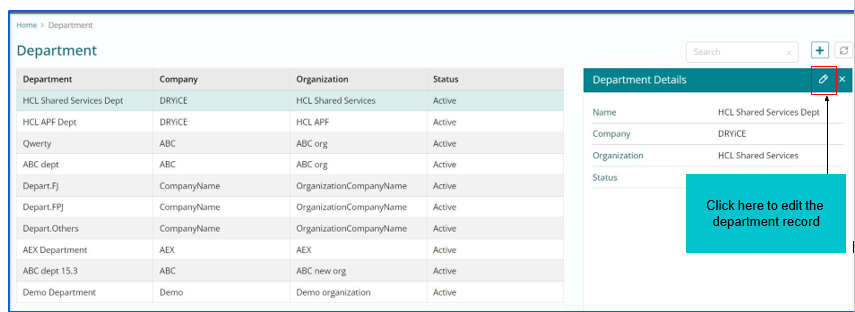
All created department records are visible in the List view section

Creating a Department Record
Configuration of Department - The form to ‘Create Department’ includes fields as listed below:
  • Name – A free text field to fill the name of the department being created. A department name should be unique in nature, else tool would not allow a new department record
  • Status – A dropdown with the values (Active / Inactive) respectively indicating whether a department is operational or not.
  • Company – A dropdown with the list of companies configured, amongst which selection can be made.
  • Organization – A dropdown with the list of organizations configured, amongst which selection can be made.
A department once created, would get populated in the list view with visibility of the following fields:
  • Department Name
  • Company Name (company associated to the organization under which department has been created)
  • Organization (associated organization)
  • Status (Active / Inactive).
A department record can be created against a specific organization only when the organization record already exists in the foundation being configured.
Editing a Department Record

Deleting a Department Record

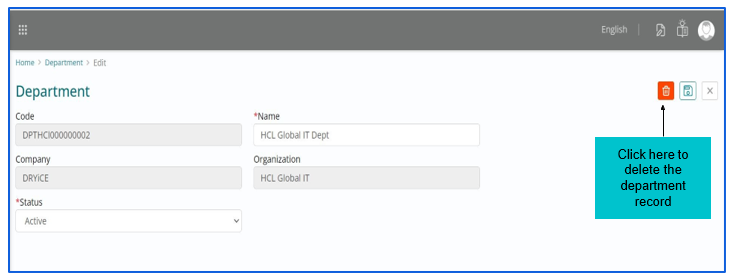
Few fields would be greyed out in the Edit page, the remaining can be edited appropriately

List View - Cost Center

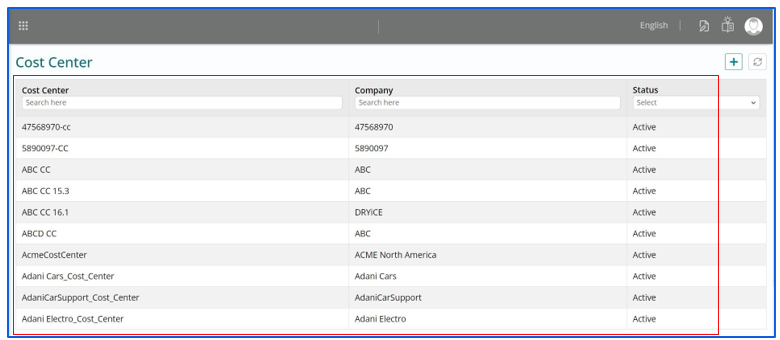
All cost center records are visible in the List view section
Creating a Cost Center Record

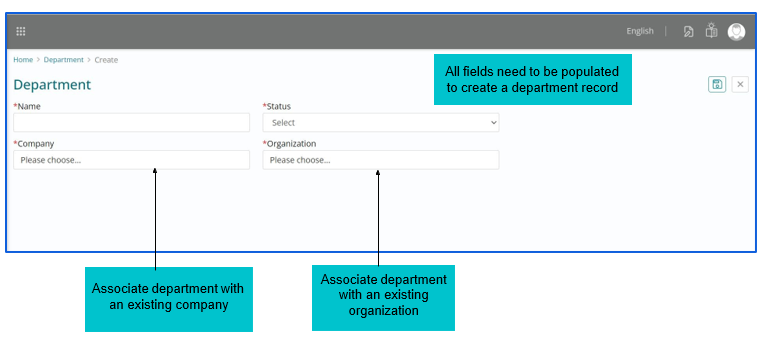
All fields need to be populated to create a cost center record.

  • Configuration of Cost Center - The form to ‘Create Cost Center’ includes fields as listed below:
    • Name – A free text field to fill the name of the cost center being created. A cost center name should be unique in nature, else tool would not allow a cost center record.
    • Status – A dropdown with the values (Active / Inactive) respectively indicating whether a cost center is operational or not
    • Company – A dropdown with the list of companies configured, amongst which selection can be made
  • A cost center once created, would get populated in the list view with visibility of the fields Cost Center Name, Company (associated company) and Status along with filter functionality tab.
  • A cost center record can be created against a specific company only when the company record already exists.
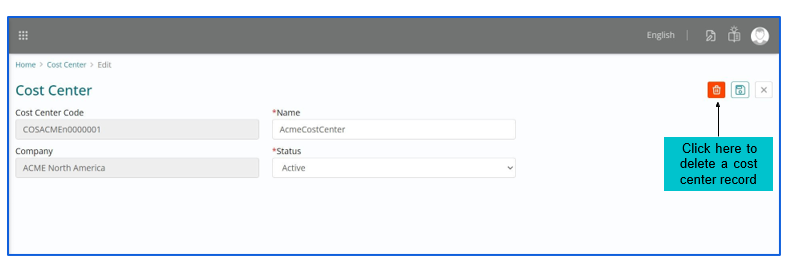
Deleting a Cost Center Record

Few fields would be greyed out in the Edit page; the remaining can be edited appropriately.
List View - Location

Creating a Location Record

Mandatory fields need to be populated to create a location record.
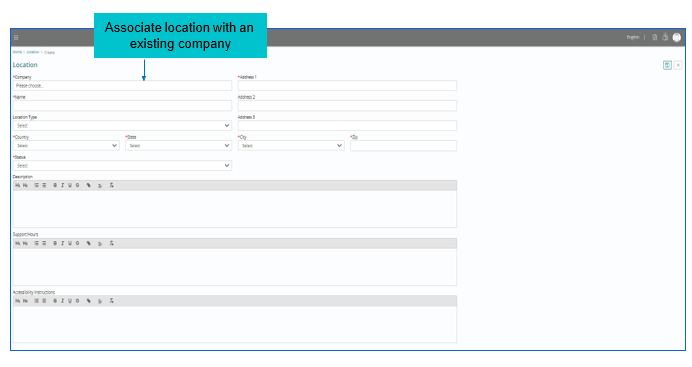
  • Configuration of Location - The form to ‘Create Location’ includes fields as listed below:
    • Company – A dropdown with the list of companies configured, amongst which selection can be made
    • Name – A free text field to fill the name of the location being created
    • Address1, Address2, Address3 – Free text fields which need to be filled with the location address
    • Country – A dropdown with the list of countries, amongst which an appropriate selection can be made
    • State – A dropdown with the list of states that would auto populate based on the country selected
    • City – A dropdown with the list of cities that would auto populate based on the state selected
    • Zip – A field wherein the numerical code needs to be filled for the location being created
    • Location Type – A dropdown with the list of location types amongst which selection can be made
    • Status – A dropdown with values (Active/Inactive) indicating whether a cost center is operational or not.
Editing a Location Record

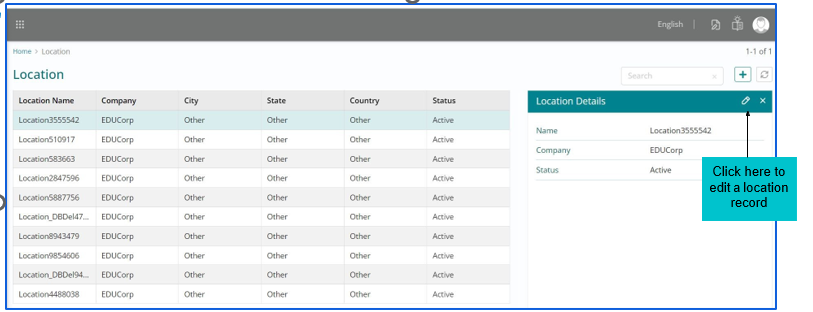
  • A Location once created, would get populated in the list view with visibility of the fields Location Name, Company Name (associated company), City, State, Country, Status with a search tab.
  • A Location record can be created against a specific company only when the company record already exists.
  • A Location name should be unique in nature, else tool would not allow new location record.
  • The edit location page will display automatically populated, non-editable data retrieved from the location record, including fields like Name, Company Name, and the Location Code that has been selected for editing.
  • The other fields such as Address, Country, State, City, Zip, Location Type and Status are auto populated from the location record but are editable and can be modified accordingly
  • The Save’ button can be used to update the modifications in a location record whereas the ‘Cancel’ button would navigate the admin out of the Edit Location page.
Deleting a Location Record

Create a User Record
  • Configuration of User profile - The form to ‘Create User’ includes fields as listed below:
    • Username – A free text field to fill the unique employee ID for a user
    • Title – A dropdown with the titles for the user name (Miss / Mr. / Ms.) which can be appropriately selected
    • First Name – A free text field to fill the first name of the user being created
    • Middle Name – A free text field to fill the middle name of the user being created
    • Last Name – A free text field to fill the last name of the user being created
    • Company – A dropdown with the list of companies configured, amongst which selection can be made
  • The ‘Add User’ page has three levels of information fields that need to be provided while creating a user
  • The fields are namely: Personal Information, Organizational Information and User Information with each of the fields having few mandatory fields and few non – mandatory ones.

Configuration of User Personal Information

It contains fields as listed below:

  • Email Address – A free text field wherein the Email ID of the user being created can be filled
  • Gender – A dropdown with the fields Male / Female / Others, one amongst which can be selected for a user
  • Employee Number - A free text field to fill the unique employee number / ID for a user
  • Employee Band - A free test field to fill the employee band
  • Business Phone – A free text field wherein the business phone number of the user can be filled
  • Mobile Phone – A free text field wherein the mobile number of the user can be filled
  • Contact phone – A free text field wherein any particular number can be filled which would be the primary contact for a user or the number on which the user prefers to be contacted.
Creating a User - Organizational Information
  • Configuration of User Organizational Information - It contains fields as listed below:
    • Organization – A dropdown with the list of organizations configured, amongst which selection can be made
    • Department – A dropdown with the list of departments configured, amongst which selection can be made
    • Location – A dropdown with the list of locations configured, amongst which selection can be made
    • Cubicle – A free text field which can be filled in with the cubicle details where the user is working out of
    • Current Working Location (CWL) – A free text field to fill the current working location of the user
    • Cost Center – A dropdown with the list of cost centers configured, one amongst which can be selected
    • Manager – A dropdown with the list of other users under the same department, one amongst whom can be selected as the manager for the user being created
    • Building – A free text field which can be filled in with the building details where the user is working
    • VIP – A field with values (Yes / No) that enables the administrator to choose whether a user is privileged to fall under the very important person (VIP) category.
    • Auto Approve - A field with values (Yes / No) that enables the administrator to choose whether a user is privileged for auto approval of the service requests
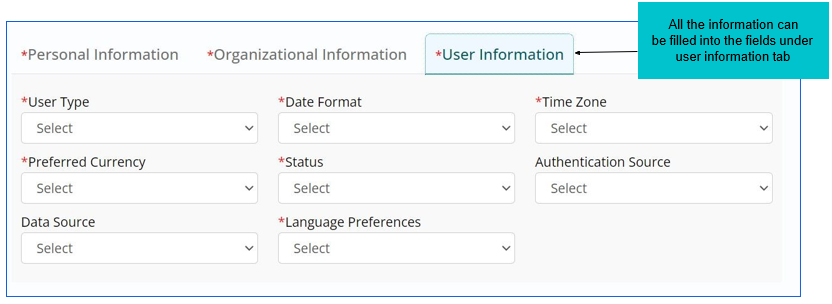
Creating a User - User Information Section

Configuration of User Information - User Information contains fields as listed below:

  • User Type – A dropdown with user types: contractor, office employee and supplier, available for selection
  • Date Format – A dropdown with the different formats in which a date can be made visible for the user
  • Time Zone – A dropdown with the different time zones across the globe available for appropriate selection
  • Preferred Currency – A dropdown with the list of currencies of different countries available for selection
  • Status – A dropdown with the values (Active / Inactive) respectively indicating whether user is active or not
  • Authentication Source – A dropdown with the list of user authentication methods, for example Active Directory
  • Data Source – A dropdown indicating the actual source of the user data, i.e., Automated, Manual etc.

Language Preferences – A dropdown with a list of languages, one amongst which can be selected for a user.

Editing a User Record

Few fields would be greyed out in the Edit page, the remaining can be edited appropriately.
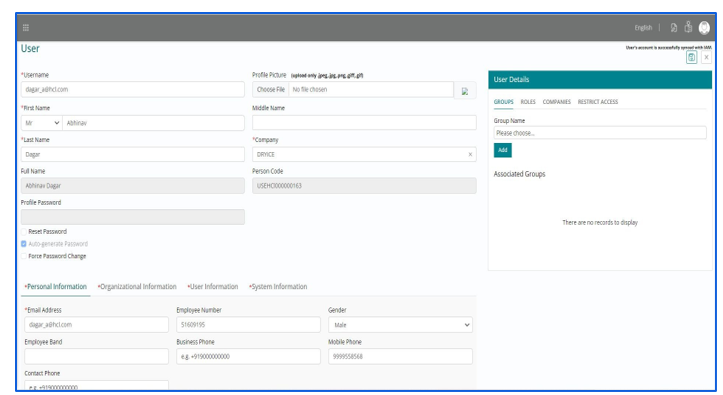
A user once created, would get populated in the list view with visibility of the fields Company, Name, Email, Username, Employee ID, User Type, Status with availability of search tab and filter functionality.

  • A user record can be created only when records for company, organization, department, cost center and location already exist against which the user can be tagged while creation.
  • A username need not be unique in nature as multiple users might share the same name, but the User ID must be unique for each user, else the record would not get created.
  • The edit user page will show automatically populated, non-editable data retrieved from the user record, including fields such as Full Name and Unique Person Code.
  • The other fields such as Organizational information and User information are auto populated from the user record but are editable and can be modified accordingly
  • The ‘Save’ button can be used to update the modifications in a user record whereas the ‘Cancel’ button would navigate the admin out of the Edit User page.

Associate Groups to User Records
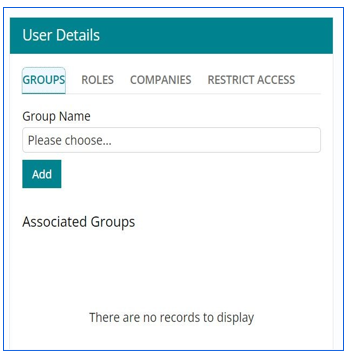
Associated Action Details
Associate Groups User can be associated with groups using “Associate Groups” option
View Groups All the groups that user is associated with can be viewed using “View Groups” option
Associate Roles User can be associated with multiple roles using “Associate Roles” option
View Roles All the roles that user is associated with can be viewed using “View Roles” option
Associate Company User can be associated with multiple roles using “Associate Roles” option
View Company Company that user is associated with can be viewed using “View Company” option
  • Associating a User - A user can be associated with a company, group and certain roles if the individual records for each of them have been created.
    • Navigation to associate groups to a user: Foundation -> User -> Edit User -> Select Group name -> Click Add
    • Navigation to view groups associated to the selected user is: Foundation -> User -> Edit User -> Associated Groups
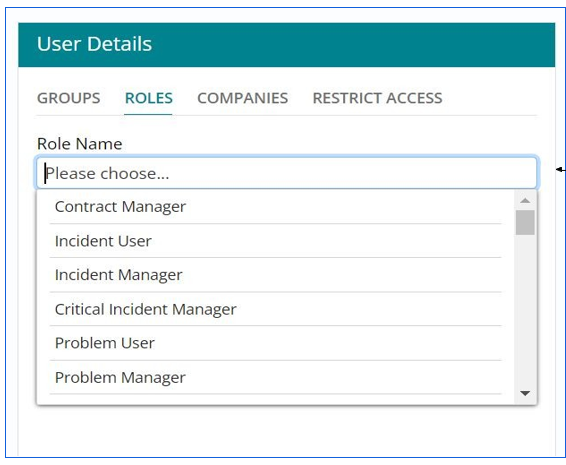
    • Navigation to associate roles to a user is: Foundation -> User -> Edit User -> Associate Roles -> Select from dropdown
    • Navigation to associate companies to a user is: Foundation -> User -> Edit User-> Companies -> Select from dropdown
    • Navigation to restrict access to a user is: Foundation -> User -> Edit User-> Restricted Access -> Select from dropdown

Associating Roles to User Record

After clicking on the edit user, on the right pane, the roles can be selected from the dropdown.
Associating companies with User Record

After clicking on edit user, on the right pane the companies list is displayed in the dropdown.

Restricting User Access

Admin can restrict the access for the user which will not be available to the user.

Managing User Permissions and Roles

The application administrator can manage user permissions and roles in foundation by associating the following pre-configured roles available in HCL BigFix Service Management.

Key types of companies in HCL BigFix Service Management –
  • Service Consumer: A company that accesses services within BigFix Service Management, with its end-users belonging to the organization.
  • Service Provider / Service Supporter: A company that offers and manages service offerings within BigFix Service Management, while also providing support and assistance to service consumers. A service provider / supporter company needs to be associated with a consumer company in BigFix Service Management.
Key user roles and their actions in HCL BigFix Service Management
  • Service Consumer
    • Access the right services and knowledge
    • Report an issue
    • Request something
    • View status / updates
    • View broadcasts
    • Change language preference
    • Use mobile app
    • Provide survey response / feedback
    • Set user preferences such as time zone and date format, etc.
    • Manage profile information
  • Approver
    • Approve service requests
    • Approve changes
    • Review a knowledge article
    • Add ad-hoc approvers
    • Delegate approvals
  • Fulfilment Viewer
    • View the fulfilment work item board
    • View fulfilment records (service requests) of self and associated companies
  • Fulfilment User
    • View the fulfilment work item board (assigned to self / self-groups)
    • Edit a fulfilment item
    • Reassign fulfilment items to other support groups which have assignment rules created
    • Manage the ticket lifecycle for fulfilment assigned to the individual or their support groups
    • Create fulfilment tasks
    • Relate work items / CIs to fulfilment items
    • Update comments / attachments / notify
  • Fulfilment Manager
    • View the fulfilment work item board
    • Edit a fulfilment item
    • Reassign fulfilment items to any support group for self-company / associated companies
    • Manage the ticket lifecycle for fulfilment assigned to the individual or their support groups
    • Create fulfilment tasks
    • Relate work items / CIs to fulfilment items
    • Update comments/ attachments/ notify
  • Incident Viewer
    • View the incident work item board
    • View incident records of self and associated companies
  • Incident User
    • View the incident work item board (assigned to self / self-groups)
    • Create an incident
    • Edit an incident
    • Reassign incident to other support groups which have assignment rules created
    • Manage the ticket lifecycle for incidents assigned to the individual or their support groups
    • Propose an incident as critical
    • Create incident tasks
    • Relate work items / CIs to incidents
    • Update comments / attachments / notify
  • Incident Manager
    • View the incident work item board
    • Create an incident
    • Edit an incident
    • Reassign incidents to any support group for self-company / associated companies
    • Manage the ticket lifecycle for incidents assigned to the individual or their support groups
    • Propose an incident as critical
    • Create incident tasks
    • Relate work items / CIs to incidents
    • Update comments / attachments / notify
  • Critical Incident Manager
    • View the incident work item board
    • Create an incident
    • Edit an incident
    • Reassign incidents to any support group for self-company / associated companies
    • Manage the ticket lifecycle for incidents assigned to the individual or their support groups
    • Propose an incident as critical
    • Accept an incident as critical
    • Update incident urgency
    • Create incident tasks
    • Relate work items / CIs to incidents
    • Update comments / attachments / notify
  • Problem Viewer
    • View the problem work item board
    • View problem records of self and associated companies
  • Problem User
    • View the problem work item board (assigned to self / self-groups)
    • Create a problem
    • Edit a problem
    • Reassign problems to any other support groups
    • Manage the ticket lifecycle for problems assigned to the individual or their support groups
    • Propose a change from within the problem
    • Create problem tasks
    • Relate work items / CIs to problems
    • Update comments / attachments / notify
  • Problem Manager
    • View the problem work item board
    • Create a problem
    • Edit a problem
    • Reassign problems to any support group for self-company / associated companies
    • Manage the ticket lifecycle for problems assigned to the individual or their support groups
    • Propose a change from within the problem
    • Create problem tasks
    • Relate work items / CIs to problems
    • Update comments / attachments / notify
  • Problem Investigator
    • View the problem work item board (assigned to self / self-groups)
    • Specify root cause for problems where individual is a part of problem investigation team
    • Record findings for problems where individual is a part of problem investigation team
    • Create problem tasks
    • Relate work items / CIs to problems
    • Update comments / attachments / notify
  • Change Viewer
    • View the change work item board
    • View change records of self and associated companies
  • Change User
    • View the change work item board (assigned to self / self-groups)
    • Create a change
    • Edit a change and submit for review
    • Replan / cancel a change
    • Reassign changes to other support groups
    • Perform change post implementation review
    • Create change tasks (other than implementation tasks)
    • Relate work items / CIs to changes
    • Update comments / attachments / notify
  • Change Manager
    • View the change work item board
    • Create a change
    • Edit a change and submit for review
    • Replan / cancel a change
    • Reassign changes to other support groups / change management groups
    • Perform change post implementation review
    • Create change tasks (other than implementation tasks)
    • Relate work items / CIs to changes
    • Update comments / attachments / notify
  • Implementation User
    • View the change work item board (assigned to self / self-groups)
    • Create a change
    • Edit a change and submit for review
    • Replan a change (until under implementation status)
    • Cancel a change
    • Start and end change implementation
    • Reassign changes to other support groups
    • Create change tasks (including implementation tasks)
    • Relate work items / CIs to changes
    • Update comments / attachments / notify
  • Implementation Manager
    • View the change work item board
    • Create a change
    • Edit a change and submit for review
    • Replan a change (until under implementation status)
    • Cancel a change
    • Start and end change implementation
    • Reassign changes to other support groups for self-company / associated companies
    • Create change tasks (including implementation tasks)
    • Relate work items / CIs to changes
    • Update comments / attachments / notify
  • Task Viewer
    • View the task work item board (assigned to self / self-groups)
    • View incident, problem, change and fulfilment task records of assigned to self or self-groups
  • Task Manager
    • View the task work item board
    • View incident, problem, change and fulfilment task records of self-company and associated companies
  • Interaction Viewer
    • View the interaction work item board
    • View interaction records of self and associated companies
  • Interaction User
    • View the interaction work item board (assigned to self / self-groups)
    • Create an interaction
    • Edit an interaction
    • Reassign interaction to other support groups
    • Manage the ticket lifecycle for interactions assigned to the individual or their support groups
    • Create incident / request from within an interaction
    • Relate existing incidents / requests to interactions
    • Update comments / attachments
  • Interaction Manager
    • View the interaction work item board
    • Create an interaction
    • Edit an interaction
    • Reassign interaction to other support groups
    • Manage the ticket lifecycle for interactions assigned to the individual or their support groups
    • Create incident / request from within an interaction
    • Relate existing incidents / requests to interactions
    • Update comments / attachments
  • Service Desk User
    • Can view the overall work item board across all processes
    • Access service desk
    • Create any work item
    • Edit any work item
    • Submit a change for review
    • Replan / cancel a change
    • Reassign tickets to support groups of self-company / associated companies
    • Manage the ticket lifecycle for tickets assigned to the individual or their support groups
    • Propose an incident as critical
    • Update incident urgency
    • Propose a change from within a problem
    • Create any tasks (other than change implementation tasks)
    • Relate work items / CIs to any other work items
    • Update comments / attachments / notify
  • Knowledge Author
    • View and create knowledge articles
    • Edit self-authored knowledge articles in Draft state
    • Share knowledge articles
    • Search for knowledge articles
    • Update the expiry date of knowledge articles
    • Move an article to outdated status
    • Update / change the author of a knowledge article
    • Submit an article for review
    • Move an article from Outdated to Closed state
  • Knowledge Manager
    • Create a knowledge base
    • View and create knowledge articles
    • Edit self-authored knowledge articles in Draft state
    • Share knowledge articles
    • Search for knowledge articles
    • Update the expiry date of knowledge articles
    • Move an article to outdated status
    • Update / change the author of a knowledge article
    • Submit an article for review
    • Instantly publish a knowledge article
    • Move an article from Outdated to Closed state
  • Config Viewer
    • View the asset/CI board
    • View asset/CI records of self and associated companies
    • View asset/CI relationships
  • Asset Manager
    • View the asset/CI board
    • View / create / update asset records of self and associated companies
    • View / create / update asset relationships
    • Manage the entire asset lifecycle from procurement to maintenance and disposal
    • Define asset classes
    • Scan assets
    • Relate assets to other assets / work items
    • Update comments / attachments / notify
  • Config Manager
    • View the asset/CI board
    • View / create / update asset/CI records of self and associated companies
    • View / create / update asset/CI relationships
    • Manage the entire CI lifecycle from deployment to decommissioning
    • Define asset/CI classes
    • Scan asset/CI
    • Relate CIs to other CIs / work items
    • Update comments / attachments / notify
  • Reconciliation User
    • Import and validate records for reconciliation
    • Normalize records
    • Identify duplicate records
    • Create golden dataset
    • Map with product library
    • Configure reconciliation rules
    • Configure scheduled jobs for automated reconciliation
    • Configure and manage resource units
  • Contract Manager
    • Create new contracts
    • Access existing contracts
    • Manage contract lifecycle
    • Link contracts to assets
    • Link contracts to service level definitions
  • Meeting Viewer
    • View the appointment work item board (assigned to self / self-groups)
    • View the appointment calendar view
    • View appointment/meeting details
  • Meeting Manager
    • View the appointment work item board
    • View the appointment calendar view
    • View / create / update appointment/meeting details
    • View / create / update decisions and action items
    • View / modify meeting attendance
    • View / modify meeting recording links
    • View / modify supplier scorecard
  • SIAM Lead
    • View the appointment work item board
    • View the appointment calendar view
    • View / create / update appointment/meeting details
    • View / create / update decisions and action items
    • View / modify meeting attendance
    • View / modify meeting recording links
    • View / modify supplier scorecard
  • SLA User
    • View / create / edit service level definitions of self-company
    • View / create / edit work schedules of self-company
    • View / create / edit holiday schedules of self-company
  • SLA Manager
    • View the SLA Board
    • View / create / edit service level definitions of self-company / associated companies
    • View / create / edit work schedules of self-company / associated companies
    • View / create / edit holiday schedules of self-company
  • Walk-up User
    • View / update walkup records created by users
    • Manage the ticket lifecycle for walkup tickets
  • Report User
    • View reports / dashboards of self-company / associated companies
    • Apply filters to reports / dashboards
    • Export reports / dashboards
  • Reports Manager
    • View / configure reports / dashboards of self-company / associated companies
    • Apply filters to reports / dashboards
    • Export reports / dashboards
  • Reports Administrator
    • View / configure reports / dashboards of self-company / associated companies
    • Add new reports / dashboards
    • Apply filters to reports / dashboards
    • Export reports / dashboards
  • Template User
    • Select and apply / utilize an existing template
  • Template Owner
    • Create a new template
  • Template Admin
    • View all the existing templates
    • Activate / deactivate any existing templates
  • AMS Administrator
    • View / create / update assignment rules for all work items
  • User Approval Manager
    • Approve / activate user profile requests post self-sign up
  • Catalog Manager
    • View service board
    • Create / update service offerings for self-company / associated consumer company
    • Manage the entire service offering lifecycle for self-company / associated consumer
    • Share service offerings with associated consumer companies
    • Add related service offerings
    • View / add / update service offering attributes
    • View / add / update service offering components
    • View / add / update service offering entitlements
    • View / add / update service offering pricing
    • View / add / update service offering ordering information
    • View / add / update service offering self-service actions
    • View / set service offering preferences
    • View / add / update service offering disclaimers
    • View / set service offering reminder notifications
    • Relate knowledge articles to service offerings
  • Task Admin
    • Create / edit task plans / templates for service offerings / CIs
  • Approval Admin
    • Create / edit approval sets for service offerings / CIs
  • Rule Admin
    • Access rules section from the application menu
    • Create a rule
    • Edit an existing rule
    • Activate / deactivate a rule
    • Create conditions within a rule
  • Roster Manager
    • Manage and publish the on-call schedule roster
    • View / create / update support schedules
    • View / create / update shift schedules
    • Add / edit / support users to shifts
  • Notification Admin
    • View the notification board
    • View / make a default email notification template active / inactive
    • View / create / edit / activate custom email notification templates
    • View / create / edit / activate notification templates for all supported languages
  • Survey Admin
    • Access survey configuration section from the application menu
    • View / create / edit survey settings / configuration against self / associated companies
    • Choose to apply surveys against company-specific service requests / incidents / both
    • Choose to apply surveys against offering-specific service requests / incidents / both
  • Broadcast Manager
    • View the brand management section
    • Add / edit / activate bulletins
    • Add / edit / activate advertisements
    • Add / edit / activate external links
    • View default user interface colour themes
    • Edit / set custom user interface colour themes
  • Data Manager
    • Add / edit / modify / activate groups, group members, users and user role associations for self-company
    • Add / edit / modify / activate foundation data of a company (includes organizations, departments, cost centers, locations, groups, group member associations, users, user role associations, and governance forums
    • Access integration hub section and register / edit outbound connections to external systems
    • Configure a mailbox to drive email-to-ticket / survey-via-email features for a company
    • View / create / edit custom attributes across all processes
    • Access UI builder and tailor the user interface for a company (includes templates, interactive screens, system constants, connectors and localization).
      • Access data dictionary (list of tables / data sources and list of attributes)
      • View / create / update categories in category board (for service offerings, CIs and CI resolutions)
      • Access fine-grained access controls / administrative settings against a company (includes settings across approval, change, CMDB, foundation, fulfillment, incident, SLA, walk-up and work item board)
  • Authorization Admin
    • Create and manage authorization rules for a company, i.e. define what users within or outside a company are allowed to access within the system, based on their roles and system attributes.
  • Super Admin
    • View / create / edit / activate companies
    • Manage the foundation data across an instance (all companies)
    • Access fine-grained access controls / administrative settings against an instance (includes settings across approval, change, CMDB, foundation, fulfillment, incident, SLA, walk-up and work item board)
List View - Group

All created group records are visible in the List view section.

Creating a Record Group
  • Configuration of Groups - The form to ‘Create Group’ includes fields as listed below:
    • Name – A free text field to fill the unique name being given for a group
    • Company – A dropdown with the list of companies configured, amongst which selection can be made
    • Description – A free text field to detail the description of the group being created
    • Status – A dropdown with the values (Active / Inactive) respectively indicating whether a group is operational or not
  • A group once created, would get populated in the list view with visibility of the fields Group Code, Company Name (associated company), Name, Status with a search tab.
Editing a Record Group

  • A group record can be created against a specific company only when the company record already exists.
  • A group name needs to be unique in nature, else the record would not get created.
  • The edit group page will feature automatically populated, non-editable data pulled from the group record, including fields like Group Code, Name, and the associated Company of the group.
  • The other fields are also auto populated from the group record but editable and can be modified accordingly.
  • The ‘Save’ button can be used to update the modifications in a Group record.
  • The ‘Cancel’ button would navigate the admin out of the Edit Group page.
Deleting a Group Record

Few fields would be greyed out in the Edit page; the remaining can be edited appropriately.

Associating Members & Roles

  • Associating a Group - A group can be associated with group members and roles if the individual applicable user records exist
    • Navigation to associate members to a group is: Foundation -> Group -> Edit Group -> Associate Members -> Search the member name -> Add
    • Navigation to view associated members to a group is: Foundation -> Group -> Edit Group -> Group Details -> Associated Members
    • Navigation to associate roles to a Group is: Foundation -> Group -> Edit Group -> Associate Roles -> Select Role name from the dropdown -> Add
    • Navigation to view associated roles to a Group is: Foundation -> Group -> Edit Group -> Group Details -> Associated Roles