Analytics Administration Reports and Dashboards
The HCL BigFix Service Management Reports and Dashboards system is a powerful tool that can be used to track and analyze data from a variety of sources. The system is user-friendly and can be customized to meet the specific needs of each role. With HCL BigFix Service Management Reports and Dashboards, users can:
- View various reports
- Track trends and patterns
- Identify areas for improvement
- Make informed decisions
HCL BigFix Service Management Reports and Dashboards is a valuable tool for any organization seeking to improve efficiency and effectiveness. It provides a central location for all data, making it easy to track progress, identify problems, and make improvements.
Purpose & Objective
Continual improvement by providing a centralized view of relevant data on various managed objects. This data can be used to identify trends, patterns, and relationships that can help organizations make better decisions about how to allocate resources, improve processes, and achieve their goals.
The practice collects data from a variety of sources, including transaction data, CMDB data, and Foundation data. The practice of data governance may be implemented in a variety of ways, depending on the specific needs of the organization. However, some common elements of data governance programs that are incorporated in the HCL BigFix Service Management reports and dashboards include:
- A data governance framework: to define the roles and responsibilities of data governance stakeholders, as well as the processes and procedures for managing data.
- A data catalog: This catalog provides a central repository for information about all of the data in the organization, including its source, format, usage, and security requirements.
- Data quality standards: These standards define the quality requirements for data, such as accuracy, completeness, and consistency.
- Data validation and verification processes: These processes are used to ensure that data meets the defined quality standards.
- Data security measures: These measures are used to protect data from unauthorized access, use, or disclosure.
The primary objective of ‘Reports and Dashboards’ is to provide relevant stakeholders with the information they need to make informed decisions. This includes presenting required metrics or reports in a clear and concise way, and ensuring that the data is accurate and up-to-date. Reports and dashboards can be used to track progress on key initiatives, identify areas for improvement, and make strategic decisions. They can also be used to communicate with stakeholders and keep them informed of the organization’s progress.
To achieve this objective, ‘Reports and Dashboards’ uses clear and concise language that is easy to understand. In addition, they are:
- Tailored to the specific needs of each stakeholder group. This means that the reports and dashboards are designed to provide the information that is most relevant to each stakeholder group. For example, a report for an incident manager would focus on incident information, while a report for a change manager would focus on changes-related information.
- Visually appealing and easy to navigate. The reports and dashboards are designed to be easy to read and understand. They use clear fonts and colors, and they are organized in a logical way. This makes it easy for stakeholders to find the information they need.
- Updated regularly with the latest data. The reports and dashboards are updated regularly with the latest data. This ensures that stakeholders have access to the most up-to-date information.
Reports and dashboards can be a valuable tool for improving decision-making and driving organizational performance. By providing stakeholders with the information they need, they can help organizations make better decisions, identify opportunities for improvement, and achieve their goals.
Data Types
Transaction data
Transaction data refers to data about transactions that occur within an organization, such as incidents, problems, changes, fulfillments, and tasks. This data can be used to improve the organization's efficiency and effectiveness by:
- Identifying and addressing the root causes of incidents, so that they can be prevented in the future.
- Implementing changes to the organization's infrastructure or processes, to improve its resilience to incidents.
- Tracking the delivery of products or services to customers, to ensure that they are satisfied.
- Managing tasks, so that they are completed on time and within budget.
CMDB data
The data includes information about the organization's IT infrastructure, such as hardware, software, and network components. The data can be used to:
- Manage the organization's IT infrastructure
- Identify and troubleshoot IT problems
- Plan for future IT needs
- Comply with regulatory requirements
Foundation data
The data includes information about the company's organizational structure, such as its organizations, departments, locations, teams or groups, roles, and user profiles.
User Personas/Roles
The following roles and responsibilities of various stakeholders in the HCL BigFix Service Management Reports and Dashboards system are outlined:
Report Manager
- The report manager role is a dedicated role that is responsible for managing reports in a cloud-based environment. In many organizations, resource owners, service owners, or product owners may be able to perform some or all of the same tasks as the report manager. However, the report manager role is typically reserved for individuals who have a deep understanding of the reporting system and the ability to make critical decisions about how reports are created, managed, and shared.
Responsibilities of the report manager role include:
- Deciding roles and master roles for each report. This includes determining who has access to view and edit the report, as well as who has the ability to create new reports or modify existing reports.
- Renaming an existing report. This can be useful for clarifying the purpose of the report or making it easier to find.
- Deciding which report is active and which report is inactive for users. This allows the report manager to control which reports are visible to users and which reports are not.
- Viewing all reports for the associated organizations. This gives the report manager a comprehensive view of all reports that are being created and managed in the organization.
The report manager role is an important one that can help to ensure that reports are accurate, up-to-date, and accessible to the right people. By carefully managing the roles and permissions for each report, the report manager can help to protect sensitive data and ensure that reports are used for their intended purpose.
Administrator
- Administrators can add a report or dashboard and the report's related information for each report on each instance. The information includes the dashboard ID, report type, report filters, widget type, dashboard resource ID, dashboard UUID, company ID field, group ID field, dataset ID, instance user's username, instance user's first name, and instance user's last name.
- Without this information, a new report cannot be added to the system. To obtain this information for related instances, administrators must contact the product team if the information is not available to them.
Report User
- All users with the FULFILLER and SLA roles can access available reports and dashboards. In addition, they can view the reports configurations, but they cannot modify them.
- This is because these roles are responsible for fulfilling orders and ensuring that service-level agreements are met. Therefore, they require access to reports and dashboards to track their progress and ensure that they are meeting their goals. However, they should not be able to modify the reports or dashboards, as this could result in inaccurate data or inconsistencies.
Reports & Dashboards Configuration
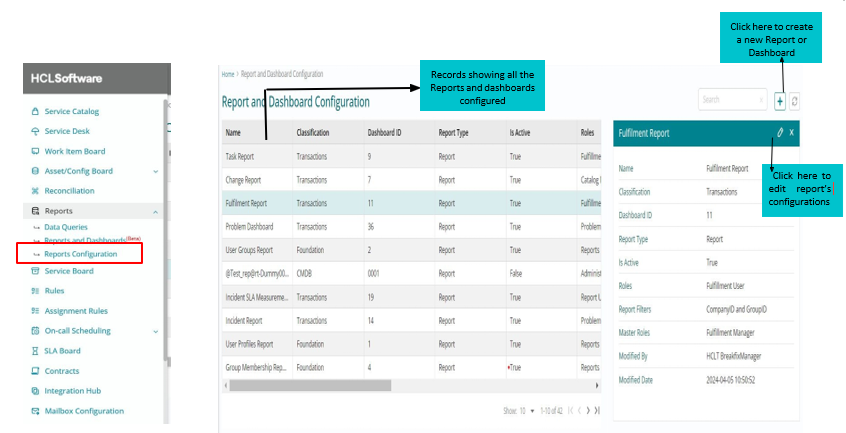
Upon adding a new report to the Reports and Dashboards system, the report must be added to the "Reports Configuration" section. This section is accessible on the left navigation panel of the HCL BigFix Service Management platform under the "Reports" menu.
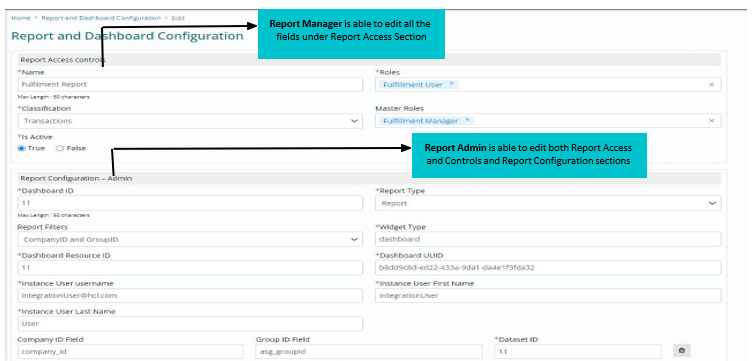
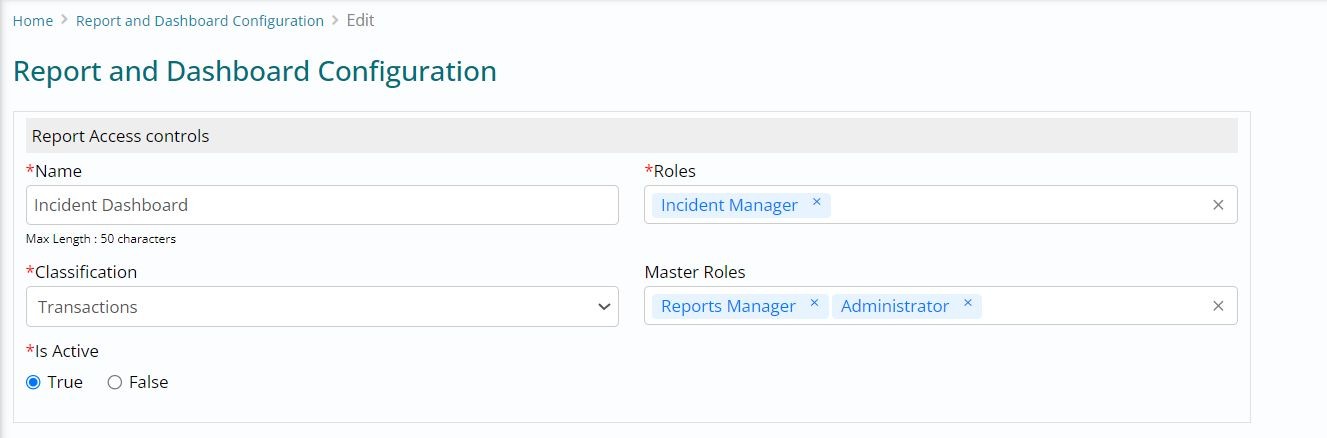
Below are the details of the fields under Reports Access Controls section :
- Name: This is the most important field, as it will be used to identify the report in the Reports and Dashboard page. The report manager should choose a name that is descriptive and easy to remember.
- Classification: This field allows the report manager to categorize the report. This can be useful for organizing reports and for making it easier to find the desired report.
- Is Active: This field determines whether the report will be visible to users. If this field is set to false, the report will not be visible to any users, including the report manager and administrators.
- Roles: This field allows the report manager to specify which user roles can view the report. This can be useful for restricting access to sensitive or confidential data.
- Master Roles: This field allows the report manager to specify which user roles can view the report irrespective of their assigned group. This can be useful for ensuring that all users with a particular role can view the report, regardless of which group they are assigned to.
Dashboard ID – The field stores the Dashboard ID
Report Type: It stores whether the Report type is Report or Dashboard
Report Filters: This field indicates whether the report is filtered based on company only, company and group, or no filters.
Widget Type – Stores the Widget Type
Dashboard Resource ID: Stores the backend ID of Dashboard obtained from backend Reporting engine
Dashboard UUID: This ID is also obtained from backend Reporting Engine
Instance User username, Instance User First Name, Instance User last Name: Stores the user details
Company ID field: User must specify the Company ID, If the user is using views, then the user have to specify the Company IDs involved in double quotes separated by comma.
Group ID Field: Users must specify the Group Id here
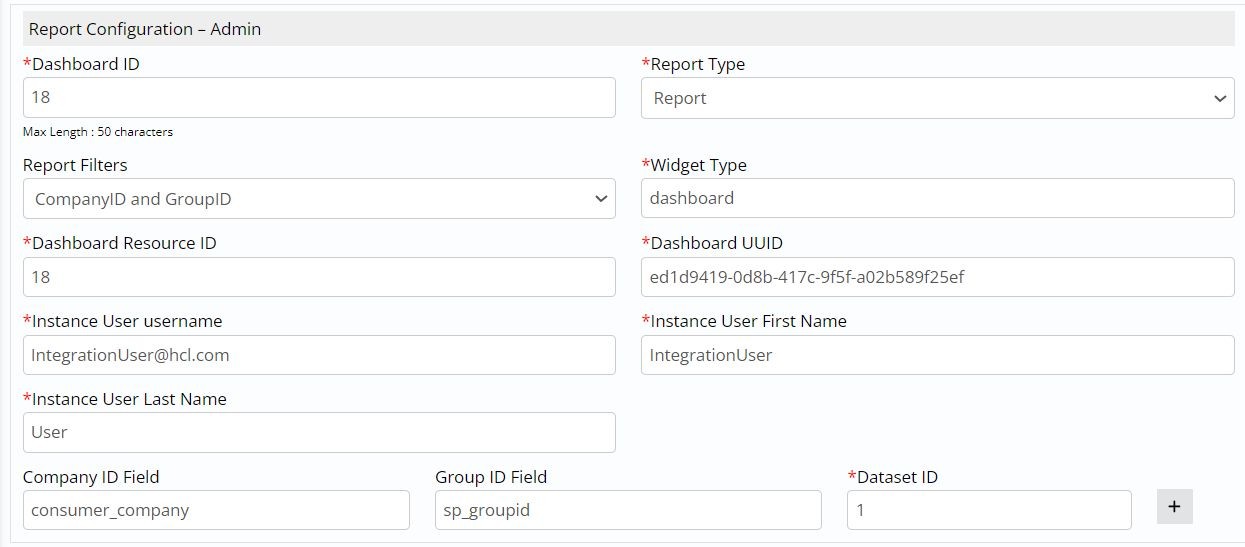
Dataset ID:Users must specify the Dataset ID
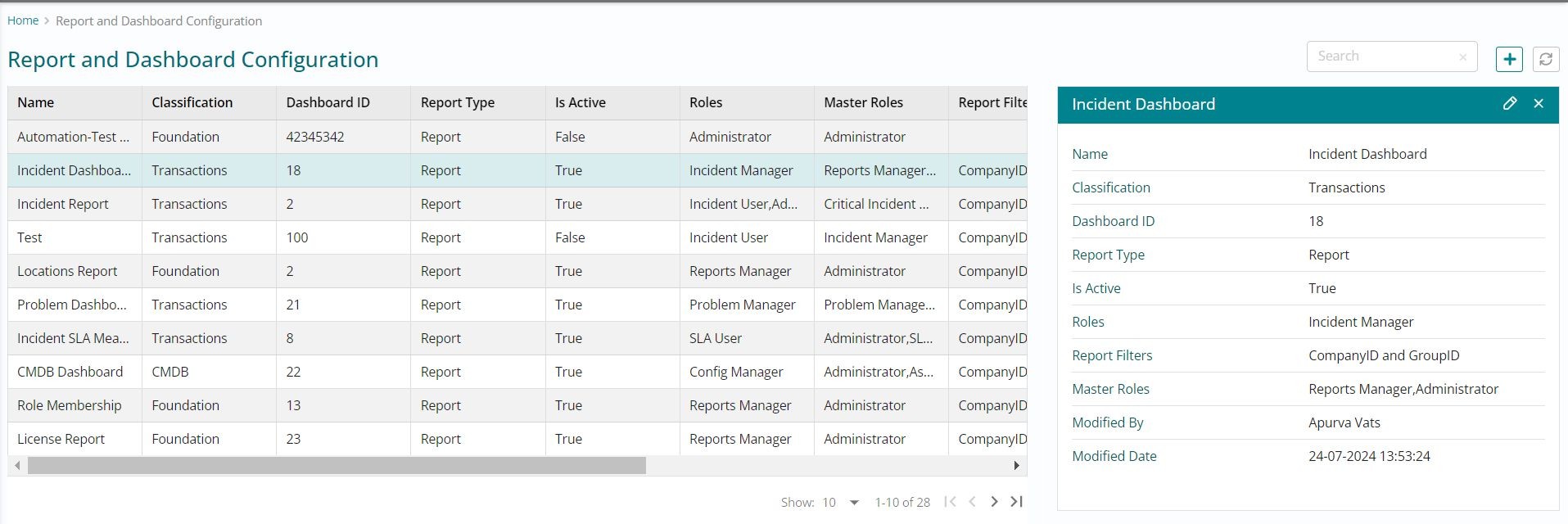
To add a report to the "Reports Configuration" section, follow these steps:
-
 Click on the "Reports"
menu.
Click on the "Reports"
menu. - Click on the "Reports Configuration" section.
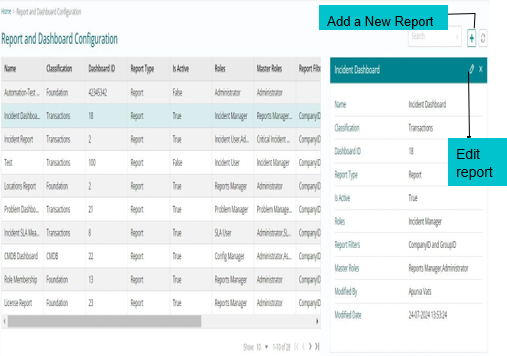
- Click on the "Add Report " button
- Enter the required information:
Edit report
- Click on the "Save" button.
The report will now be visible in the "Reports Configuration" section.
To change a report, a Report Manager needs to:
- Go to the Reports Configuration page.
- Select the report to be changed.
- Click the "Edit" button.
- Make the desired changes to the report.
- Click the "Save" button.
The Report Manager can change the following properties of a report: name, roles, master roles, status, and classification. Once the changes have been made, the Report Manager can click the "Save" button to save the changes. The changes will then be applied to the report.