
Configure a WSP
This page explains how to configure a WhatsApp as a marketing channel.
HCL CDP allows you to create WhatsApp campaigns, but the delivery of messages to your target audience is handled by a WhatsApp Service Provider (WSP) such as Yellow Messenger, Gupshup, or Infobip. To start creating WhatsApp engagements, you must first configure at least one WSP.
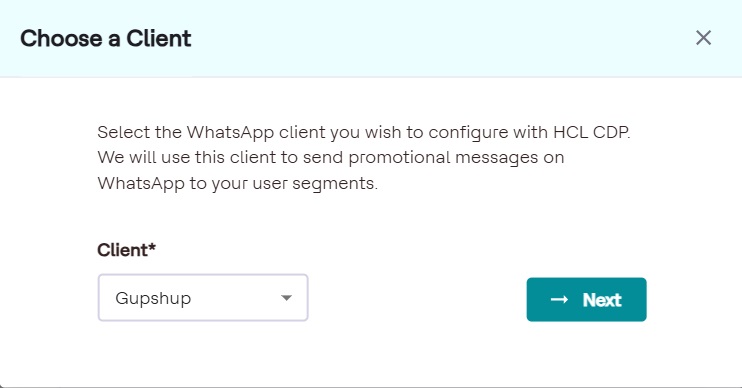
Add a new WhatsApp Service Provider
- Click + Add New WhatsApp Client.
- From the modal, choose a WSP from the list shown in the above image, and enter a name to define the configuration.
- In the Connection Settings, enter WSP-specific settings, and click Save.
Verify the configuration
Use Try It Out to test the configuration. To try it out, follow the steps below:
-
Click the TRY IT OUT tab.
- Enter the mobile number along with the country code to which the communication has to be sent.
- Choose the template for your communication that has to be sent in WhatsApp.
- Configure variables as per the template.
- Include media if necessary. Use media radio buttons, add the media either as a URL or as a file.
- Click Upload to take the necessary actions like adding the URL or uploading the file. The supported media file formats are, images, docs, and video.
- Enter the filename, and click Submit.