
Google Ads Export Channel
This page explains how to configure and use the Google Ads Export Channel in the Customer Data Platform (CDP). It provides detailed instructions for exporting audience data to Google Ads, including integration setup, audience selection, and managing the data transfer process.
The Google Ads Export Channel enables clients to create segments on the HCL CDP UI and export them in real-time to their respective business managers.
Set up Google Ads Export Channel
User Identifiers
User identifiers allow you to locate existing users by gathering their information, such as email addresses and mobile numbers. Google Ads hashes this data and matches it with your customers' profiles, enabling targeted advertising.
To simplify the process, you can leverage macros that automate and streamline repetitive tasks within HCL CDP.
Audience Export Setup
To set up Google Ads notifications, you first need to create an engagement.
- Navigate to . By default Channel Summary tab opens.
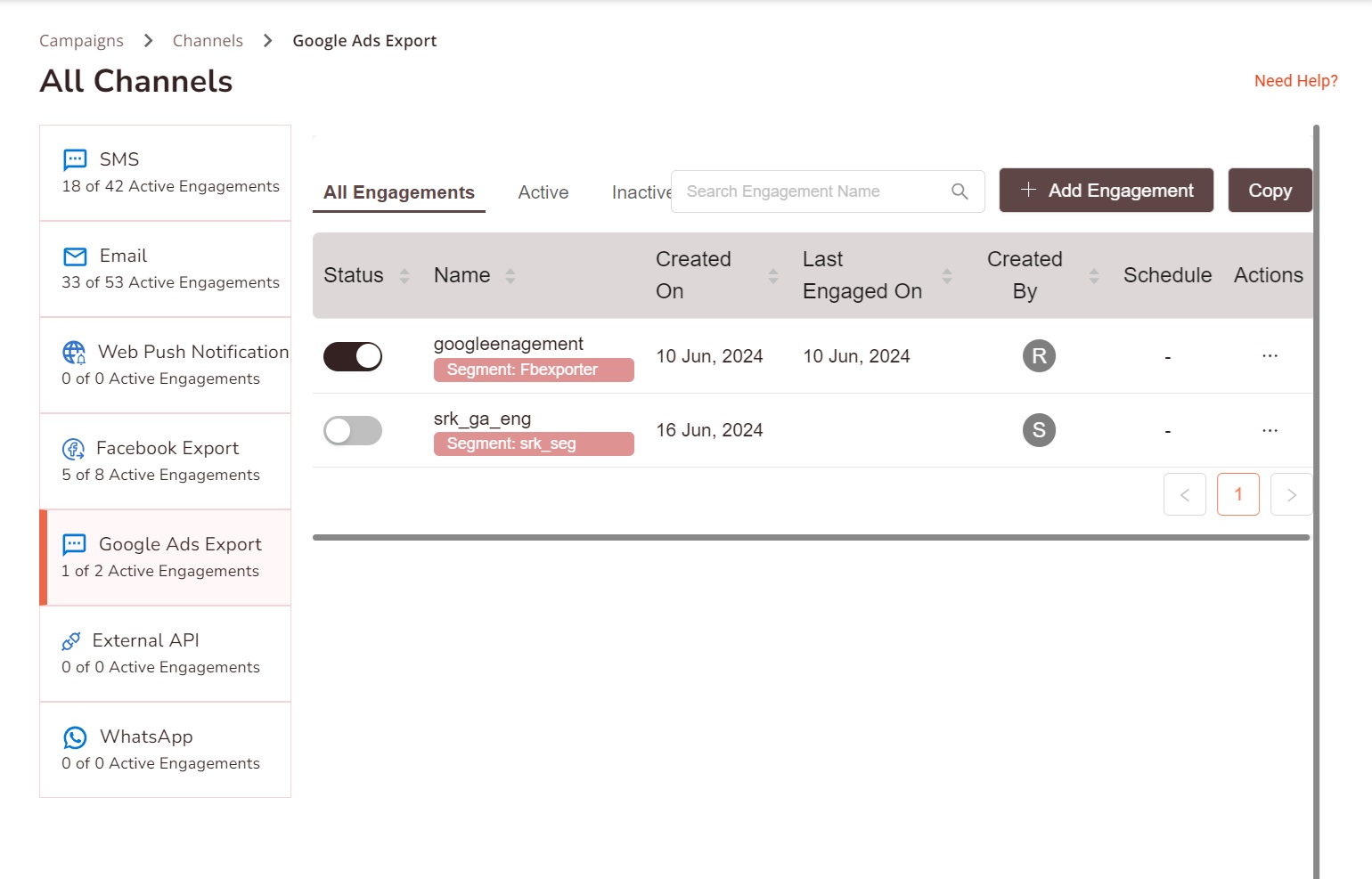
- Click Google Ads Export tab or click on the icon in the Google Ads Export tab in the dashboard.
- Then, click +Add Engagement. A Create an Engagement pop-up appears.
- Select a segment from the drop-down of field Select Segment.
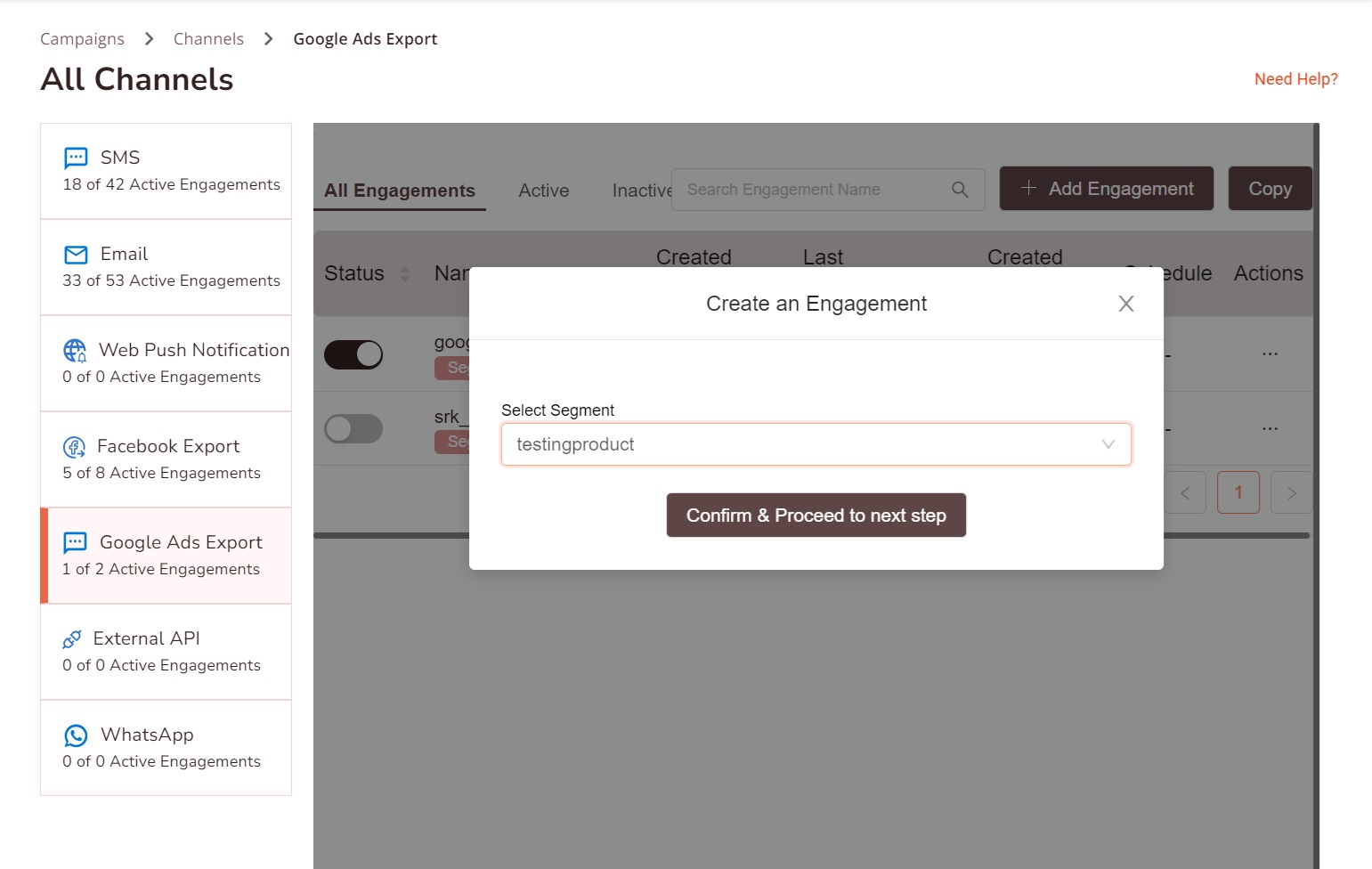
- Click Confirm & Proceed to the next step.
- In the General Settings section, enter the engagement name in Engagement Name text box.
- Check the box and select the required export options to define your
export.
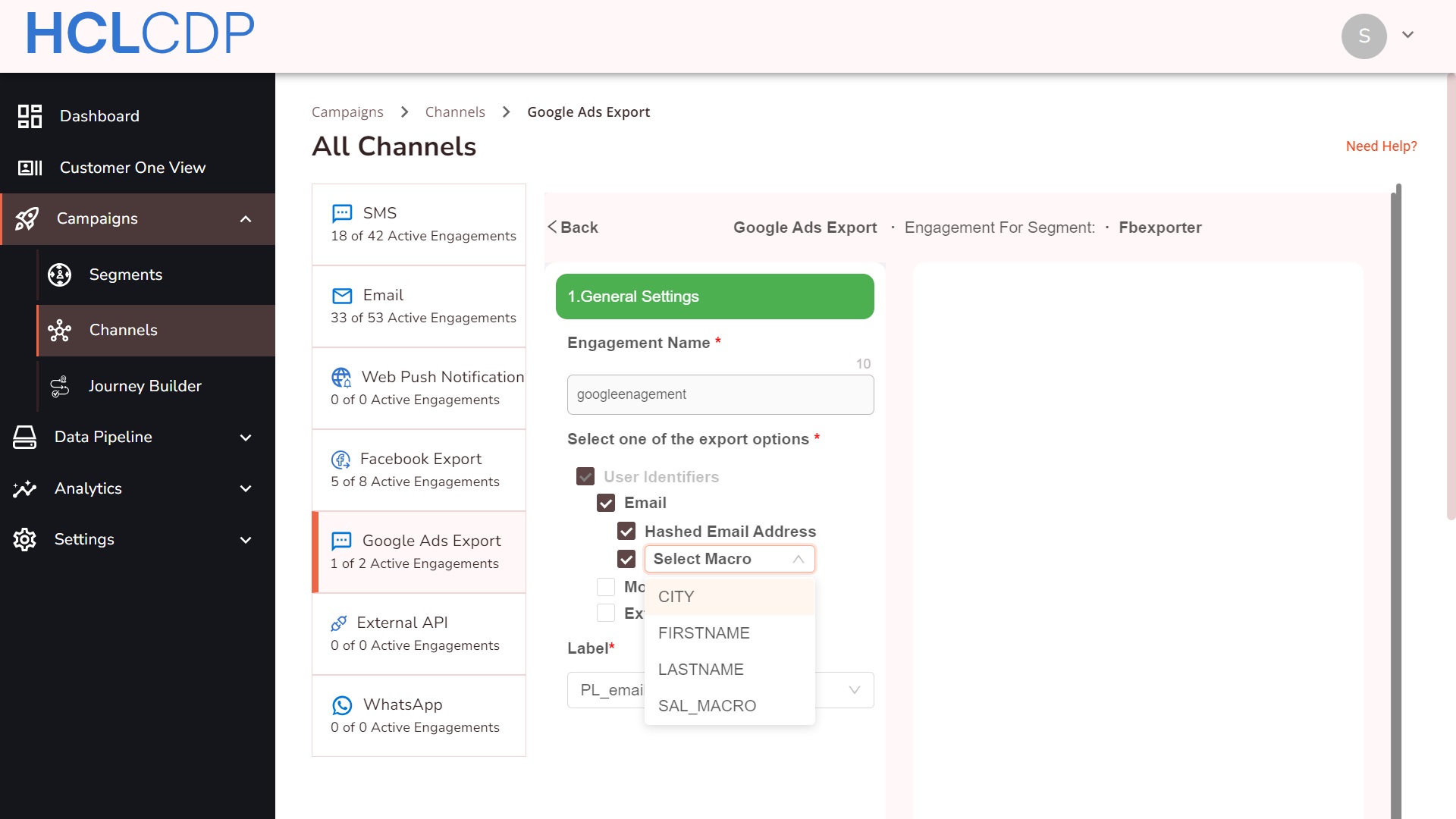
- In the Select Label drop-down field, select the label.
- Click Save. Your engagement is successfully created and will appear under Google Ads Export tab.
- Under the Status column, use the toggle button to activate/deactivate
the engagement at any time.Tip:
- The Exported Audience will carry the same name as the Engagement Name.
- Users will be automatically removed from the audience once they move out of the segment.
- You will have the option to set an Expiry (TTL) to remove users from the audience.
Reporting
Journey Builder Support
Google Ads Export can only be used as the final node in the user journey.
Supported Audience Exports
Journey Builder supports only the export of user identifiers, as segment tagging requires the user to return to the website.
Requirements
An admin user must follow these steps to share the required credentials:
- Provide the Google Ads MCC ID.
- Add the GA account ID to the URL and enter the URL as follows.
URL: https://us-ax.hcl.cdp.co/OAuthGoogle/start.php?accountId=<Insert_Google_Ad_account_ID>
- When the client clicks on the link, a popup appears for access request.Important: We support exporting users only with hashed email and hashed mobile numbers.