Agentic Segment
This page explains how to write effective prompts, from basic filters to advanced segmentation logic used within the Unica Platform to create CDP segments.
Agentic Segment is an AI-powered segmentation tool that helps marketers build audience segments or identify the right audience counts using natural language prompts. No SQL expertise or in-depth knowledge of data schemas is required. Simply describe the customer characteristics or behaviors you’re targeting, and Agentic Segment will interpret your prompt to deliver the appropriate audience.
Use the examples and templates provided to build clear, accurate, and powerful queries.
Pre-requisites
Make sure the following things are in place, before consuming the Agentic Segment:
- Set up CDP database schema for MaxAI.
- Configuration CDP parameters in the Unica Platform UI.
- Update schema prompts for classification and analytics services.
For more information about the above items, refer MaxAI deployment guide.
Prompt Components and Best Practices
Use the following principles to write accurate and consistent prompts:
- Use clear, unambiguous phrases.
Example: "age over 30", "state is California".
- List filters before aggregations.
Example: "who made purchases in last 90 days and whose total spend exceeds $5,000".
- Number multi-step criteria when listing three or more conditions.
- Define time-frames explicitly.
Example: "last 30 days", "Q3 2023".
- Combine AND and OR logic with care:
- Use OR within groups.
- Use AND across separate conditions.
- State subgroups with a two-part structure.
- Use comparative or percentile logic when needed.
Example: "top 10% of spenders".
Prompt Templates (Simple to Complex)
Simple Filters
Template: Show me customers who [FIELD] is [VALUE].
Examples
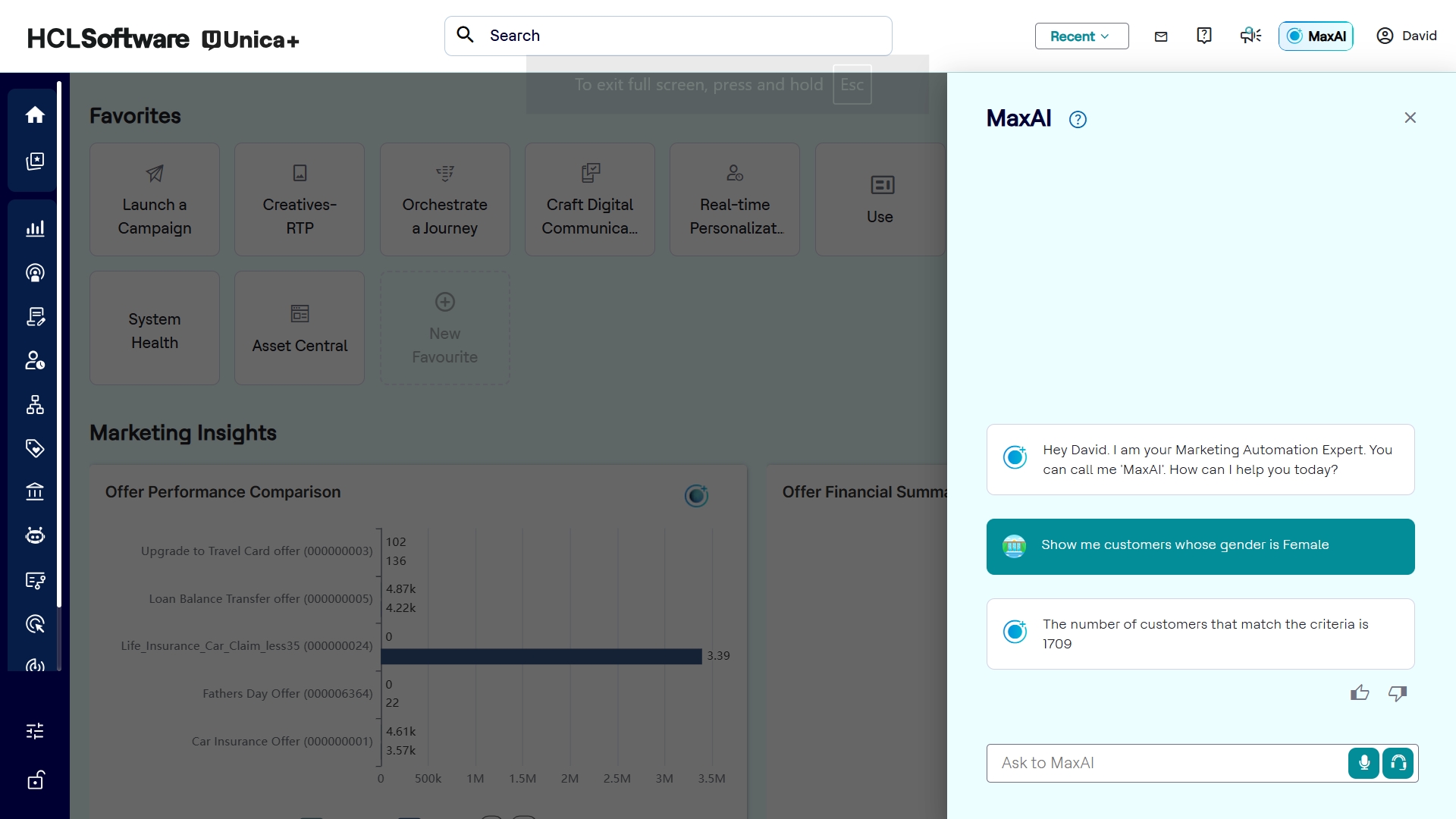
- Show me customers whose gender is Female.
- Show me customers who state is California.
Two-Condition AND
Template: Find customers who [COND1] and [COND2].
Examples
- Find customers whose age is over 30 and income level is High.
- Find customers who city is New York and made a purchase in the last 30 days.
Two-Condition OR
Template: Give me customers who [COND A] or [COND B].
Examples
- Give me customers who responded to campaign X or have spent more than $5,000.
- Give me customers whose education level is PhD or Master’s Degree.
Time-Bound + Aggregate
Template: Identify customers who [ACTION] in the last [TIMEFRAME]
and whose [METRIC] is [THRESHOLD].
Examples
- Identify customers who made purchases in the last 90 days and whose total spend is over $10,000.
- Identify customers who opened an account in the last month and whose number of transactions ≥ 5.
Subgroup Conditions
Template: Select customers who [PRIMARY FILTER], and among them
those who [SECONDARY FILTER].
Examples
- Select customers who responded to campaign ABC123, and among them those whose spending places them in the top 10%.
- Select customers who live in Texas, and among them those who made more than 3 purchases last quarter.
Exclusions
Template: Find customers who [COND] but exclude those who
[EXCLUSION].
Examples
- Find customers who use our mobile app but exclude those who have closed their credit card.
- Find customers with txn_amount > 1,000 but exclude those in the Low income bracket.
Multi-Step Paragraph
Template:
I need customers who meet all of these:
  1. [Filter A]
  2. [Filter B]
  3. [Filter C]
And then within that set, find those who [Subgroup condition].
Example
I need customers who:
  1. live in California,
  2. responded to our Spring campaign via email,
  3. are over 40 years old,
  4. have made at least 5 purchases this year.
And then within that set, find those whose total spend ranks in the top 5%.
Comparative Segments
Template: Compare [Group A] versus [Group B], based on
[Metric].
Examples
- Compare customers who are married versus single, based on their average transaction amount in Q2.
- Compare those who clicked Offer A versus Offer B, based on total spend last month.
Medium Complexity (3–5 Attributes + Aggregates)
Template: "[MEDIUM] Find customers aged [X–Y] in [STATE] with
[ATTRIBUTE], who made ≥ [N] transactions in the last [DAYS] and whose
average txn_amount > [AMOUNT]."
Examples
- Find customers aged 25–35 in California with income level High, who made ≥ 10 transactions in the last 60 days and whose average transaction amount > $200.
- Identify female customers with a Master’s Degree, from New York or New Jersey, who responded to campaign "SUMMER21" and made total purchases > $5,000 in Q3 2023.
- Show customers whose marital status is Married, lifestyle preferences include "Luxury", and whose last 5 transactions sum to more than $2,500.
High Complexity (5+ Attributes, Subgroups, Percentiles)
[HIGH] I want customers who:
a. [Filter 1],
b. [Filter 2],
c. [Filter 3],
d. responded to [CAMPAIGN] within last [DAYS],
e. and among those, find the top [PERCENT]% by [METRIC].
Examples
- I want customers who:
- are Male or Non-binary,
- have income level Very High,
- have a PhD or Master’s degree,
- responded to campaign “REWARDS2024” within last 120 days via SMS,
- and among those, find the top 20% by total txn_amount in the last year.
- Identify customers who:
- live in Texas or Florida,
- are over 45 years old,
- made at least one purchase with merchant “XYZ_CORP”,
- have closed_Products CONTAINS “Auto Loan”,
- and whose aggregate txn_amount is in the 75th percentile across all such customers.
- Select customers who:
- have buying motivations “Quality” and “Brand”,
- used DEVICE_OS “iOS” in last 30 days,
- clicked offer code “UPG2023” or “UPG2024”,
- have success_flag “UA” in UnicaCH,
- and whose median monthly spend over the past 6 months > $1,000.
Breaking Down a Prompt
- Identify Datasets or Tables
Example: Transactions, Conversions, Demographics, Behavior.
. - List Filters
- Simple:
field = value - Range:
field BETWEEN A and B,field > X - Date:
last X days
- Simple:
- Specify Aggregations
- Common:
SUM(txn_amount),COUNT(transactions),AVG(metric). - Percentiles: “top 10%”
- Common:
- Define Logical Structure
- Logical groups: AND / OR groups
- Nested subgroups: “within that set”, “among those”
- Clarify Output
Prompts generally return distinct customer IDs.
FAQs
Q: What if I don’t know the exact field name?
A: Use descriptive terms like "age" or "spend"—the system maps them automatically.
Q: How do I express percentile filters?
A: Use phrases like "top X % by [metric]" or "in the 75th percentile of [metric]".
Q: Can I mix AND and OR?
A: Yes. Group OR conditions in a single clause:
who A or B, and who C
Q: What if I need to exclude someone?
A: Use: but exclude those who [condition].
Q: How do I request subgroups?
A: Use: state the main group first, and among them those who [subgroup filter].
Q: Can I create a segment from MaxAI?
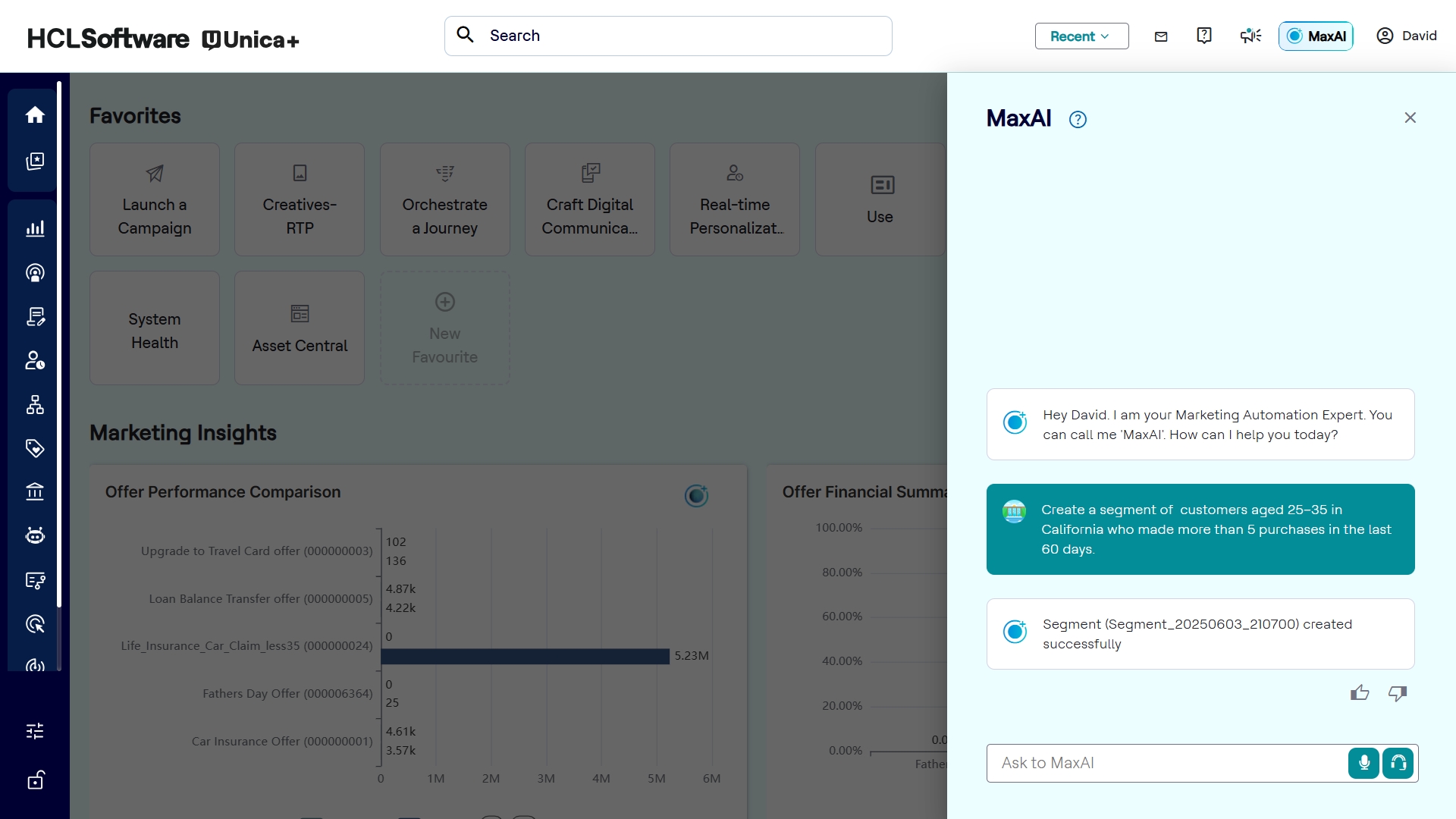
A: Yes. by mentioning segmentation criteria in MaxAI. eg. "Create a segment of customers aged 25–35 in California who made more than 5 purchases in the last 60 days."
Q: Can I create a segment from the customers I retrieve?
A: Yes. After retrieving the count of customers matching your criteria, you can instruct the system to create a segment by saying: "Create a segment with these customers" or explicitly mention segmentation criteria
How to use Agentic Segment
You can use the Agentic segment within the Unica Plus to create CDP segments or retrive the count of customers matching specific criteria without requiring SQL skills or deep knowledge of data schemas.
To use the Agentic Segment, follow the steps below:
- In the Unica+ platform, click the MaxAI icon. As a result, the MaxAI chat window will open.
- In the Chat window, you can use the segmentation prompts to either get the count
of customers that match your criteria or create a new segment based on those
rules.
- For example, in the chat window, enter "Show me customers whose gender is
Female", and press Enter. As a result, MaxAI will process the prompt and return
the count of matching customers as shown in the image below.