
Editing a Custom Analysis

Edit custom analyses to maintain, expand, or refine endpoint data collection across your environment. By updating an analysis, you can add new monitoring properties, adjust relevance expressions for accuracy, or modify reporting schedules across all target devices currently running the analysis.

Before you begin

  • You must have BigFix SaaS administrator privileges.
  • System-created analyses are read-only and cannot be edited.

About this task

To edit a custom analysis, follow these steps:

Procedure

  1. From the BigFix SaaS app, select Analyses.
  2. In the custom analyses list, click the analysis you want to modify. The details page opens.
  3. Click Edit analysis. The Edit analysis wizard opens, pre-populated with the current configuration values.
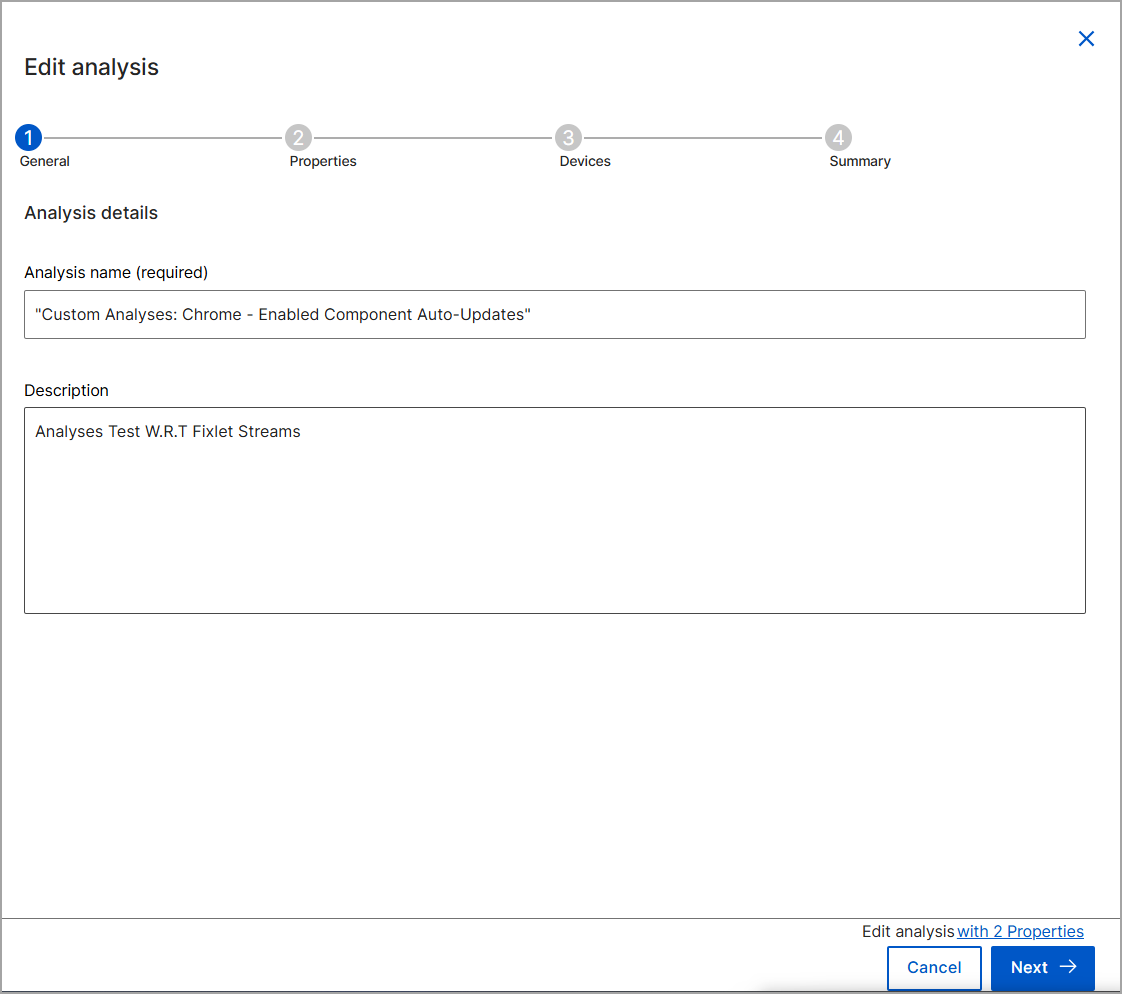
  4. In the Edit analysis wizard, update the required details on each tab, and then click Next.
    • General: Update the analysis name or description.
    • Properties: Modify existing properties or click Add property to define new properties. You can also delete unused properties from the custom analysis before saving your changes.
    • Devices: Adjust the query conditions or device groups to update the targeting scope.
    • Summary: Provides an overview of all configured settings before saving or updating the analysis.
  5. Click Save changes.