Analyses allows you to monitor and track key properties across managed BigFix
endpoints. You can create your own custom analyses to monitor and track specific endpoint
properties and monitor critical networks.
About this task
To create a new Analysis, follow these steps:
Procedure
-
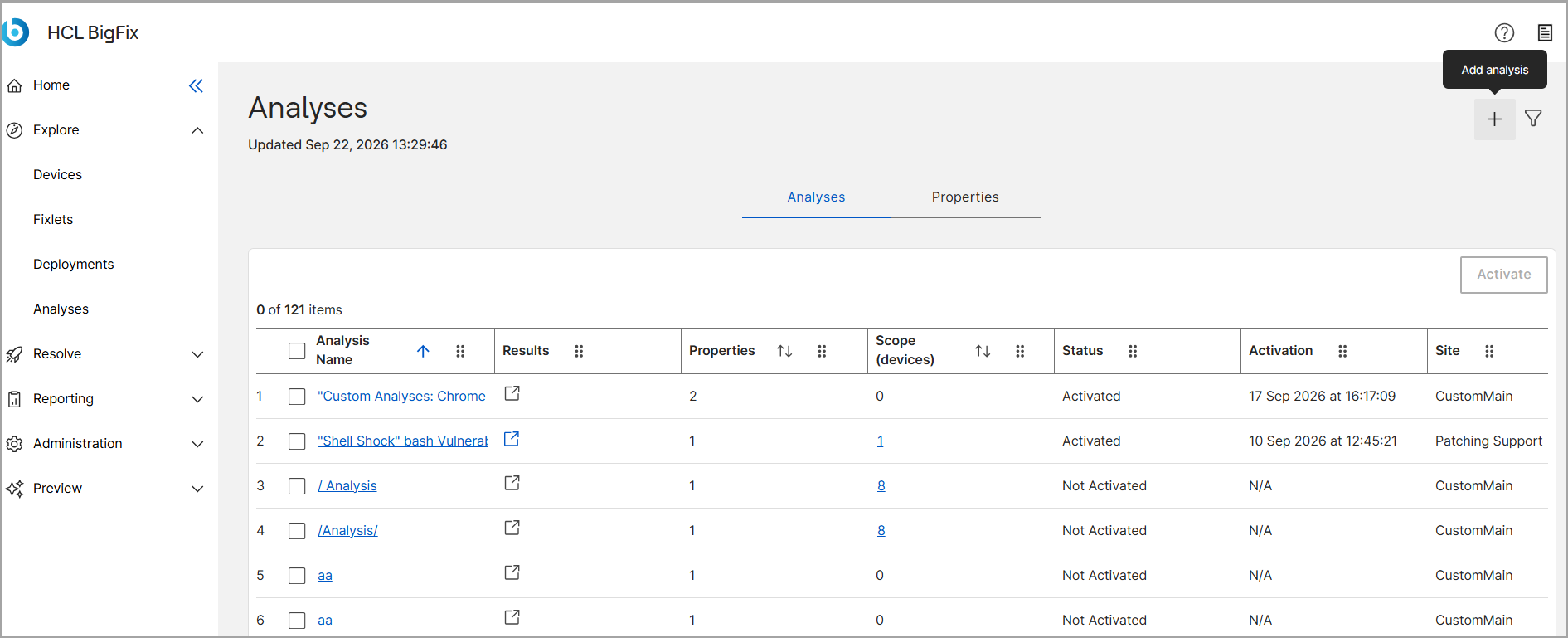
From the Analyses dashboard, click the Add analysis
button located in the upper-right corner.
-
In the Add analysis wizard, complete the
General step by entering a name for your new
Analysis. Establish a consistent naming convention to easily sort, filter, and
locate your analyses.
-
Enter the step that describes your Analysis in the Description field.
-
Click Next to proceed through the remaining
configuration tabs:
- Properties: Define the retrieved properties that form the core of
your Analysis.
- Devices: Determine which computers are selected for this
Analysis.
-
In the Summary tab, review your definitions and save
your Analysis.
Results
The new Analysis is created and appears in the Analyses dashboard grid.