Server-Sent Events Adapter
User Guide: Integration > Configure the Integration Service > Server-Sent Events Adapter
Server-Sent Events Adapter
The Server-Sent Events (SSE) service enables the integration of real-time, unidirectional data streaming services into applications in Volt Foundry. It allows the server to push updates continuously as events to the client over a single long-lived HTTP connection, eliminating the need of repeated requests or polling.
This unidirectional communication model delivers the data efficiently from server to client while reducing overhead compared to traditional request-response approaches.
Configuring Server-Sent Events End-point Adapter
To configure a Server-Sent Events service in Integration service definition tab, follow these steps:
- In the Name field, provide a unique name for your service.
- From the Service Type list, select Server-Sent Events.
-
Provide the following details to create a Server-Sent Events service.
Fields Description Version Specify the version number for the service. Base URL Type the URL. Identity Service for Backend Token Select the Identity service associated with your app if this service needs a backend token like access_tokenfrom that Identity service to access the backend server. -
Select one of the following modes:
Modes
Mode Description None Select this option if you do not want to provide any authentication for the service. Basic Provide User ID and Password if the external web service requires a form or basic authentication. NTLM Your service follows the NT LAN Manager authentication process. Provide the User ID, Password, NTLM Host, and NTLM Domain. -
For additional configuration of your service definition, provide the following details in the Advanced section.
Additional Configurations
Field Description Specify JAR To specify a JAR associated to the service, select one from the Select Existing JAR drop-down menu or click Upload New to add a new JAR file. Make sure that you upload a custom JAR file that is built on the same JDK version used for installing Volt MX Foundry Integration.You can download the uploaded jars to your local system.
Note:
i) Archives are blocked if JAR contains embedded server-side or executable script files that could execute unsafe code.
Restricted uploads
JAR is blocked if it contains:.sh, .bat, .py, .rb, .php, .pl, .cgi, .cmd, .ps1, .groovy
ii) JAR file names must not contain multiple file extensions. The following extensions are restricted.js, zip, war, apk, ipa, appx, xap, jsp, jspx, sh, bat, py, rb, php, pl, cgi, cmd, ps1, groovy, html, htm, xhtml, xml, json, css, txt, md, csv, svg
iii) The maximum file upload size for on-premises is 4GB.API Throttling If you want to use API throttling in Volt MX Foundry Console, to limit the number of request calls within a minute. do the following:
In the Total Rate Limit text box, enter a required value. This will limit the total number of requests processed by this API.In the Rate Limit Per IP field, enter a required value. With this value, you can limit the number of IP address requests configured in your Volt MX Foundry console in terms of Per IP Rate Limit. To override throttling from Volt MX Foundry App Services Console, refer to Override API Throttling Configuration.URL Provider Class Enter the qualified name of the URL Provider Class. For more information, refer URL Provider Support for XML, JSON, SOAP, and API Proxy. Note: All options in the Advanced section are optional.
- Enter the Description for the service.
- Click SAVE to save your service definition.
Creating Operations for SSE
Note: The Operation List tab appears when you click Add Operation in the Service Definition page.
The Configured Operations list appears when you click Operations List > Configure Operation.
To create an operation, follow these steps:
-
Click Add Operation to add a new operation or from the tree in the left pane, click Add > Add New Operation.
OR
Click SAVE & ADD OPERATION in your service definition page to save your service definition and display the NewOperation tab for adding operations.
The selected operation appears under the Configured Operations list.Click to View image
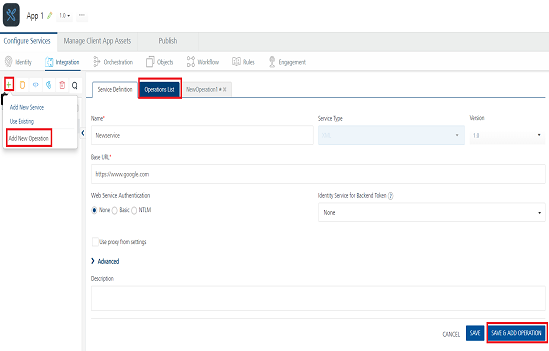
Note: To use an existing integration service, refer to How to Use an Existing Integration Service .
-
Provide the following details to create an operation.
Details
Field Description Name The operation name appears in the Name field. You can modify the name if required. Operation Security Level It specifies how a client must authenticate to invoke this operation.
Select one of the following security operations in the Operation Security Level field.
Authenticated App User – It restricts the access to clients who have successfully authenticated using an Identity Service associated with the app.
Anonymous App User – It allows the access from trusted clients that have the required App Key and App Secret. Authentication through an Identity Service is not required.
Public – It allows any client to invoke this operation without any authentication. This setting does not provide any security to invoke this operation and you should avoid this authentication type if possible.
Private – It blocks the access to this operation from any external client. It allows invocation either from an Orchestration/Object Service, or from the custom code in the same run-time environment.
Note: The field is set to Authenticated App User, by default.Target URL The Integration Server allows selection of the HTTP method used to invoke the back-end service.
The Target URL field is pre-populated with the URL. You can add the suffix, if required.
http://baseurl.com/suffix
For Example, to the base URL, you can add suffix such as /latest or /sports to get latest news or sports news::
http://feeds.foxnews.com/foxnews/latest
http://feeds.foxnews.com/foxnews/sportsTarget HTTP Method The Integration Server allows selection of the HTTP method used to invoke the back-end service. Select the required method for the operation from the Target HTTP Method field. -
For additional configuration of request or response operations, provide the following details in the Advanced section.
Additional Configurations
Field Description Custom Code Invocation You can add pre and post processing logic to services to modify the request inputs. When you test, the services details of various stages in the service execution are presented to you for better debugging. All options in the Advanced section are optional. For more details, refer to Preprocessor. Additional Configuration Properties Additional Configuration Properties allows you to configure service call time out cache response. For information on different types of configuration properties, refer Properties. Pass-through Cookies Pass-through Cookies allows you send cookies present in the incoming client request to the backend target request. For detailed information, refer Pass-through Cookies. Front-end API Front-end API allows you map your endpoint ](or) backend URL of an operation to a front-end URL. For detailed information, refer custom Front-end URL. Stub Backend Response Stub Backend Response allows you enable a stub back-end service. To enable Stub Backend Response, refer How to Enable Stub Back-end Response.For more details on Stub back-end response, refer How to Develop Apps based on a Stubbed Service. Server Events Using Server Events you can configure this service to trigger or process server side events. For detailed information, refer Server Events. Note: All options in the Advanced section are optional.
- Enter the Description for the operation.
-
Click CANCEL to cancel the operation.
The service definition tab closes without saving any information. -
Click SAVE to save the operation.
OR
Click SAVE & ADD OPERATION to save and add your operation.
The service definition tab saves your operation and displays the NewOperation tab for adding operations.
Configuring Request Operation for SSE
Note: Integration services accept only
form-url-encodedinputs for all input parameters provided in service input parameters (request input).
Perform the following actions in Request Input tab:
- Click Add Parameter to add an entry (if entries for input and output tabs do not exist).
- To make duplicate entries, select the checkbox for the entry, then click Copy and Paste.
- To delete an entry, select the checkbox for the entry and click Delete.
-
To configure the request input tab, provide the following details:
Configuration Details
Field Description Name It Contains a Unique Identifier. Change the name if required. Test Value Enter a value. A test value is used for testing the service. Default Value Enter the value, if required. The default value will be used if the test value is empty. Value Select one of the following options. It is set to Request by default:
Request – Indicates that the value must be retrieved from the HTTP request received from the mobile device.
Session – Indicates that the value must be retrieved from the HTTP session stored on Volt MX Foundry.
Identity – Selecting this option allows you to send values from identity session as request inputs. Use<Identity Provider><"Profile"/"Security"><Name of the Parameter>notation to send identity session values. - Name of the identity provider from which the value must be extracted. is the key whose value must be passed along with the service request.
Note: For more information on Externalizing Identity Services, refer to Replace the Identity Service references in a Foundry app.Data Type String – A combination of alphanumeric and special characters. Supports all formats including UTF-8 and UTF-16 with no maximum size limit.
Boolean – A value that can be true or false.
Number – An integer or a floating number.
Collection – A group of data, also referred as data set.Encode Select the check box to enable encoding of an input parameter. For example, the name New York Times would be encoded as New_York_Times when the encoding is set to True. The encoding must also adhere to the HTML URL encoding standards.. Description Provide a suitable description. - To validate the operation details, click Save and Test. For more details, refer to Test a Service Operation.
-
Provide the request template that follows the exact structure used by the back-end LLM while sending requests.
Note: Ensure that the template accurately reflects the payload format expected by the service. - To forward the body of the client's request to the backend as it is, select the Enable pass-through input body checkbox. For more details, refer to How to Enable Pass-through Proxy for Operations .
Configuring Response Operation for SSE
To configure the Response Operation for SSE, follow these steps:
-
To validate the operation details, click Save and Test. For more details, refer to Test a Service Operation.
-
Click SAVE OPERATION to save the operation.
The system updates the operation definition. -
Click Cancel to cancel the operation.
The Operation Model tab closes without saving any information. -
To forward the response from the backend to the client as it is, select the Enable pass-through output body check box. For more details, refer to How to Enable Pass-through Proxy for Operations.
SSE responses are treated as pass-through output bodies by default in Foundry.
Note: The Post-Processor is not supported for the SSE Adapter.
Note: The SSE service is not supported with Object Services (SDO), Orchestration Services, or Workflow Services.