
Recommendation Analysis
Recommendation analysis identifies relevant runbooks for unique ticket categories, followed by SME feedback for approval.
To manage the recommendation analysis, perform the following steps:
- On the main menu bar, click Analysis
- Click Recommendation Analysis. The Recommendation Analysis page appears.
Figure 1. Recommendation Analysis 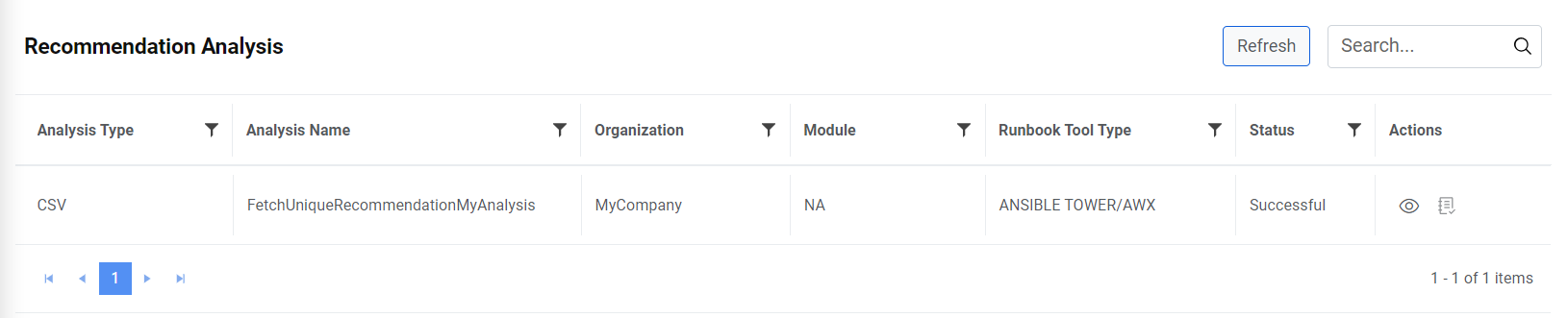
This displays the available analysis types in a tabular view and enables users to view or approve them.
Approve Analysis
User can approve the recommendation analysis, which includes the runbook details and a description of the associated ticket category that has been already defined.
To approve the recommendation analysis, perform the following steps:
- On the Recommendation Analysis page, click
 next to the analysis type user wants to approve.
Figure 2. Approve Analysis .png)
- The Recommendation Analysis page displays the variation’s status in the
Status column, bucket description in Bucket Description column, associated
runbooks in the Runbook column,
runbooks available for approval in Approve Runbook
column, confidence score of the
runbook in the Confidence Score column, and the
SOP required for the selected variation in the SOP
Required column.
Figure 3. Approve Analysis (Cont.) 
- Click
 to view the
runbook details.
to view the
runbook details.Figure 4. Approve Analysis (Cont.) 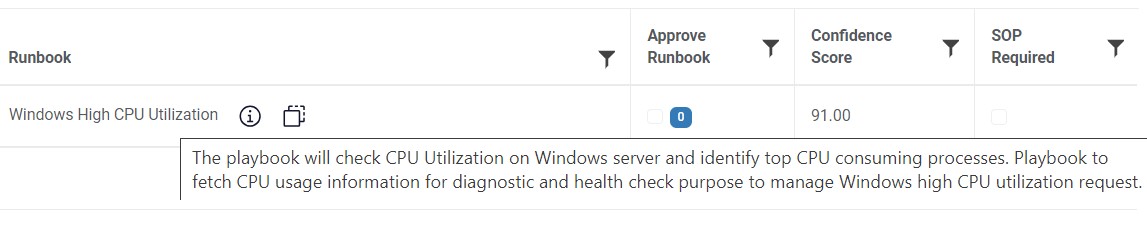
- Click
 to view the complete list
of runbooks available under the bucket description along
with their confidence score.
to view the complete list
of runbooks available under the bucket description along
with their confidence score. - The Runbook page lists the recommended runbooks
available for approval.
Figure 5. Approve Analysis (Cont.) 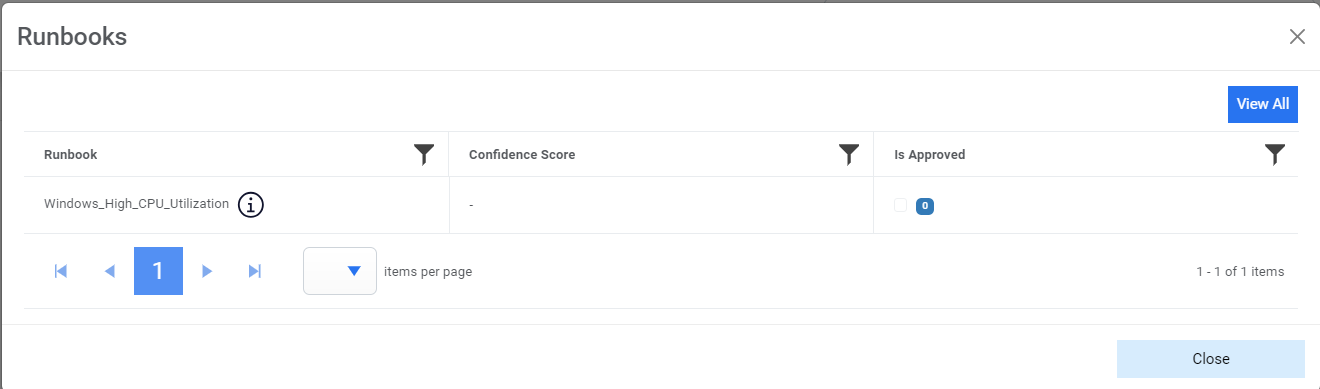
- To approve a runbook, select the checkbox next to the runbook in the Approve Runbook column.
- A confirmation dialog box appears.
Figure 6. Approve Analysis (Cont.) 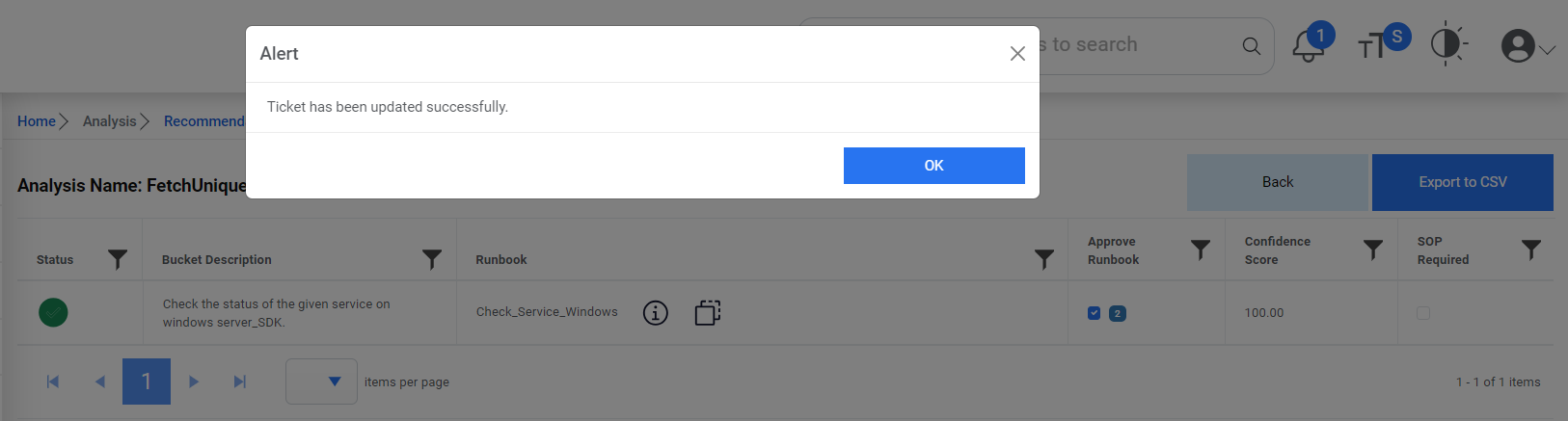
- User can view the list of all runbooks from the repository by clicking View All
and, if required, you can approve a runbook from the repository.
Figure 7. Approve Analysis (Cont.) 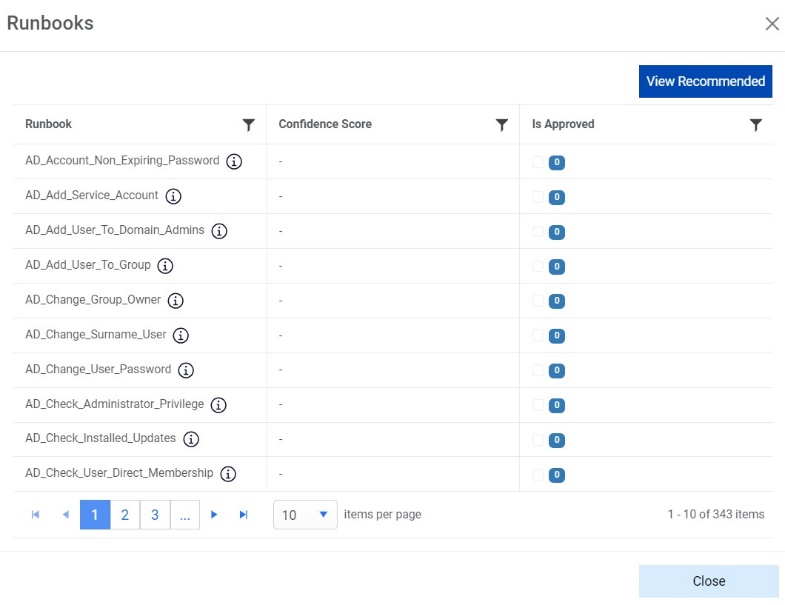
- To go back to the runbooks recommended for a bucket, click View Recommended.
- Click Export to export all the recommended runbooks to Excel spreadsheet.
Figure 8. Approve Analysis (Cont.) 
- If the SOP is required for a bucket, then select the SOP Required check box.
View Analysis
Users can view the information for an already defined analysis, including the runbook details and the associated bucket’s description.
To view analysis, perform the following steps:
- On the Recommendation Analysis page, click
 corresponding to the analysis
type you want to view.
corresponding to the analysis
type you want to view.Figure 9. View Analysis 
- The Recommendation Details page appears, displaying the number of unique
variations and the number of variations with runbooks above the threshold.
Figure 10. View Analysis (Cont.) 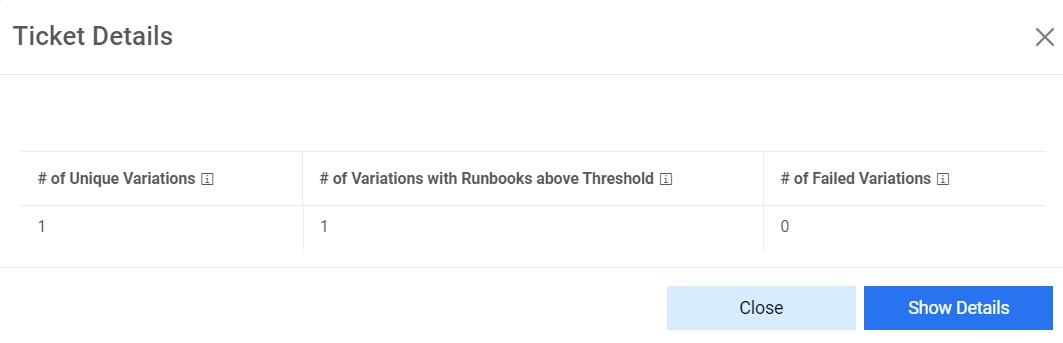
- Click Show Details to view all the details of the recommendation analysis. Note:Every action button remains disabled for View Analysis, since this is a read-only view.