Remove Base or Supplemental WDAC Policy from Endpoint v2.x
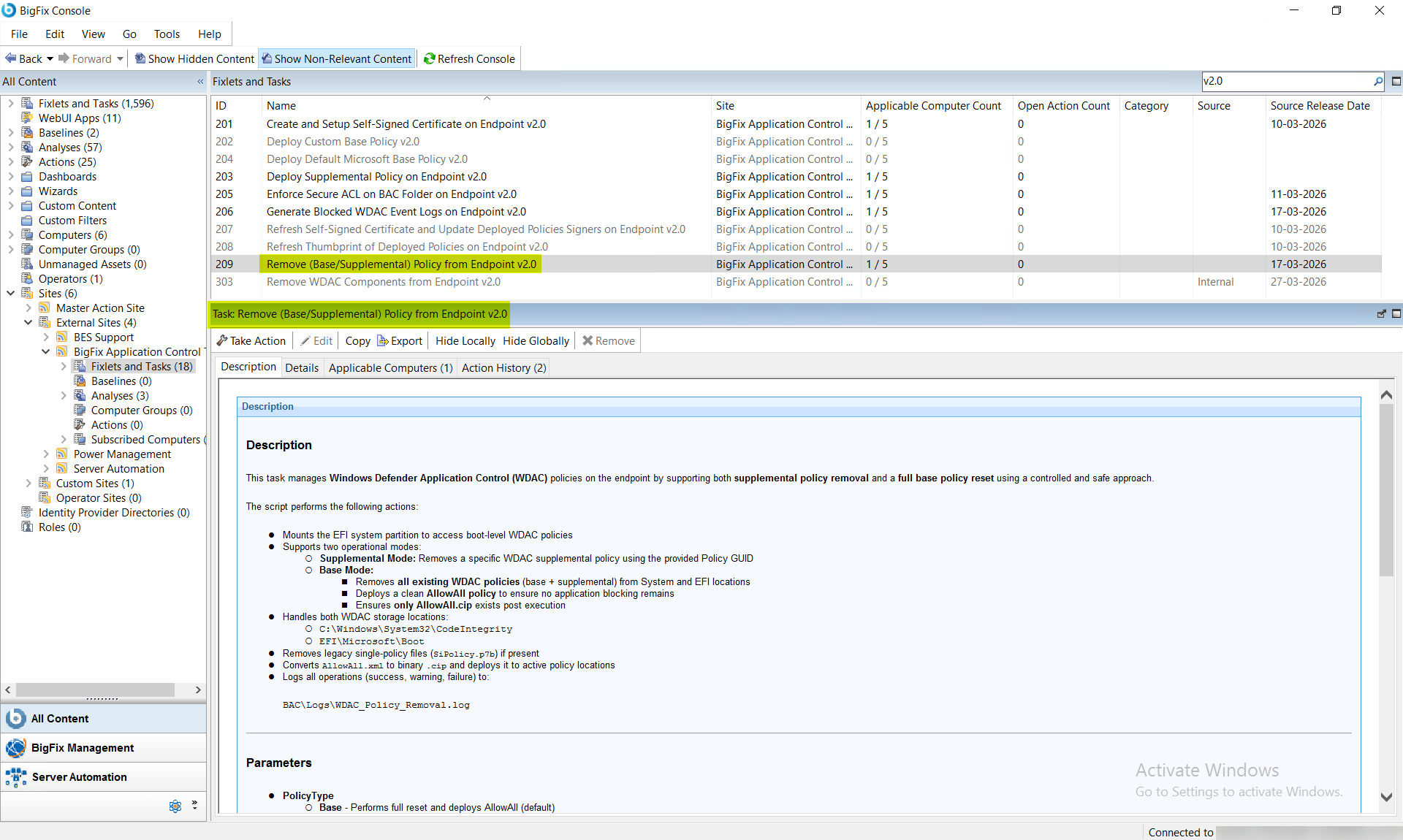
This deprecated task removes Windows Defender Application Control (WDAC) policies from the endpoint in one of two modes: Supplemental mode removes a single targeted supplemental policy identified by its Policy GUID from both EFI and System32 storage locations; Base mode performs a full reset by removing all existing WDAC base and supplemental policies from both locations and deploying a clean AllowAll.cip policy to prevent application blocking. A system reboot is required for changes to take effect.
About this task
Important:
The task performs the following actions:This task is deprecated and will be
removed from BigFix Application Control
v2.x in near future.
- Mounts the EFI system partition to access the boot-level WDAC policies.
- Supports the following two operational modes:
- Supplemental Mode: Removes a specific WDAC supplemental policy using the provided Policy GUID.
- Base Mode:
- Removes all the existing WDAC policies (base as well as supplemental) from System and EFI locations.
- Deploys a clean AllowAll policy to ensure no application blocking exists.
- Ensures only AllowAll.cip exists post this task execution.
- Handles both the WDAC storage locations:
- C:\Windows\System32\CodeIntegrity
- EFI\Microsoft\Boot
- Removes legacy single-policy files (like SiPolicy.p7b) if present.
- Converts the AllowAll.xml to binary *.cip and deploys it to the active policy locations.
- Logs all the operations (success, warning, failure) in the BAC\Logs\WDAC_Policy_Removal.log file.
Refer to the table below to know more about the task's exit code.
| Exit Code | Meaning |
|---|---|
| 0 | Success |
| 10 | Invalid input parameters |
| 20 | BAC path not found |
| 30 | EFI mount failure |
| 40 | Policy removal failure |
| 50 | AllowAll.xml not found |
| 60 | AllowAll deployment failure |
Procedure
- In the BigFix Console, navigate to .
- From the Fixlets and Tasks pane, select Task: Remove (Base/Supplemental) Policy from Endpoint v2.0.
-
From the Task: Remove (Base/Supplemental) Policy from Endpoint
v2.0 pane, under Configuration Options,
enter the following information:
Figure 2. BigFix Console — Remove Base or Supplemental WDAC Policy v2.0: Configuration Options Panel Showing Policy Type and PolicyId Input Fields 
Table 2. Remove Base or Supplemental WDAC Policy v2.0: Configuration Options Parameter Descriptions Field Name Options Description Policy Type Base Performs full reset and deploys AllowAll (default). Supplemental Removes only a specific supplemental policy. PolicyId Required only when the policy type is Supplemental. Specifies the GUID of the policy to be removed. - From the Task: Remove (Base/Supplemental) Policy from Endpoint v2.0 pane, click the Applicable Computers(n) tab and view the endpoints on which you want to run the task.
- Select the Take Actions tab and select the endpoints on which you want to apply this installer task.
- Click OK.
Results
- In Supplemental mode, only the specified policy is removed.
- In Base mode, all WDAC policies are removed and replaced with AllowAll.
- System remains stable with a valid WDAC configuration.
- A system reboot is required for changes to take effect.