Deploy a Supplemental WDAC Policy on Endpoint v2.x
This deprecated task creates and deploys a signed Windows Defender Application Control (WDAC) supplemental policy on the endpoint. Accept rule input in Single-Level or Multi-Level CSV format, generate WDAC rules from file hash, publisher, file path, or file name attributes, link the new supplemental policy to an existing base policy by GUID, and deploy it signed to the EFI partition in Enforced or Audit mode. Each execution creates a new unique supplemental policy without modifying existing policies.
About this task
Important:
The task performs the following actions: This task is deprecated and will be
removed from BigFix Application Control
v2.x in near future.
- Accepts the rule input in either Single-Level or Multi-Level (CSV) format.
- Generates WDAC rules based on file attributes such as hash, publisher, file path or file name.
- Creates a new supplemental policy using multiple policy format.
- Links the newly created supplemental policy to the specified base policy GUID.
- Supports enforced and audit execution modes.
- Converts the policy from XML to binary *.cip format.
- Signs the policy using a trusted code-signing certificate.
- Mounts the EFI system partition to deploy the policy.
- Copies the signed policy to the EFI\Microsoft\Boot\CiPolicies\Active location.
- Ensures each execution creates a new unique supplemental policy without modifying existing policies.
- Logs execution details (success/failure) to the BAC\Logs\Deploy_WDAC_SuppPolicy.log location.
Refer to the table below to know more about the task's exit code.
| Exit Code | Meaning |
|---|---|
| 0 | Success |
| 20 | Missing base policy GUID |
| 30 | No valid rules generated |
| 40 | Signing failure or invalid signed output |
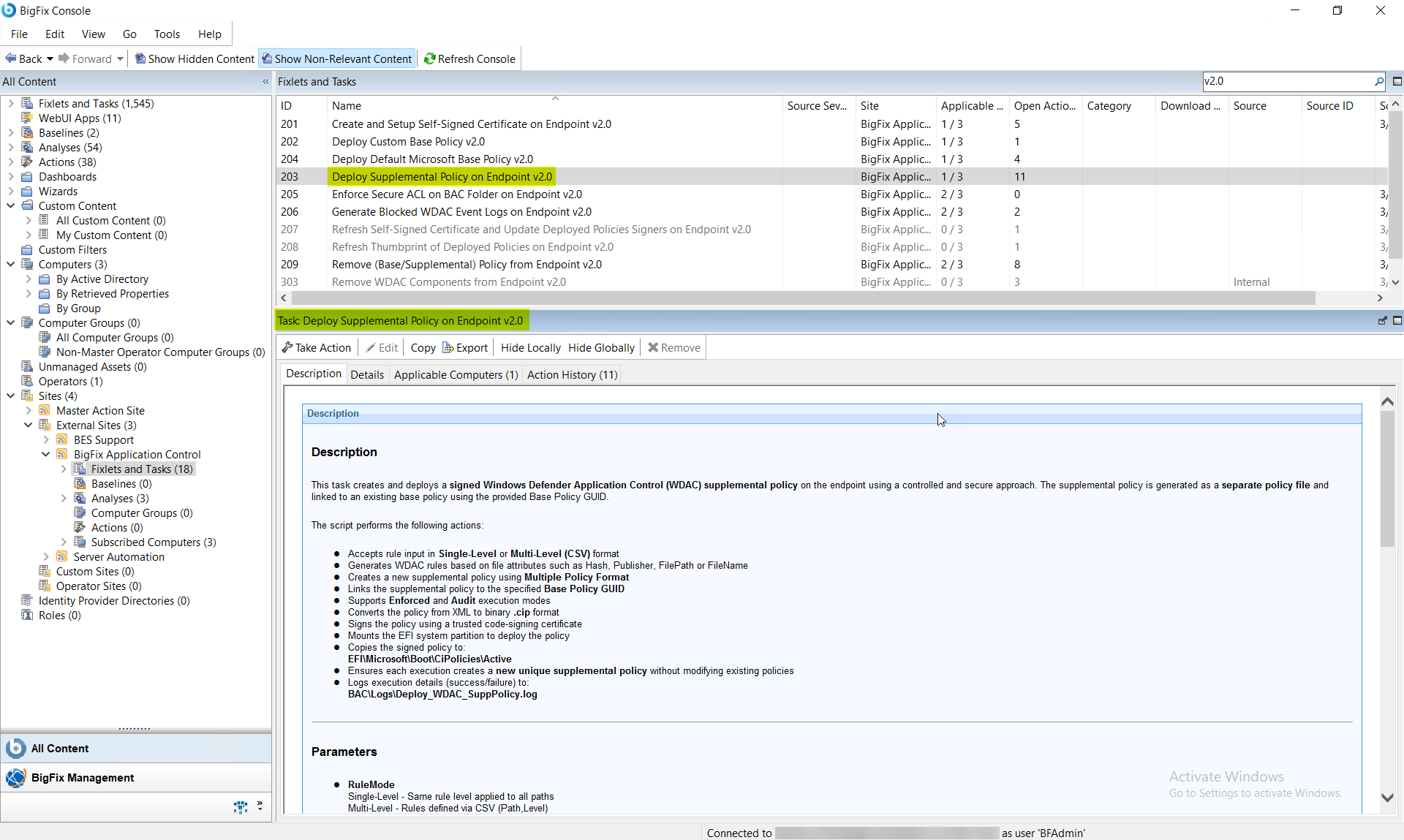
Procedure
- In the BigFix Console, navigate to .
- From the Fixlets and Tasks pane, select Task: Deploy Supplemental Policy on Endpoint v2.0.
-
From the Task: Deploy Supplemental Policy on Endpoint
v2.0 pane, under Configuration Options,
enter the supplemental policy configuration using the fields described
below.
Figure 2. BigFix Console — Deploy Supplemental Policy on Endpoint v2.0: Configuration Options Panel 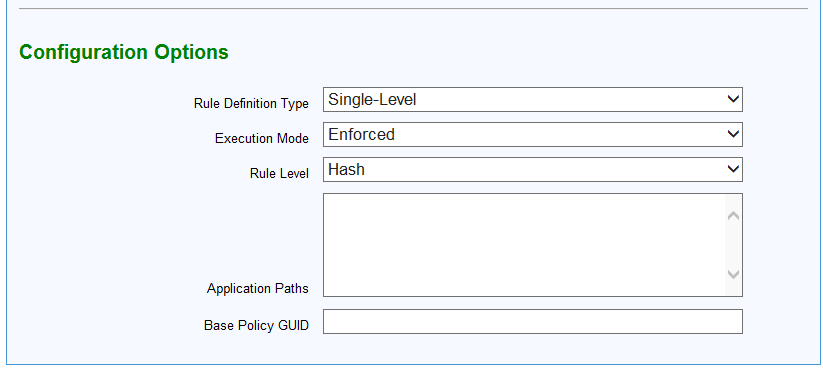
Table 2. Deploy Supplemental Policy on Endpoint v2.0: Configuration Options Parameter Descriptions Field Name Options Description Rule Definition Type Single-Level Same rule level applied to all paths Multi-Level Rules defined via CSV (path, level) Execution Mode Enforced Policy is enforced Audit Policy is applied in audit mode Rule Level Hash Applicable only in Single-Level mode (Hash, Publisher, FilePath, FileName) Publisher FilePath FileName Application Paths N/A Text box. List of file paths (newline or comma separated) for Single-Level mode only CSV Rules N/A Text box. CSV input for Multi-Level mode in the format: Path, Rule Level Base Policy GUID N/A Text field. Required. Specifies the GUID of the base policy to be supplemented. - From the Task: Deploy Supplemental Policy on Endpoint v2.0 pane, click the Applicable Computers(n) tab and view the endpoints on which you want to run the task.
- Select the Take Actions tab and select the endpoints on which you want to apply this installer task.
- Click OK.
Results
- A new WDAC supplemental policy is created and deployed.
- The policy is linked to the specified base policy.
- Existing policies remain unchanged.
- The endpoint enforces or audits rules based on the selected mode.