Deploy a Custom WDAC Base Policy on Endpoint v2.x
This deprecated task deploys a custom Windows Defender Application Control (WDAC) base policy on the endpoint from a user-provided XML configuration. The task automatically bumps the policy version if an older version exists, injects mandatory publisher rules for the BigFix Client, Refresh Tool, and SignTool, converts the policy from XML to binary CIP format, signs it with a trusted certificate, and deploys it to the EFI partition for firmware-level persistence and enforcement across reboots.
About this task
Important:
This deployment ensures that the custom policy is
trusted, enforced, and persists at the firmware level by placing it in the EFI
partition. The script also automatically handles version increments and injects
necessary rules to ensure the BigFix client and deployment tools remain
operational.This task is deprecated and will be
removed from BigFix Application Control
v2.x in near future.
The task performs the following actions:
- Reads the user-provided Custom XML configuration.
- Dynamically bumps the policy version (if an older version already exists).
- Injects mandatory publisher rules (BigFix Client, Refresh Tool, SignTool).
- Configures rule options (adds 16, 17, 18 and removes 6).
- Converts the policy from XML format to binary *.cip format.
- Signs the policy using a trusted code-signing certificate.
- Validates the signed output to ensure integrity.
- Mounts the EFI system partition.
- Deploys the signed policy to EFI\Microsoft\Boot\CiPolicies\Active loaction.
- Triggers a policy refresh and safely dismounts the EFI partition.
- Logs all execution details (success/failure) to the BAC\Logs\Deploy_WDAC_CustomBase.log location.
Refer to the table below to know more about the task's exit code.
| Exit Code | Meaning | Description |
|---|---|---|
| 0 | Success | The WDAC base policy was successfully processed, signed, and deployed. |
| 10 | Working directory creation failed | The BAC working directory could not be created or accessed. |
| 11 | Log directory creation failed | The logging directory could not be created, preventing execution tracking. |
| 12 | Policy directory creation failed | The policy storage directory could not be initialized. |
| 30 | Policy processing failure | Error occurred during policy preparation, version bumping, or rule injection. |
| 40 | Binary conversion failure | Failed to convert the WDAC policy from XML format to binary (.cip). |
| 50 | Signing failure | The policy signing process failed or generated an invalid signature. |
| 60 | Deployment failure | Failed to mount the EFI partition or copy the policy to the target location. |
| 70 | Policy refresh failure | The policy refresh process or EFI dismount failed. |
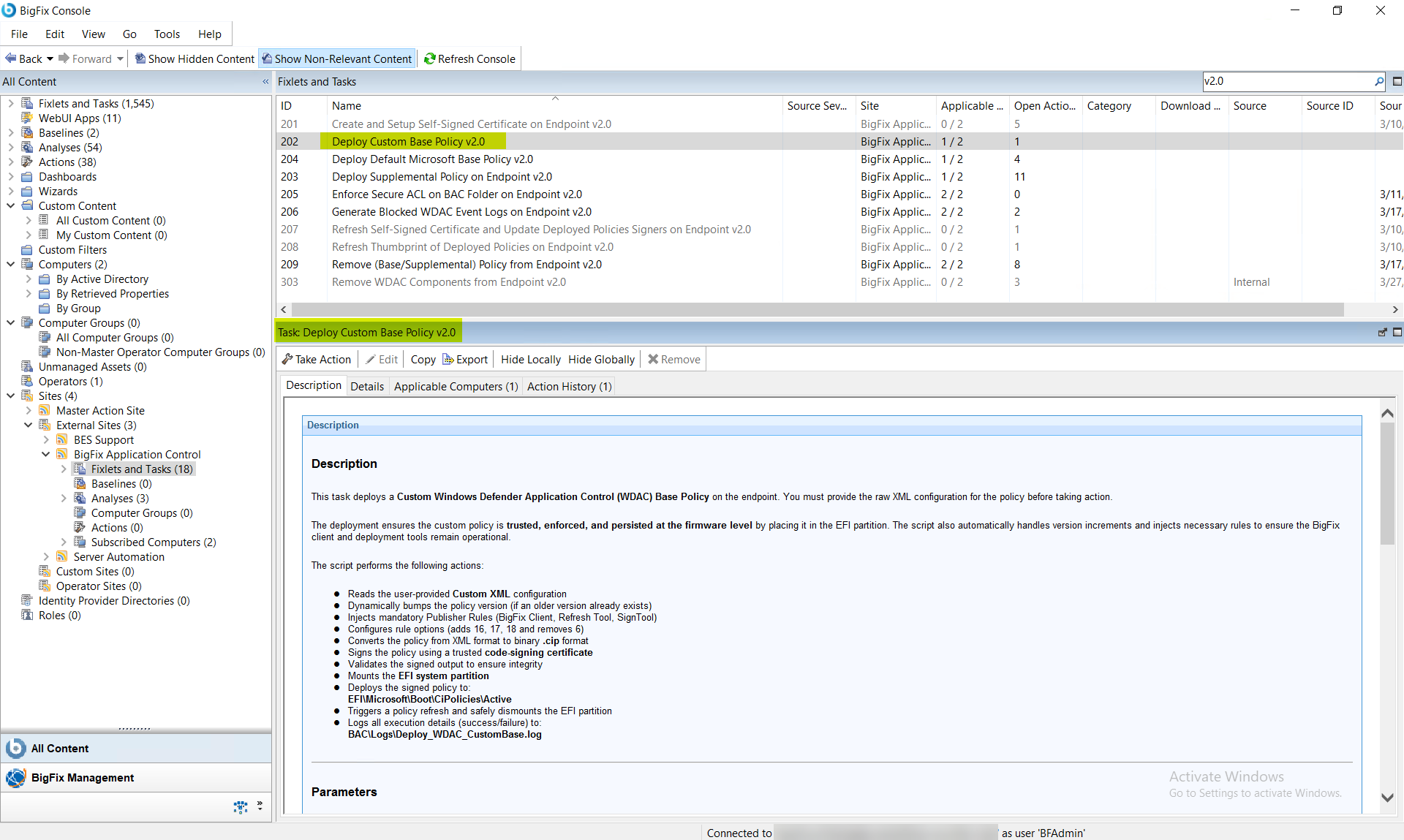
Procedure
- In the BigFix Console, navigate to .
- From the Fixlets and Tasks pane, select Task: Deploy Custom Base Policy v2.0.
-
From the Task: Deploy Custom Base Policy v2.0 pane,
under Configuration Options, paste the raw XML
configuration for your base policy into the provided text area.
Figure 2. BigFix Console — Deploy Custom Base Policy v2.0: Configuration Options Panel Showing Custom XML Input Text Area 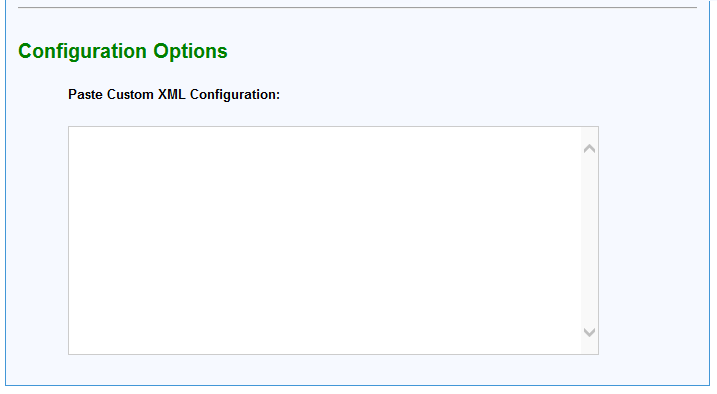
- From the Task: Deploy Custom Base Policy v2.0 pane, click the Applicable Computers(n) tab and view the endpoints on which you want to run the task.
- Select the Take Actions tab and select the endpoints on which you want to apply this installer task.
- Click OK.
Results
- The custom WDAC base policy is successfully deployed to the system.
- The system enforces or audits applications based on the provided XML logic.
- The policy persists across reboots via EFI deployment.
- Execution logs become available for audit and troubleshooting.