BigFix Application Control: Troubleshooting WDAC Enforcement Issues
This reference covers three diagnosed WDAC enforcement issues in BigFix Application Control environments: (1) AnyDesk blocked with error 0xc0e90002 (STATUS_CODE_INTEGRITY_VIOLATION) due to an untrusted Google LLC DLL extracted to the temp folder; (2) Postman displaying "Failed to extract installer" because WDAC silently blocks background child processes before the native Device Guard notification appears; and (3) an application blocked by Event ID 3077 despite an explicit allow rule, caused by a FilePublisher or FileAttrib MinimumFileVersion threshold mismatch.
Issue 1: Anydesk.exe bad image
- Error code: 0xc0e90002 (STATUS_CODE_INTEGRITY_VIOLATION)
- Error message: C:\Users\...\Downloads\gcapi.dll is either not designed to run on Windows or it contains an error.
-
Figure 1. AnyDesk.exe STATUS_CODE_INTEGRITY_VIOLATION (0xc0e90002) — gcapi.dll Blocked by WDAC Signer Policy 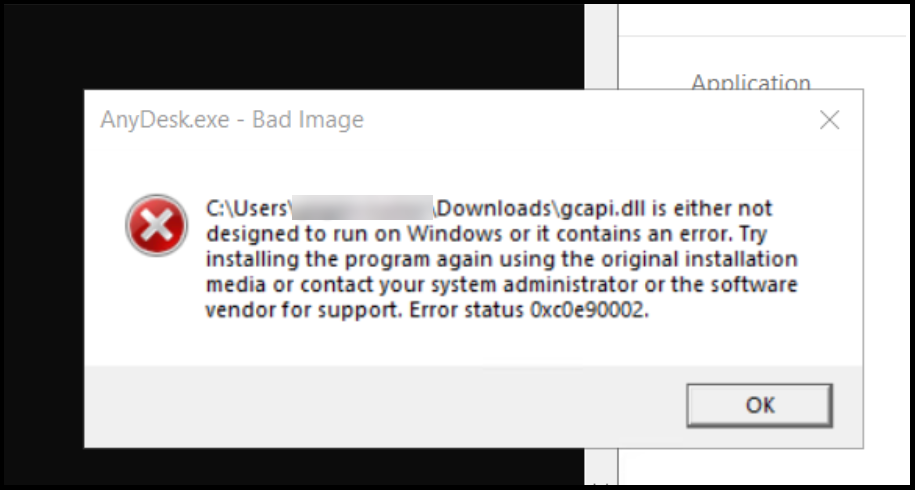
Root cause: When AnyDesk™ runs portably, it extracts gcapi.dll (a Google™ dependency) into your session temp folder (C:\Users\...\AppData\Local\Temp\5\gcapi.dll). Your Windows Defender Application Control (WDAC) policy blocks this DLL from loading because gcapi.dll is signed by Google LLC, whereas your existing AnyDesk™ policy rule only trusts AnyDesk Software GmbH. Because code integrity blocks the untrusted DLL from loading into memory, Windows® throws the 0xc0e90002 Bad Image error.
Solution:- Step 1:Use Task ID: 354 to create a base policy including an allow AnyDesk™ rule using publisher providing the .exe path through custom parameter rule for the path C:\Users\Administrator\Downloads\AnyDesk.exe.
- Step 2: Use Task ID: 355 to sign, compile, and publish it.
- Step 3: Use Task ID: 406 to deploy and enforce the policy.
- Result: AnyDesk™ does not show any bad image error.
Note:If any older version of AnyDesk is being used then while creating a base policy include an allow rule for anydesk.exe as well as the gcapi.dll via publisher rule using the Task ID: 354. Step 2 and Step 3 remains the same.
Issue 2: Failed to extract installer
- Error code: Installation has failed: Failed to extract installer
- Error message: Postman displays its own UI error Failed to extract installer instead of allowing Windows to show its native blocked by your organization's Device Guard policy pop-up notification.
-
Figure 2. Postman "Failed to Extract Installer" — WDAC Block on Background Child Process Suppresses Native Device Guard Notification 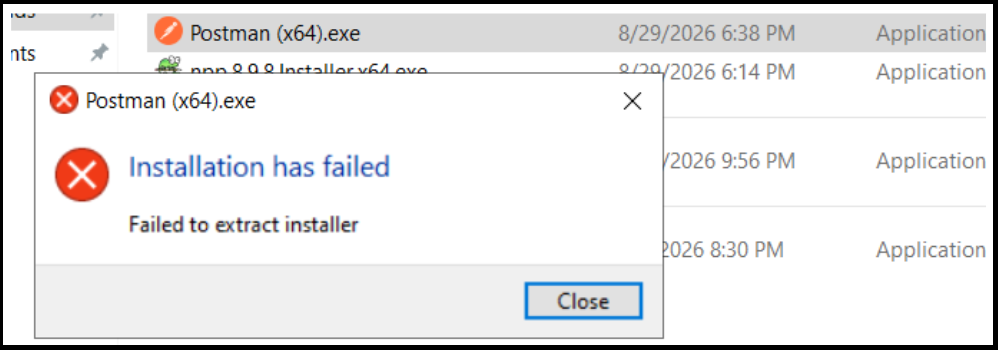
Root cause: Postman(x64).exe runs an installer framework that catches process failures internally. When Windows Defender Application Control (WDAC) blocks its temporary extraction files in the background, Postman displays its own UI error Failed to extract installer instead of allowing Windows to show its native blocked by your organization's Device Guard policy pop-up notification.
This behavior occurs because Postman(x64).exe is an installer wrapper. When executed, it silently unpacks background installer binaries into %LocalAppData%\Temp\ and launches them as child processes. WDAC intercepts and blocks these background child processes. Because the block happens to a secondary process in the background, the main Postman wrapper handles the process crash internally and displays its own custom application error box before Windows can trigger its native OS block dialog.
Solution: To resolve this issue, eliminate the custom application pop-up, and show the native Windows WDAC block notification to the customer, follow these exact steps:- Step 1:Use Task ID: 354 to create a base policy including an allow rule for Postman™ using Publisher rule, providing the .exe path through custom parameter rule for the path: C:\Users\Administrator\Downloads\Postman (x64).exe.
- Step 2: Use Task ID: 355 to sign, compile, and publish it.
- Step 3: Use Task ID: 406 to deploy and enforce the policy.
- Result: The Postman™ installs and launches cleanly with no Failed to extract installer error, since the extracted Postman.exe is now allow-listed by the publisher.
Issue 3: Binary blocked by minimum version threshold
- Error code: An executable was blocked (Event ID 3077) even though an explicit rule to allow the executable exists in the policy XML.
- Error message:
Code Integrity determined that a process (\Device\HarddiskVolume3\Windows\explorer.exe)
attempted to load \Device\HarddiskVolume3\Program Files\Notepad++\notepad++.exe
that did not meet the Enterprise signing level requirements or violated code integrity policy
(Policy ID:{9c8c2d01-ce0f-40ad-bb53-806ce27d7fb8}).
Root cause: Rules created at the FilePublisher or FileAttrib level enforce a MinimumFileVersion.
This block occurs for two main reasons:<FileAttrib ID="ID_FILEATTRIB_NPP" FileName="notepad++.exe" MinimumFileVersion="8.9.6.4" />- Installed Version Below Threshold: The endpoint runs a version (e.g., 8.9.6.2) lower than the policy requirement (8.9.6.4).
- PE Header Mismatch: WDAC Wizard reads the internal PE
header FileVersion (8.9.6.4), but Code Integrity evaluates
against the local ProductVersion (8.9.6.2). Since 8.9.6.2 <
8.9.6.4, evaluation fails.Note:Event 3077 does not log version numbers directly.
Verification: Check the installed file attributes in PowerShell:
Compare the output against MinimumFileVersion in WDAC_BasePolicy.xml.(Get-Item "C:\Program Files\Notepad++\notepad++.exe").VersionInfo | Select-Object FileVersion, ProductVersionSolution:-
Step 1 (Option 1): Use Task ID: 354 to create a base policy including an allow rule for Notepad++™ using File attribute and Set MinimumFileVersion in WDAC_BasePolicy.xml to match or precede the installed version:
<FileAttrib ID="ID_FILEATTRIB_NPP" FileName="notepad++.exe" MinimumFileVersion="8.9.6.2" />OR
Step 1 (Option 2): Change the Minimum Version in the App Control Policy Wizard and regenerate the XML to match or precede the installed version.Figure 3. WDAC Policy Wizard Custom Rule Conditions — Setting MinimumFileVersion to Match Installed Endpoint Version 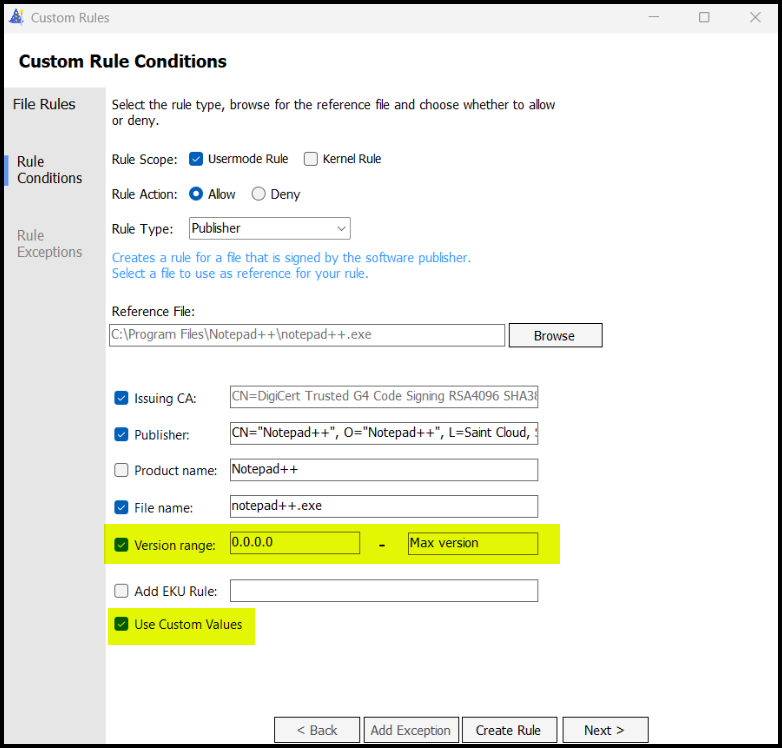
- Step 2: Use Task ID: 355 to sign, compile, and publish it.
- Step 3: Use Task ID: 406 to deploy and enforce the policy.
- Result: The Postman™ installs and launches cleanly with no Failed to extract installer error, since the extracted Notepad++.exe is now allow-listed by the publisher.
Issue 4: MobaXterm® bad image, required unsigned DLL dependencies are blocked by WDAC
- Error Code: 0xc0e90002 is displayed
- Error Message: Bad Image when launching MobaXterm under WDAC
enforcement.
C:\Users\ADMINI~1\AppData\Roaming\MobaXterm\slash\bin\lib.dll
is displayed.
Root Cause: MobaXterm® is installed with its executable and DLL dependencies in separate directories. The MobaXterm® executable is digitally signed with a valid certificate, but its required DLL dependencies are unsigned.
MobaXterm® is installed with its executable and DLL dependencies in separate directories.- MobaXterm® executable: C:\Program Files (x86)\Mobatek\MobaXterm
- DLL dependencies: C:\Users\Administrator\AppData\Roaming\MobaXterm
When a WDAC Publisher rule is created for the signed MobaXterm® executable, it allows the executable based on its publisher information. However, the rule does not automatically allow the unsigned DLL dependencies.
When MobaXterm® attempts to load these DLLs, WDAC blocks them because they do not meet the policy's code integrity requirements. As a result, MobaXterm® fails to launch and displays a Bad Image error.
Solution:-
Step 1: Verify the MobaXterm® executable and DLL locations. Verify that the MobaXterm executable and its required DLL dependencies are present in the following directories:
- MobaXterm executable: C:\Program Files (x86)\Mobatek\MobaXterm
- DLL dependencies: C:\Users\Administrator\AppData\Roaming\MobaXterm
Verify that the executable is digitally signed and that the required DLL dependencies are unsigned.
- Step 2: Create a publisher rule for MobaXterm™. Use Task ID: 354 to create a base policy including an allow rule for MobaXterm™.
- Step 3: Use Task ID: 355 to sign, compile, and publish it.
- Step 4: Use Task ID: 406 to deploy and enforce the policy.
- Result: The MobaXterm™ installs and launches cleanly.