Secrets
Through this module, the user can configure the confidential information in the IMM portal. This is an IMM out of box to manage confidential information.
Admin and user both can access this module. To manage secrets, follow below steps-
- On the main menu bar, click Configurations then in the sub-menu select Secrets.
- The Secrets screen appears, and it lists the available secrets in a tabular view
and users can add, update secrets.
Figure 1. Secrets 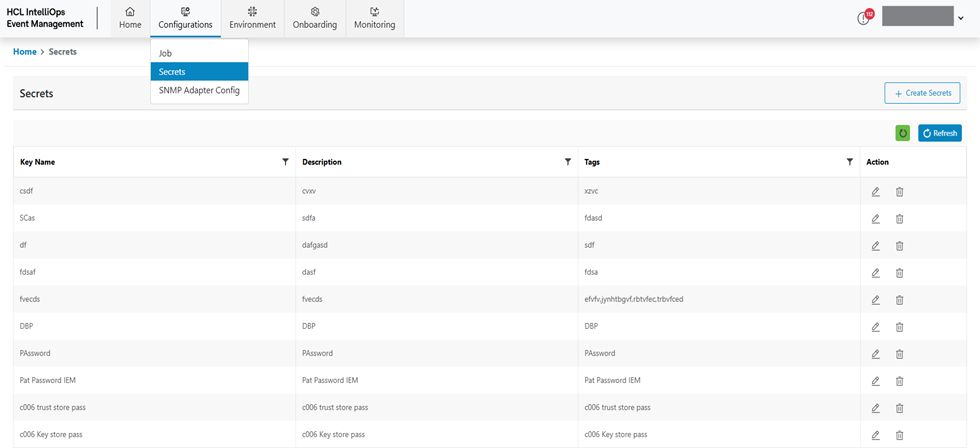
Add Secret
To add a Secret needs to follow the steps below:
- On the Secrets screen, click Create Secrets.
Figure 2. Create Secrets 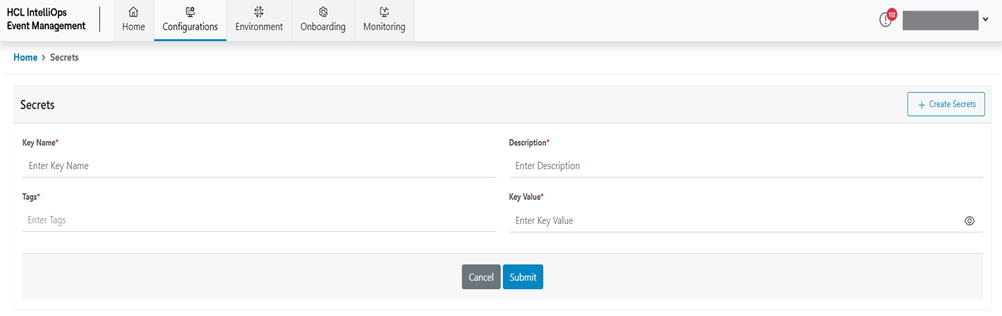
- Refer to the following table to understand the fields mentioned in the above
figure.
Table 1. Create Secret Fields Fields Description Key Name This field contains the Key Name for Secret. Description This field contains the description for Key. Tags This field contains the Tag for key; we can add multiple tag for a Key. Key value This field contains the Value for a Key. - Enter Key name.
- Enter Key Description.
- Enter the Tag.
- Enter Key Value.
- Click Submit.
Figure 3. Add Secret (Cont.) 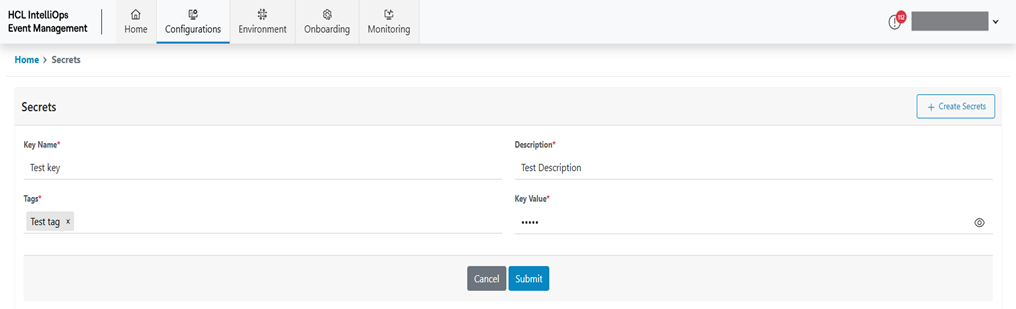 Note:All fields marked with an asterisk (*) are mandatory.
 - A success message box appears.
Figure 4. Secret Created Successfully 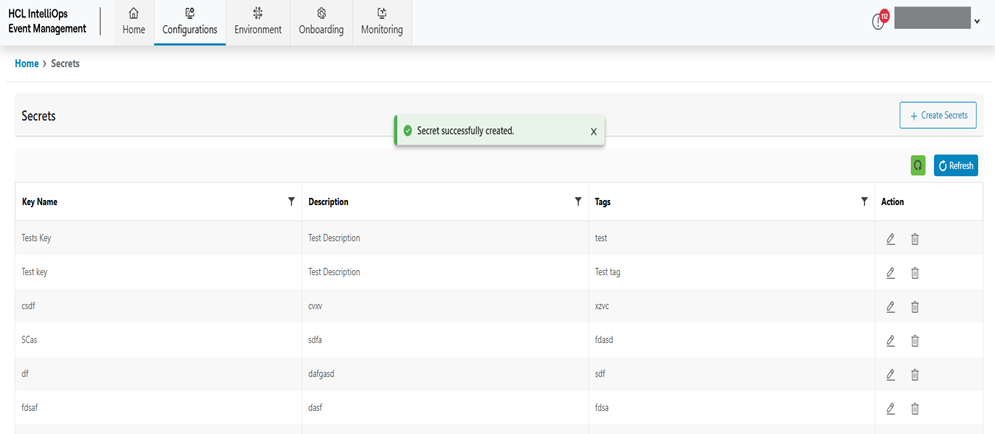
View Secret
This section lists all the secrets that have been created by a user.
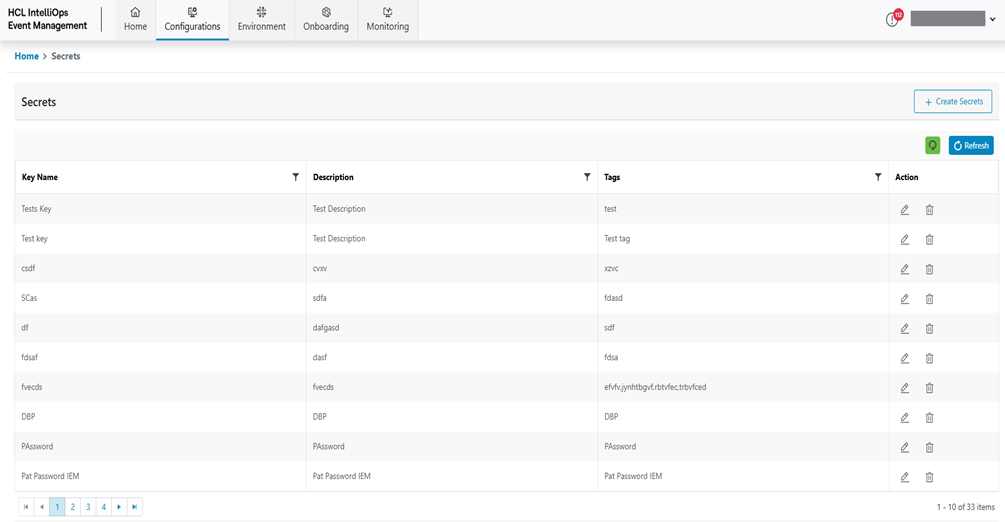
Refer to the table below to understand the fields mentioned in the above figure.
| Fields | Description |
|---|---|
| Key Name | Displays the Key Name of the Secret that has been added |
| Description | Displays the Description of the Key that has been added |
| Tags | Displays the Tag of the Key that has been added |
| Action | User to take actions like Edit against the listed Secrets |
You can modify the details of existing Secrets by clicking on
the corresponding Edit icon  .
.
Edit Secret
To edit/modify secret details, user need to follow the steps below:
- On the main screen, click Secret.
- Available secrets appear in a tabular view.
Figure 6. Edit Secrets 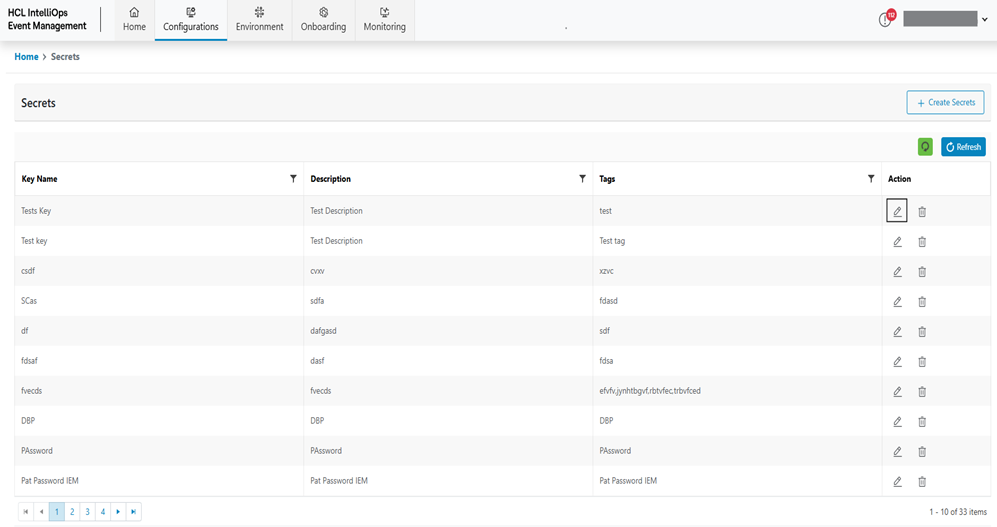
- Click Edit (
.png) ) icon.
) icon.Figure 7. Edit Secret (Cont.) 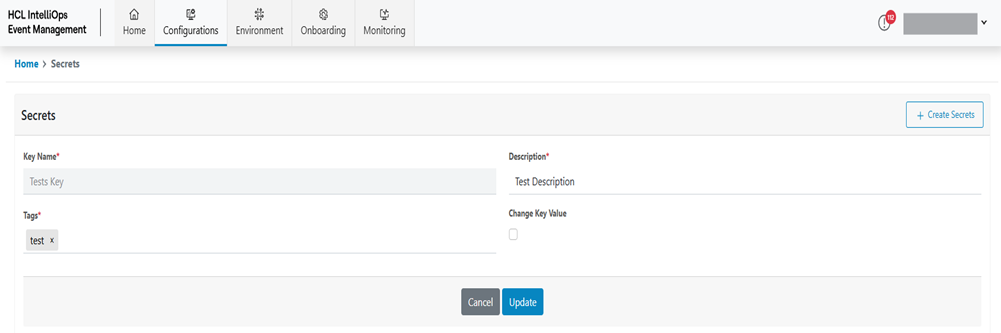
- Modify the details as desired and click Update.
- A success message box appears.
Figure 8. Figure 10 – Secret Updated Successfully 
Delete Secret
To edit/modify secret details, users need to follow the steps below:
- On the main screen, Click Secret.
- Available secrets appear in a tabular view.
Figure 9. Delete Secret 
- Click Delete (
 ) icon.
Figure 10. Alert Message 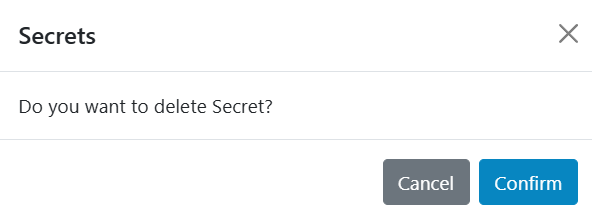
- Click on Confirm.
- The success message appears on the screen.
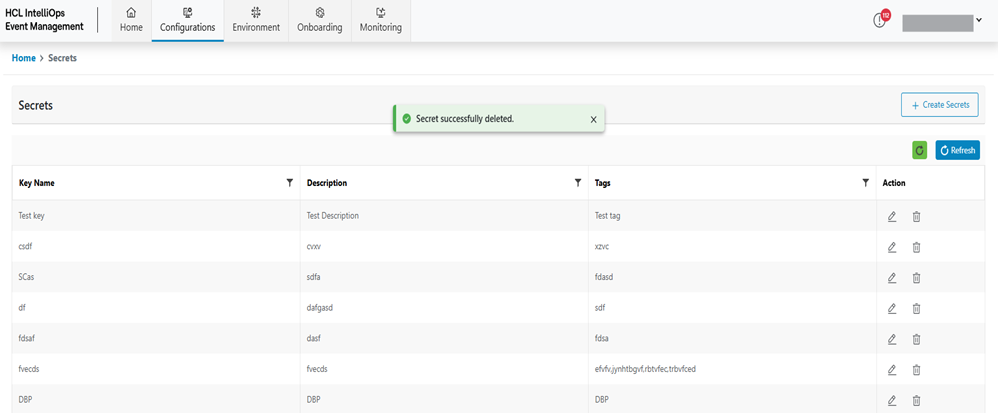
Figure 11. Success Message