Data Center
Through this module, users can manage Data Center (IMM Orchestrator Service endpoints) through below steps: In some scenarios it can be possible for IMM to support multiple NiFi, which are available in different data center and NiFi access is not provided out of the Data Center. So we can install the IMM orchestrator service inside the data center.
- On the Main Menu bar,Environment then in the sub-menu click Data Center.
- The Data Center screen appears, and it lists down the available deployments
in a tabular view and users can add, update, and delete Data
Center.
Figure 1. Data Center 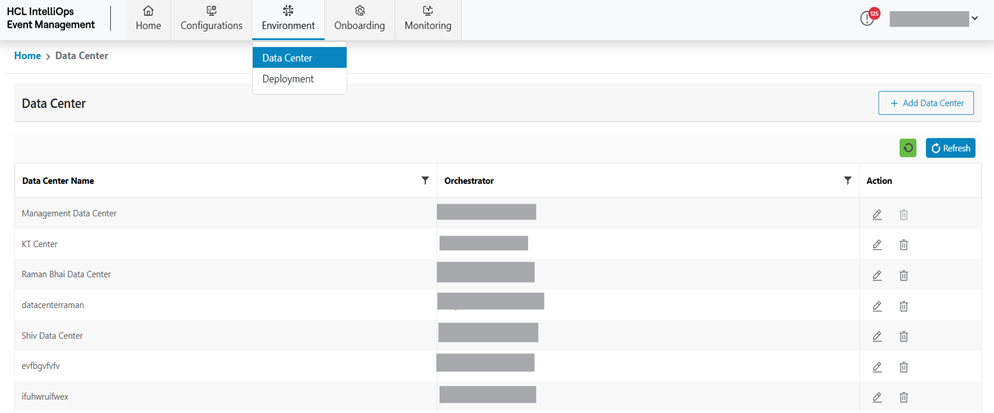
- Refer to the following table to understand the fields mentioned in the above
figure:
Table 1. Data Center Fields Fields Description Data Center Name This indicated the Name of the Data Center. Orchestrator The field indicates the Orchestrator URL. Action Users can take actions like Edit and Delete against the listed data center. It also consists of the following actions:
- Add : To add a new Data Center.
- Edit : To update an existing Data Center.
- Delete : To delete an existing Data Center.
Add Data Center
To add a new deployment, the user needs the following steps:
- On the Data Center screen, click the New Data Center button.
Figure 2. Add Data Center 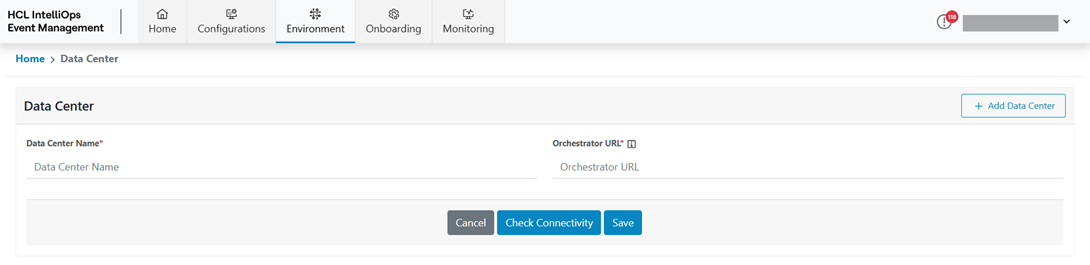
- Refer to the following table to understand the fields mentioned in the above
figure:
Table 2. Add Data Center Fields Description Data Center Name This indicated the Name of the Data Center. Orchestrator The field indicates the Orchestrator URL. Action Users can take actions like Edit and Delete against the listed data center. - Enter Data Center Name.
- Enter Orchestrator URL.
- Click on Submit.
Figure 3. Data Center Created Successfully 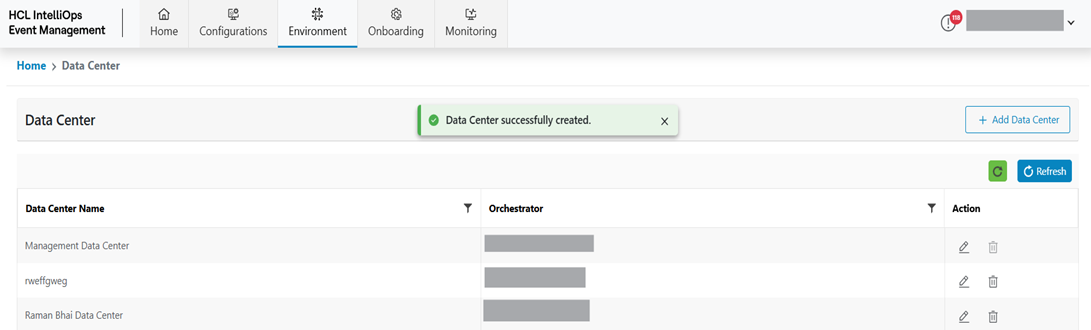
- New Data Center is successfully added and listed on the table.
Edit Data Center
To Edit/ Modify the information of an existing Data Center, user needs to follow the below steps:
- On the main screen, click Data Center.
- Available Data Center list is shown in tabular view.
Figure 4. Data Center in Tabular Form 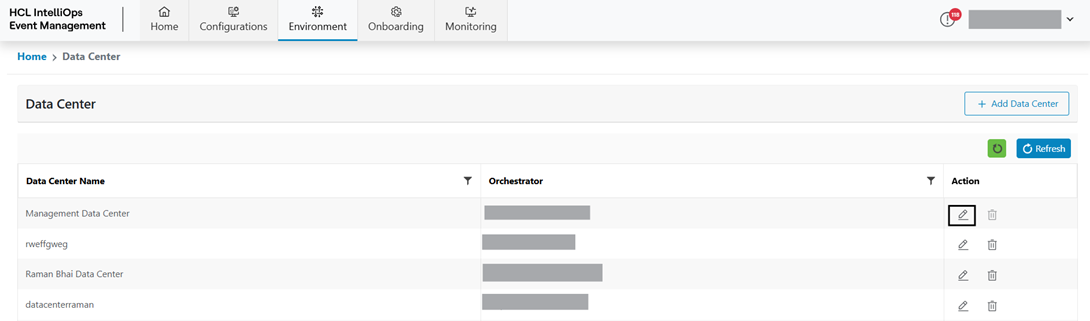
- Click Edit (
 ) corresponding to the Data Center to be
updated.
) corresponding to the Data Center to be
updated. - Modify the details as required and click Update.
Figure 5. Edit Data Center 
- A success message appears on the screen.
Figure 6. Data Center Updated Successfully 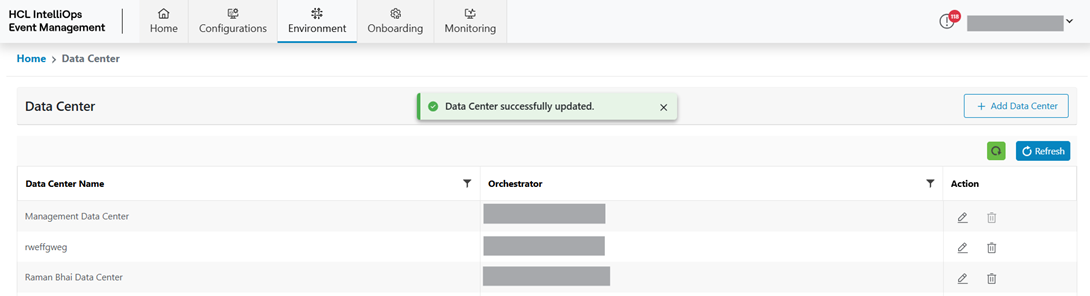
Delete Data Center
To delete an existing Data Center, user needs to follow the below steps:
- On the main screen, click Data Center.
- Available Data Center list will be shown in a tabular view.
Figure 7. Delete Data Center 
- Click Delete (
 ) icon.
 Figure 8. Delete Data Center (Cont.) 
- Click on Confirm.
- The success message appears on the screen.
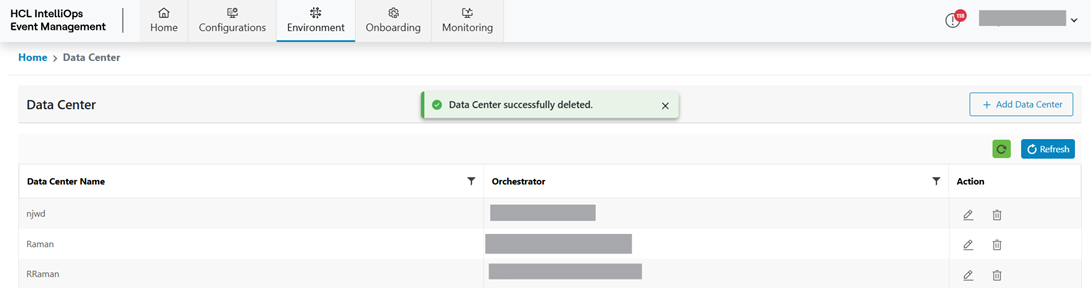
Figure 9. Data Center Deleted Successfully