
Change Password
Through this module, users can change his/her password after login. Perform the below-mentioned steps:
- On the Main Menu bar, click Username at the top right corner.
- Drill down drop-down appears on the screen.
- Then click Change Password.
Figure 1. Change Password 
- The Change Password screen appears; User can change login password.
Figure 2. Change Password (Cont.) 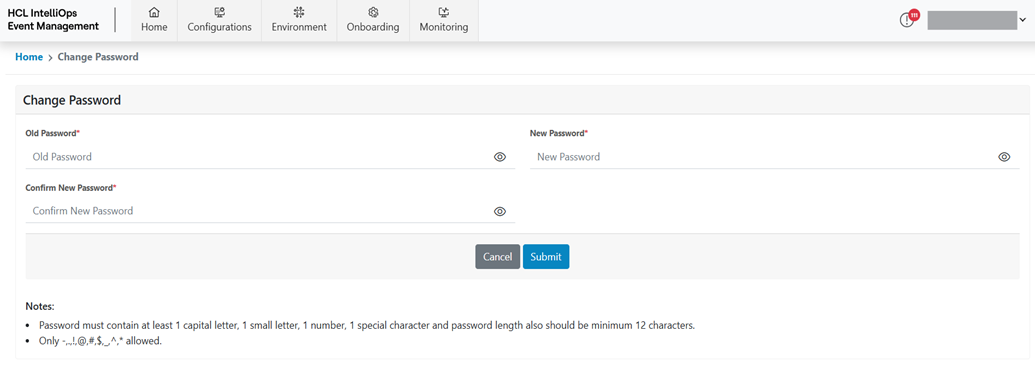
- Refer to the following table to understand the fields mentioned in the above figure:
Table 1. Change Password Fields Description Old Password This field contains the Old Password/Current Password New Password This field contains the New Password Confirm New Password This field contains the New Password; it should be same as New Password - Enter current Password.
- Enter New Password.
- Enter New password again to confirm New Password field.
- Click on the Submit button.
Figure 3. Password Change Successfully 