
Accessing IMM
First, get the URL and user credentials for IMM.
- Launch the web browser (Chrome, Mozilla, or Edge) and use the IMM URL and user credentials to login.
- Enter the Email ID .
- Enter Password.
Figure 1. IMM Login Page 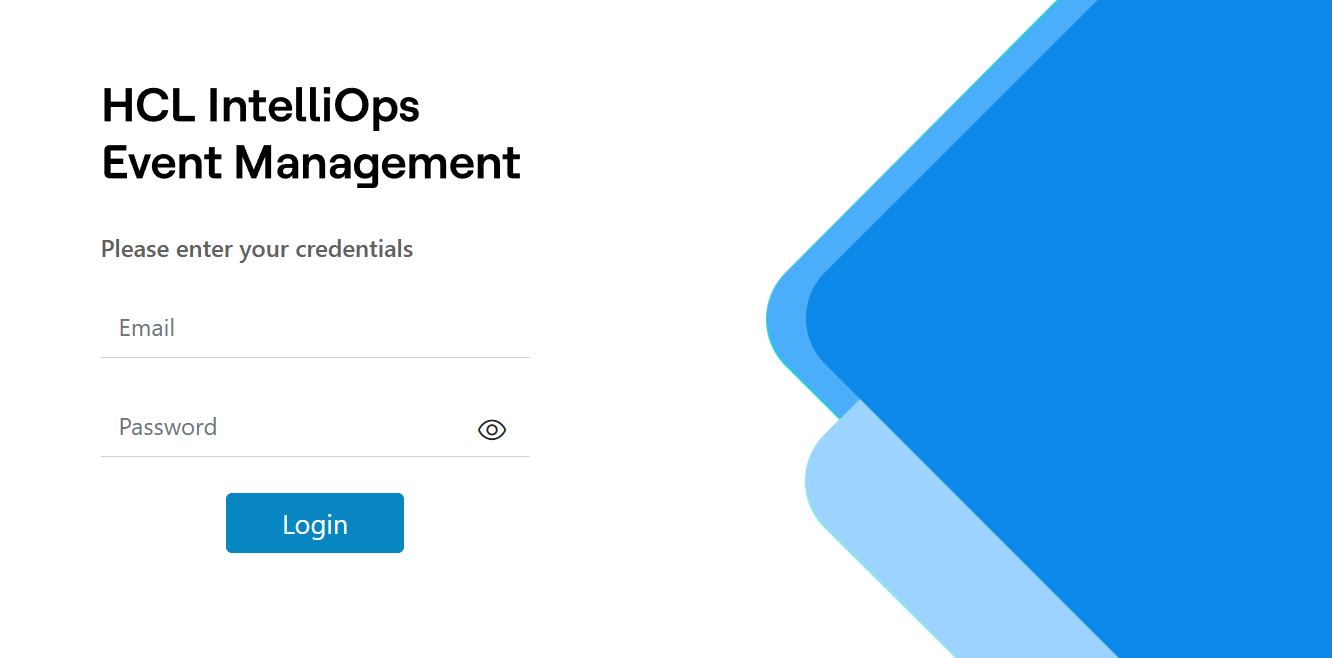 Note:Change the password frequently, at least once a month, to keep hackers out of the system. When the application is not being used, then log off for security purposes.
 - Click Login.
- On a successful login, IMM Dashboard appears as shown below.
Figure 2. MM Dashboard  Note:For changed password functionality please refer user guide -Change Password.
The Dashboard contains the following options:
It also consists of the following actions:
- New Deployment: On clicking this button, it will redirect to Deployment module. Users can provide the NiFi details to set up NiFi endpoint in IMM portal.
- Manage Secret: On clicking this button, it will redirect to the Secrets module. Users can manage confidential information. The confidential information will be saved in encrypted text and can be re-used on other IMM modules.
- Manage Deployment: User will be redirected to Deployment screen, here user can add/edit/delete the Deployments.
- Manage Integration: User will be redirected to Integration screen, here user can add/edit adapters required fields. Users can also perform action(s) like Revoke Circuit Breaker if applied to integration.
- Health Check: User will be redirected to Health Check screen. Here users can monitor the health check information of NiFi and adapters, categories as availability, performance and access.