
Component Configuration
Through this module, Admin user can manage system configuration corresponding to IMM services through the below-mentioned steps:
- On the Main Menu bar, click Username at the top right corner.
- Drill down drop-down will be appear on the screen.
- Then click Component Configuration.
- The Component Configuration screen appears.
It consists of Four components-
- Authentication
- Component URLs
- Database (For External use)
- Log Path
- Users can update these component parameters.
Figure 1. Component Configuration 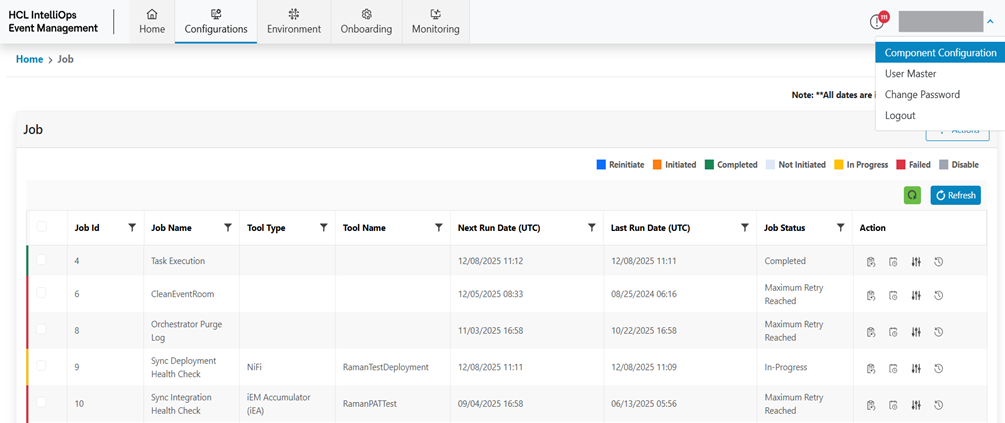
Authentication
To manage Authentication Configuration, users need to follow the blow steps:
- On the Component Configuration screen, click Authentication tab.
- User can modify Authentication components.
Figure 2. Authentication Configuration 
- Refer to the following table to understand the fields mentioned in the above
figure:
Table 1. Authentication Configuration Fields Description Authentication Type This field is used to set Portal Authentication Mode for admin and users; possible values are FORM or LDAP. LDAP/s URL This field is used to define LDAP/s URL. LDAP/s Domain This field is used to define LDAP/s Domain. LDAP/s Port This field is used to define LDAP/s Port - Click Edit (
.png) )
corresponding to the component to be edited.
)
corresponding to the component to be edited.Figure 3. Authentication Configuration (Cont.) 
- Click Save button to Update the component.
Figure 4. Authentication Configuration (Cont.) 
Component URLs
To manage Component URLs Configuration, follow the blow steps:
- On the Component Configuration screen, click Component URLs tab.
- Users can update Component URLs details.
Figure 5. Component URLs Configuration 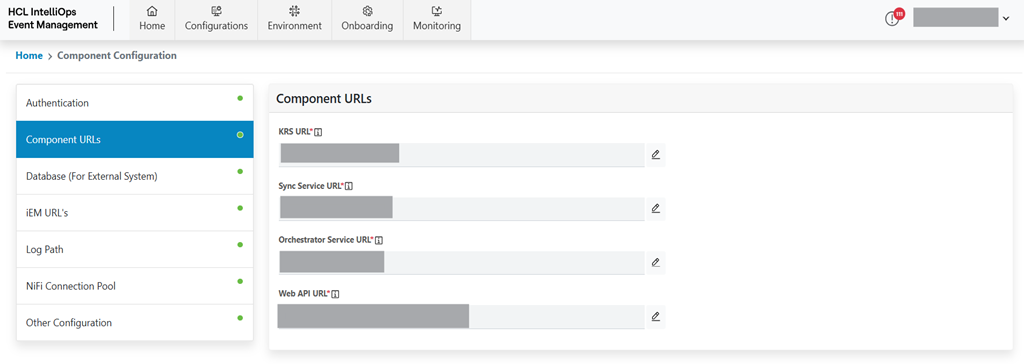
- Refer to the below-mentioned table to understand the fields mentioned in the above
figure:
Table 2. Component Configuration Fields Description KRS URL This field is used to define KRS URL. Sync Service URL This field is used to define Sync Service URL. Orchestrator Service URL This field is used to define Orchestrator Service URL. Web API URL This field is used to define Web API URL. - Click Edit (
.png) )
corresponding to the component to be edited.
)
corresponding to the component to be edited.Figure 6. Component Configuration (Cont.) 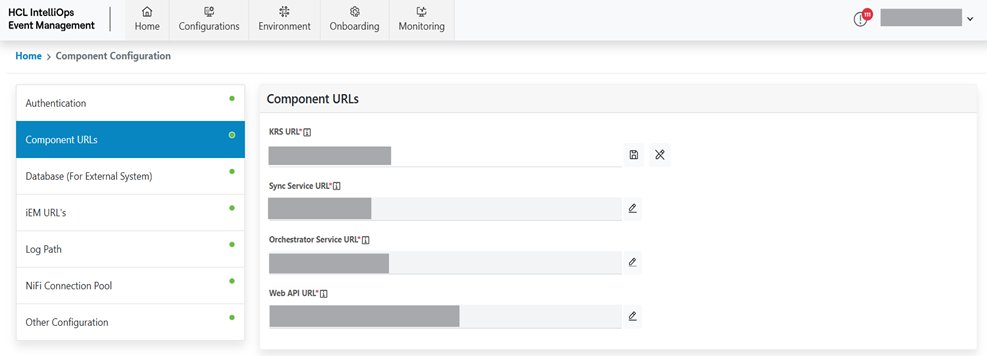
- Click Save button to Update the component.
Figure 7. Component Configuration (Cont.) 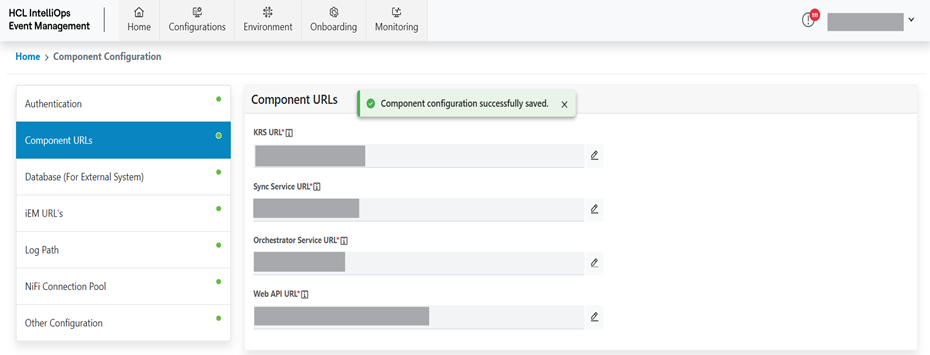
Database (For External System)
To manage Database (For External System) Configuration needs to follow the blow steps:
- On the Component Configuration screen, click Database (For External System) tab.
- Users can update Database (For External System) details.
Figure 8. Database (For External System) Configuration 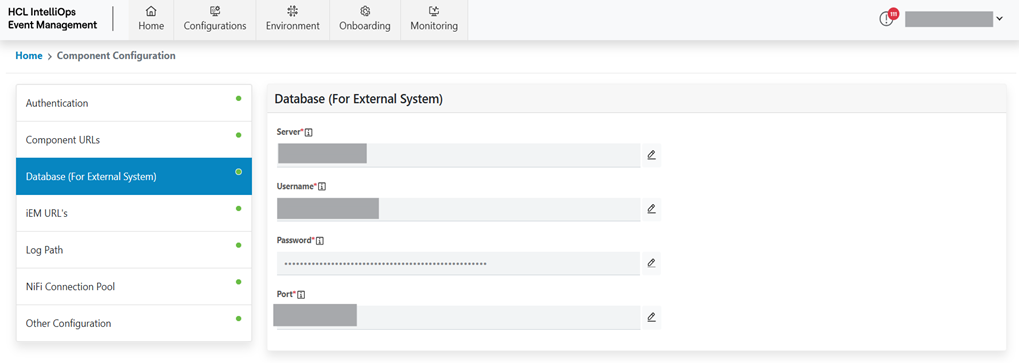
- Refer to the below-mentioned table to understand the fields mentioned in the above
figure:
Table 3. Component Configuration Fields Description Server This field is used to define Server which will be used by an external system to connect with IMM database. Port This field is used to define Port which will be used by an external system to connect with an IMM database. Username This field is used to define Username which will be used by an external system to connect with IMM database. Password This field is used to define passwords which will be used by an external system to connect with IMM database. - Click Edit (
.png) )
corresponding to the component to be edited.
)
corresponding to the component to be edited.Figure 9. Database (For External System) Configuration (Cont.) 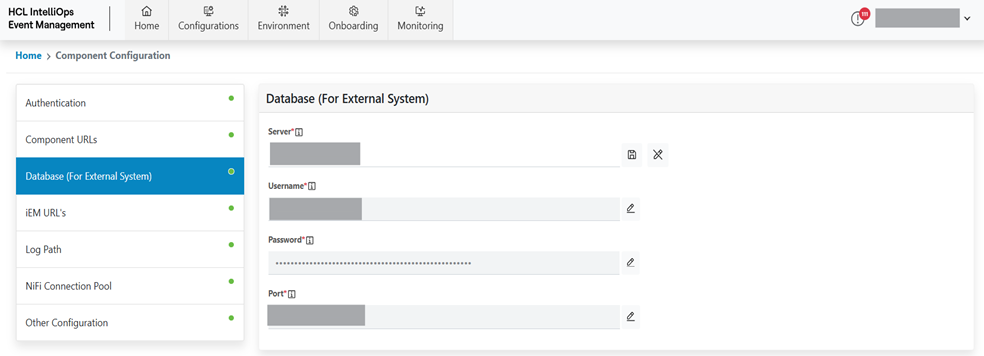
- Click Save button to Update the component.
Figure 10. Database (For External System) Configuration (Cont.) 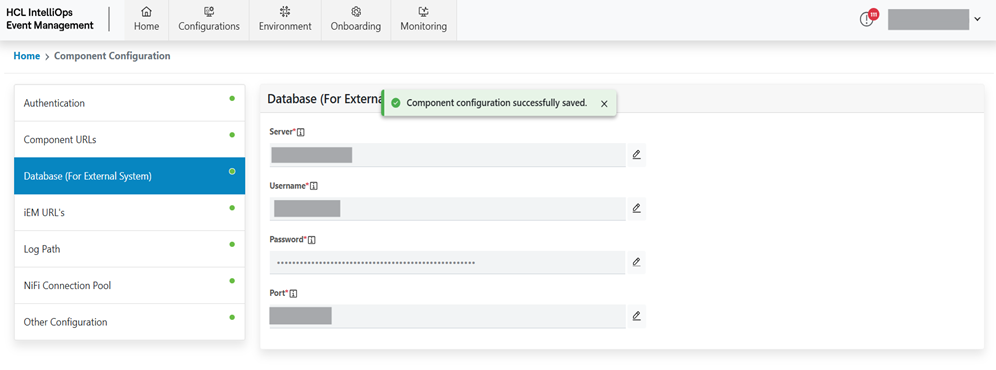
IEM URLs
Database Connections need to be shared with NiFi adapters to push the data in IMM database thus these configurations are required.
To manage database (for external system) configuration needs to follow the below-mentioned steps:
- On the component configuration screen, click database (for external system) tab.
- Users can update database (for external system) details.
Figure 11. IEM URLs 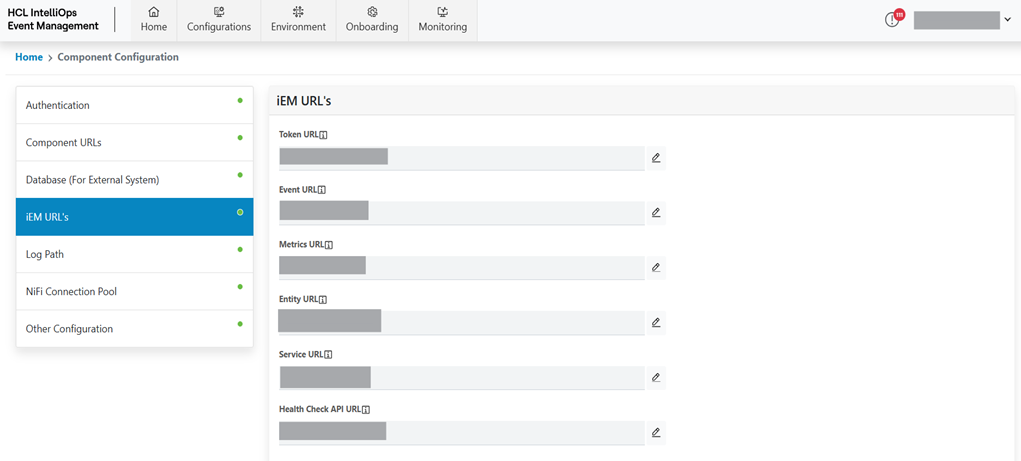
Refer to the below table to understand the fields mentioned in the above figure:
Table 4. Log Path Configuration Fields Description Server This field is used to define servers which will be used by an external system to connect with an IMM database. Port This field is used to define ports which will be used by an external system to connect with an IMM database. Username This field is used to define usernames which will be used by an external system to connect with an IMM database. Password This field is used to define passwords which will be used by an external system to connect with an IMM database. - Click Edit (
.png) ) corresponding
to the component to be edited.
) corresponding
to the component to be edited.Figure 12. Edit URL 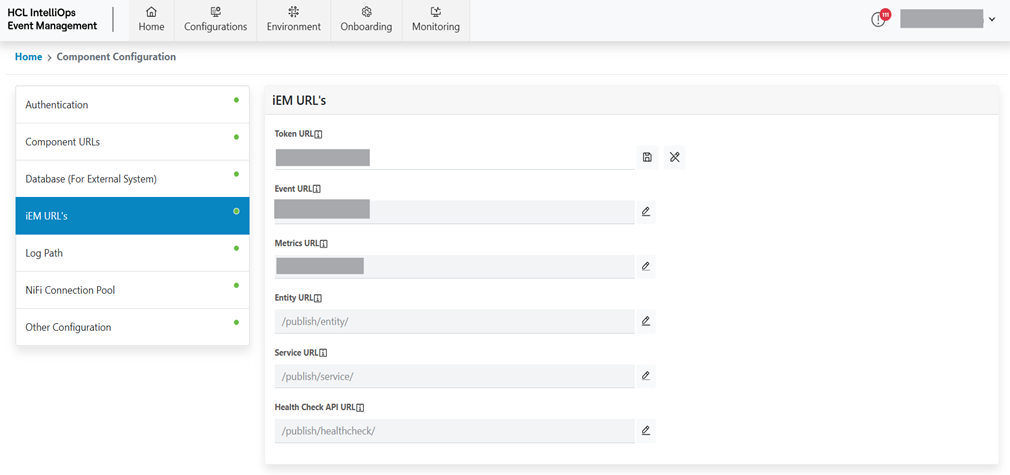
- Click Save button to update the component.
Figure 13. Success Message 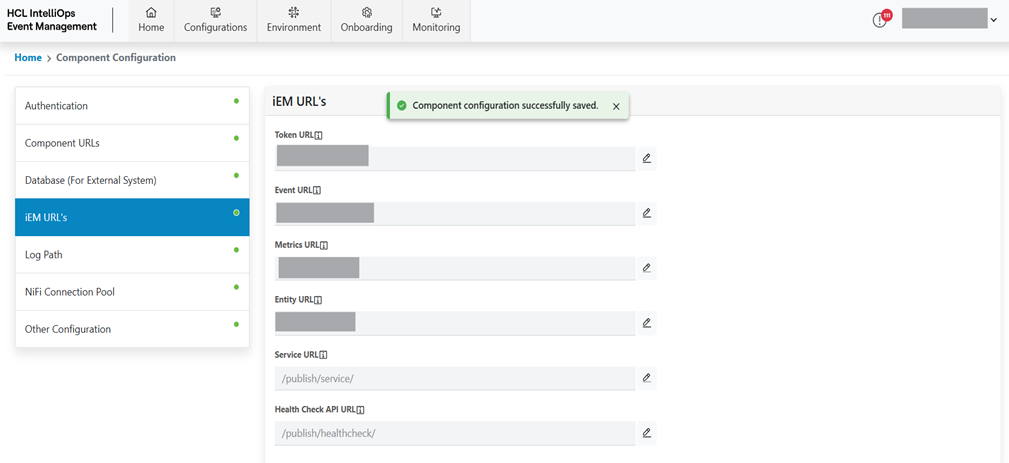
Log Path
To manage Log Path Configuration, you need to follow the blow steps:
- On the Log Path Configuration screen, click Log Path tab.
- Users can update Log Path details.
Figure 14. Log Path Configuration 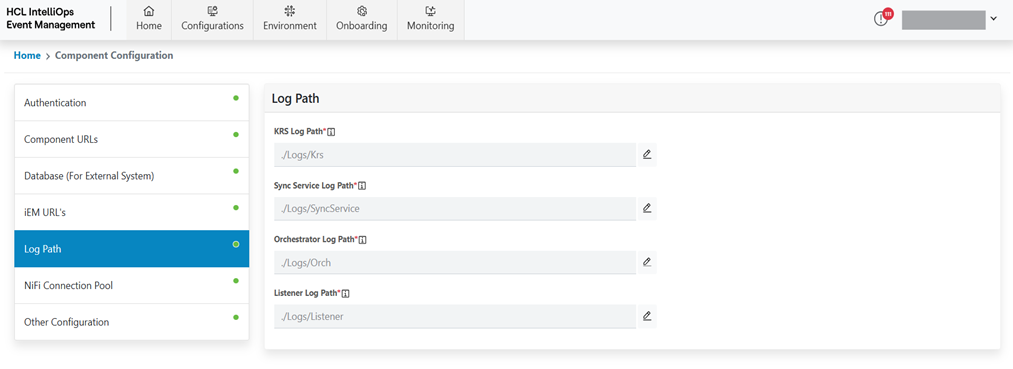
Refer to the following table to understand the fields mentioned in the above figure:
Table 5. Log Path Configuration Fields Description KRS Log Path This field is used to define KRS Log Path Sync Service Log Path This field is used to define Sync Service Log Path Orchestrator Log path This field is used to define Orchestrator Log Path Listener Log Path This field is used to define Listener Log Path - Click Edit (
.png) )
corresponding to the component to be edited.
)
corresponding to the component to be edited.Figure 15. Log Path Configuration (Cont.) 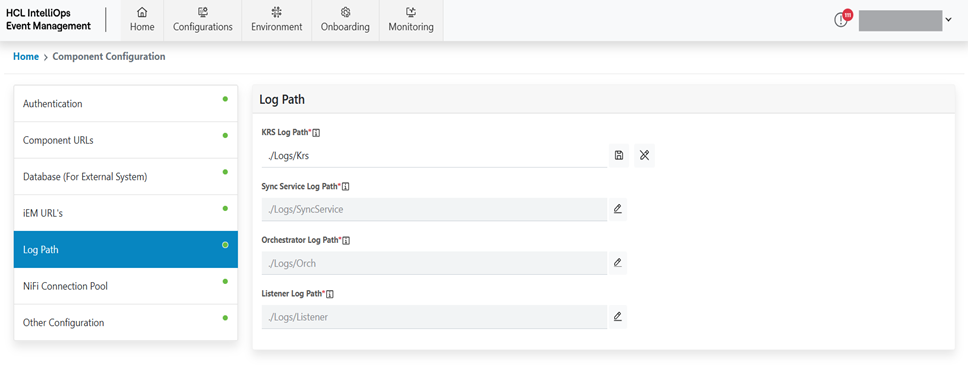
- Click Save button to Update the component.
Figure 16. Log Path Configuration (Cont.) 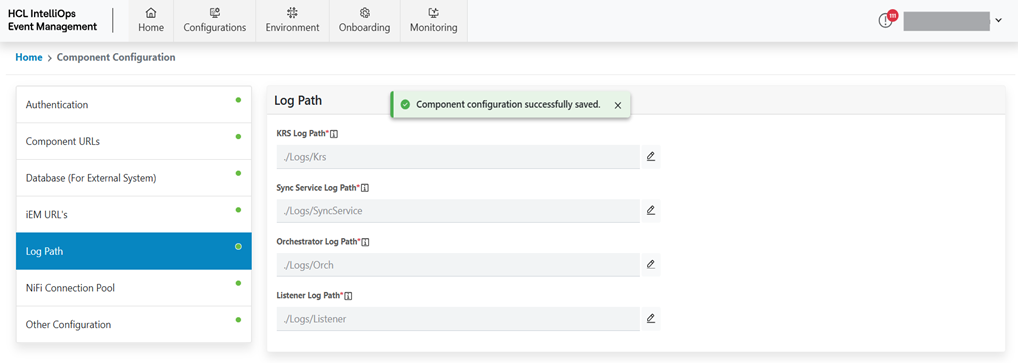
NiFi Connection Pool
NiFi adapters are used to make connections with IMM databases thus the configurations below are used to set how many parallel connections to be made with the database.
To manage NiFi connection pool configuration you needs to follow the below-mentioned steps:
- On the component configuration screen, click NiFi connection pool tab.
- Users can update NiFi connection pool details.
Figure 17. NiFi Connection Pool 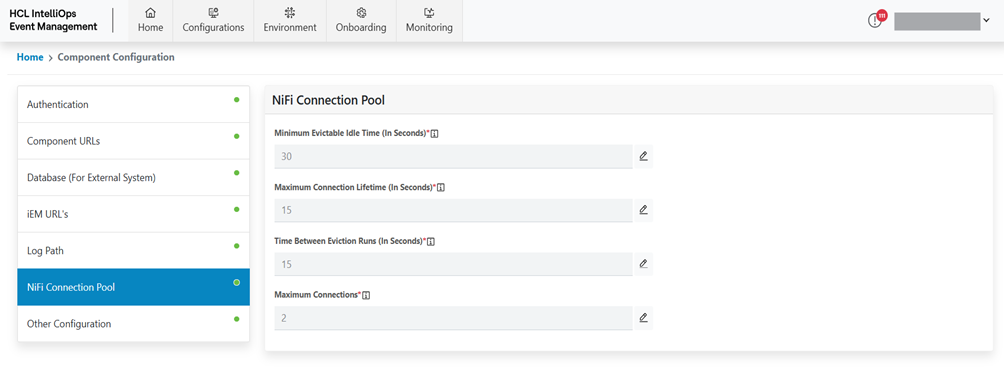
Refer the below table to understand the fields mentioned in the above figure:
Table 6. NiFi Connection Pool Fields Description Minimum Evictable Idle Time (In Seconds) This Key is used to define minimum time an idle connection stays in the pool before removal. Min value: 20, Max value: 60. Maximum Connection Lifetime (In Seconds) This Key is used to define maximum time a connection can exist in the pool before being closed. Min value: 10, Max value: 60. Time Between Eviction Runs This Key is used to define an interval at which the pool checks for idle connections to evict. Min value: 10, Max value: 60. Maximum Connections This Key is used to define maximum connections the pool can hold. Min value: 1, Max value: 9. - Click Edit (
.png) ) corresponding
to the component to be edited.
) corresponding
to the component to be edited.Figure 18. Edit Field 
- Click Save button to update the component.
Figure 19. Success Message 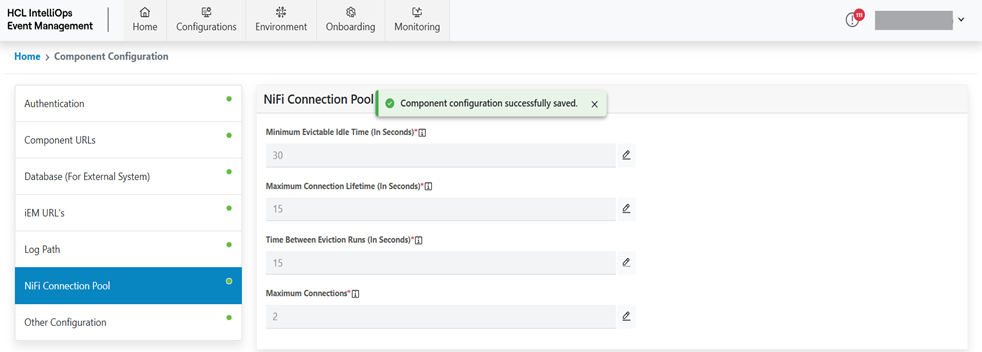
Other Configuration
To manage Other IMM Configuration needs to follow the below steps:
- On the component configuration screen, click Other Configuration Tab.
- Users can update Other Configuration details here.
Figure 20. Other Configuration 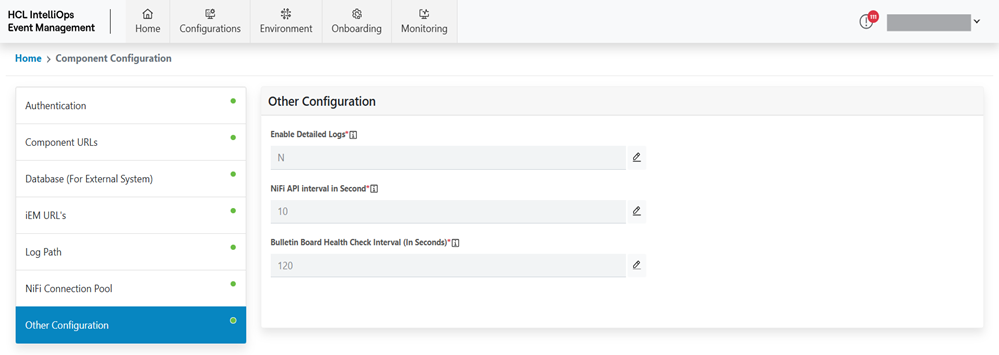
Refer to the following table to understand the fields mentioned in the above figure:
Table 7. Other Configuration Fields Description Enable Detailed Logs This Key is used to enable detailed task log. ‘Y’ in case of required detailed log otherwise, N’. Bulletin Board Health Check Interval (In Seconds) This key is used to define bulletin board health check intervals in seconds. min value: 30, max value: 3600. - Click Edit (
.png) ) corresponding
to the component to be edited.
) corresponding
to the component to be edited.Figure 21. Edit Field 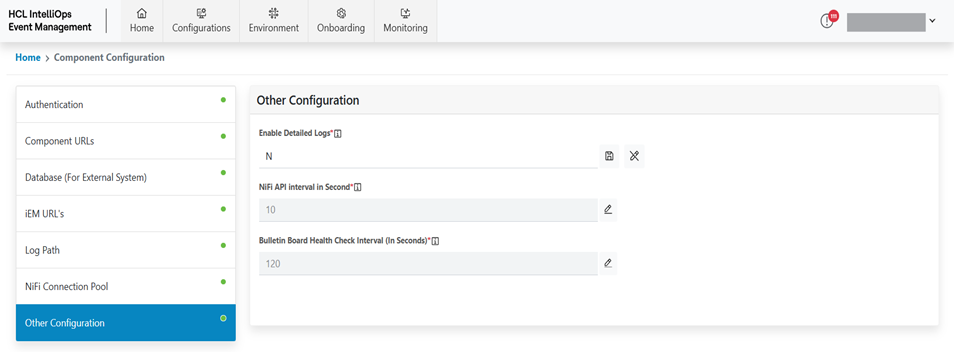
- Click Save button to update the component.
Figure 22. Success Message 