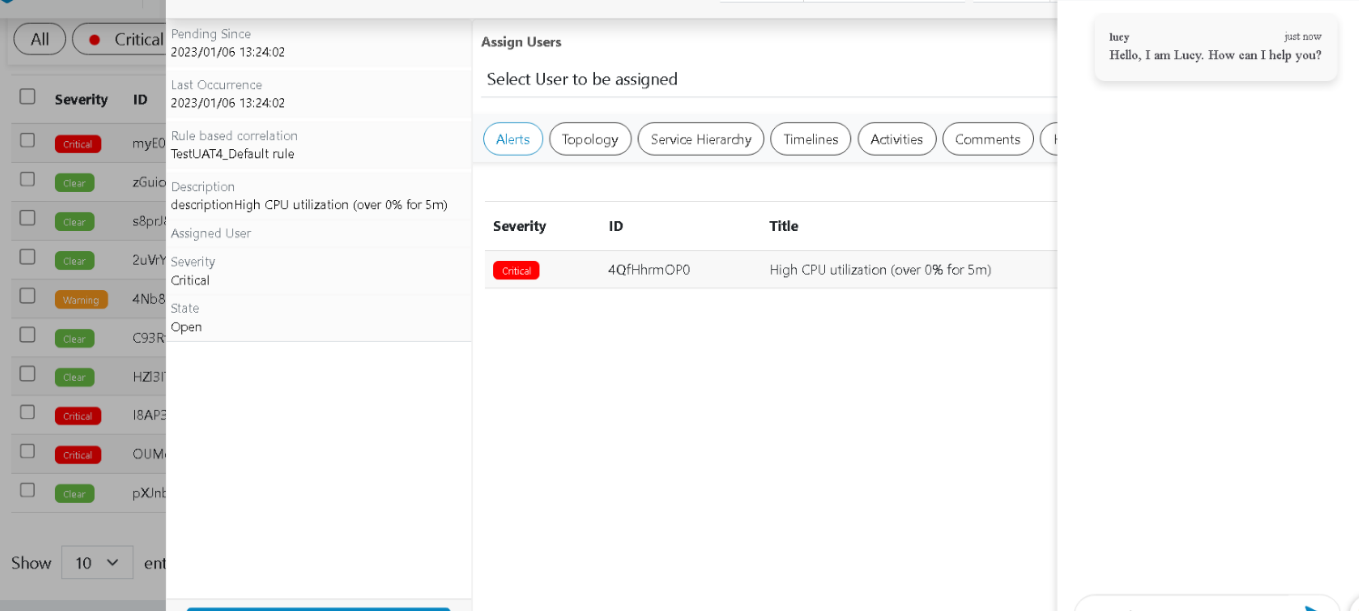
Chat Bot
These steps enable user to initiate chat with a particular user over chat window.
- Click on an actionable on Data View-Actionable screen, then go to pop up opened for the actionable.
- Click on the chat icon present over the header of the actionable popup.
- Actionable ID is mentioned over the chat window. User can initiate chat with the invited
user as shown.
Figure 1. Invite user. 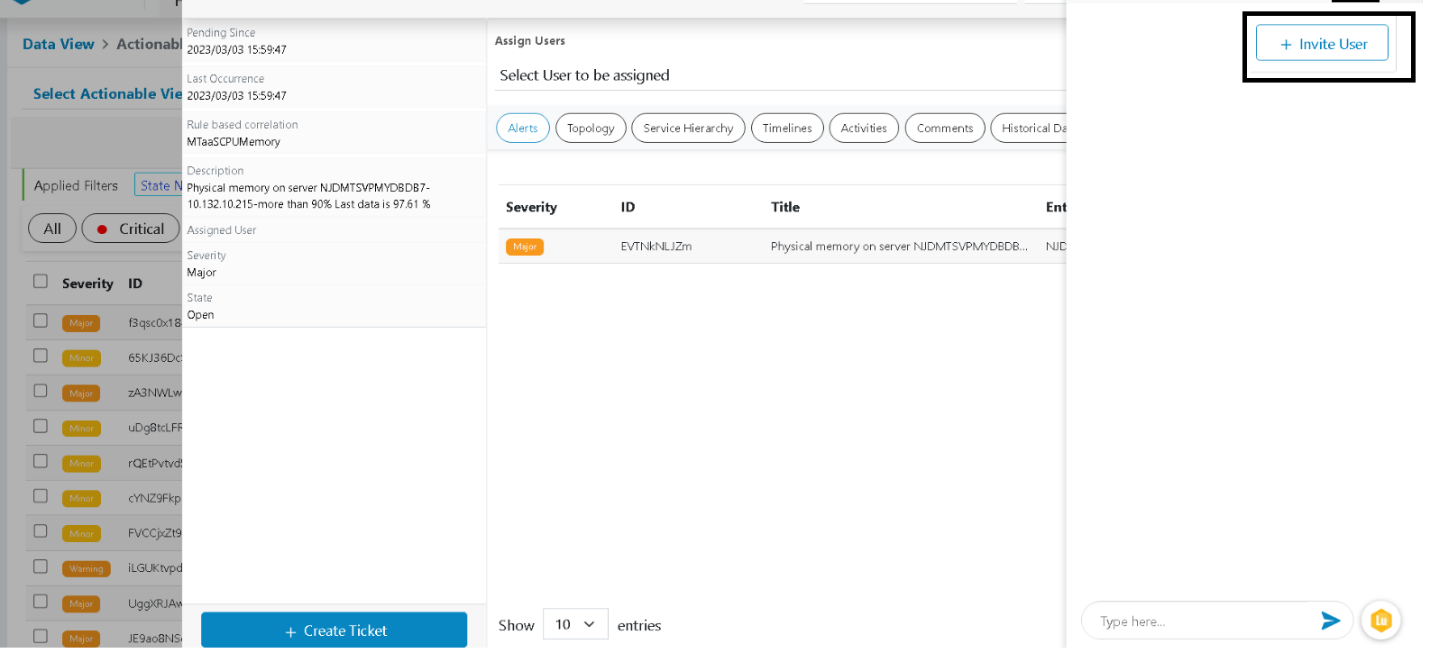
- On clicking + Invite User, user can select the user from the dropdown as shown in the
image below:
Figure 2. Select Users 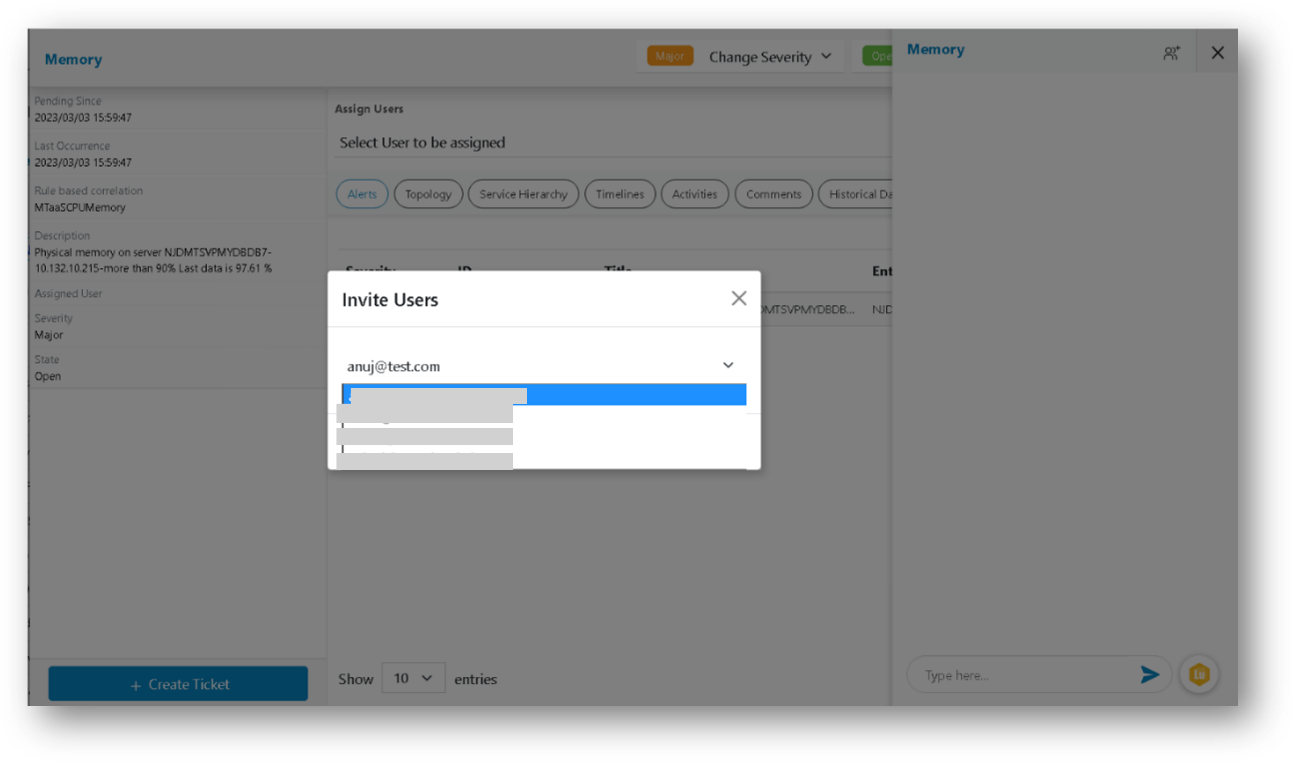
- Once Inviting a user for the selected actionable is completed, a confirmation message is
prompted.
Figure 3. Confirmation popup. 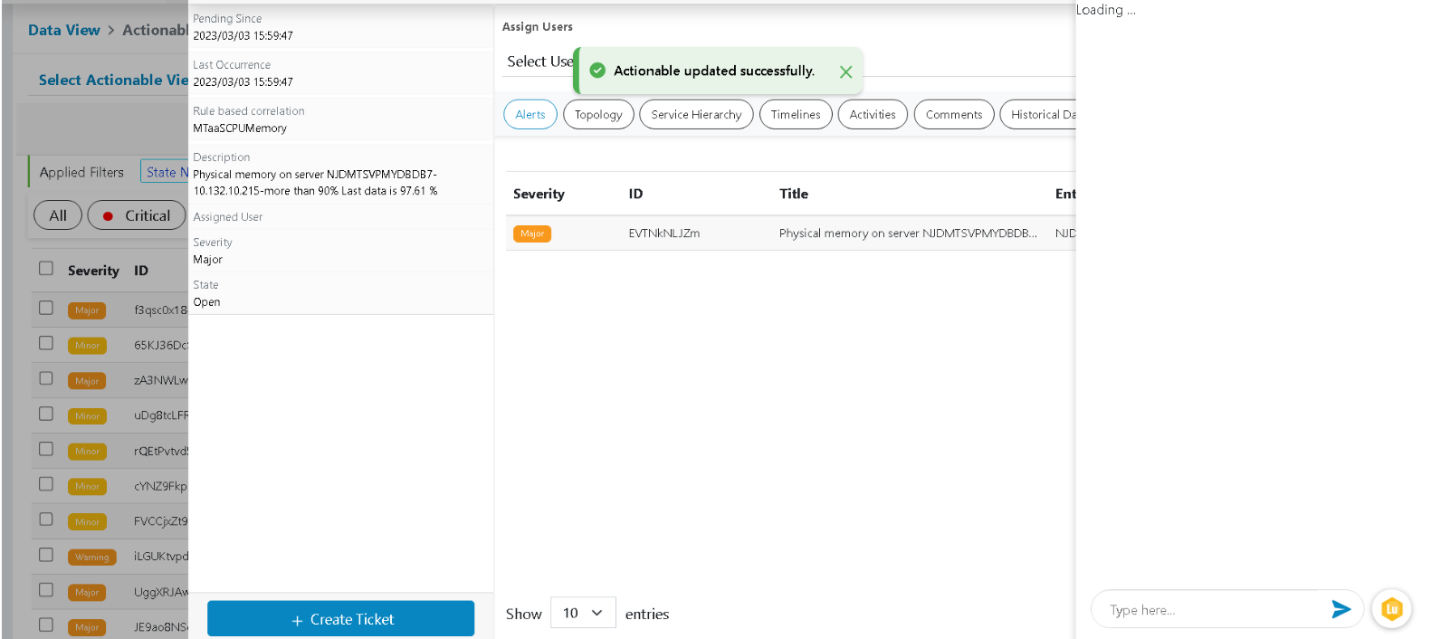
- Lucy chatbot icon is also present in the chat window to find some knowledge articles related to resolving queries for action.
- Red Dot /Green Dot show if the chat window is inactive/active.
Figure 4. Chat Bot