Add Comments
The steps explain how to add comments for selected actionable.
- Click on an actionable on Data View-Actionable screen, then go to pop up open for the actionable.
- Click on the Comments header present in the actionable popup.
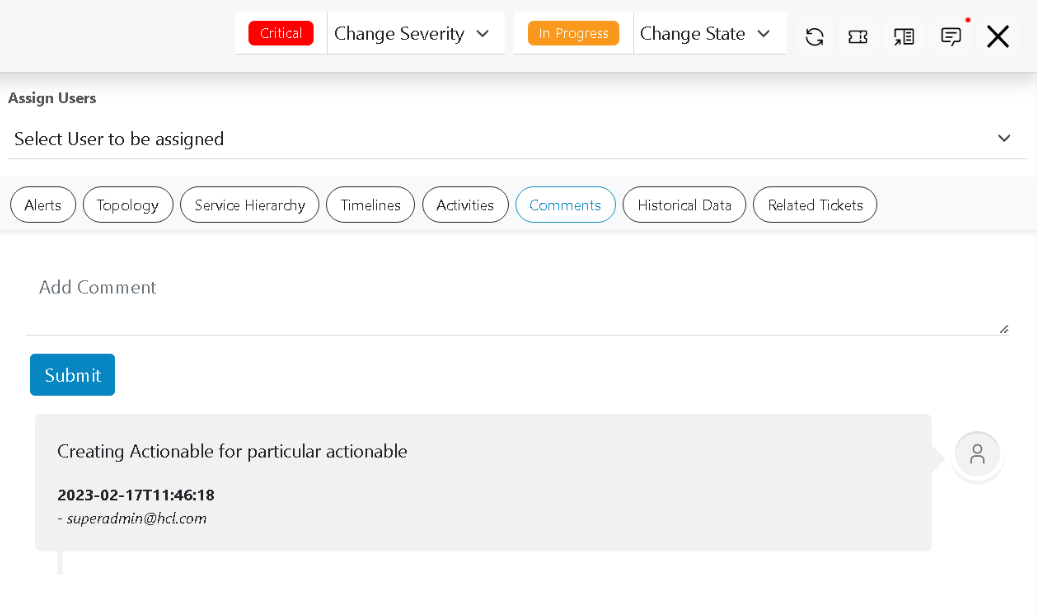
- Detailed view of users along with time and comments will be visible as shown.
Figure 1. Add Comments to Actionable 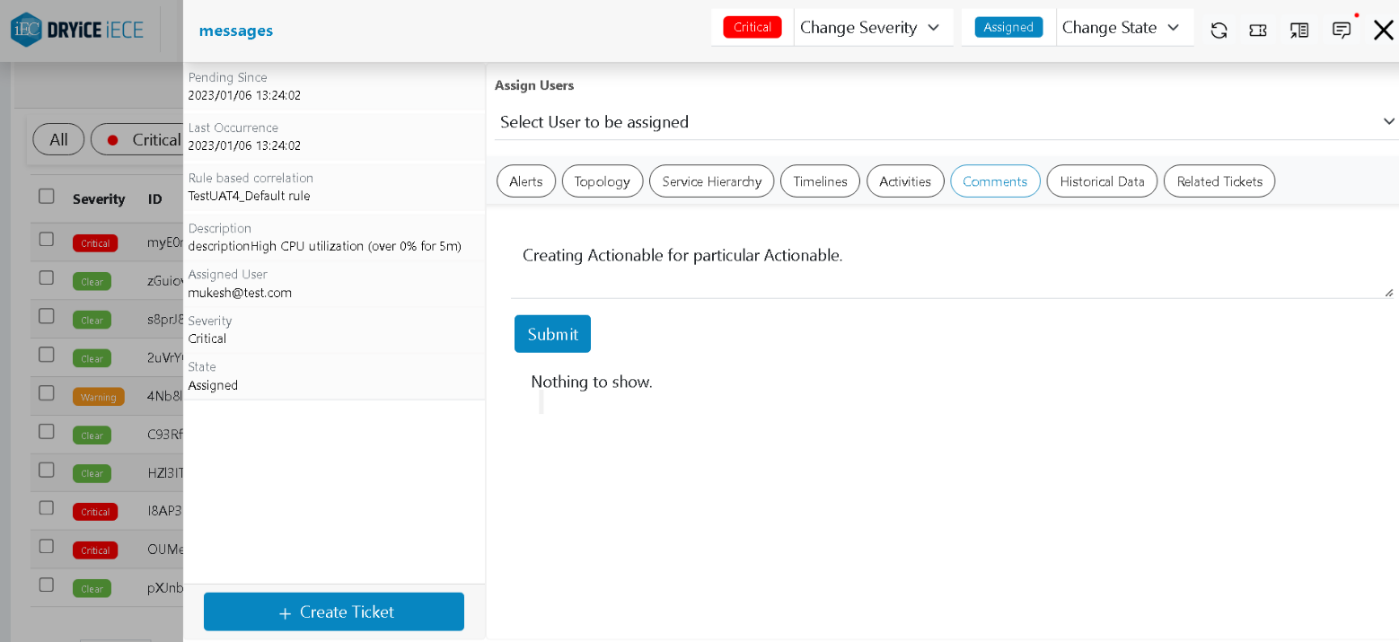
- Write the comment and click on Submit button. Once submitted the comment is displayed
for that actionable as shown in the image below:
Figure 2. Add Comments to Actionable