
Manage Job Actions
HCL BigFix CLM allows an Admin to perform multiple actions against a job:
The following actions can be performed by clicking on the Action icon.
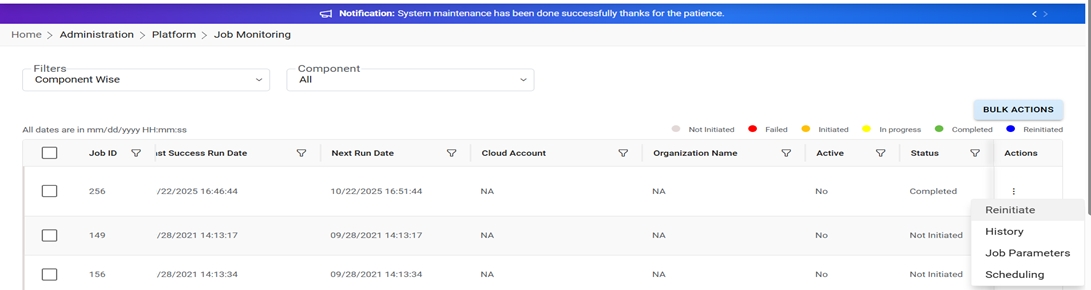
View History
To view the history of a job, a user needs to follow the following steps:
- Click History under the Action tab.
Figure 2. Job History 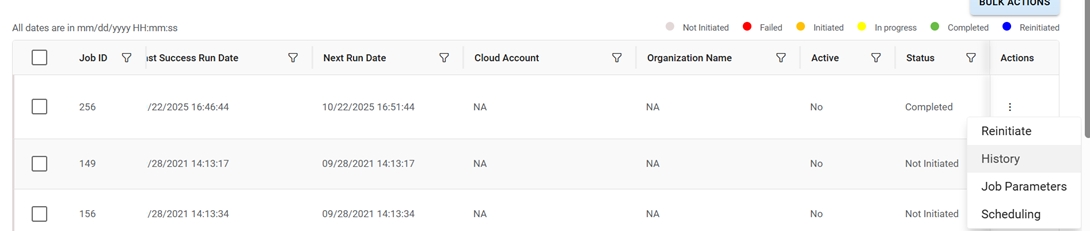
- Logs are displayed in a tabular form.
Figure 3. Job History 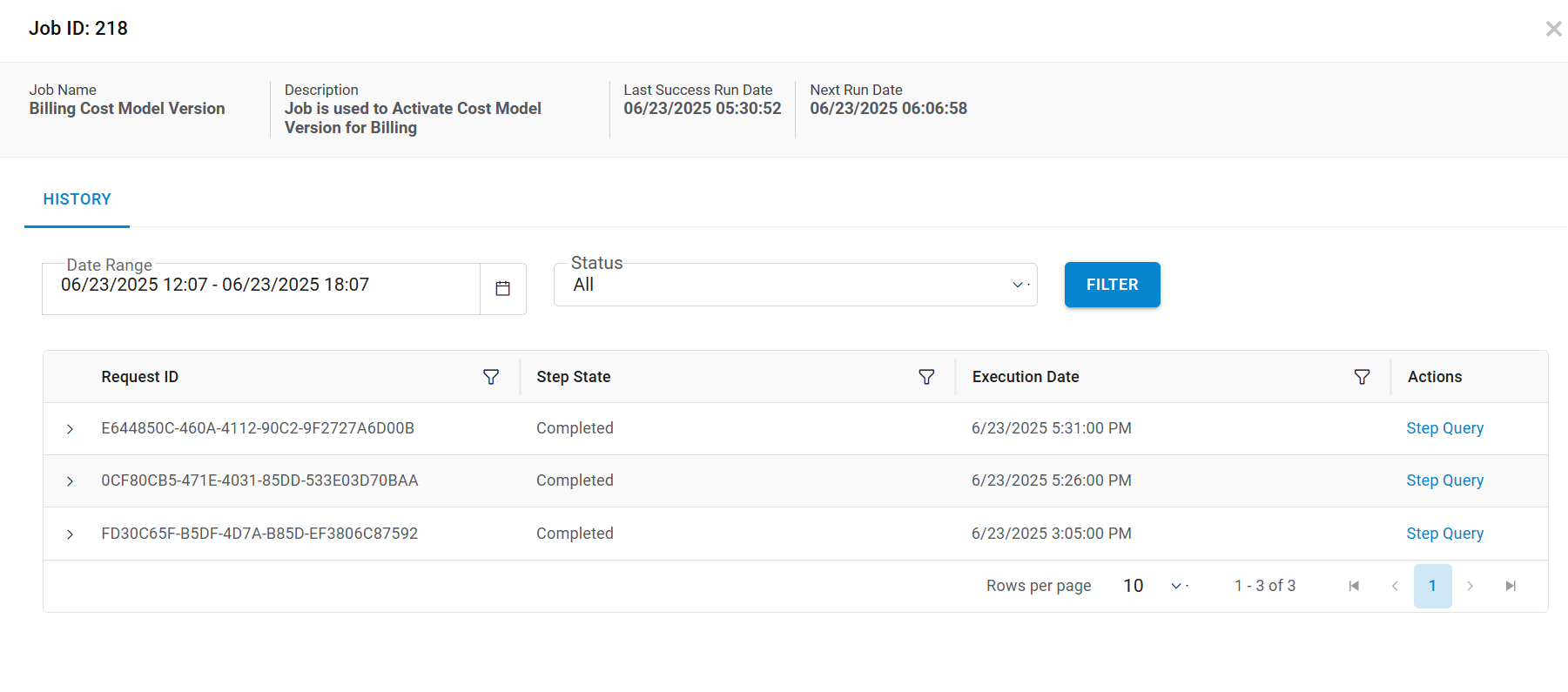
Note:
User filters the Logs as required by using the Filter option.
Reinitiate Job
To reinitiate a job the user needs to follow the following steps:
- Click Reinitiate under the Action tab.
Figure 4. Reinitiate 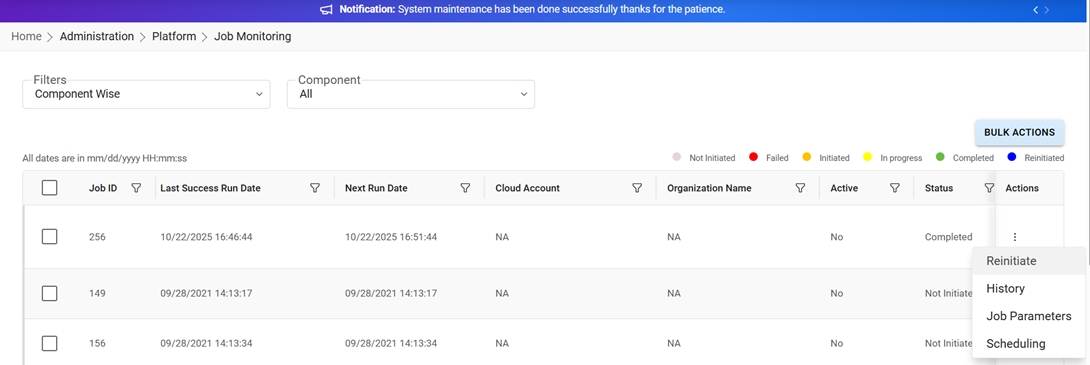
- A success message appears.
Figure 5. Reinitiate Message 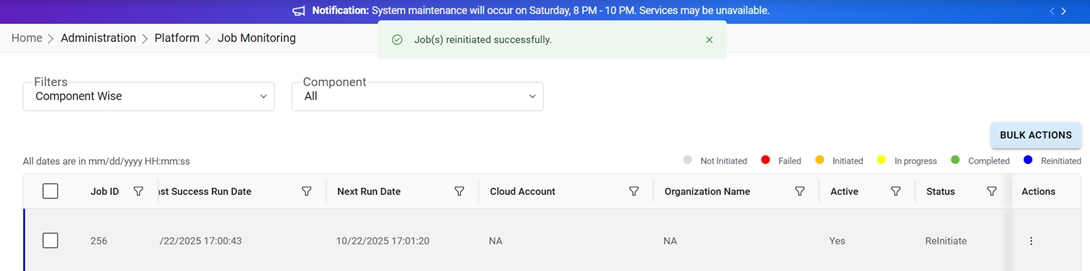
Job Parameters
To modify job parameters of a job, Admin needs to follow the following steps:
- Click Job Parameters.
Figure 6. Job Parameters 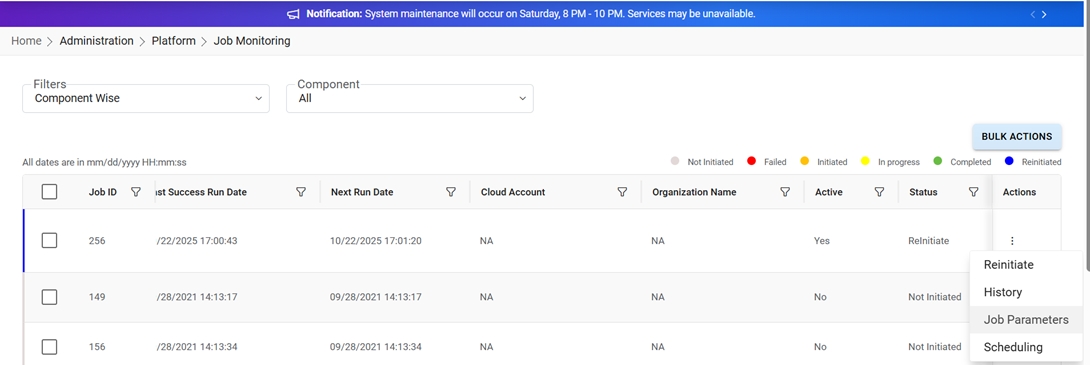
- After changing the parameters, click Update.
Figure 7. Job Parameters 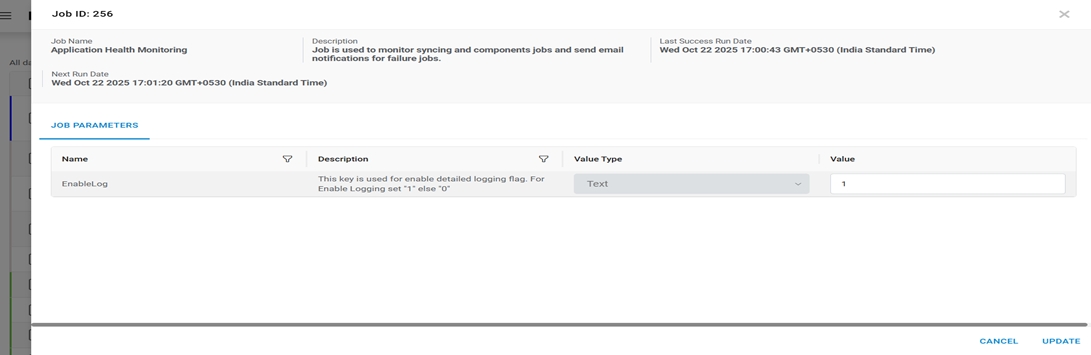
Refer to the table below to understand the fields mentioned in the above figure:
Table 1. Job Parameters Field Description Name Name of job parameter Description Job parameter description Value Type Value type of job parameter Value Default value of job parameter
Scheduling
To make changes in scheduling, Admin needs to follow the following steps:
- Click Scheduling to change the frequency of Jobs.
Figure 8. Scheduling 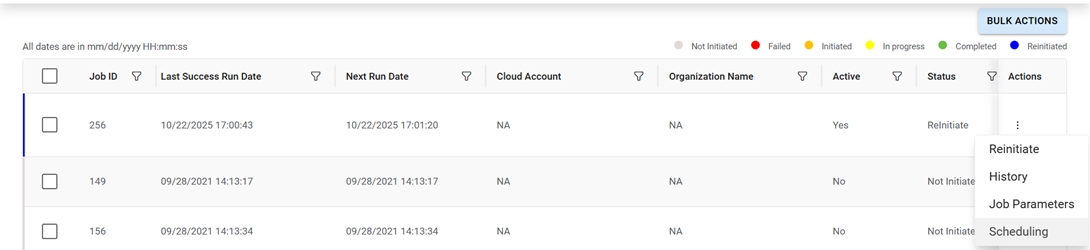
- Modify the parameters as per requirement, click Update.
Figure 9. Scheduling (cont.) 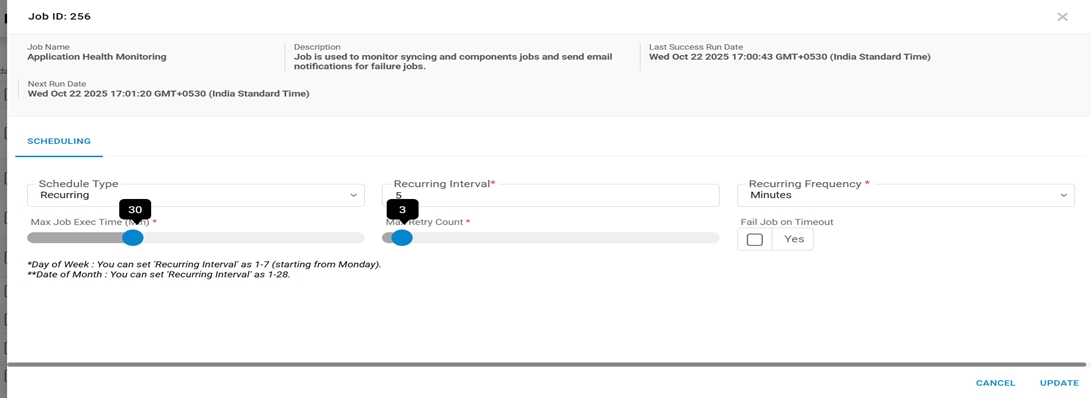
Refer to the table below to understand the fields mentioned in the above figure:
Table 2. Scheduling Field Description Schedule Type Lists whether a job needs to run on a recurring basis or one-time basis Recurring Interval Lists the recurring interval e.g., daily, weekly and many more Recurring Frequency Frequency of job Max Job Exec Time Users can set Maximum Job Execution Time in Minutes.