
Announcements
Cloud Admin can configure Broadcast message as a Custom or Generic notification for Providers or all users of the HCL BigFix CLM to be displayed to notify them of any urgent message1
View Announcement
On the side menu bar, click Administration, then click Platform and select Announcements.
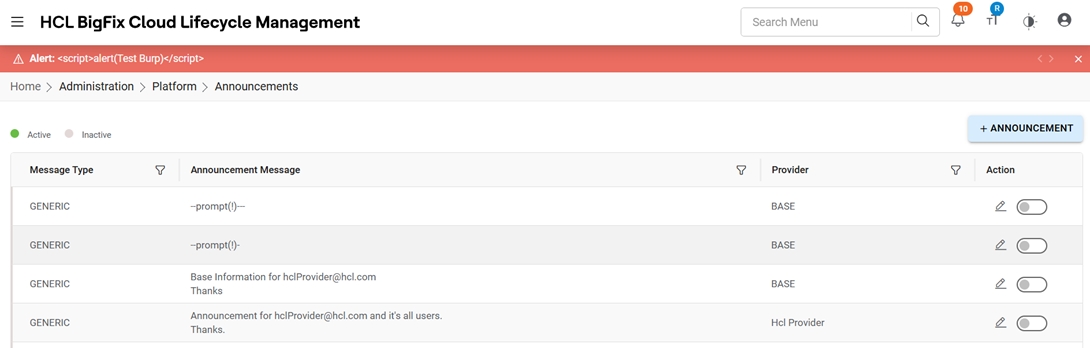
Refer to the table below to understand the fields mentioned in the above
figure:
| Field | Description |
| Message Type | This is the type of notification that you are creating. It can be Generic or Custom. Generic Notification can be shown as a Bar on the header in blue, yellow or red color. Custom Notification can be shown only on the Service Catalog screen, as a popup when the user selects the particular platform. |
| Announcement Message | This column displays the Entire message which needs to be broadcasted. |
| Provider | This Column displays the list of providers under the cloud admin. In case when Notification type is Generic,Base(admin) option will also display along with the list of providers. |
| Action | The Action consists of Edit and Change Status actions which can be performed on a record. |
Add Announcement
To add an announcement, follow the steps below:
- To add an announcement, follow the steps below:
Figure 2. Announcement Details(cont.) 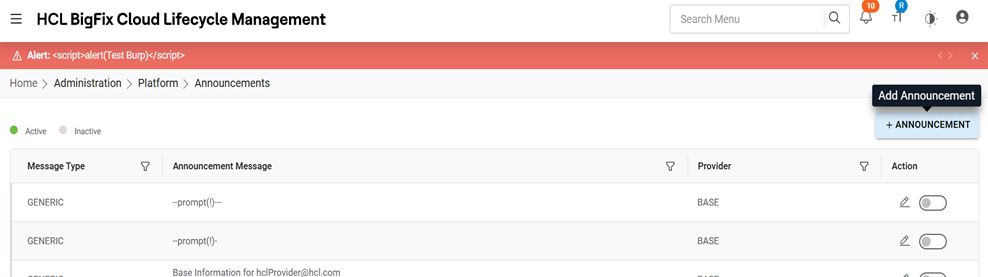
- Select all the mandatory fields.
- When the Notification type is Custom Notification then the below image
will be shown.
Figure 3. Announcement Details(cont.) 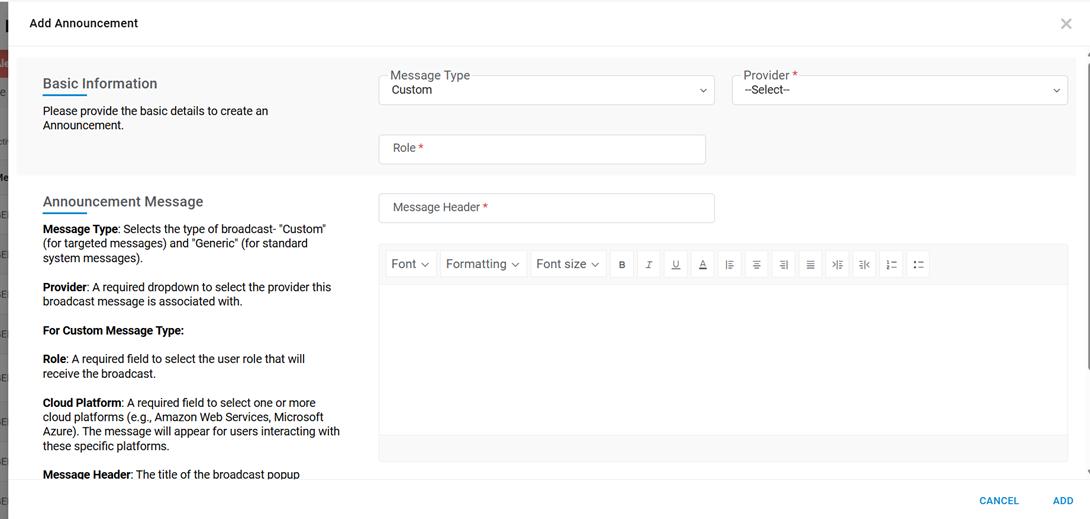 When the provider is selected, then the Cloud Platforms will be shown that are linked to the selected provider and you can select the platforms for which you want to display the popup message.
Figure 4. Announcement Details(cont.) 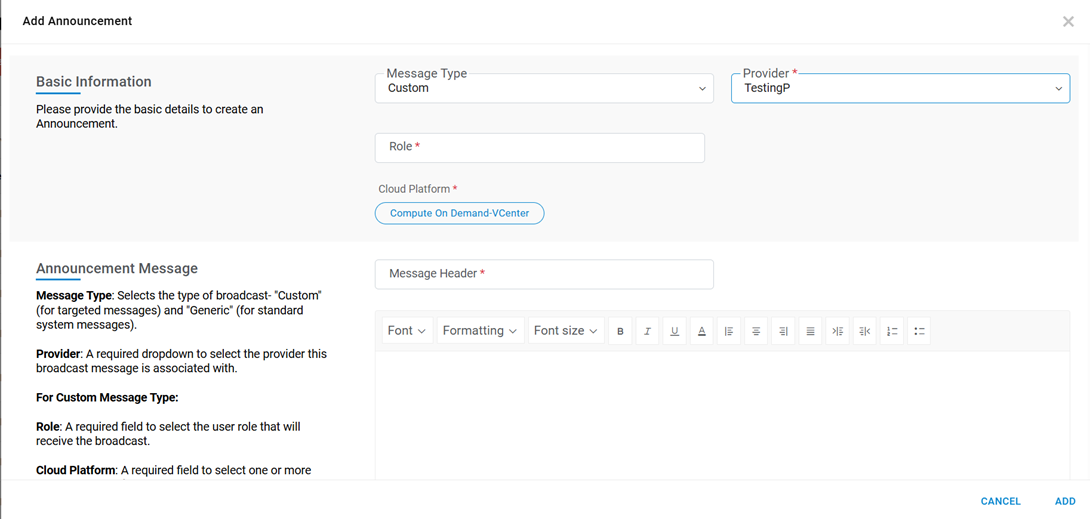
- When the Notification Type is Generic then the image will be shown as
below:
Figure 5. Announcement Details(cont.) 
- When the Notification type is Custom Notification then the below image
will be shown.
- A success message is displayed.
Figure 6. Announcement Details(cont.) 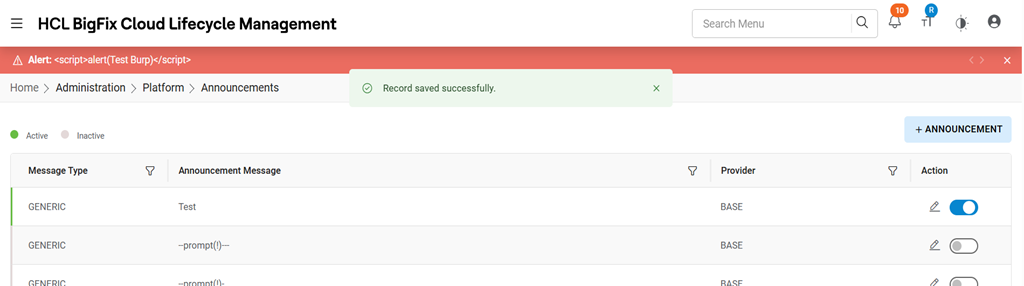
Refer to the table below to understand the fields mentioned in the above figure:
| Field | Description |
| Announcement Message | Displays the area where you can enter the message body which you want to display. |
| Provider | This Column displays the list of providers under the cloud admin. In case when Notification type is Generic,Base(admin) option will also display along with the list of providers. |
| Message Category | These are the category of the notification you want to display and is of 3 types i.e. Alert(Red color), Information(yellow color), Notification(blue color) |
| Role | Displays all the system roles that are available like Requester, Business etc |
| Cloud Platforms | All the Platforms that are linked to the selected provider. |
Edit Announcement
This section displays the screen where you can edit the record.
- Click on the Edit Icon.
Figure 7. Announcement Edit 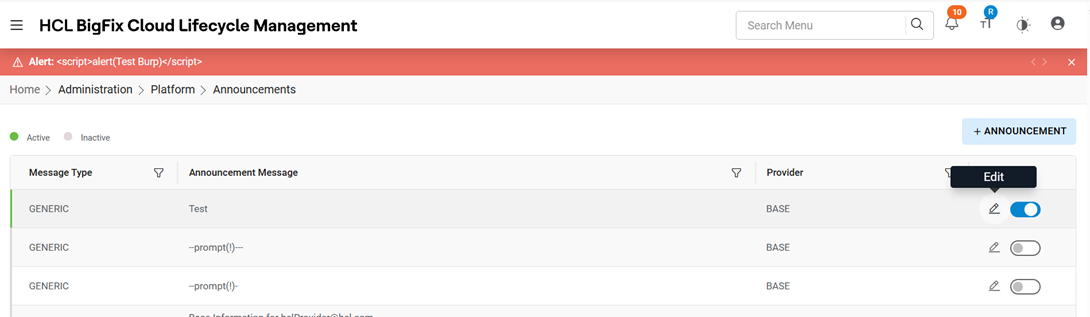
- Popup to Edit the record will open.
Figure 8. 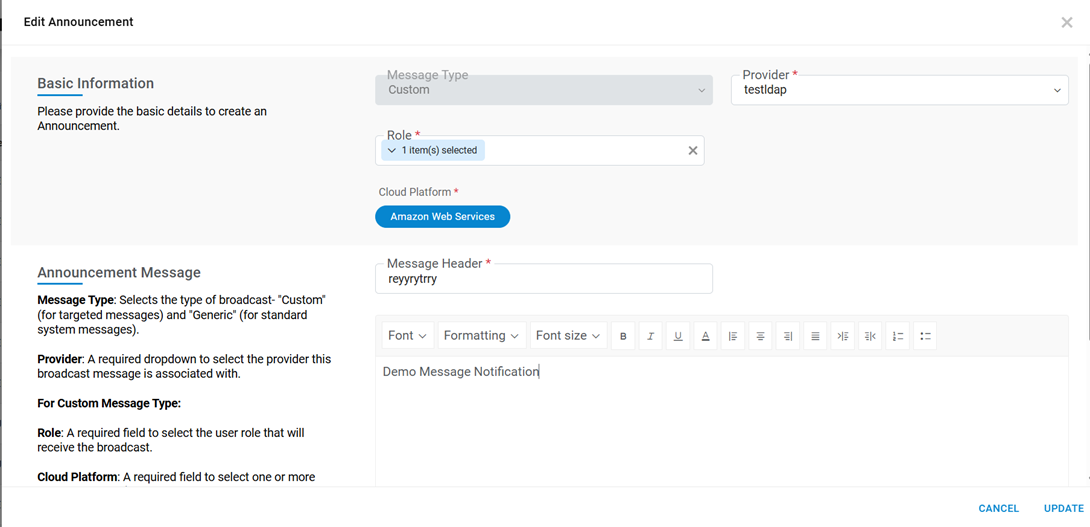
- A success message will be displayed.
Figure 9. Announcement Edit - Success Message 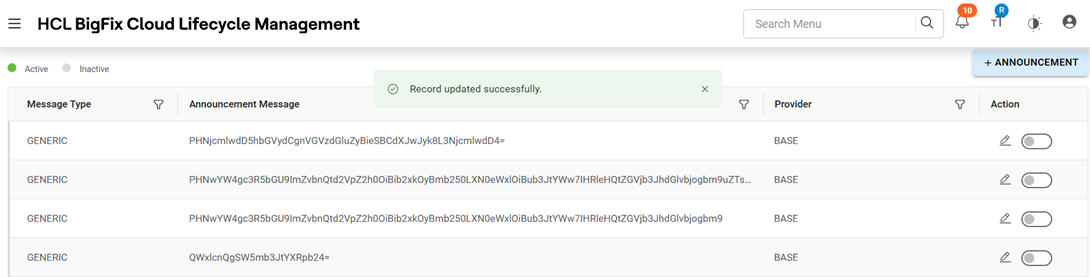
Change Status
This section displays where the status can be changed as Active or Inactive for the particular broadcast message.
- Click on the change status.
Figure 10. Announcement - Change Status 
- When you toggle the button a popup will be displayed for confirmation.
Figure 11. Annoucement- Change Status Confirmation 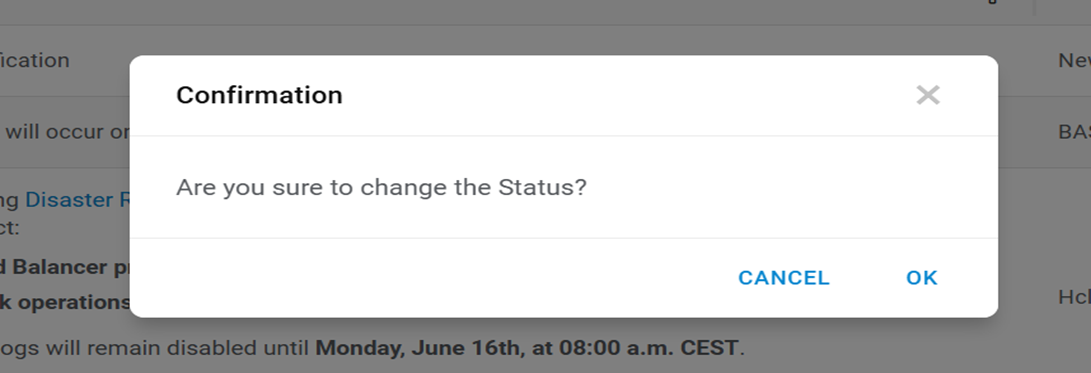
- On Click of OK button then the confirmation button will be displayed. The row
color changed from green to grey.
Figure 12. Announcement - Change Status - Success Message 