To log into the system, follow the steps listed below.
Firstly, obtain the URL and admin credentials for HCL BigFix
CLM. Reach out to the person who has installed HCL BigFix CLM or
drop an email to bigfixclm-prodsupport-team@hcl-software.com.
Launch the web browser (Chrome or Edge) and use the HCL BigFix
CLM URL and Admin credentials to login to the system.
Currently HCL BigFix CLM is supporting 5 different languages
such as English, Japanese, Portuguese, Deutsche, Francis.
Choose language from Language dropdown, default language is English.
Note:
Change the password frequently and log out when not using the
application.
Post entering the Email Address, system automatically detects the Authentication
Type. For admin role Authentication type is Form Based.
The following authentication types are available to login:
Table 1. Authentication Type
Authentication Type
Description
Form Based
It authenticates users through the credentials that are stored in the
database
LDAP
It authenticates users to login through Active Directory (AD)
credentials
SAML Based Authentication
It authenticates users through third party Identity Access Management (IAM)
that supports SAML based authentication.
Note:
HCL BigFix CLM admin has the right to change the default
username and password.
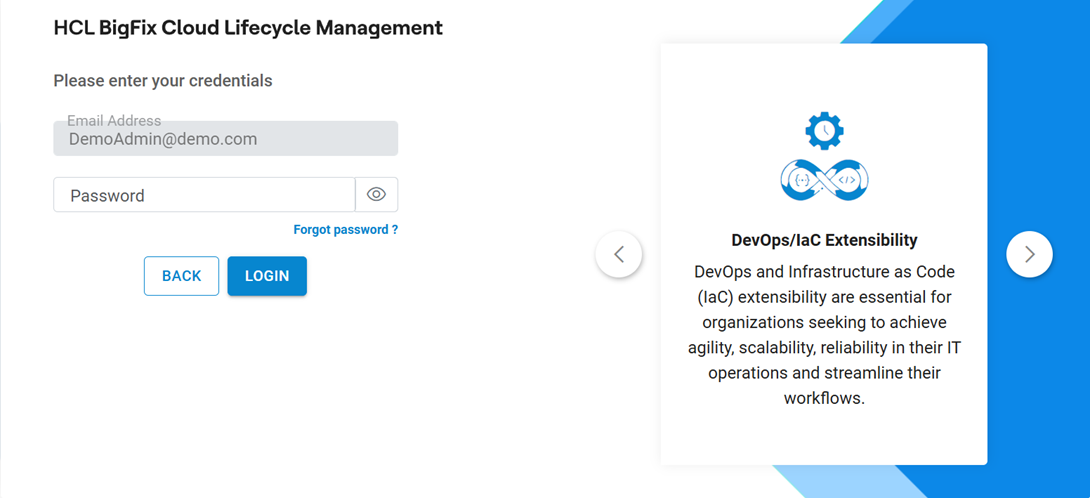
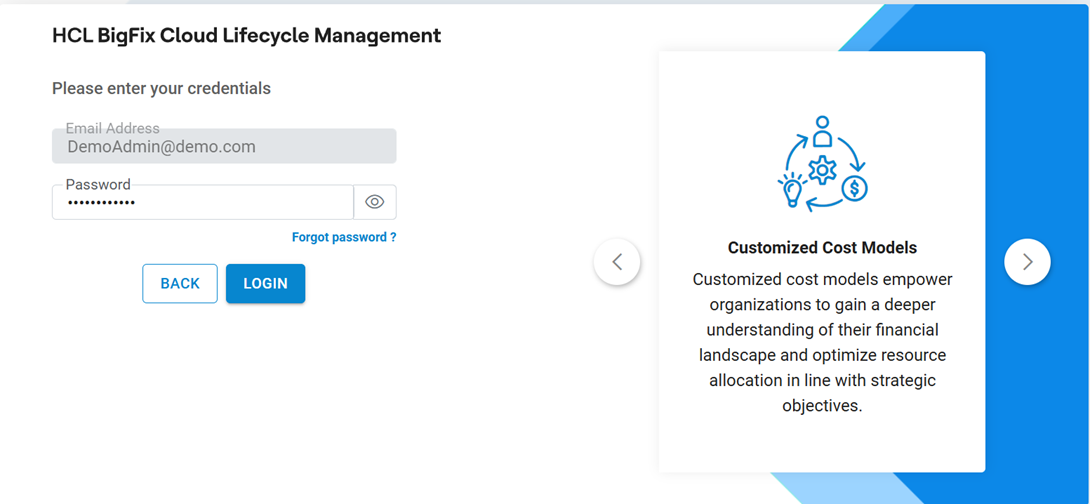
Figure 1. HCL BigFix CLM Login Page
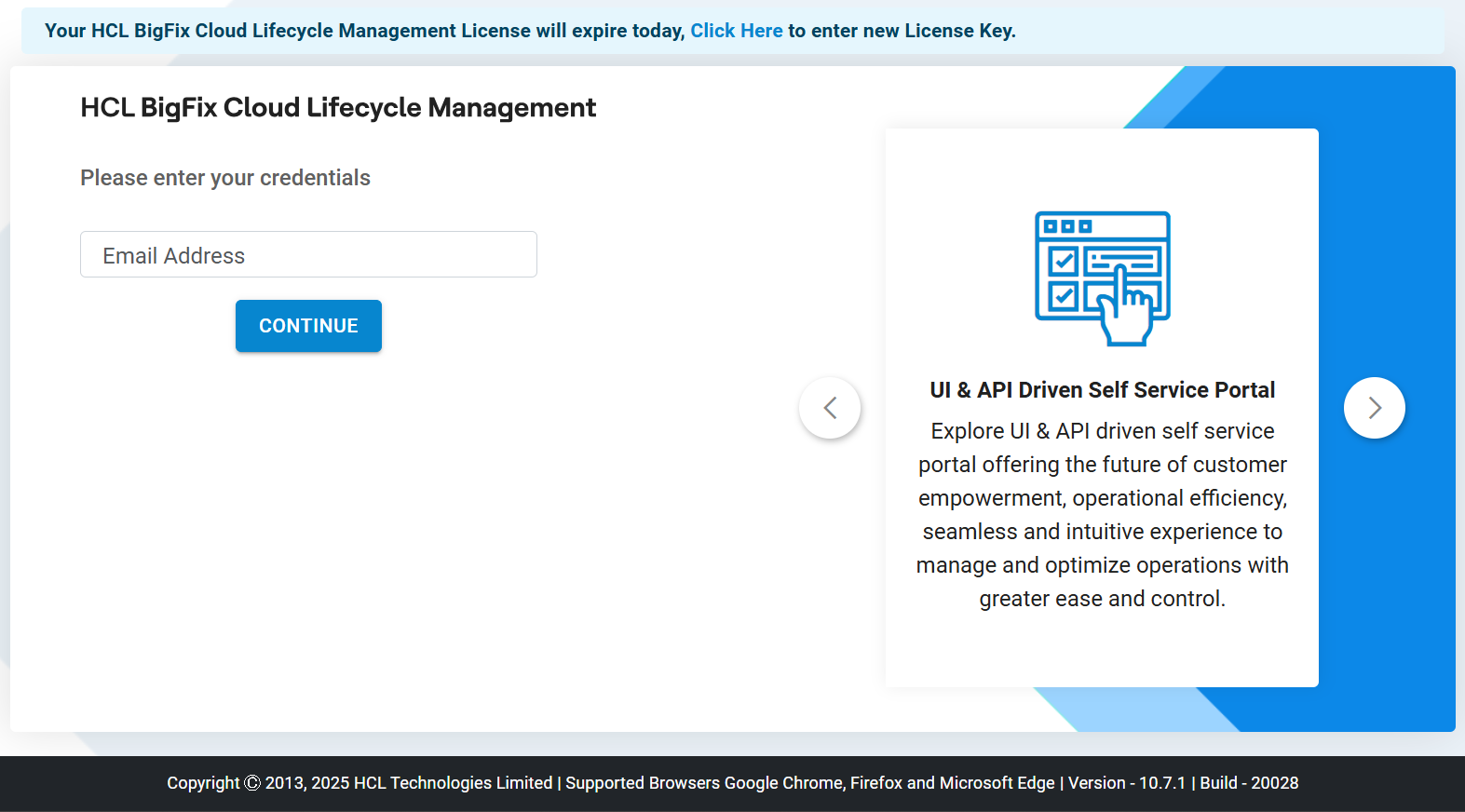
Users will be prompted to add License Key for the first time or in case the existing key
is expired.Figure 2. HCL BigFix CLM Login Page (Cont.)
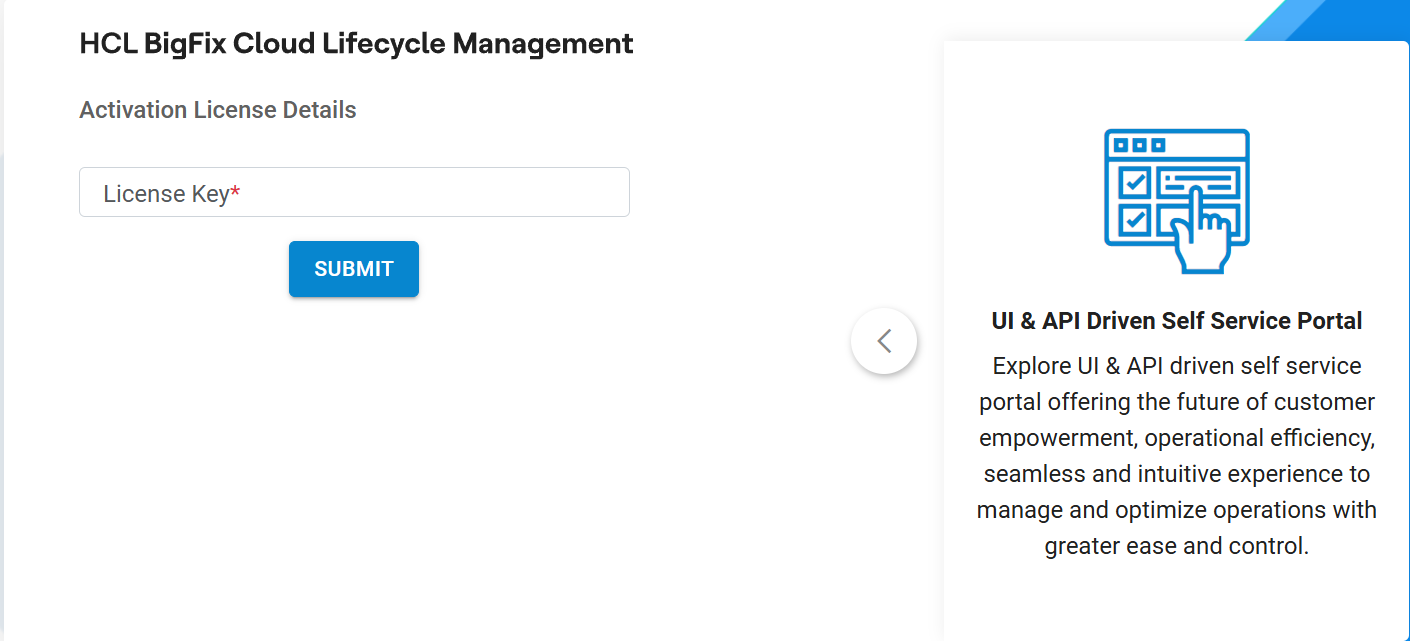
Click on the (Click Here) link. The following screen appears.Figure 3. License Key Screen
HCL BigFix CLM User will be redirected to Login screen.Figure 4. HCL BigFix CLM Login Page
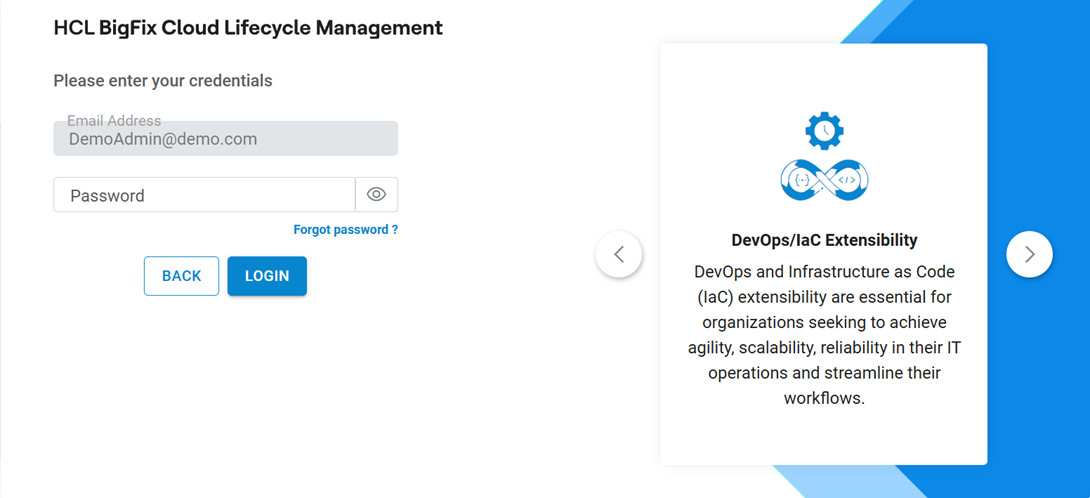
Enter the Password to proceed further.Figure 5. HCL BigFix CLM Login Page
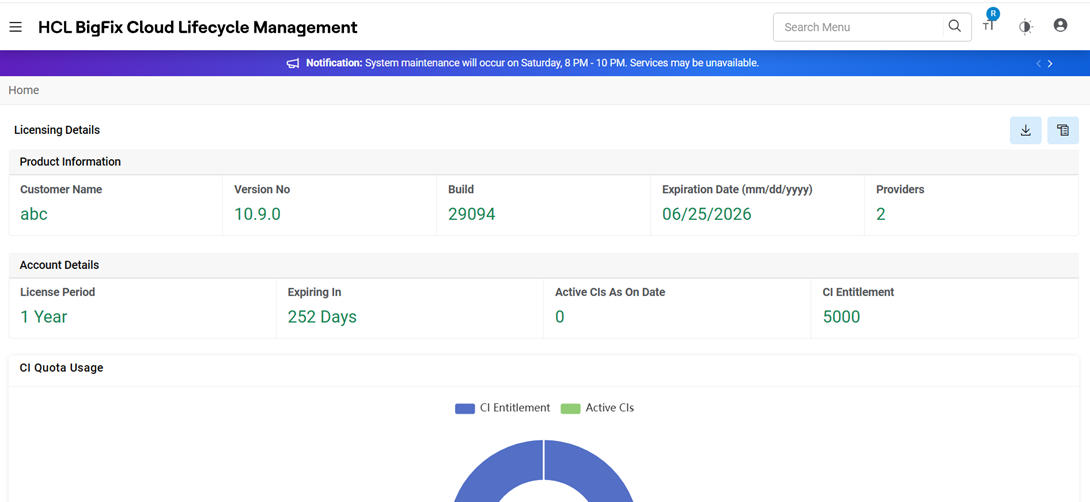
Click Login. The HCL BigFix CLM homepage appears as below.Figure 6. HCL BigFix CLM Home Page
The Home Page contains the Licensing Details. HCL BigFix CLM licensing
should be enhanced to capture the number of CI supported. i.e. License key will have details
of the number of CI to be supported by HCL BigFix CLM. Figure 7. License Report
Refer to the table below to understand the fields mentioned in the above figure and fill
in the details:
Table 2. License Report
Section
Description
Product Information
This section will contain Customer Name, Version No of HCL BigFix CLM Product,
Build no deployed-on server, Expiration date, and Number of Providers
Created.
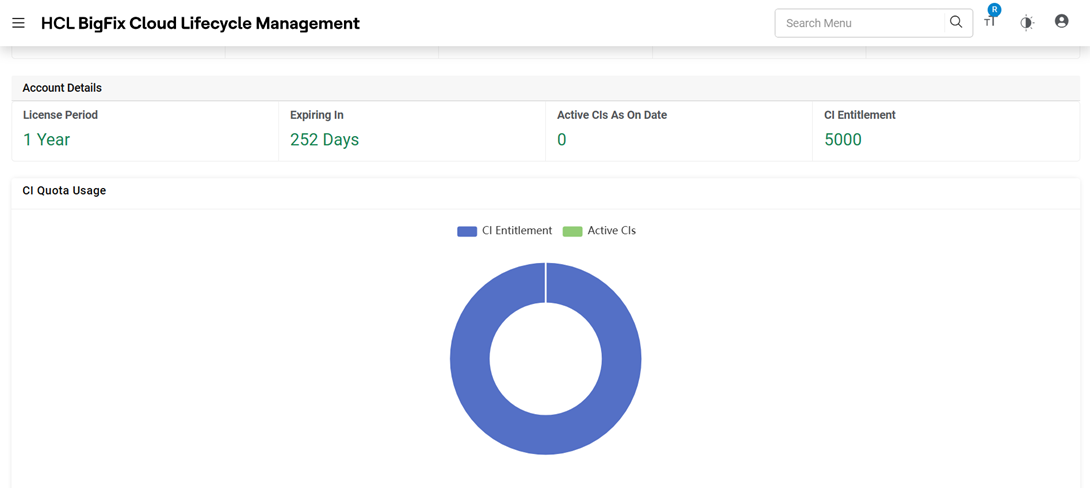
CI Quota Usage
Cis entitled in license and active Cis
Account Details
This section will contain number representation of License periods, Entitled
Cis, license expiring in days and active cis as on date.
CI Consumption Report
This section shows the report of the CI Consumptions according to the months
specified.
The CI Consumption Report Provides the details of active CIs
data and trending charts of selected period (Default last 10
months’ data will show).
Users should be able to export the All-CI Report in CSV format by clicking on icon.Figure 8. CI Consumption Report
Admin can update the License Details by clicking on icon. On clicking this icon, the user is redirected to
the License Key update screen. Refer to the steps 9 to 11 for details.

 icon.
icon.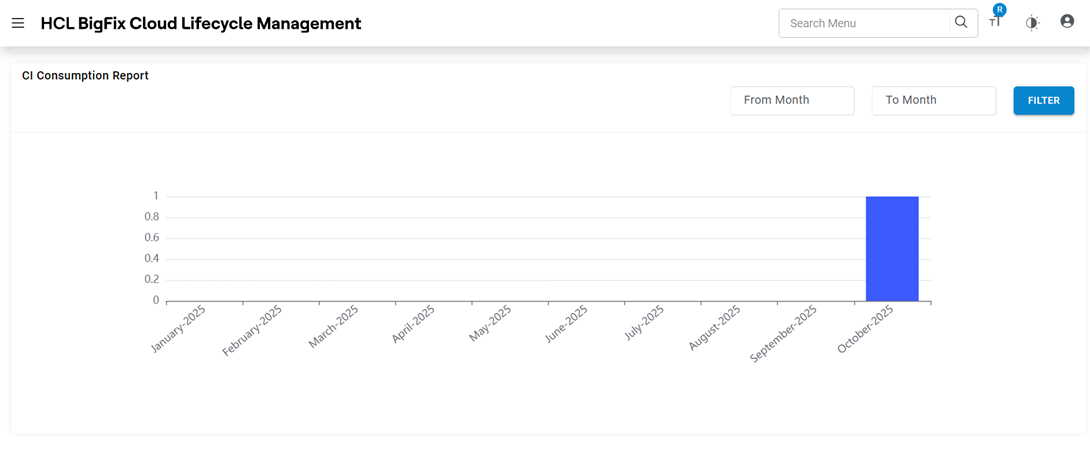
 icon. On clicking this icon, the user is redirected to
the License Key update screen. Refer to the steps
9
to 11 for details.
icon. On clicking this icon, the user is redirected to
the License Key update screen. Refer to the steps
9
to 11 for details.