Branding
Admin user can upload new logo for BigFix CLM Landing Page (i.e. Login page). So that Landing Page/login page displays brand specific image/logo.
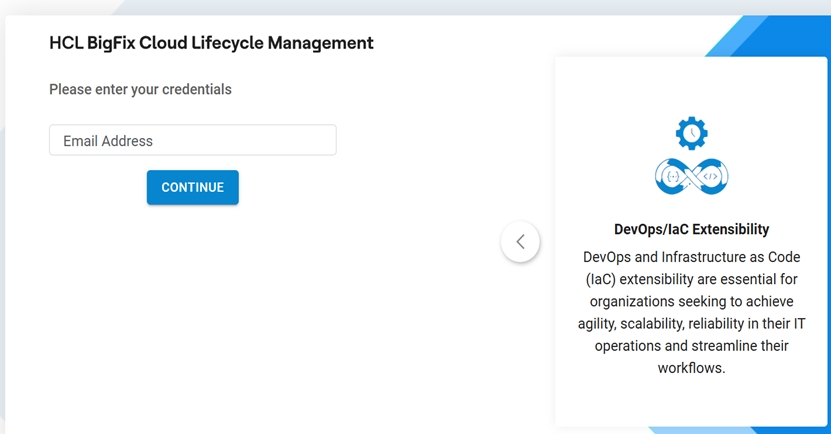
BigFix CLM Landing page will display default CLM Logo if Admin user does not upload brand specific logo as shown in the below image.
View Branding
On the side menu bar, click Administration and then click Platform and select Branding.
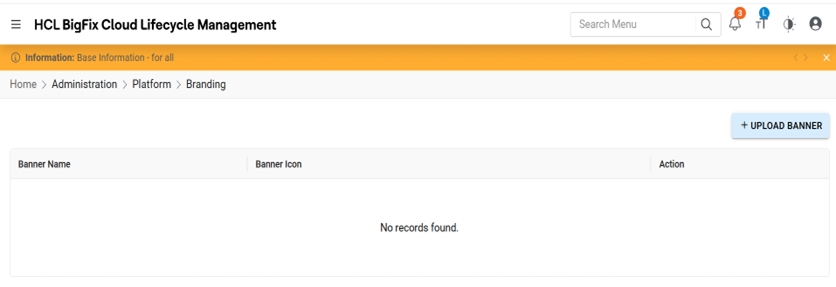
Refer to the table below to understand the fields mentioned in the above figure:
| Field | Description |
| Banner Name | The name of the Image. |
| Banner Icon | Displays the Icon |
| Action | The Action consists of Delete action , which will delete the banner image. |
Upload Banner Image
To upload a Banner Image, follow the steps below:
- Click on + Upload Banner
Figure 3. Banner Image Details (Cont.) 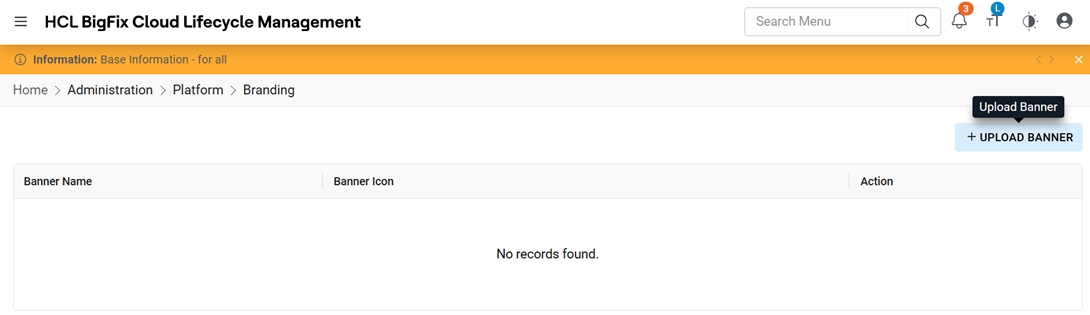
- A Popup will be displayed where you can upload the Image.
Figure 4. Banner Image Details (Cont.) 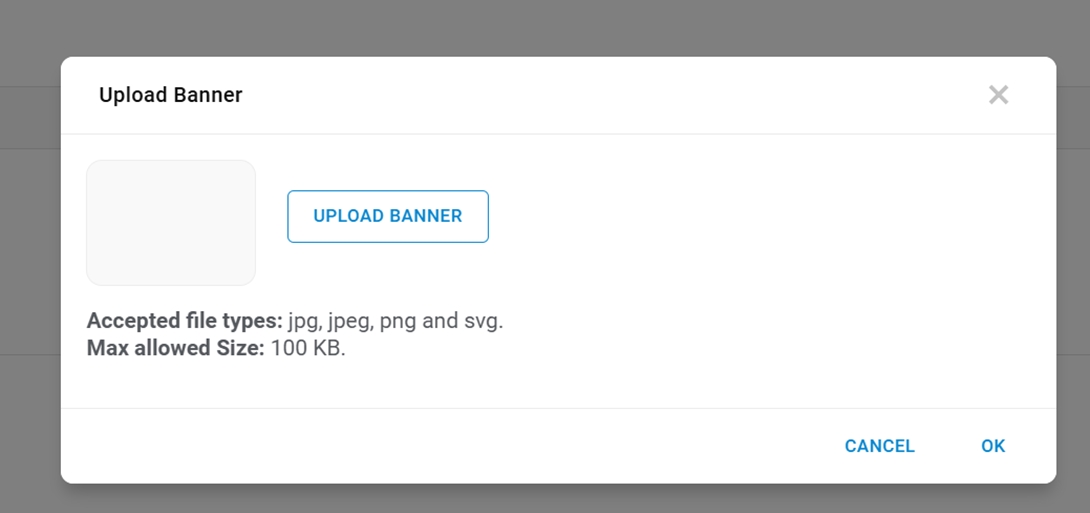
- A success message appears.
Figure 5. Banner Image Details (Cont.) 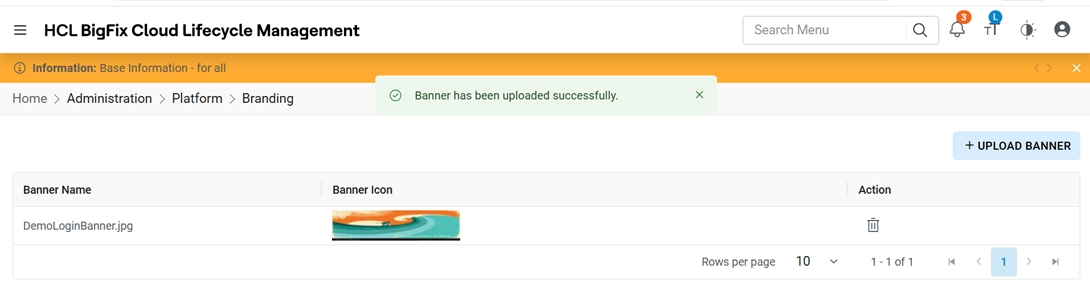
- This Image will be displayed on the Login Page for the Admin user.
Figure 6. Uploaded Banner Image display 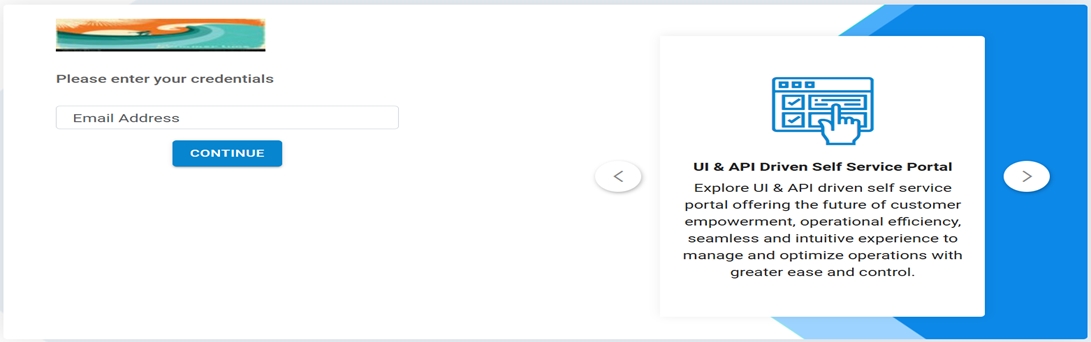
Delete Banner Image
This section shows how the delete functionality work.
- Click on the Delete Icon from the Action Column.
Figure 7. Delete Banner Image 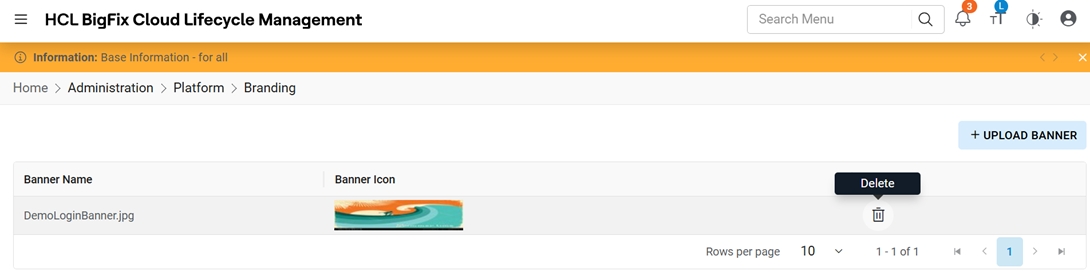
- A popup will appear for the confirmation to delete the record.
Figure 8. Delete Banner Image(cont.) 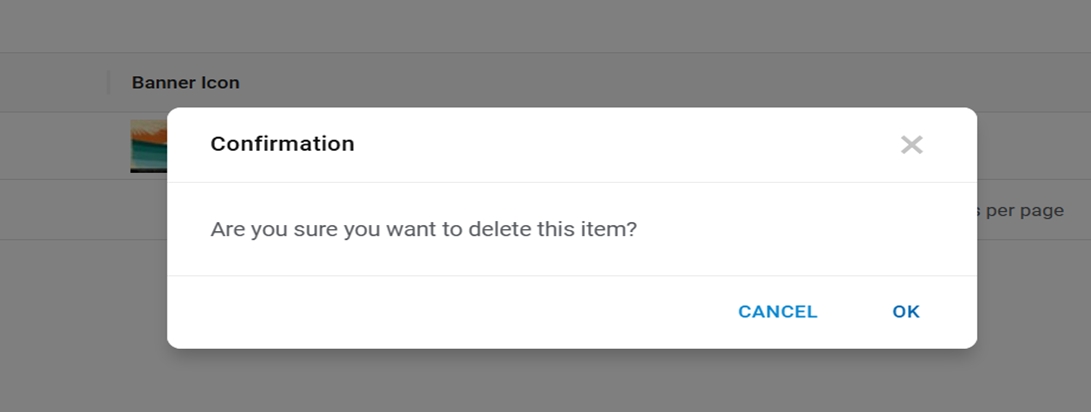
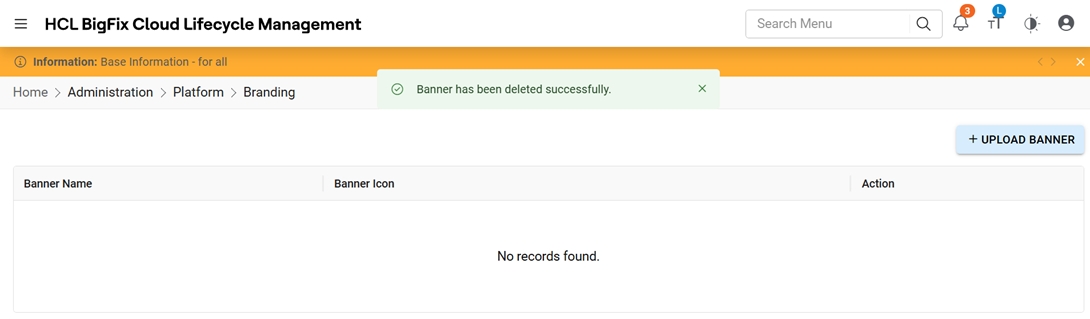
- Click Ok and a success message will appear and the record will get deleted.
Figure 9. Delete Banner Image (Cont.)